User Groups
When the organisation structure has been mapped out, start by creating the payroll groups and then the user groups, there are three types groups; payroll user types, internal and 3rdparty user types. Note: tasks, issues, reminders and notes are aligned to internal and 3rdparty user groups, users can see the TIRNs of other users in their groups. Click on + create new user group. We recommend reading the Overview User Guidance.
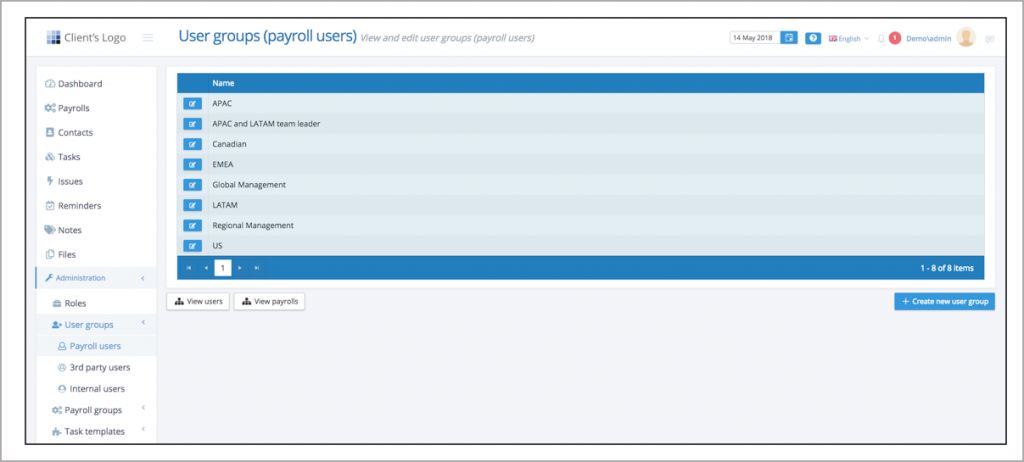
Create new user group
Create the pay users, internal and 3rdparty payroll groups.
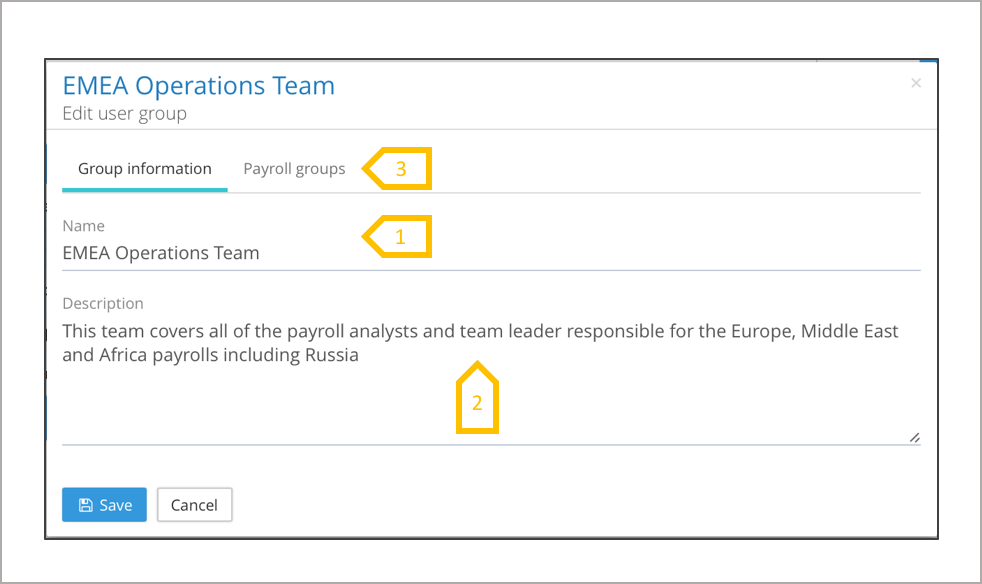
- Give the group a name, this has to be unique.
- Give the group a description saying what it is used for.
- Click on payroll groups to assign the payroll groups to this user group. If the payroll groups have not been created at this stage revisit the user group to assign the payroll groups.
Employee Query – Managing query groups
Employee query has to be enabled by the tenancy administrator (see Settings User Guidance). Before employees can use the Query function, a query group for each payroll has to be populated by assigning query managers. Go to Administration → User Groups → Query groups. This lists all of the payrolls for the tenancy, against each payroll is an edit button which will open an new screen to assign system users to the query group.
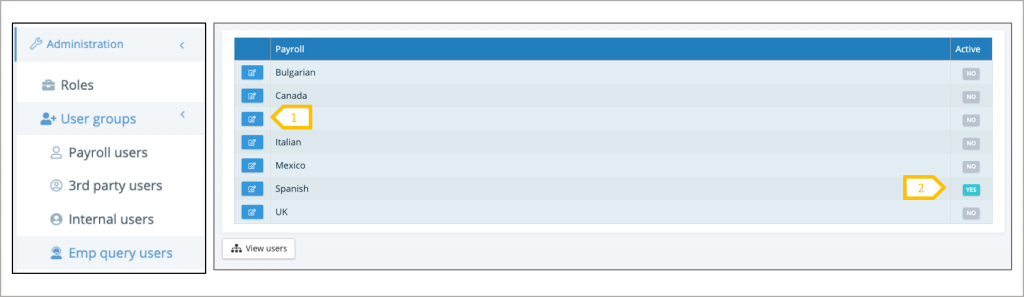
- Click on the edit button to assign system users to the query group for the payroll.
- If system users have been assign to the group, the group becomes active and employees can post queries
Employee Query – Query group assignment
Each payroll has its own query group, allowing users to focus only on those payrolls they have responsibility for. Users within the group may focus on different types of queries, this is handled when the query is triaged, and assigned to a specific user. All of the users in a query group can see and contribute to any of the queries for that payroll, all of the query correspondence can be seen by the employee.
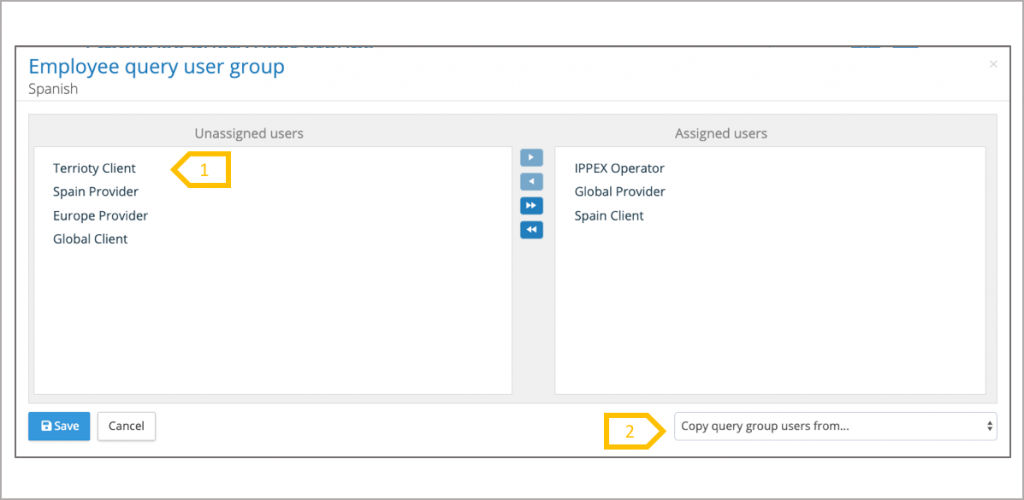
- Select the system users who are going to be part of the employee query group. Drag and drop or use the arrows in the central bar to move the users.
- If the assigned users are identical to another payroll, copy the query group from that payroll.