Task Configuration
A payroll will have standard tasks and tasks associated with additional processing periods, such as off cycle, quarter-end and year-end. These additional processing periods will only show up on the task configuration is the payroll has been set-up to include them. The configuration process is the same for all task types.
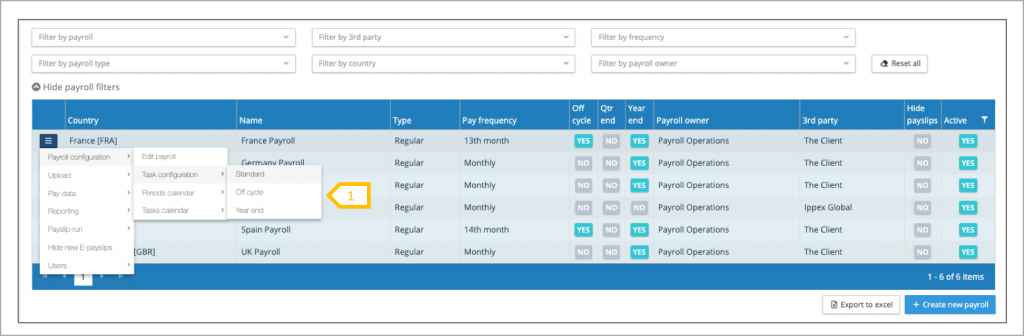
- Configure the tasks for standard, off-cycle, quarter-end and year-end.
Task configuration – task templates
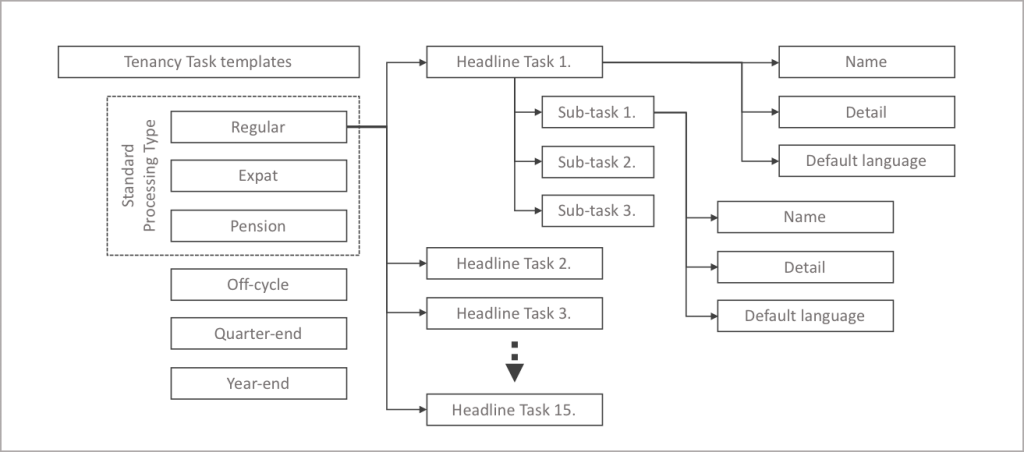
The task template determines the headline and sub-tasks that can be configured for a specific payroll. Each processing type (regular, expat and pension) has their own task templates, determining the milestones in the payroll process. Similarly there are task templates for off-cycle, quarter-end and year-end. Each task template allow for up to 15 headline tasks and any number of sub-tasks per headline task. The configuration process shows all of the tasks in the template, ready to be select where need for a given payroll.
Task configuration – initial payroll configuration
When configuring the payroll tasks for the first time, the payroll task configuration screen will show all tasks which have been defined in the task template. None of these tasks will have been selected at this stage. The task configuration screen enables the user to make all the necessary selections and then save the configuration. Each task can be selected for this payroll or if the desired configuration is very similar to another payroll, the user can copy a headline task configuration from another payroll.
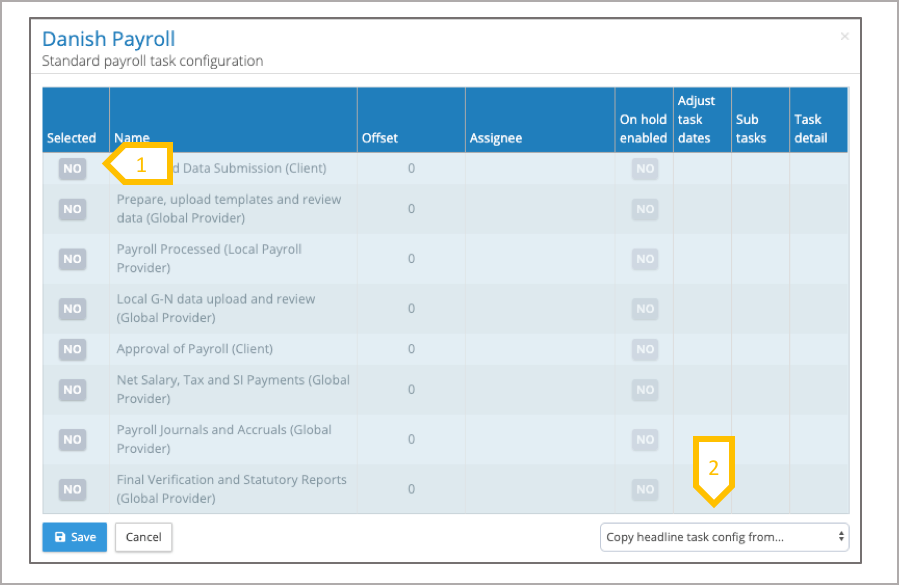
- To activate an individual task for this payroll. Toggle the select button to YES.
- Copy the headline task configuration from another payroll. Click on this button and select the payroll you would like to copy from. This will populate the task select, off-sets and where the assignee has permissions for this payroll, they will also be copied across.
Headline Task Configuration
Each task is configured with an offset and an assignee. The task offset is used to auto-generate the task calendar, it is the number of negative or positive working days (Monday to Friday) from the pay date. The task assignee is the person responsible for completing the task. A task can only be assigned to payroll, internal and 3rdparty users who’s user group is connected to that payroll. A task can be enabled to have the on-hold status, this is typically used when a task relates to signing off a particular step in the payroll process, if there are problems preventing the closure of the task, it can be put ‘on-hold’, indicating that there are issues to be resolved.
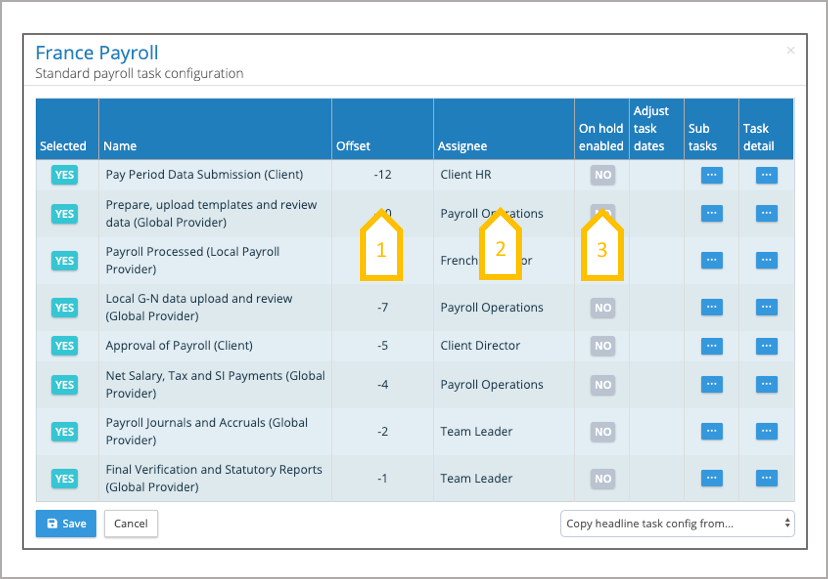
- Offset – select the number of positive or negative working days from the pay date for the task due date. The tasks for a payroll are auto-generated when the payroll calendar is set-up.
- Assign the task to a user.
- Select those tasks that require on-hold enabling.
Each headline task, can have a number of sub-tasks, these too require configuring. A sub-task takes on the due date of the headline task, sub tasks can be assigned to any user who has access to the payroll. Typically sub-tasks are used as either check-lists or to manage an number of contributing functions to a task. All task descriptions created in the task template can be edited for a specific payroll making them relevant to that payroll.
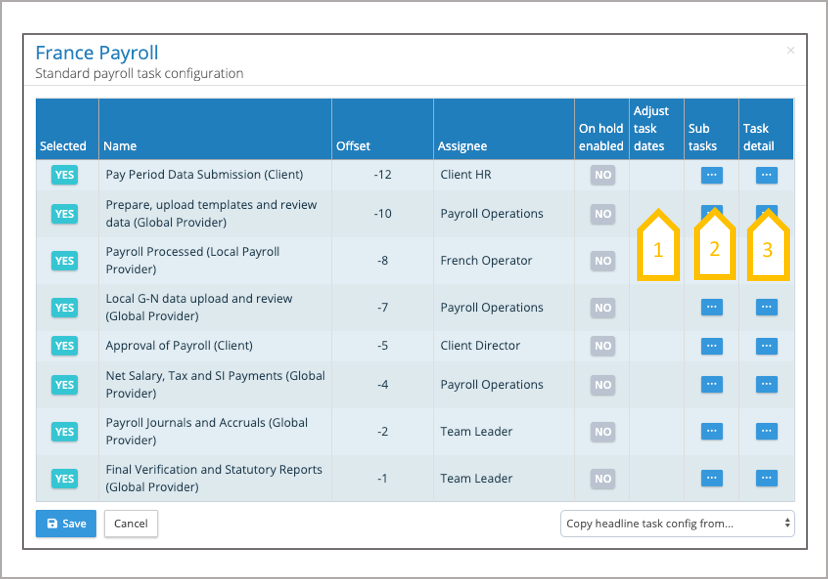
- Adjust task dates (See edit tasks)
- Configure the sub-tasks that are associated with the headline task.
- Edit the task details, change the text stored in the template to reflect the instructions for this payroll.
Sub-task configuration
Clicking on sub-task the symbol next for a particular headline task, will list all of the sub-tasks available from the template. Similar to the headline task, each sub-task can be activated for this payroll. In addition to sub-tasks, there is a facility to add custom sub-tasks to the payroll. All sub-tasks and custom tasks can be assigned to a user, and they take on the due date of the headline task.
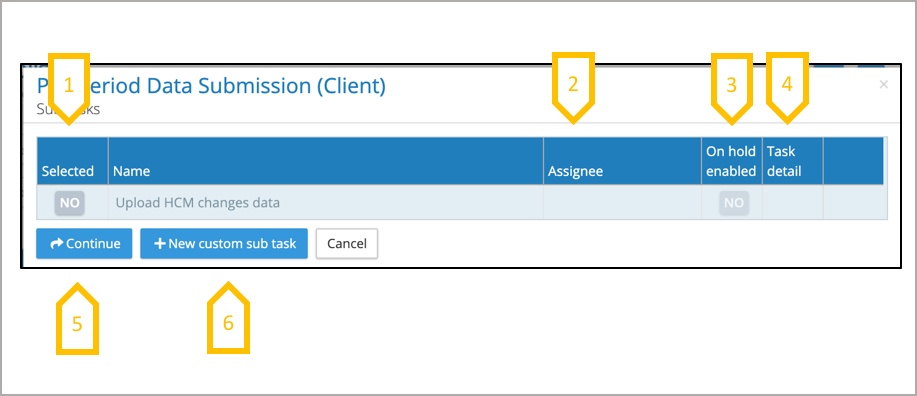
- Select the task.
- Assign a user to the task.
- Add on-hold task status if needed.
- Edit the task detail can be edited to adjust the template wording to reflect the specific needs of the payroll.
- When all of the changes have been made, click on continue to return to the headline tasks.
- Add a custom sub-tasks
Custom sub-task configuration
Where needed custom sub-tasks can be created for each headline tasks, these are specific to the payroll.
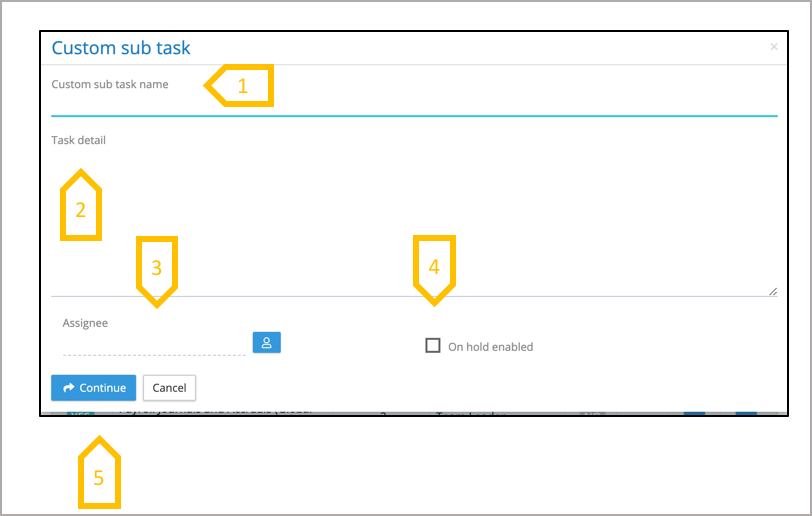
- Add custom sub-task name.
- Add custom task detail describing the actions required to complete the task.
- Assign user to the custom task.
- Enable on-hold if needed for this task.
- Click on continue to return to the sub-task menu.
Amending task configurations
Changes to the task configurations can be made at any time, changes will only affect the future pay periods. Tasks can be unselected or selected. The tasks off-set can be changed for a specific task, this has to be completed in conjunction with the ‘adjust task dates’. To protect the user from changing dates that may have been edited manually, the specific pay periods are selected for the new off-set to be applied. The assignee can be changed for a specific task, and the future tasks will be automatically updated with the new assignee.
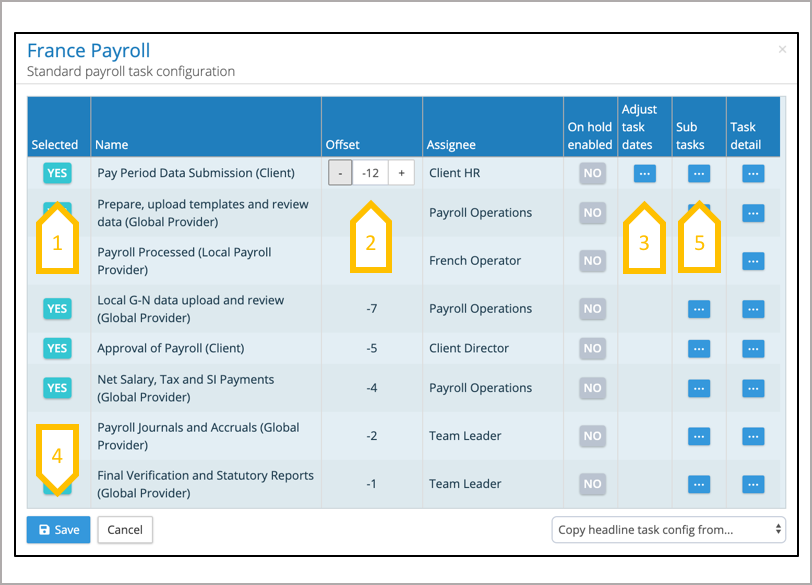
- Select or un-select tasks.
- Adjust the offset for a task, as a result of changing the offset blue icon with three dots will appear in the adjust task dates column inline with the task that has been changed.
- Click on adjust task dates, this will show the future pay periods currently set-up for this payroll, (see adjust task dates)
- When all of the amendments have been made click on Save.
- Sub-tasks, on-hold and task details call also be amended.
Adjust task dates
When amending the task configuration, if the task off-set has been changed, the system will prompt the user to select which pay periods should be changed to reflect the new offset for a particular task. By clicking on the blue icon in the column adjust task dates, a screen appears with all of the future pay periods for that payroll. Select the pay periods that the new off-set should be applied to and the system will adjust the task due date based on the new offset.
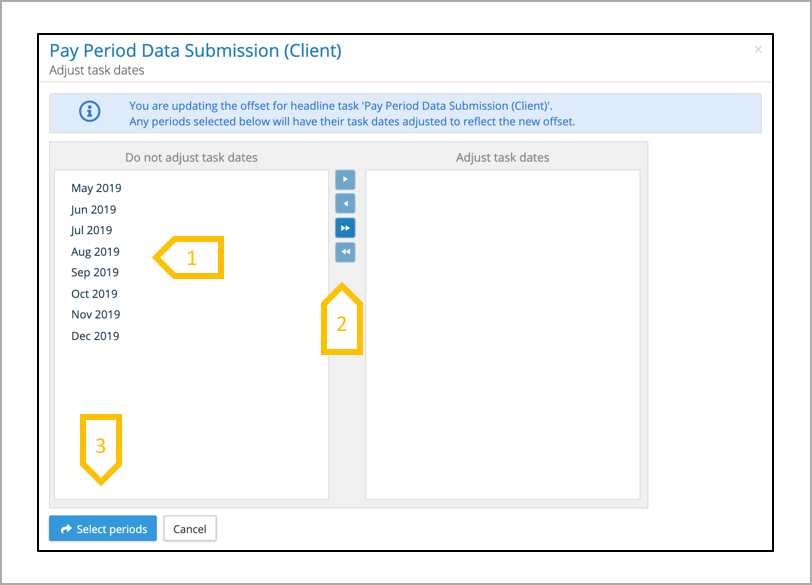
- Select the pay periods for the task adjustment.
- Use the arrows to move pay periods into the ‘adjust task dates’ or drag and drop pay periods.
- Complete the process by clicking on Select Periods, this will return to the task configuration screen.