IPPEX Cloud V 1.08 Release Notes


Introduction
The following document provides an overview of the new functions released in Version 1.8.
Version 1.8 contains a number of key deliverables. The foundations of GL Journal reporting have been included, with the functionality of user configurable GL code sets and pay element GL configurations. The completion of a full user configurable GL Journal report will be released in Version 1.9, (scheduled early July 19). Including GL coding configurations and cost centres in Version 1.8, enables the preparation of the complete foundation environment for GL Journal reports.
The introduction of pay element groupings and exchange rates along with the enhancements to the transaction report enables you to create multi-period and multi-payroll reports in a single currency utilising a common set of pay element names. The transaction report can be produced in Excel and CSV format, enabling the report to be exported into a BI (Business Analysis) reporting tool. This significantly enhances the value of the stored payroll data allowing for the analysis of payroll cost by pay element, by payroll, and by cost centre over any time period.
The system supports up to five cost centre types, these are used within the GL journal and transaction report.
We have addressed a requirement raised by a number of clients for an enhanced functionality internal and 3rd party user. A new user type of “Territory Manager” has been added for both internal and 3rd user types. A Territory Manager has visibility of tasks, issues, reminders and notes for all other users of their type (internal or 3rd party) who share access to the same payroll groups as the territory manager.
Please read all of this document, as there are a number of other enhancements to the system which could be relevant to your organisation.
Building a GL Journal Report
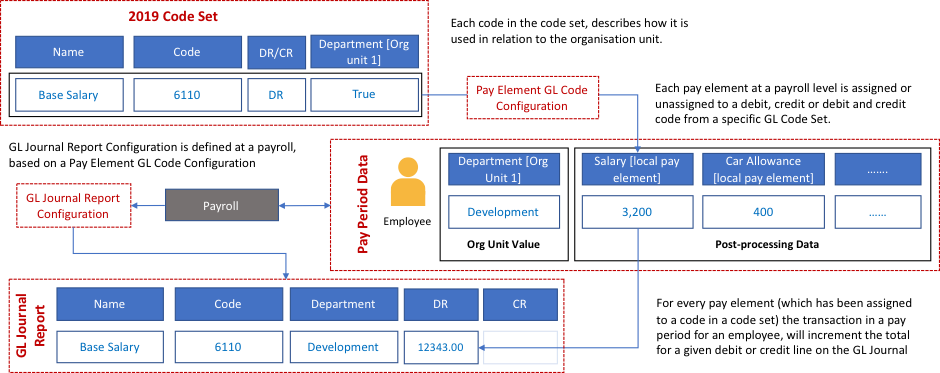
In Version 1.8 we have provided the foundations for the GL Journal report, in Version 1.9 we will be delivering a fully user configurable report generator that will utilise the GL codes sets provided in Version 1.8. The following is an explanation of the building blocks provided in Version 1.8 that support the creation of a GL Journal report:
- Code Sets: A code set is a list of general ledger codes used in a GL Journal report. IPPEX Cloud will allow for multiple code sets to be stored for each client tenancy.
- Pay Element GL Code Configuration: For each payroll, a GL Code Configuration can be created which binds pay elements to the GL codes within a specific code set.
- Organisation Units: IPPEX Cloud supports up to five organisational unit structures, employees will have organisational unit values assigned to them at a payroll level.
- GL Journal Report Configuration (Version 1.9): GL Journal report configuration will have a similar look and feel to the “All Data” reporting configurations. A GL Journal report kick-off page will be provided to select the report configuration and pay period.
The following diagram shows the relationships between each area:
GL Code Sets
The GL Journal is a combination pay data, GL coding assigned to specific pay elements and organisation unit(s) assigned to employees into a structured report. The first building block stores and maintain a set of GL Codes for a client tenancy. IPPEX Cloud stores the GL Codes at the tenancy level as Code Sets. The system has been designed to cater for the following requirements:
- An organisation may have one or more chart of accounts, this can be a result of multiple accounting systems, mergers or an organisation transitioning from one coding set to another.
- All code sets are managed centrally (Client tenancy level), and the relationship between the local pay elements and the code sets are defined at a payroll level.
- An individual payroll and the payroll pay elements can have multiple code configurations, to enable the transition from one coding structure to a new one.
- GL codes are stored as ‘Code Sets’ at a tenancy level
- A code set contains both Debit and Credit Codes
- Within a code set, an individual code can be ‘Active’ or ‘In-active’, they cannot be deleted as they may still be assigned to a pay element on a historic payroll. By making a code in-active it cannot be selected when assigning codes to a new pay element at a payroll level.
- New codes can be added to a code set.
- A code set can be ‘Active’ or ‘In-active’, if a code set is in-active it cannot be used for reporting purposes at a payroll level.
- New code sets can be created and a code set is given a name and a description.
- GL codes are assigned to pay elements at a payroll level.
- A code set can be used globally across a client or used for specific payrolls.
The tenancy administrator has a new client tenancy menu item, GL Code Sets. This enables the creation and editing of GL Code Sets.

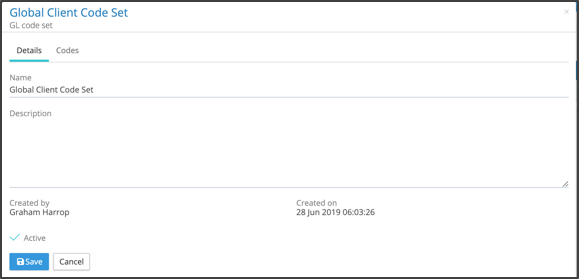
A code set has two tabs, the details tab lists the name of the code set, description, who created the set and who last edited the set.
The second tab will contain all of the codes for that set, as shown in the following diagram.
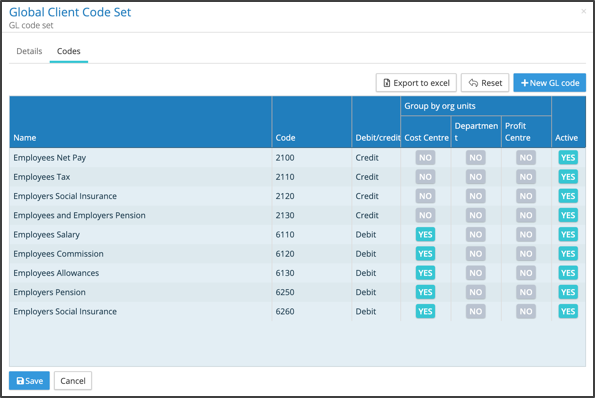
To generate a GL Journal the system needs to know whether an individual code is grouped by one or more organisational units. In the above diagram, next to each code is a series of check boxes for the organisational units. IPPEX Cloud supports up to five organisational units, each organisational unit has to be activated and given a name. When setting up the code set, the check boxes have to be selected to ensure a code is grouped by a particular unit.
Organisation unit grouping requirements.
- GL Journals are segmented by GL code and by organisation unit(s), however for some areas, for example credits, the journal is only segmented by GL code.
- When creating a GL journal, the report will:
- Where a GL Code has been specified with an organisation unit grouping, it will present a debit or credit value based on the GL Code, grouped by organisational unit(s)
- Where a GL Code has been configured with no organisational unit grouping it will present a debit or credit value based on the GL Code.
- The application will show the organisational units by name, in the example above there are three organisational units, cost centre, department and profit centre. The debit codes are grouped by cost centre and credit codes are not grouped.
There are a number of business rules associated with the code set:
- Organisational units need to be activated before code sets can be completed
- A name and code combination has to be unique.
- A name and code cannot be deleted but can be edited.
- New organisational units can be activated and included in the GL Code segmentation.
Pay Element Code Configurations
All pay elements are defined at a payroll level, this ensures the taxes and deductions are specific to that payroll and tax jurisdiction. To link the pay data to a GL Journal report, an association has to be created between the pay element and a coding structure, this is achieved through a pay element code configuration.
- For each payroll, post-processing pay elements are assigned debit and credit codes or are set as unassigned.
- A payroll can have multiple code configurations, this enables dual reporting (during mergers) or a transition to a new code structure.
- A code configuration is given a name, and used in the GL Journal reporting process.
- If a GL code set is made inactive then the pay element code configuration becomes inactive also
- A pay element code configuration can be assigned as the default configuration, the one presented on the GL reporting kick-off page.
From the payroll menu, using the action button next to a payroll is a new menu item called pay element codes, select the sub menu item ‘GL code configurations’. This shows a page listing the existing pay element code configurations.
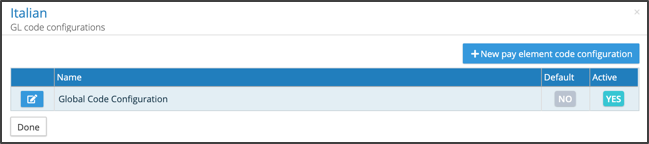
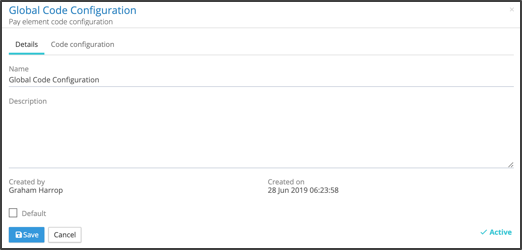
A pay element code configuration has two tabs, containing the name, description, user and time of creation and user and time of last edit. A code configuration for a given payroll can be set to be the default code configuration, and will be presented automatically when generating the GL Journal Report.
The second tab details the code configuration.
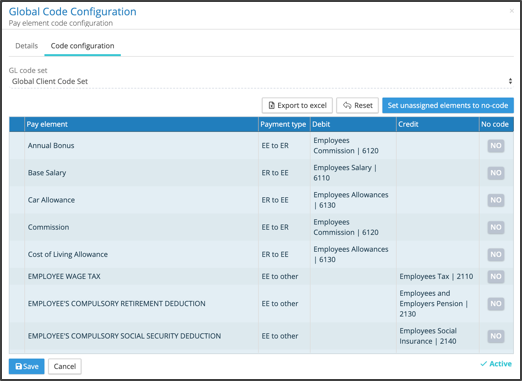
The pay element code configurations abide by the following business rules:
- When a new pay element code configuration is created, it is linked to a specific GL Code Set, only active GL Code Sets are selectable.
- All pay elements have to be given either a debit code, a credit code, debit and credit code or the ‘No code’ box must be checked before a new code configuration can be saved.
- If a new pay element is created during an upload process, this will not prevent a GL report from running, but the report will contain a message to say that the payroll has an unassigned coded pay element.
- When a new pay element is added, the code configuration page will highlight any pay element that does not have an assigned code or the no code checkbox has been left unchecked.
- When assigning a code to a pay element, the user can only select codes from the code set linked to that pay element code configuration.
- To ensure the right code is being selected the user should be able to see the Code name and code.
- If a GL Code Set is changed from active to inactive, the associated pay element code sets will become inactive.
Organisation Units
Organisational units link the employee data to the GL Journal report. Organisational units can also be used for reporting purposes (see transaction report). IPPEX Cloud can be configured to support up to five organisational units.
- Organisational Units description and values are defined at a tenancy level
- Up to five organisational units can be created
- The organisational units do not have any hierarchy, for the GL report, the organisational unit hierarchy will be defined by the GL report configuration.
- An organisational unit is given a name, and will contain organisation unit values.
- organisational units do not support percentage splits, this will be addressed in a future release.
- An employee will be assigned an organisational unit values, a new data type has been created to enable the upload of data to employees on a pay period basis.
- Changes to the organisational unit values are made through the data upload process.
- Only the tenancy administrator can activate organisational units and add organisational unit values to a unit.
Under System Administration there is a new menu item for the set-up and maintenance of organisational units.
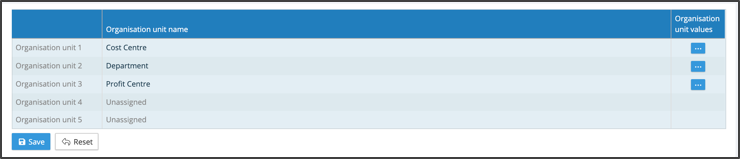
In version 1.8 organisational unit values can be directly entered into the application against an organisational unit.
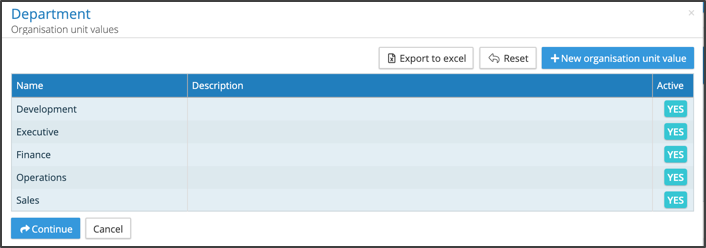
When the organisational units and their values have been created, the employee value can be uploaded as part of the pre-processing or post-processing uploads. The employee values are held against a pay period, similar to employee details. The following diagram shows the mapping of data from a pre-processing upload file to three organisational units (Cost Centre, Department and Profit Centre)
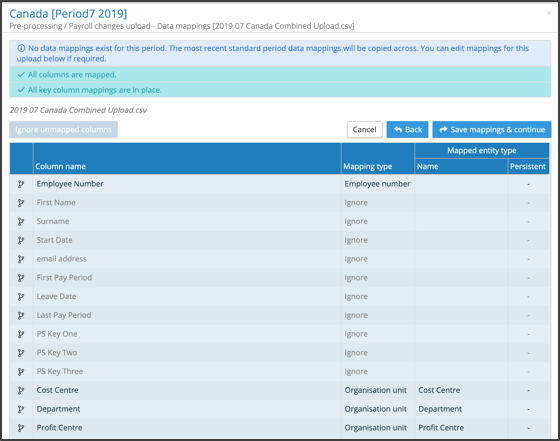
The organisational units loaded against an employee are persistent values (they carry over to the next pay period until changed). Organisation unit has a separate section on the report configuration screen for All Data Reports, Changes Reports and Variance Reports.
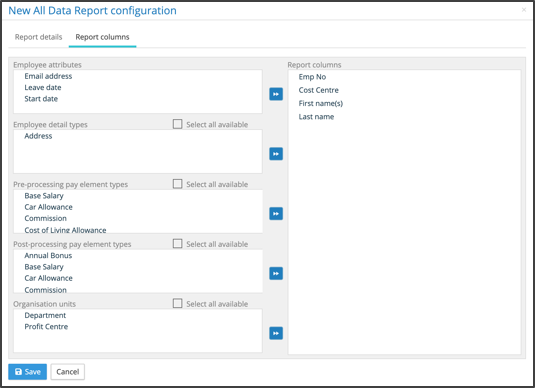
When organisational values have been uploaded for employees, please revisit all of your report configurations to include organisation units in a report if needed.
GL Journal Report Configuration and Report Kick-off
The
GL Journal report user configurable functionality will be released in Version
1.9. (July 2019)
Pay Element Grouping
Pay element grouping and exchange rates enables multi-payroll and multi-pay period reporting in any currency. All pay elements are defined locally at a payroll level, to group pay data in a common format requires pay element groupings. Pay data is held in a defined currency at a payroll level, and exchange rates are required to facilitate the reporting of that date in a common currency.
Experience has shown that businesses require differing levels of global reporting, IPPEX have chosen to have two levels of pay element groupings. In addition to these two reporting levels, the pay elements now benefit from being assigned a payment type, defining the direction of a pay element e.g. employer to employee.
Each pay element group is associated with a specific payment type:
- There are five payment types
- Employer to Employee (salary, bonus, allowances)
- Employee to Employer (Deductions e.g. cycle to work scheme)
- Employee to Other (Employee’s tax, pension and social insurance)
- Employer to Other (Employers tax, health, social insurance)
- Totals
- IPPEX Cloud is a store and report system, it is important to separate totals, so they are not double counted in various reporting scenarios.
A Pay element group has any number of pay element sub-groups. The following shows how pay elements are assigned to pay element sub-groups, which in turn form part of a pay element group.
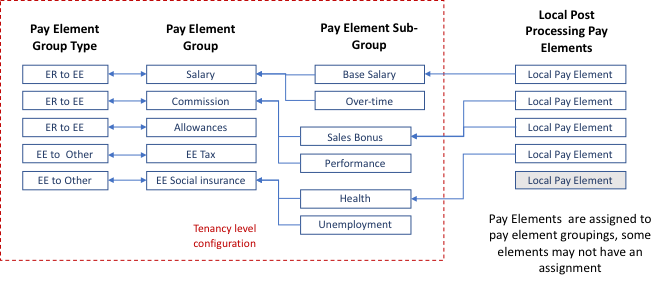
Pay element groups and sub-groups are defined at a client tenancy level. There is a new tenancy administration menu item, ‘Pay element groups’. The following diagram shows the pay element group tenancy set-up.
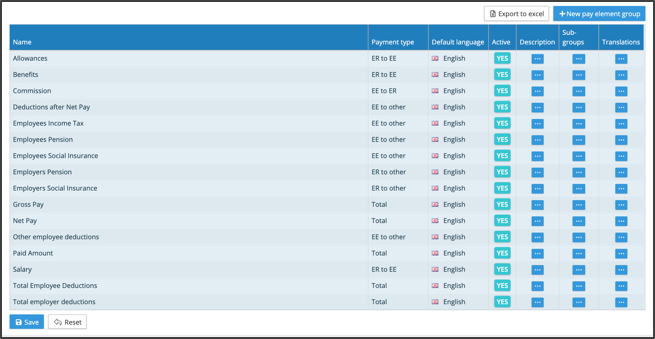
Pay element groups have the following characteristics:
- Payment type
- A description
- Pay element sub-groups
- And support translations
Pay elements groups are assigned to pay element subgroup, the following diagram shows the pop-up pay element sub-group list for a particular pay element group.
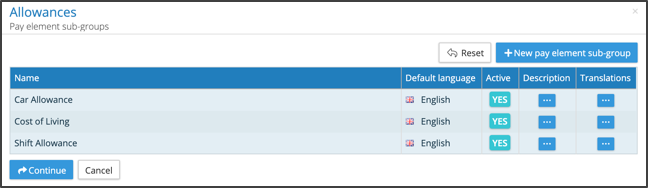
From the payroll screen, there is a new menu item from the action button called pay element configuration, with a sub menu ‘pay element group assignments’, this is used to assign a pay element sub group to each pay element. This provides a link between the pay element, pay element sub-group, pay element group and pay element type.
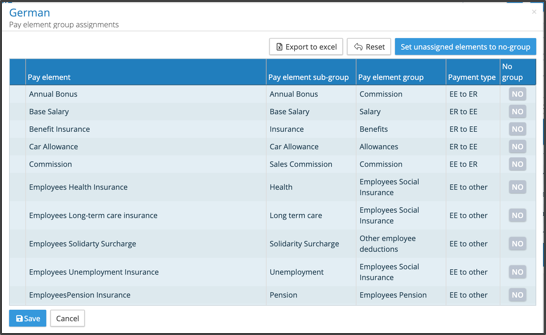
The pay element grouping provides significant flexibility in respect to how a client reports on their global payroll data. The transaction report has been modified to include the pay element groupings, enabling clients to compare pay data at a pay element group and sub-group level.
Exchange Rates
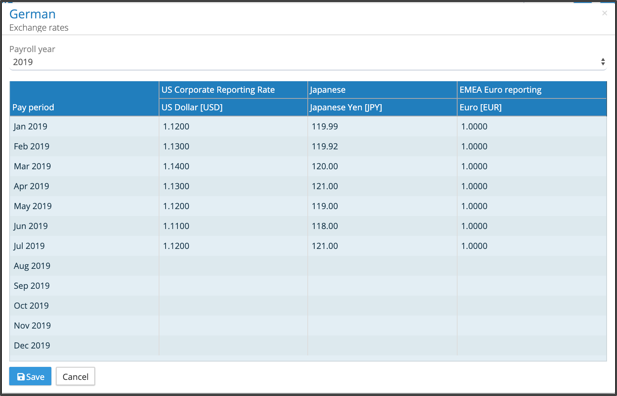
The second component to producing a global payroll report is to enable pay data values to be reported in other currencies. There are two components to exchange rates, defining at a tenancy level, the reporting currencies and at a payroll level, recording the conversion rates from the payroll currency to the reporting currency for each pay period.
A client may want to record multiple exchange rates for a particular payroll, this could be the corporate reporting currency or a transacted funding exchange rate. The tenancy administrator has a new administration menu item ‘Reporting Currencies’, up to eight reporting currencies can be selected. Reporting currencies are then enabled for specific payrolls.
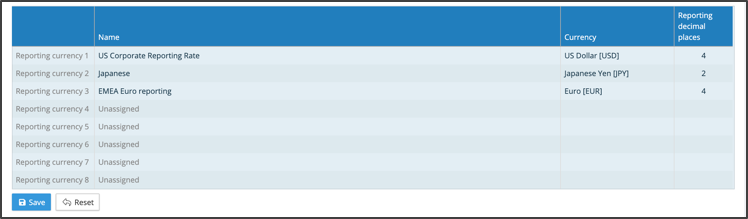
From the payroll menu, using the action button next to the payroll there is a new set of menu options. Under reporting is a menu item ‘currencies’ with two options ‘enable currencies’ and ‘exchange rates’. Before exchange rates can be added to a payroll the currencies need to be set-up and enabled.
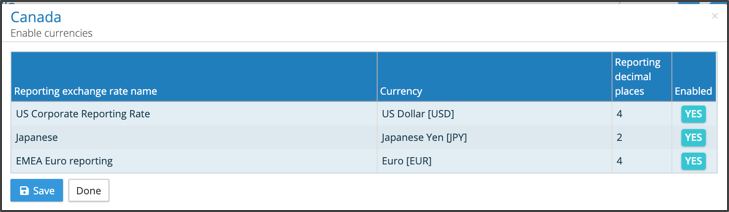
Reporting currency exchange rates can be assigned to each payroll currency, these are stored for each pay period and held at a payroll level.
Enhanced Transaction Report
The transaction report has been updated to include pay element groupings, cost centres and currencies. A transaction report is a multi-payroll and multi-pay period report, found on the main menu under reports.
A transaction report contains one row of data for each transaction, reporting transactions for every employee on every payroll and pay period. As a result, a report can have many lines if executed over a large number of payrolls for an extended time period. All reports are processed as a background service, to preserve system responsiveness for other users.
From the main menu select reports and transaction report. A report kick off page is shown, with following selectable options.
- Date range – any pay period where the pay date falls within the selected date range will be included in the report.
- Select the payrolls to be included in the report.
- Processing types – Add the processing types to be included in the report
- Payroll types to be included in the report
- Select the reporting currency
- Output format – Excel or CSV
- Reporting language – IPPEX Cloud will always report in the default language. If an alternative language is chosen, only those pay elements and pay element groups with the appropriate translations loaded will be reported with their translations, if no translation is available then the default language label will be reported.
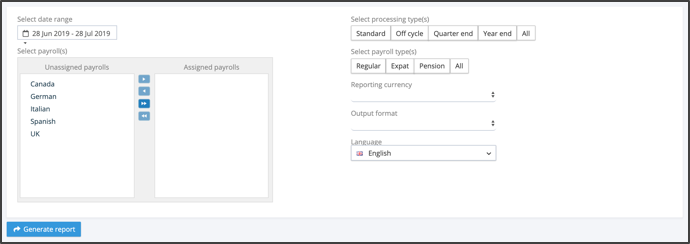
When selecting generate report, the application produces the report as a background process and the output will be saved to your My Files folders. The report will include the following data with on one row per transactions.
- Tenancy ID
- Payroll Name
- Pay Period
- Employee number
- First Name
- Last Name
- Pay Element
- Value in payroll currency
- Exchange Rate
- Value in reporting currency
- Org Unit values (one column per enabled org unit)
- Pay Element Group
- Pay Element Sub-group
- Payment type
Files – Mirror
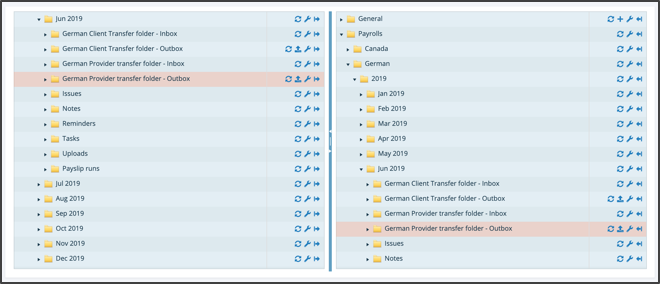
Having navigated to a particular folder in the file hierarchy view of the file system, a new feature has been introduced to replicate the chosen folder view in the second file pane. This is aimed at saving time drilling down through the file hierarchy in the second panel view. Next to each folder in the left-hand panel is an arrow pointing to the right, and similarly in the right-hand pane is an arrow pointing to the left. Clicking the arrow against a specific folder will open the alternative panel at the same position in the hierarchy.
Territory Manager – Internal Users and 3rd Party Users
A new user type has been added to internal and 3rd party user types, “Territory Manager. Up to now the current 3rd party user or Internal users have been restricted to seeing their tasks, issues, reminders and notes, as well as those of other users within their user security group. This has been too restrictive for some client environments where regional or territory managers operating across a number of payrolls require a wider scope of operational visibility.
Internal and 3rd party organisations now have a territory manager user type available. An internal Territory Manager can see and action tasks of other internal users based on the payrolls they have privilege to see, similarly the 3rd party Territory Manager can see and action tasks of other 3rd party users based on the payrolls they have privilege to see.
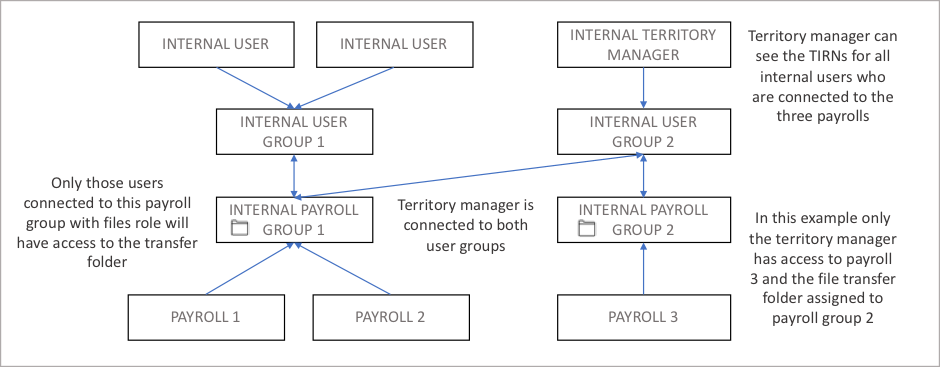
When configuring the user groups and payroll groups for a territory manager, it is important to take into consideration whether they have a requirement to access the associated transfer folders for a given payroll. Transfer folders are assigned to payroll groups, if the territory manager requires access to these folders, their user group needs to be assigned to the payroll group containing the transfer folder.
Task On-hold Enhancement
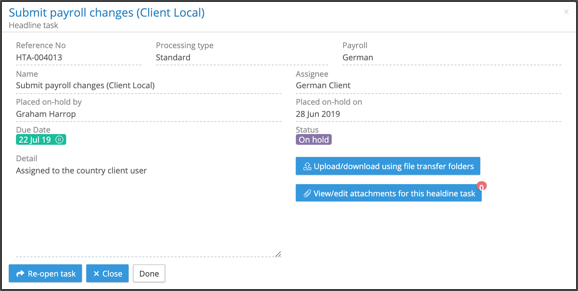
From the task detail dialog, it is now possible to see which user placed a task on-hold and when the task was placed on-hold.
Contacts – Export to Excel
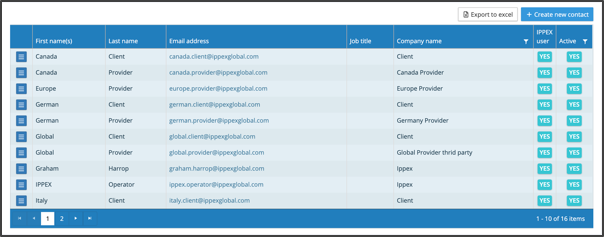
An export to Excel button has been added to the contacts screen.
Export to Excel Date Format
The date format in Excel when exporting employee attributes from the pay data employees screen has been changed to ISO format. This is particularly useful, when updating employee information such as PS Keys. Exporting the employee list from the system, making the required adjustments and re-loading without the need to reset the date format to ISO.