Payroll Calendar Configuration
The payroll calendar configuration sets the pay dates for each of the pay periods for a tax year. When creating the payroll calendar, the system is automatically creating the tasks associated with that payroll based on the off-sets from the pay date. The payroll calendar needs to be set up before supplementary pay periods can be created for off-cycle, quarter-end and year-end. Be careful when selecting the first pay date in the tax year (follow the instructions on the next slide)
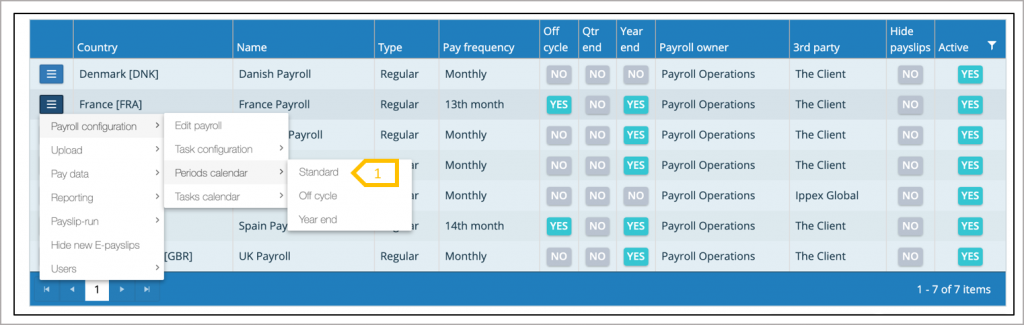
- Create the standard payroll calendar first before creating the supplementary pay periods (Off-cycle, quarter-end and year-end)
Influencing factors in setting the payroll calendar
There are two important parameters that are used from the payroll configuration to set-up the payroll calendar. Pay frequency which determines the number of pay periods in a tax year and Go live date which determines the first active pay period for a payroll. A payroll can be set-up to have prior pay periods to the current period or to go live at a future date.
The payroll calendar set-up process requires the pay date of the first pay period in the payroll tax year, this is not to be confused with the go live date, as this may precede the go live date. The system will generate tasks from the day of set-up or from the go live date which ever is the latter of those two dates.
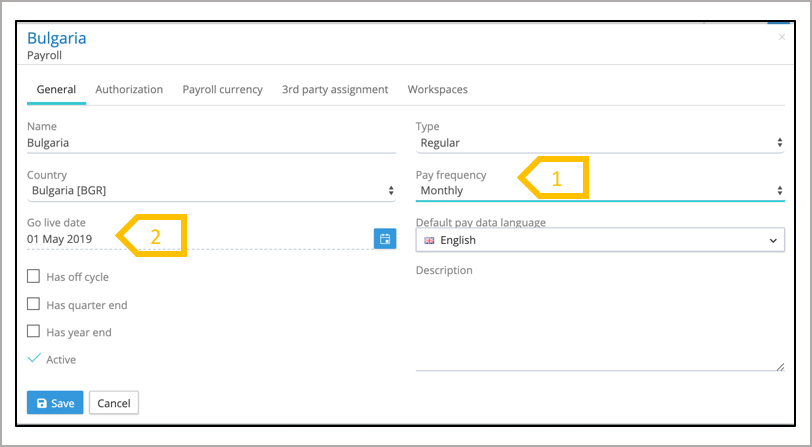
- Ensure the right pay frequency has been selected for the payroll
- Ensure the go live date is on or before the pay date for the first pay period. If the pay date is the last day of the month, select a date towards the beginning of the pay period, to ensure all of the tasks are configured that period.
Creating the first tax year and pay periods (Monthly Payroll Frequency)
A payroll calendar can be set-up with pay periods preceding the current date, which could include the previous tax year to allow for backloading of pay data and e-payslips. During the payroll set-up care should be taken when selecting the payroll year. The system has a message Please provide the first pay date for this payroll year. Do not adjust the date to accommodate any public holidays or the weekend.
If the tax year is January to December, select the first pay period pay date, which will be in January even if the go live date is later on in the year. If pay day is 25thof the month, select the 25theven if it is at a weekend, the system will bring forward any pay dates to the preceding Friday if they fall on a weekend.
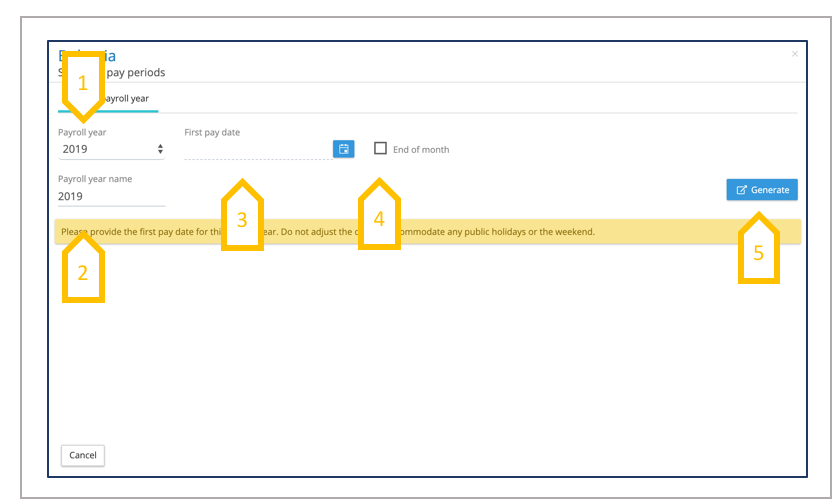
- Select the tax year in which the first pay period will start.
- Payroll tax year can be renamed to fit your naming convention
- Select the first pay date in that tax year (this may differ from the go live date), do nut adjust the date if it is on a weekend, the system will make that adjustment.
- If the pay date is the last day of the month, and first pay period is in a month with less than 31 days, check the box ‘end of month’ and select the first month of the tax year.
- When selections have been made click on generate.
Generating pay periods
The system will generate all of the pay periods from the start date to the end of the tax year. The pay date will be generated base on the date of the month chosen for the first pay period for the tax year, bring forward the date, if this falls on a weekend. If the pay date chosen was incorrect or the payroll start date was wrong, make a new selection and re-generate the pay period. The process of saving the pay periods, will auto generate the tasks for that payroll and pay periods.
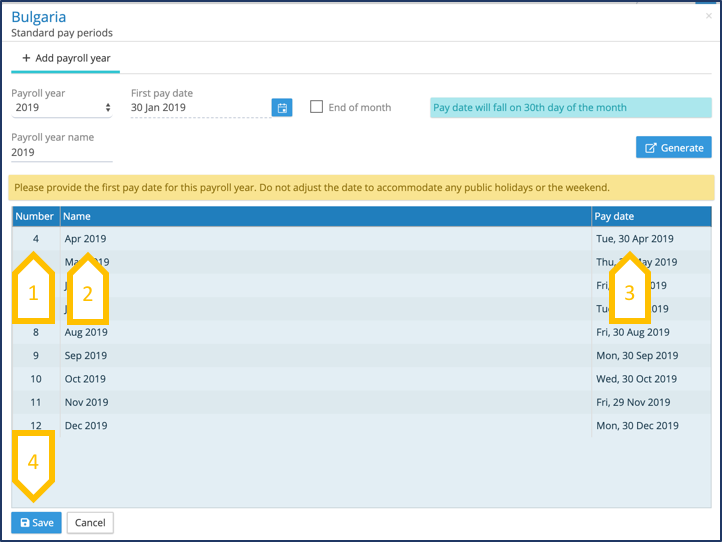
- Period number is generated by the system
- The period name is auto-generated, this can be edited to conform to an alternative naming convention.
- The pay date can be adjusted to cater for public holidays and other factors.
- Only save the calendar when you are satisfied with the pay dates, otherwise cancel and start the selection process again.
Generating pay periods
The system will generate all of the pay periods from the start date to the end of the tax year. The pay date will be generated base on the date of the month chosen for the first pay period for the tax year, bring forward the date, if this falls on a weekend. If the pay date chosen was incorrect or the payroll start date was wrong, make a new selection and re-generate the pay period. The process of saving the pay periods, will auto generate the tasks for that payroll and pay periods.
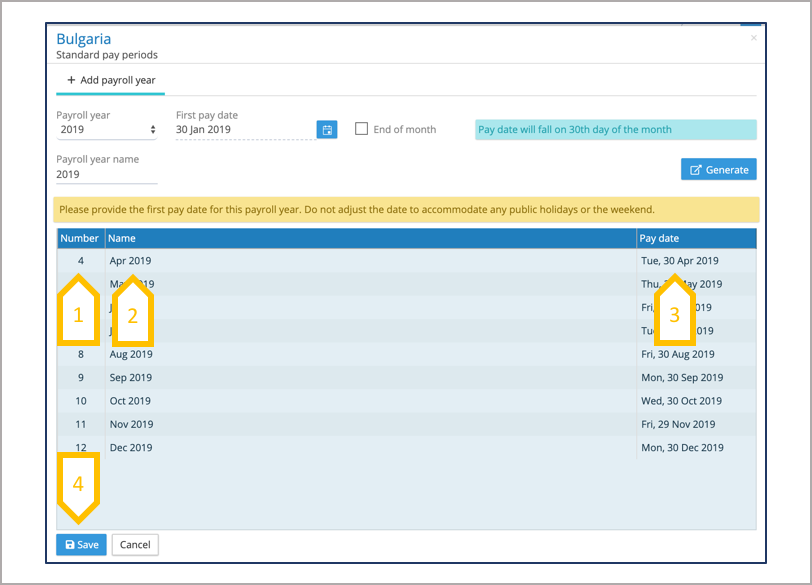
- Period number is generated by the system
- The period name is auto-generated, this can be edited to conform to an alternative naming convention.
- The pay date can be adjusted to cater for public holidays and other factors.
- Only save the calendar when you are satisfied with the pay dates, otherwise cancel and start the selection process again.
Viewing pay periods
All users can view the pay periods for a payroll, the system administrator can amend the pay date.
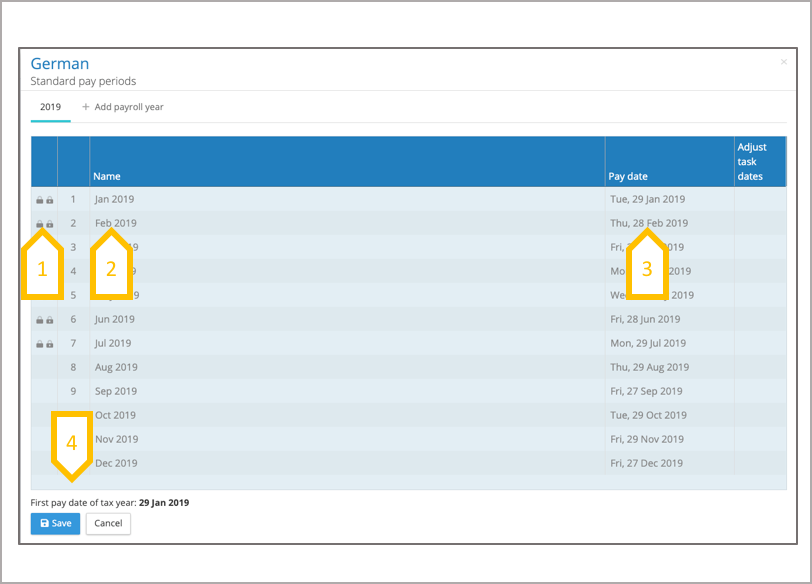
- The period calendar shows which pay periods have had pre-process and post processing locked.
- The period name is auto-generated, this can be edited to conform to an alternative naming convention.
- The pay date can be adjusted at any time, until a task has been completed for that period. When the date is adjusted, the system provides an option to adjust the task due dates.
- The system stores the first pay period date used for the tax year.
Changing a pay date for a pay period
When the pay periods have been saved, the pay dates can be changed for each pay period of a payroll. Open the period calendar (standard), this displays the pay periods for the current tax year. When changing the pay date for a pay period, you can choose to change the task due dates using based on the offsets from the pay day or to leave the tasks due dates the same.
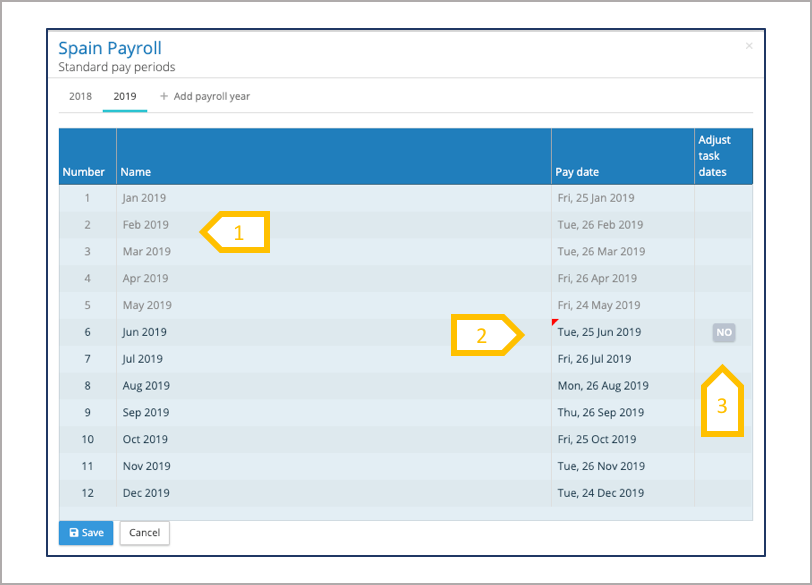
- Edit the pay period name.
- Change the pay date for a pay period.
- Select no or yes to changing the task due dates based on the offsets from the new pay date.
Weekly payroll calendar
To set up a weekly payroll calendar enter the first pay date of the tax year, the system will generate 52 pay periods. For some years a 53 pay period is needed, check the box to add a 53rdweek to the payroll. The system will only generate pay periods from the payroll start date set in the payroll configuration.
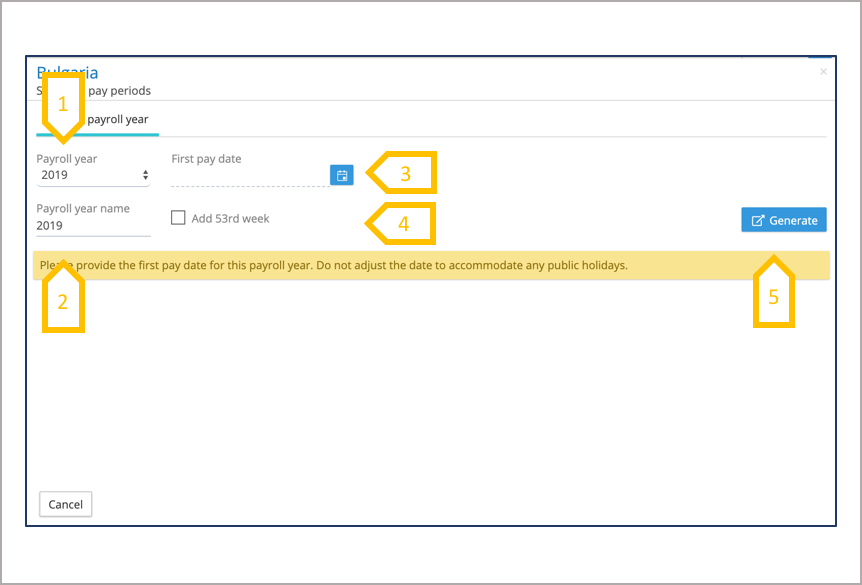
- Select the tax year in which the first pay period will start.
- Payroll tax year can be renamed to fit your naming convention.
- Select the first pay date in that tax year (this may differ from the go live date).
- If the tax year requires a 53rd period, check the box add 53rdweek.
- When selections have been made click on generate.
Two weekly Payroll Calendar
To set up a two weekly payroll calendar enter the first pay date of the tax year, the system will generate 26 pay periods. For some years a 27 pay period is needed, check the box to add a 27thperiod to the payroll. The system will only generate pay periods from the payroll start date set in the payroll configuration.
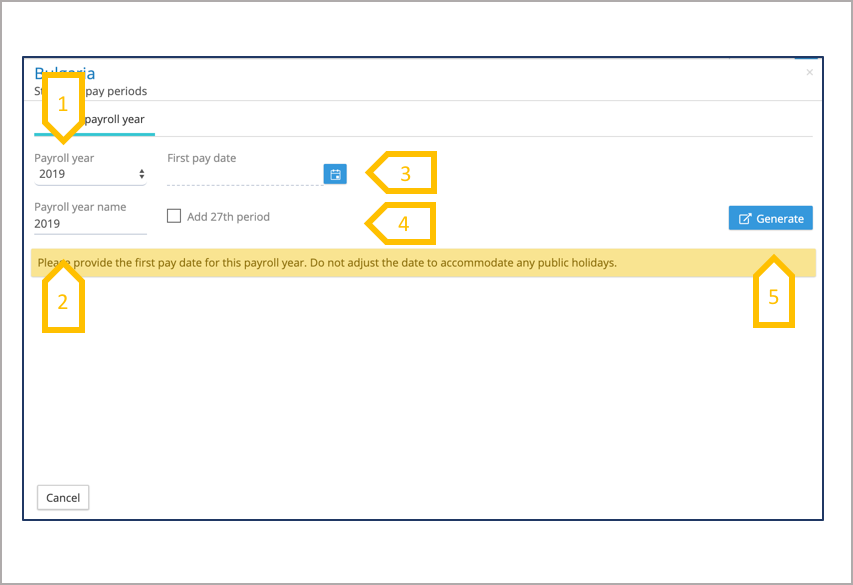
- Select the tax year in which the first pay period will start.
- Payroll tax year can be renamed to fit your naming convention.
- Select the first pay date in that tax year (this may differ from the go live date).
- If the tax year requires a 27thperiod, check the box add 27thperiod.
- When selections have been made click on generate.
Twice month pay periods
To set up a twice monthly payroll calendar enter the first and second pay dates of the tax year, the system will generate 24 pay periods. The system will use the day of the month from the first two periods to create all of the future periods. For example if the pay day is the 15thand 31stof each month, select these for the first two pay periods in the tax year, even if those days fall on a weekend. The system will will adjust the dates, bring forward the pay day from the weekend to Friday. The system will only generate pay periods from the payroll start date set in the payroll configuration.
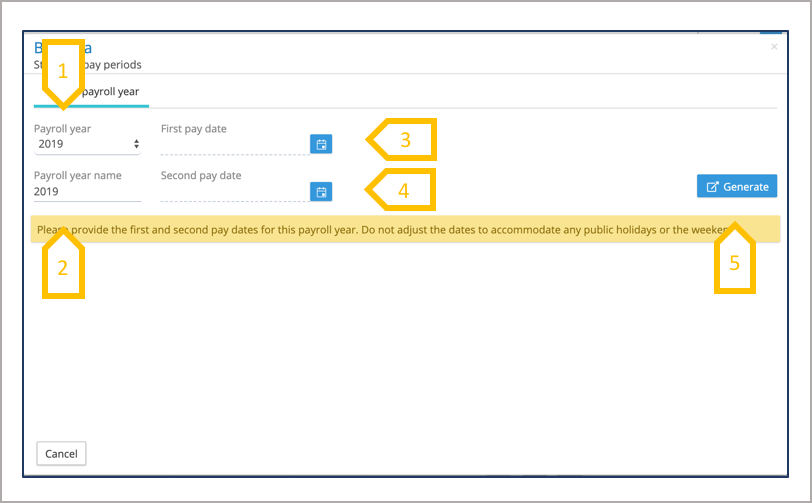
- Select the tax year in which the first pay period will start.
- Payroll tax year can be renamed to fit your naming convention.
- Select the first pay date in that tax year (this may differ from the go live date).
- Select the second pay date in the tax year.
- When selections have been made click on generate.
13thand 14thMonth Payroll
Creating the payroll calendar for a 13thand 14thMonth payroll is the same as setting up a monthly payroll. If the payroll requires an additional pay period, for the 13thor 14thmonth payments, add an off-cycle period to the appropriate pay period. If the 13thor 14thmonth is double pay in a single period, the pay period name can be edited to indicate the 13thor 14thmonth.
Please enter the first pay date of the tax year, the system will generate the pay periods from the start date of the payroll.
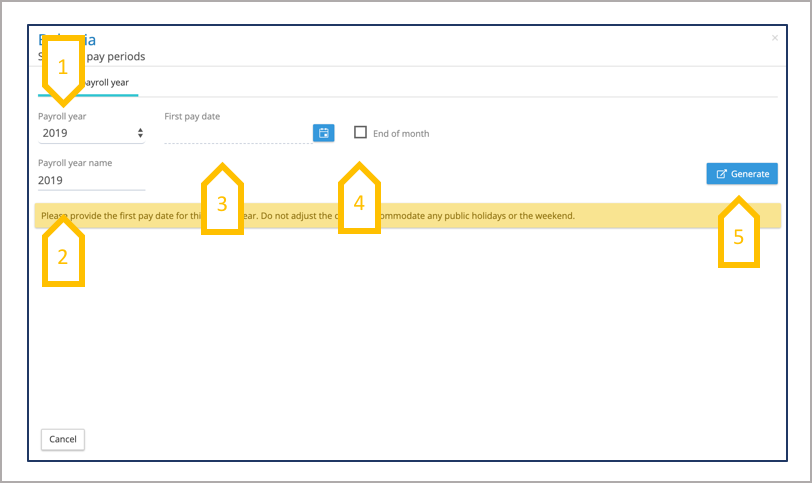
- Select the tax year in which the first pay period will start.
- Payroll tax year can be renamed to fit your naming convention.
- Select the first pay date in that tax year (this may differ from the go live date), do nut adjust the date if it is on a weekend, the system will make that adjustment.
- If the pay date is the last day of the month, and first pay period is in a month with less than 31 days, check the box ‘end of month’ and select the first month of the tax year.
- When selections have been made click on generate.
Supplementary Periods (Off-cycle, quarter-end and year-end)
All supplementary periods are attached to a standard pay period. If the payroll has been configured for a supplementary period such as off-cycle, quarter-end or year-end, the system will allow the creation of addition periods. The period calendar screen will show all of the standard periods, one or a number of these can be selected to add a supplementary period. The pay date of the supplementary period is used to create the tasks based on the off-sets selected in the task configuration.
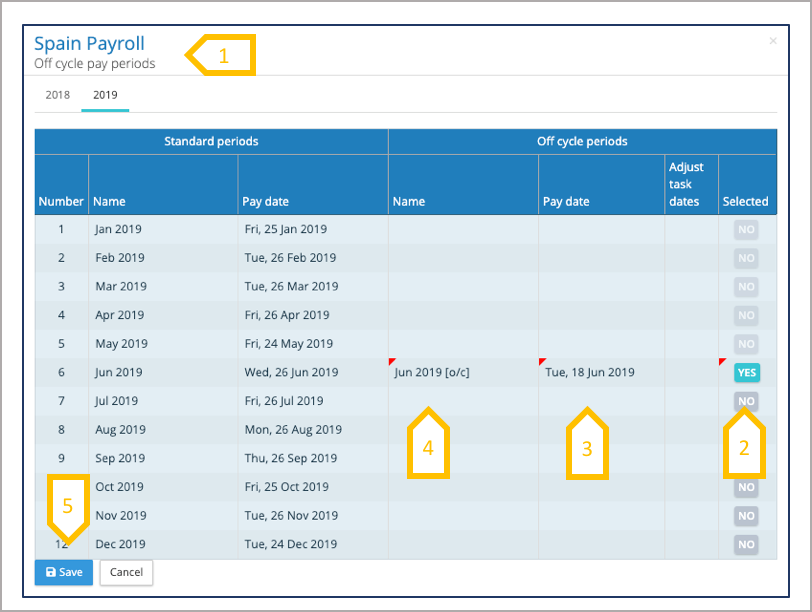
- This show the periods calendar for off-cycle, the configuration screen is the same for quarter-end and year-end.
- Select the pay period for the supplementary period.
- Select the pay date for the supplementary period.
- Edit the name to make it more relevant to the pay period.
- Save all of the configurations, if a mistake has been made, the periods can be edited.