Payments User Guidance
IPPEX Cloud – Payment Files
Overview
ISO 20022 standard defines a set of XML code used by banks to execute financial transactions. Each bank has interpreted the standard to create their own payment file format. IPPEX Global have produced a library of the XML codes commonly used for employee payments, enabling us to create payment file configurations for many banks utilising this standard.
The payment module provides flexibility, enabling clients and global providers to centralise their payment processes through one global banking organisation, as well as, giving organisations the option to create local payment files for their local bank.
A payment is generated using the reporting function for a payroll.
Payment Categories – For each client tenancy, up to eight payment categories can be created, these are defined for all payrolls within the client tenancy, e.g. Salary ACH payments, Salary urgent payments, Expenses, Annual Bonus. For each payroll pay payroll, values can be directly entered or uploaded for each payment category per employee.
Payment Currency – The payment currency is defined by the payroll payment currency. From the payroll menu, Payroll configuration > edit payroll, there is a currencies tab. Note: The payment currency is overridden when making equivalent amount payments (see employee payment configuration)
Employee Record Identification Information – Depending on the payment jurisdiction, specific personal identification data may be required, such as national ID, passport, date and place of birth. The payment file can be configured to use the values from the employee’s record.
Employee Address and Bank Details – Address and bank details can be entered or uploaded for each employee, the payment file will use the most recent address and bank details in relation to the payment date.
Company bank accounts and company addresses – When setting up a payment file configuration for a specific payroll and payment type, information is required to identify the initiating party, debtor organisation, debtor bank account and where needed, ultimate debtor company.
The following user guide provides the necessary background to initiate a payment file and to manage payment file configurations.
Running a payment file configuration
Payment files can be created using the payroll reporting function. A payment file requires a payment report configuration. To initiate a payment file the process is as follows:
Go to payrolls ® Reports ® Payment File, this will start the reporting kick-off process.
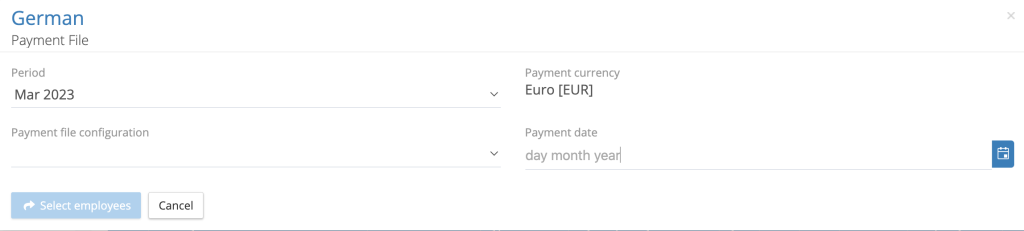
The application will always show the most current locked post processing pay period, if required, a previous pay period can be selected. Select the payment file configuration and the payment date. If the payment file configuration contains company addresses and bank details that are inactive, the application will give a warning and prevent the user from progressing. If the payment date is greater than 1 month from the current date, a warning is given, however, this does not prevent the user from progressing with the payment file creation.
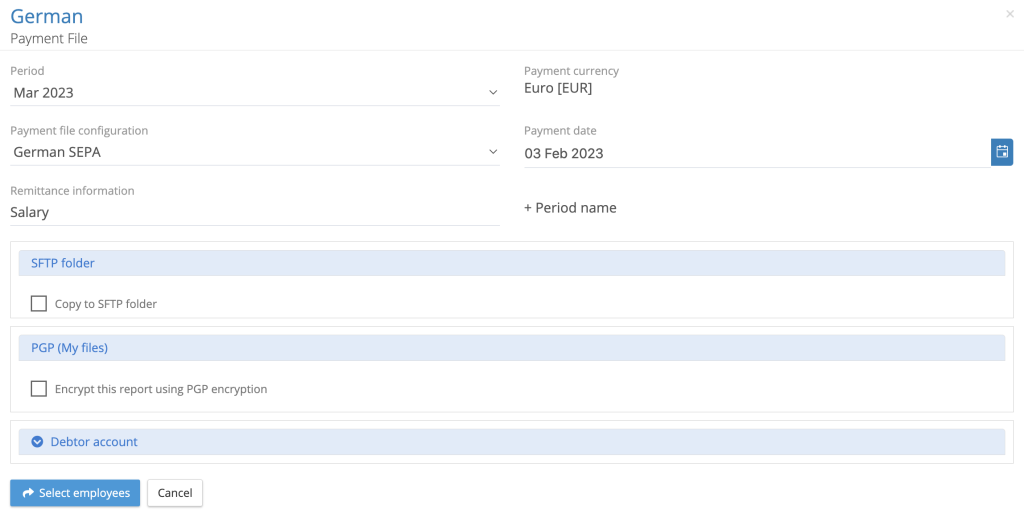
On selection of payment file configuration, the application will show a number of options
Remittance information – The system will show the remittance message stored in the payment file configuration; this can be edited at this stage in the payment process. The remittance information is the text that will appear in the employee’s bank statement.
Copy to SFTP folder – If a payment file configuration has been set-up with an sFTP connection, by checking the box a copy of the XML payment file will be copied to the sFTP folder for that payroll and pay period as well as the my files folder.
Encrypt the report using PGP encryption – A payment file can be encrypted using a PGP key. One or several PGP keys can be set up for a client tenancy.
Debtor Account – Expand this section to review the details of the debtor account (the account that will be funding the transactions)
If the information is correct proceed by clicking on Select employees.
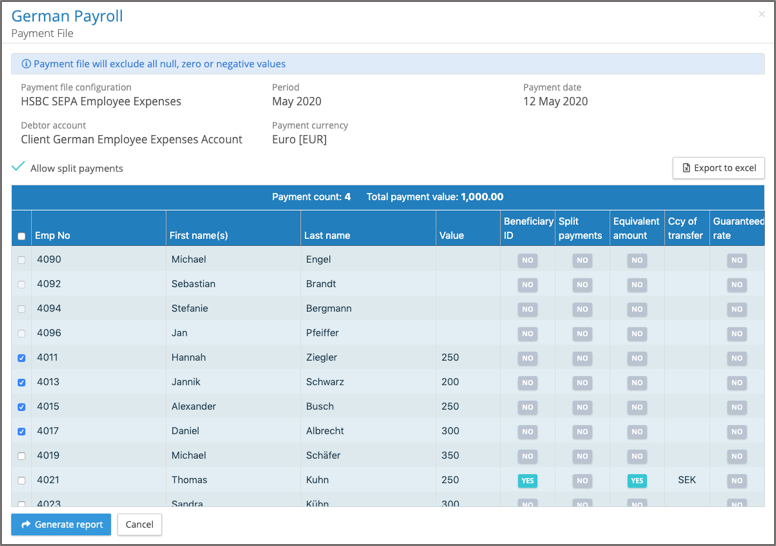
The upper section of the screen reminds the user which payment file configuration is being used, the name of the debit bank account, payment currency, pay period and payment date.
The application will automatically calculate any split payment configurations which have been set-up for specific employees, the split payment option can be unchecked and it will process all of the payment value to the primary account.
The employee payments list shows if there are any settings made for beneficiary ID, split payments, equivalent amount or guaranteed exchange rate. Export to Excel enables the user to export a list of all the employees, the payment values, their payment configuration settings and their bank account details. This allows the user to perform a visual check on each of the payments.
The payment file will list all of the active employees on the payroll, any employee with a Null, Zero or Negative value will appear at the top of the list and the application will not allow the user to process these employees. The user can select all employees with positive values to be included in the payment file or select specific employees. Based on the employee selection the application will display the number of payments and calculate the total value of those payments.
When all the selections have been made, select ‘generate report’. The application will generate the payment file as a background task, delivering the completed report to My Files along with a details file, results file and an Excel payment checking report.
The results file will list all successfully processed employees along with any errors, IPPEX Cloud will perform a number of validation checks, such as missing BIC or IBAN values in the employee’s bank account. Based on the payment date, the system will select the most current employee address and bank account in relation to the payment date.
Uploading, editing or linking payment category values
A payroll employee payment file configuration is linked to a payment category, the payment file report takes the value held against the payment category for that payroll and pay period for each of the employees.
1. Payment Category
To hold a payment value for an employee for a pay period, a payment category must be set up at the tenancy level, a payment category is given a name e.g. Salary Payment.
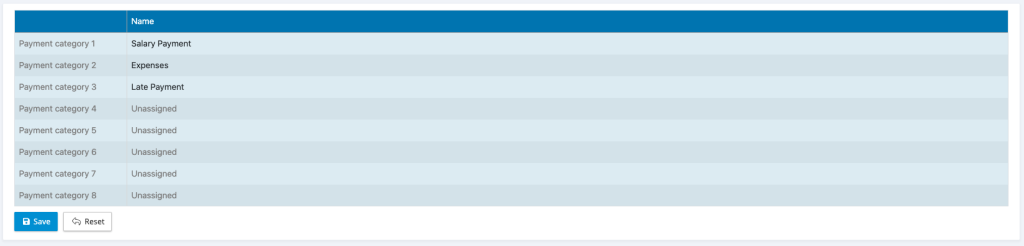
Go to Administration > Payment Categories this will list the categories currently created and the ability to rename or add new categories (up to eight in total).
2. Entering, editing or upload payment
Payment values for a payment category can be uploaded to the payroll using the post processing upload or entered via the UI. For either operation the post processing period must be unlocked.
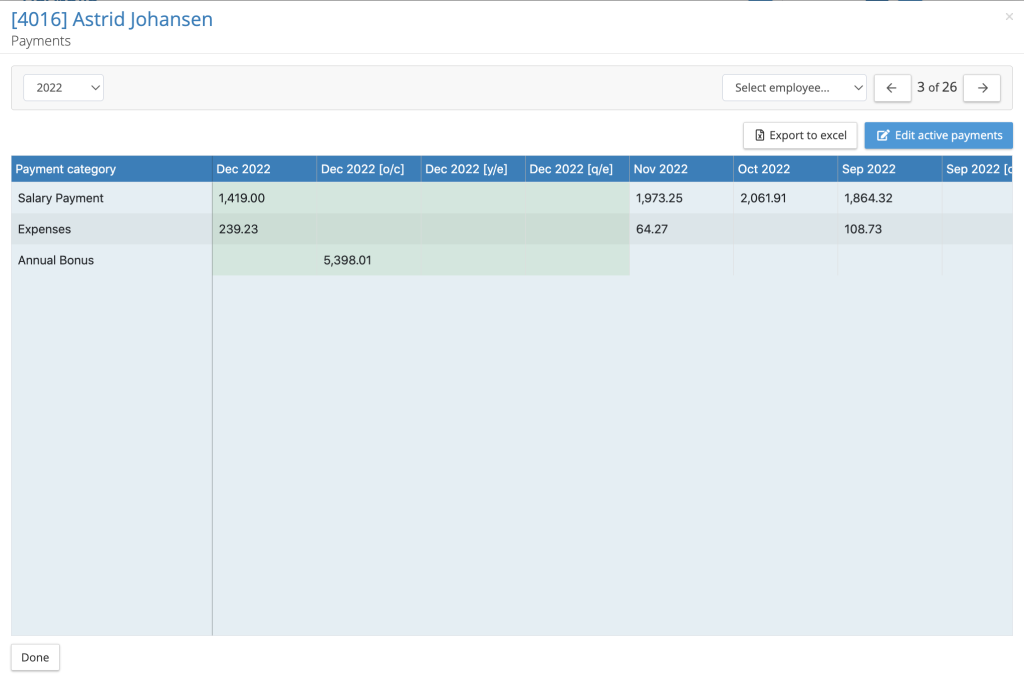
Payment values can be entered or uploaded to main pay periods and supplementary periods such as Off Cycles. The green shading in the above picture indicates the active period for editing. If the post processing period had been locked, no periods will show as being active. Values can be uploaded via the post processing upload mechanism mapping the element to the payment category.
3. Payment Category mapping to a pay element
A payment category can be mapped (linked) to a specific post processing pay element. From the payroll menu, go to pay data > pay element types > post processing pay elements.
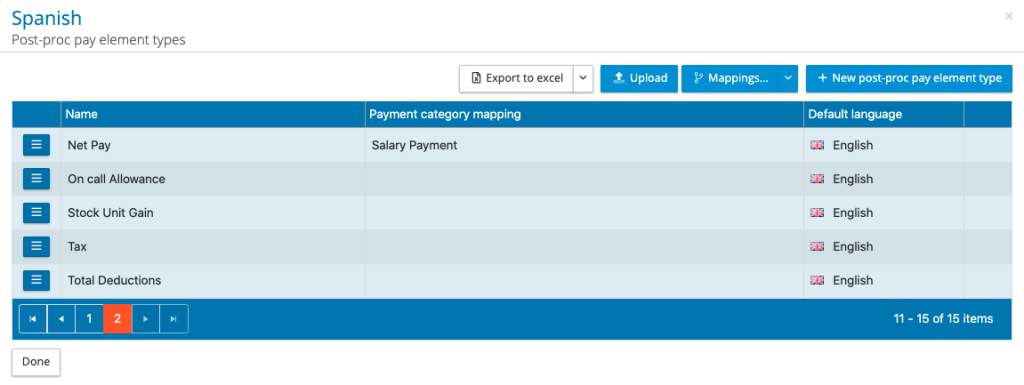
There is a new column called payment category mapping. To create a mapping, use the action button next to the pay element you wish to map, click on edit pay element. Under the pay element name is the payment category mapping, select the category to be mapped and press save. This is a tenancy administration privilege task.
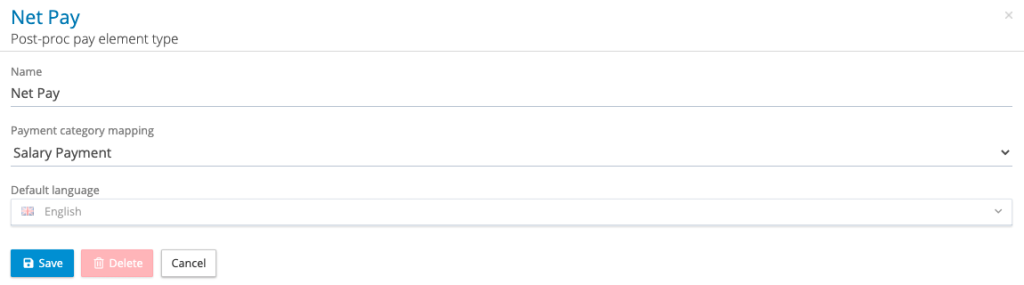
The mapping results in the following actions:
On post processing lock the system will clear any existing values held against that payment category and copy the value held against the pay element to the payment category for each employee for that pay period. Please note the payment file takes the payroll’s payment currency to construct the payment instruction. If there is a difference in payroll currency and payment currency, the amount transacted to the employee could be affected.
When a payment category is mapped to a post processing pay element, no value can be uploaded against that payment category, it can only be populated from the pay element.
If a post processing period is unlocked and re-locked the system will repeat the cleardown and copy function from the pay element to the payment category on every re-lock.
Payment file configurations remain unchanged, as they are linked to a specific payment category.
Creating and editing a payment file configuration
To create a payroll payment file configuration, the appropriate host payment file configuration has to be deployed to the tenancy. The host payment file configuration defines the data requirements and options needed by the payroll payment file configuration.
From the payroll reports menu, select configurations payment files. The payment file list will show any configurations set-up for that payroll.
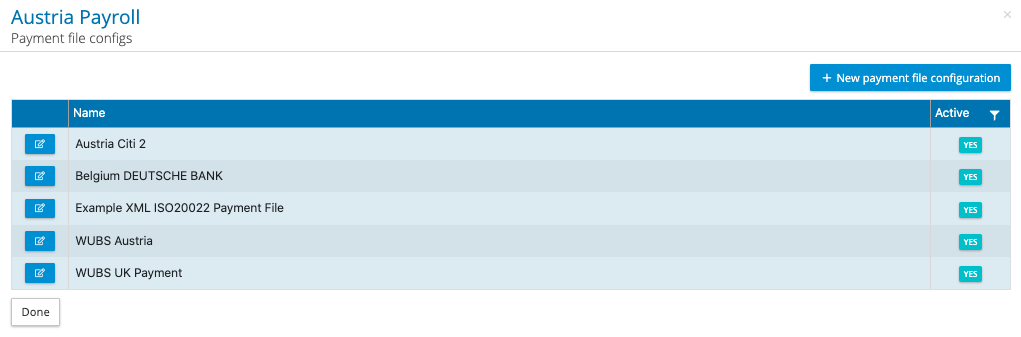
To create a new payment file config click on + New payment file configuration, and select a host payment file configuration.
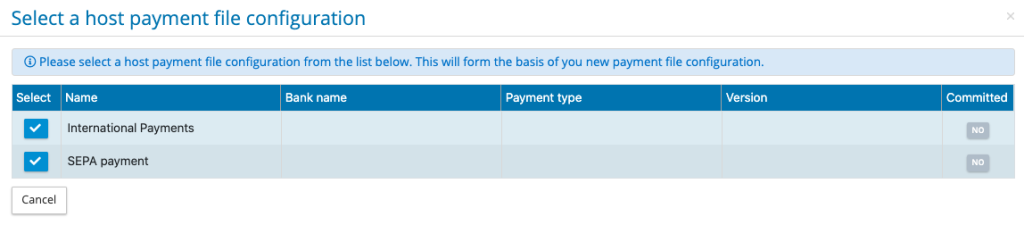
The next step is to configure the payment file, the information needed to complete the configuration will be driven by the data requirements set out in the host payment file configuration.
The payment file configuration should be given a meaningful name in the details tab, the banking organisation may require a specific naming convention, typically this is for the first part of the name.
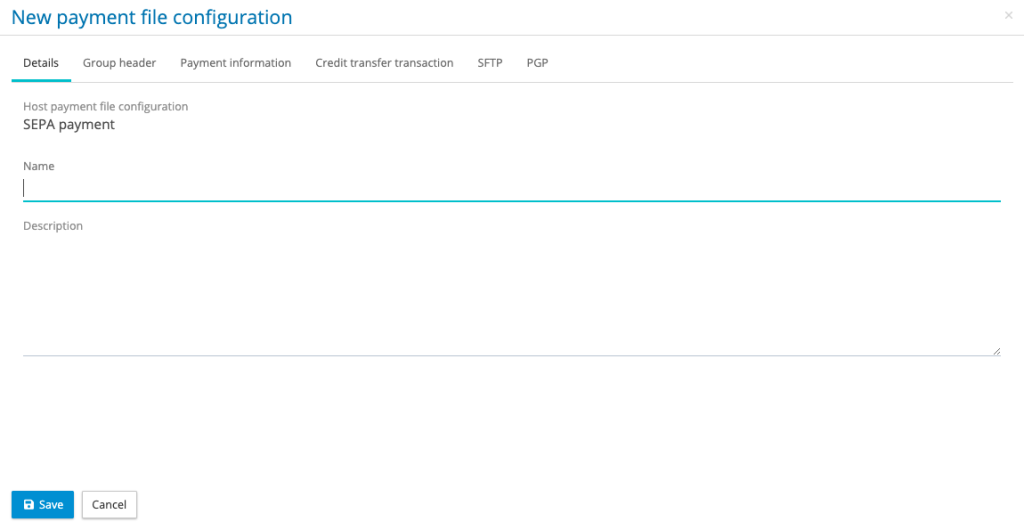
With the name and any description completed, move onto the Group Header.
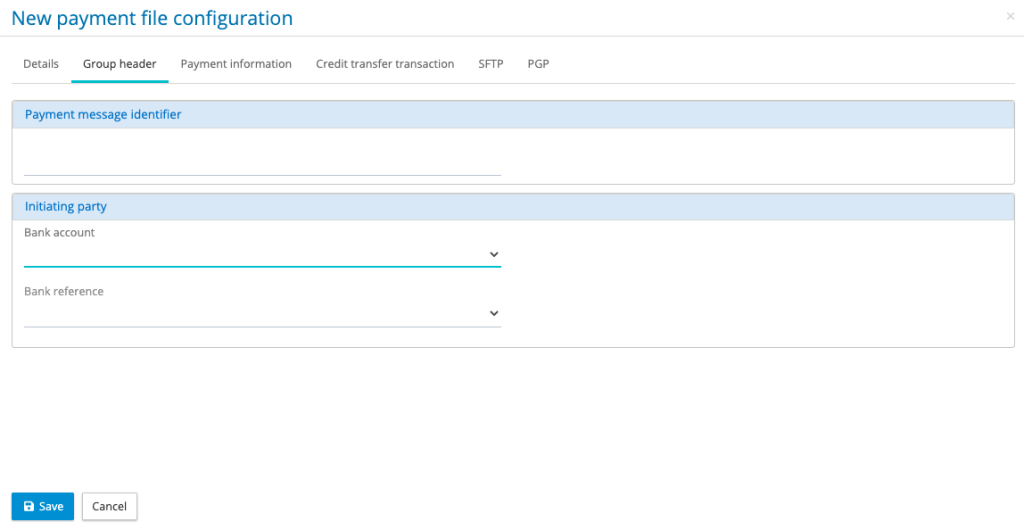
The Group Header must have a value entered for the payment message identifier, a common approach is to enter the name of the country, some organisations enter the word salary. When the payment file is created payment message ID will have a digital date and time stamp added to the identifier to make it unique. The other two potential options on the group header tab, are the initiating party company and initiating party bank account. These must be set up under companies in advance of creating the payment file configurations.
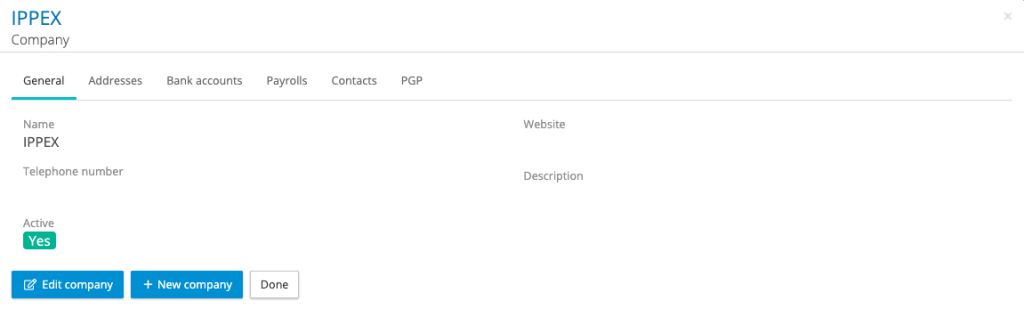
Under companies there is a tab for Address and Bank Accounts, any number of addresses and bank accounts can be created. When creating an Address, it must have a local company name. The local company name is the label that will appear in the payment file configuration, similarly the bank account must be given a name.
The next tab on the payment file is called Payment Information. The debtor organisation and debtor bank account must be selected. The details for these two fields must be set up under companies, the debtor’s local name and address, and debtor’s bank account.
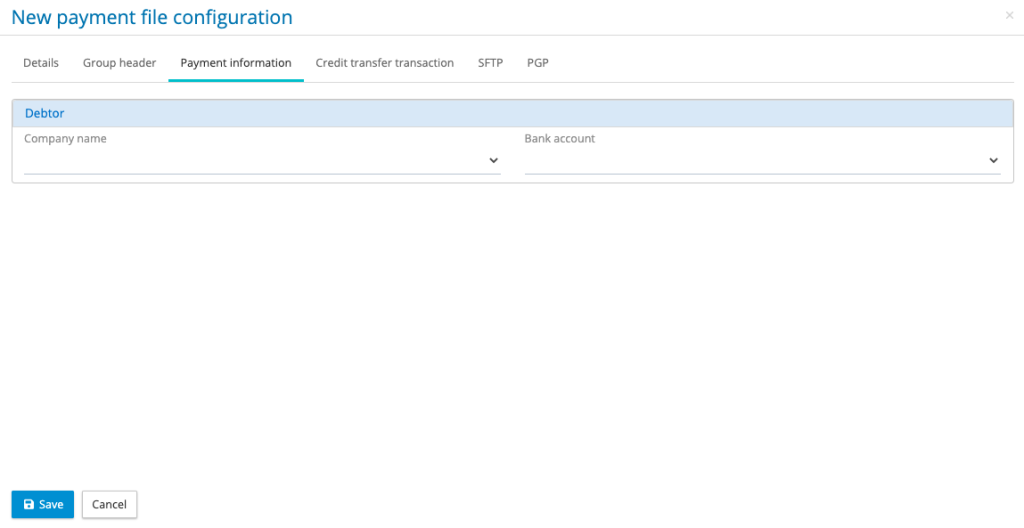
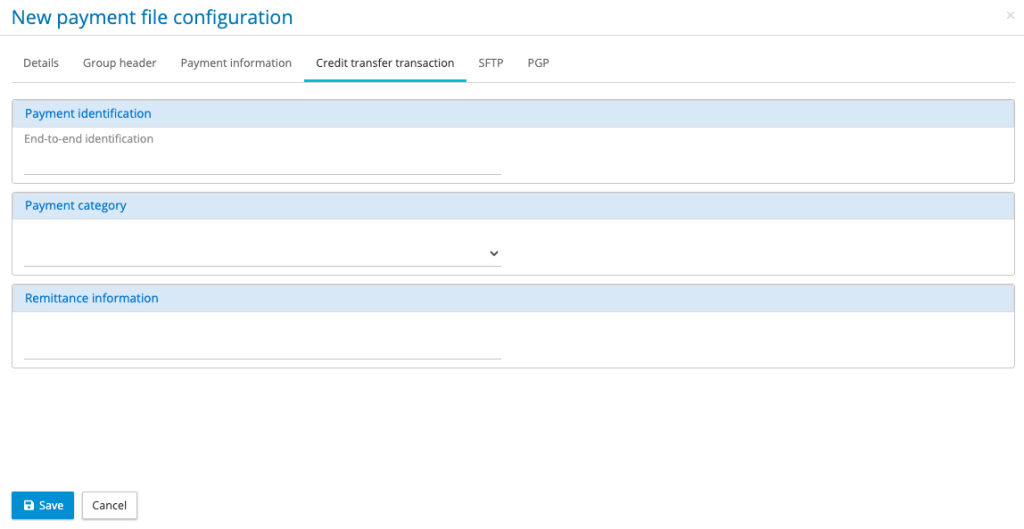
Go to the credit transfer transaction, enter the end-to-end reference, common practice is to enter the name of the country. When the payment file is generated this reference value has a numeric counter added to the begging of the reference for each credit transaction and a digital date and time stamp appended to the end.
Enter the payment category, this is where the payment configuration will take the payment value from for each employee for the chosen pay period.
Enter the remittance message, this is the information that will appear in the employee’s bank transaction.
Specialist employee payment options
For most payrolls an employee is paid a single amount to one bank account in the payroll currency. However, for a small number of employees, for example ex-patriate payroll employees may have a number of specialist payment agreements with their employer. For example, employees with split payments, payments in an alternative currency and those employees who have agreed a fixed exchange rate. Where a bank supports these features, the IPPEX system can be configured to incorporate special payment requirements.
Each employee record has a section ‘Payment configuration’.
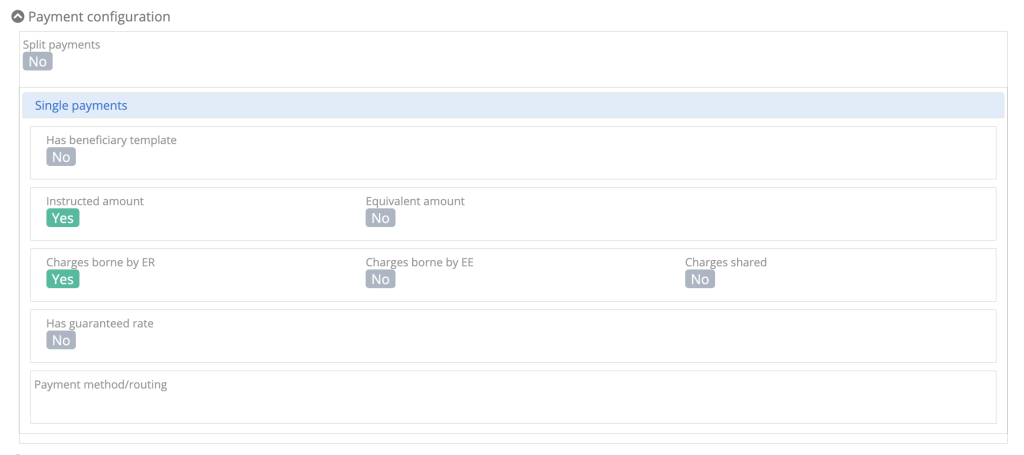
The payment file configurations have the following default settings:
- Split payments – NO
- Has beneficiary template – NO
- Instructed Amount – YES
- Charges borne by the employer – YES
- Has guaranteed rate – NO
For the majority of employee payments, the default settings will apply. However, where there is a need for specialist payments, typically those associated with global disbursements for expatriate employees, different settings may be needed.
Split Payments – This allows for a payment to be split by an amount or by a percentage between two target bank accounts. Each split can be configured to have instructed or equivalent amount, different charge bearing and fixed exchange rates can be applied. If an employee has been configured for split payments, they will require a secondary bank account and secondary address to be entered via the UI.
Beneficiary Templates – If a payment file has been configured to use a bank’s beneficiary templates, the creditor’s agent and creditor’s account can be disabled. The creditor’s personal identification will use the beneficiary ID from the employee’s record. Set ‘Has beneficiary template’ to YES and enter the beneficiary ID, this can also be performed using the employee upload.
Equivalent Amount – The majority of payment files are configured for ‘Instructed Amount’, where the employee received the exact amount stated in the payment value. For FX transactions some employees may be configured to receive the equivalent amount, where the sum received by the employee is based on the exchange rate at the time of the transaction. For equivalent amount payments, the payment value is defined in the currency of the debtor’s bank account and the payment currency is defined in the currency of transfer. NOTE: For all payment files the application will look to see if an employee has been configured for equivalent amounts, if the payment configuration has been set for instructed amount only, the payment file will exclude those employees with equivalent amount set to YES.
Charge Bearing – For the majority of payment files the charge bearing is the same for all of the payments and is defined in the payment information block, typically the payment fees are borne by the employer. If the charge bearer is set-up to be in the credit transfer transaction block of the payment file, the system will take the charge bearing code from the employee’s payment configuration.
Fixed Exchange Rate – Fixed exchange rates can be agreed for specific payments for an employee, where the payment configuration has been enabled for fixed payments, the application will check the employee’s payment configuration file to see if ‘Has guaranteed rate’ been set to YES. If so, the rate, contract ID and rate type will be taken from the employee’s record.
For more information on how to configure any of the above options, please contact your representative at IPPEX Global.
Configuring a payment file for sFTP and PGP
If payment files are to be transferred to a banking/payments organisation via sFTP, the payment file configuration will have been configured to place the report in a particular sFTP folder. The tenancy administrator will be required to create the sFTP configuration and to assign that configuration to the payroll. A payment file can also be PGP encrypted, this option is only available when the tenancy has been enabled for PGP, the user running the report has been enabled for PGP and a contact has been set-up with a public PGP key.
Go to payrolls > reports and open the payment file configuration, there is a tab called SFTP.
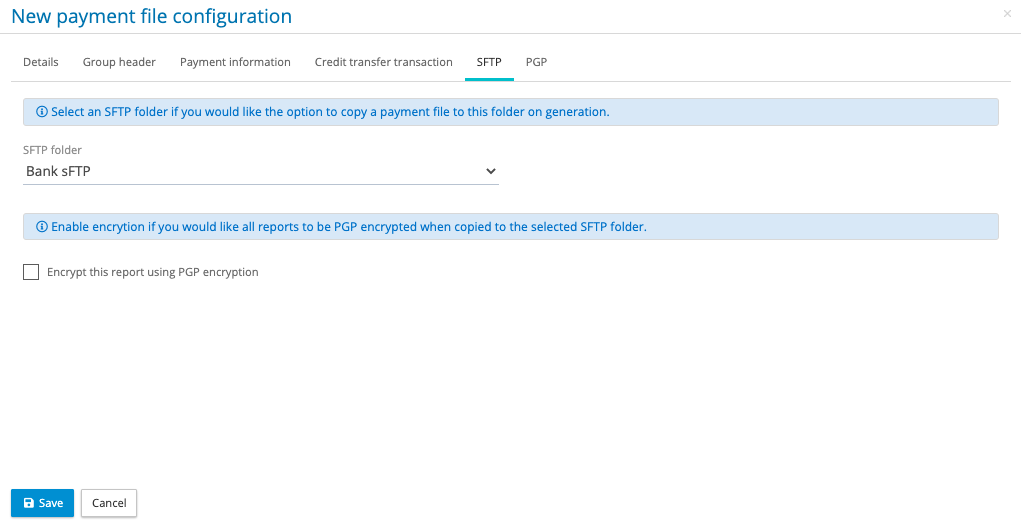
Check the sFTP box and select SFTP folder and save the configuration. This configuration is now ready to be used with the SFTP connection. Similarly for PGP check the box encrypt this report using PGP encryption and select the PGP public key required for this file (multiple PGP keys can be added to a single report)
When the sFTP option has been selected in the payment kick -off process, a copy of the XML payment file will be deposited in the users My Files folder structure along with a payment confirmation report, the details and result files. Another copy of the XML file will be deposited in the SFTP Transfer Folder located in the payroll pay period file structure.
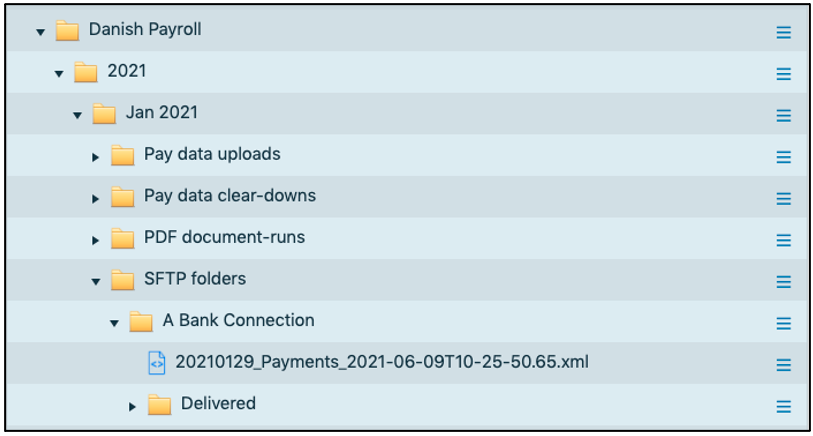
The XML file in the SFTP folder can deleted if it is incorrect ensuring it is not transmitted to banking/payment partner. If the XML file is ready for transfer, using the action button against the file, click on perform SFTP transfer. The transmitted XML file will be removed from the SFTP transfer folder and copy placed in the transmitted files folder along with a results file providing an audit trail of who initiated the transfer and what was transferred.
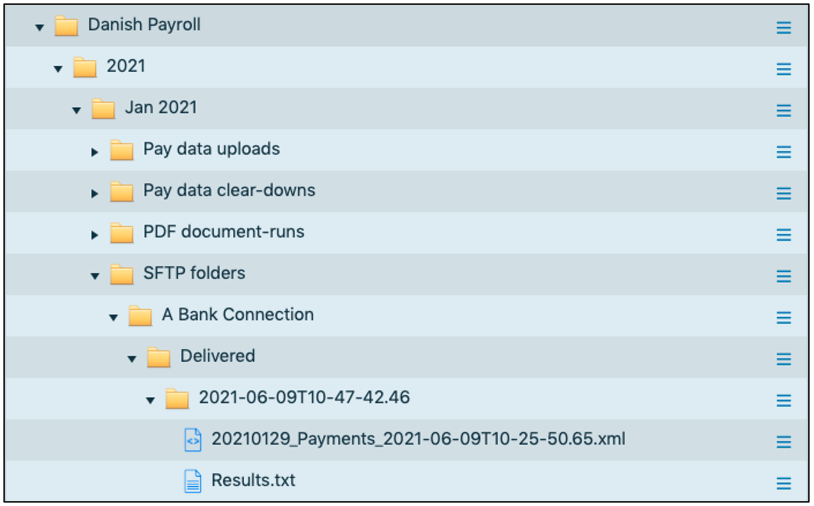
The banking/payment partner will receive the file, and depending on their system the file will be transacted or it will sit in the payment portal ready for further levels of authorisation and/or funding.
Payment files – System User Other Roles
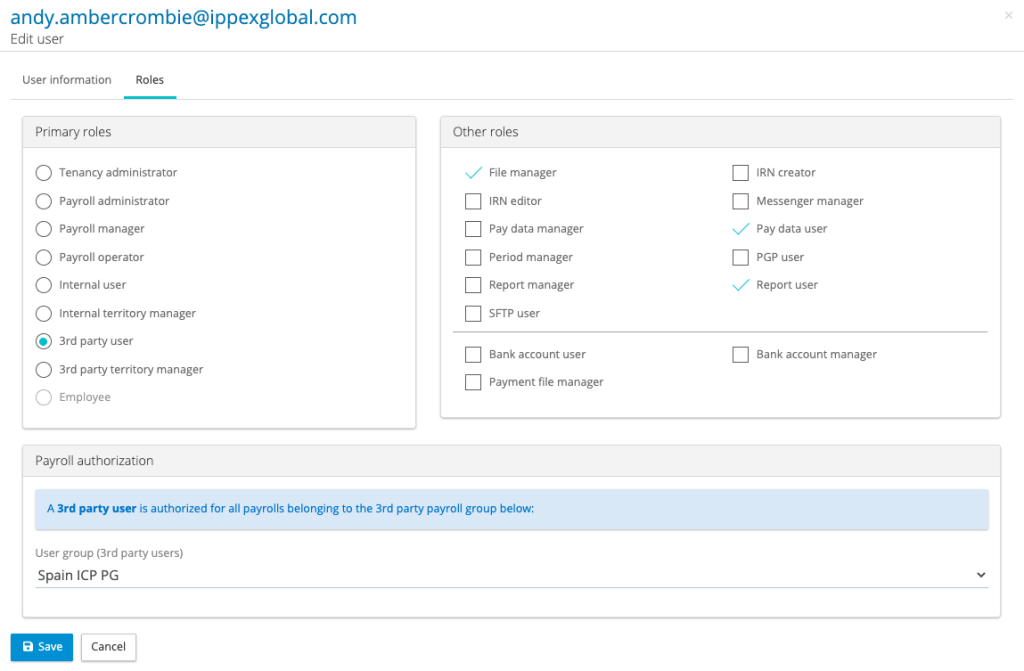
- sFTP – System Users who are required to access the sFTP folders and to initiate file transfer will require the sFTP role.
- Bank account user – Enables a system user to view and report on bank accounts but not edit or create new ones.
- Bank account manager – Enables a system user to update and create new bank accounts for employees.
- Payment file manager – Enables a system user to create payment file configurations, run a payment file and to view company bank accounts.
- Tenancy Administrator – Can edit and create company bank accounts
Payments Check List
The IPPEX payment file is based on the ISO 20022 XML payment standard
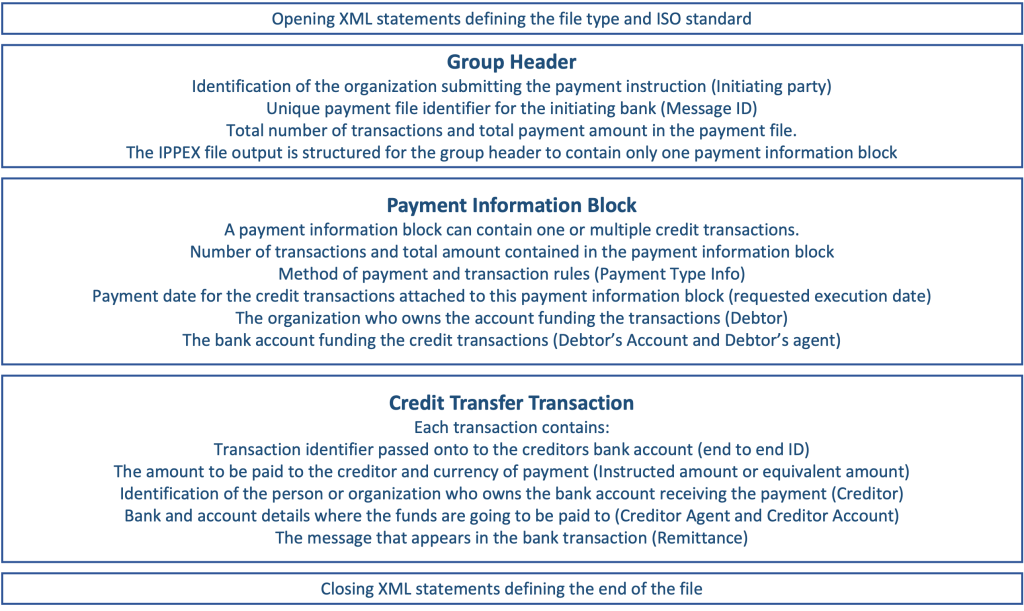
A payment file is generated using the payroll reporting function and relies on several key components of the IPPEX Cloud system. The following diagram and explanation of the relationships between those components and a check list to support the set-up and maintenance of payment files.
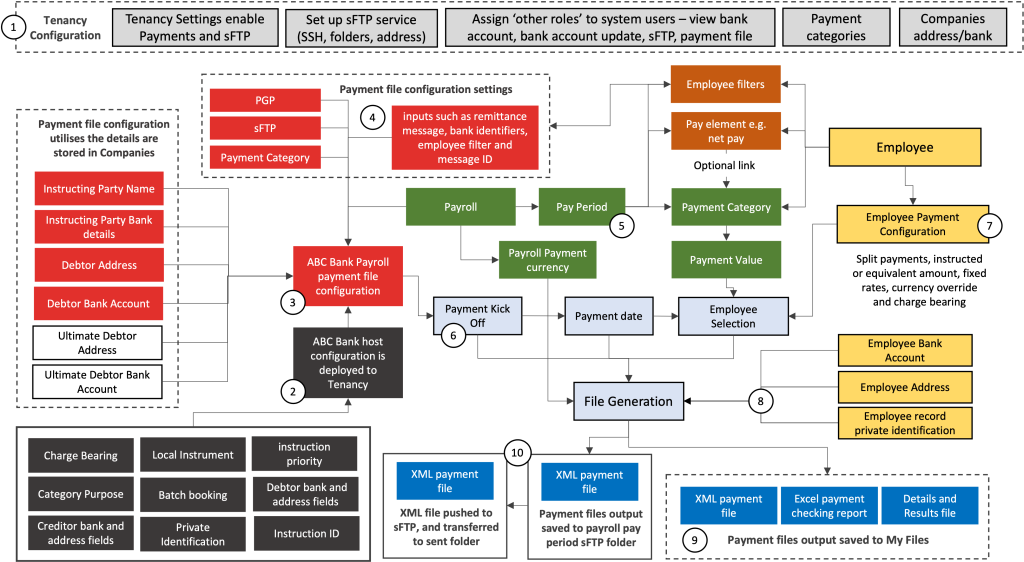
- Tenancy Configuration
- Tenancy Settings – before a client tenancy can be used for payments and sFTP, the tenancy must be enabled for these two functions
- If a sFTP configuration is required for your banking organisation IPPEX will assist your organisation to configure.
- System users involved in the payments process must be granted the appropriate permissions (other roles) to view, upload, edit bank details, create payment file configurations and execute payments.
- Under company’s local company names and addresses plus bank accounts must be created for initiating parties, debtors and third-party creditors. These are used in the payment file configurations to supply key data fields in the payment file.
- Host Payment Configuration
- For each banking or payments organisation, payment type and jurisdiction a host payment file configuration must be created by IPPEX. This specifies the field requirements and payment instructions for the bank. The host payment file configuration is deployed to the client tenancy.
- Payroll Payment File configuration
- Payment files are generated for a payroll and require a payroll payment file configuration. It requires a host payment file configuration and that drives several local data requirements such as selecting the initiating party and debtor company and bank account.
- Payroll payment file configuration – There are multiple tabs to a payment file configuration:
- Details – the configuration must be given a name and it holds the link to master payment file configuration.
- Group header – Payment ID has must be entered and the initiating party must be selected from companies, for some banking organisations there is a requirement for initiating party’s bank account details.
- Payment information block – Select the debtor organisation from companies and the debtor bank account from companies. For some payment types debtor organisation or private identification data is required.
- Credit transfer transaction block – Enter message ID, payment category, remittance message. For some payments a private identification information is required e.g. Tax ID.
- SFTP – If sFTP is being used to transfer the payment file to the banking/payments organisation select the sFTP service needed.
- PGP – If the payment file requires PGP encryption, select the PGP key needed.
- Payroll and pay period data
- A payroll has a payment currency, make sure the appropriate one has been selected
- For each pay period payment values must be uploaded or entered against the payment category for each employee or a pay element is linked to the payment category, the value is copied to the category on post processing lock.
- If using employee filters, ensure the employee values are correct for that pay period.
- Payment file creation process – kick off screen
- A payment file is created using payroll reporting – payments. The kick off process has two steps, the pay period can only be selected if it is post processing locked. The payment configuration must be selected, payment date must be chosen, and the remittance message reviewed.
- sFTP and PGP can be selected (if configured and the employee has sFTP privilege)
- The debtor account can be reviewed.
- Payment file creation – employee selection
- The payment file configuration will retrieve all of the values from the employee’s payment category.
- If there were any negative and zero values, these will be shown in the list, though they cannot be selected.
- Depending on the payment file configuration, an employee could have been set up with a split payment, an equivalent amount, fixed exchange rate or a currency override. For the majority of payroll payments, they are instructed amounts in the currency of the payroll.
- If an employee filter has been selected for a payment configuration, the system will only display a sub-set of employees based on the selected filters (this is future functionality currently in development)
- Select all employees or those that you require for this payment file, and proceed with the report generation.
- Report generation
- The report generation is a background process, the master payment file and payroll payment file configuration will govern the data needed to create the payment file. It will be drawing data from:
- The employee’s bank details and address.
- Employee record data if private identification is required such as phone number or date of birth
- Initiating party and debtor bank details and address from the configured company records.
- Reference and remittance message from the payment file configuration.
- A payment file generation process could reject specific employees based on the validation rules associated with the payment file configuration. For example, if an IBAN has been specified and a value is not present in an employee’s bank account, the system will error that line. Any errors will be reported in the results file.
- The report generation is a background process, the master payment file and payroll payment file configuration will govern the data needed to create the payment file. It will be drawing data from:
- Report output – My files
- When the payment file report has been completed, four files/documents will be placed in the My files folder and a report confirmation email will have been sent to the user who initiated the report.
- Details.txt contains the report instructions
- Results.txt provides information on the number of successful payments and any error that occurred when generating the payment file.
- [configuration name + time stamp].XML is the ISO 2002 XML payment file
- [configuration name + time stamp].xlsx is payment confirmation report listing in a human readable format the list of creditors, payment values and bank accounts.
- XML Payment file output – sFTP
- If an sFTP folder has been selected for the payment configuration and during the payment file kick off process, a copy of the XML payment file will be deposited in the appropriate sFTP folder for that payroll and pay period.
- The user with the appropriate permissions will have to initiate the sFTP transfer using the action button next to the file in the sFTP folder. On file transfer completion the file will be moved to a sent folder.