List Upload
List Upload
List upload extends the capability to import data into the IPPEX platform for pre and post processing data, including organisation unit and employee record data. To accommodate the list upload, the control panel has been modified to with a drop-down button for each upload.
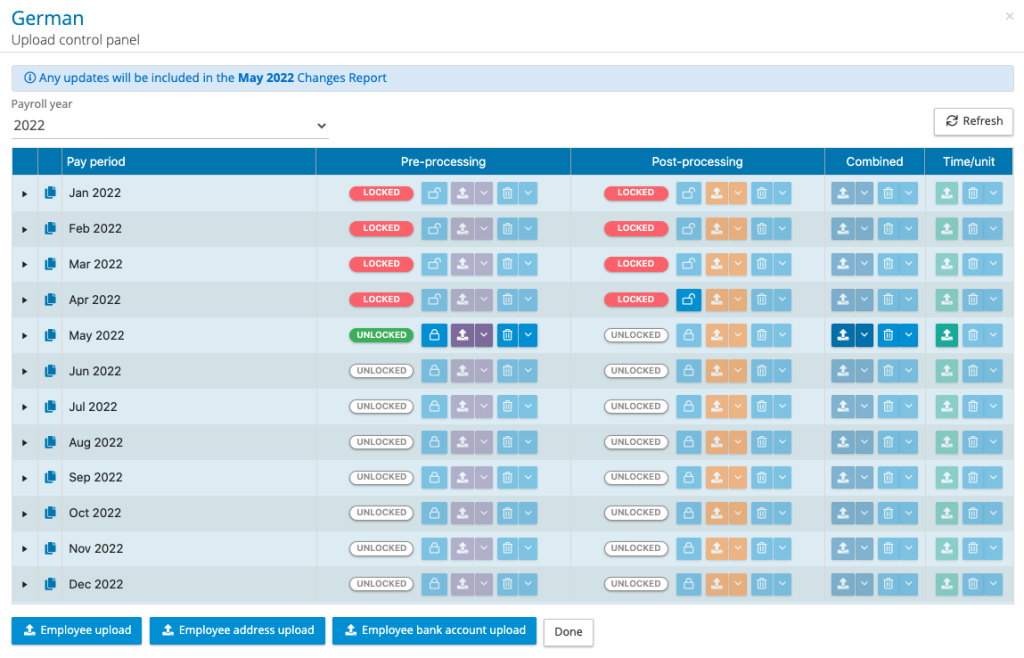
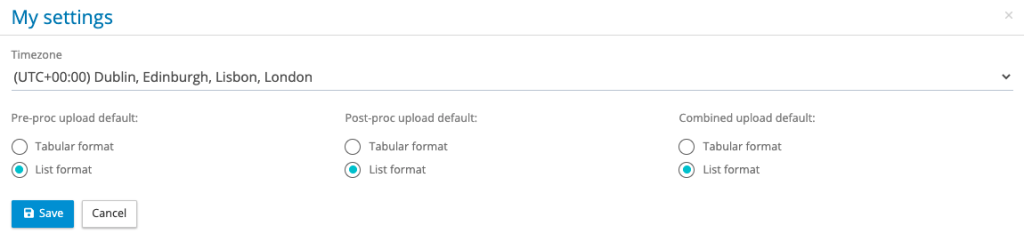
The behaviour of the upload button has a default setting of tabular upload, a user can change the default setting through their user profile settings.
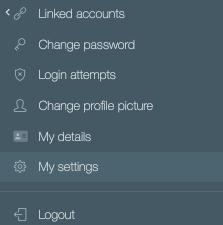
By clicking on My Settings, a user can set the defaults for the upload button.
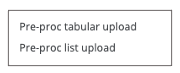
In the control panel to the left of the pre-processing, post-processing and combined upload is a drop-down arrow. This lists the two upload types, tabular or list.
A list upload process follows the same process as a tabular upload, with the exception there is a two-stage mapping process, just like the time/unit list upload process. The upload the file, the first stage is to map the column headings.
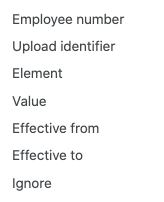
- Employee number – Primary upload key used for upload
- Upload identifier – The upload identifiers have been extended with three new ones for list upload for combined, pre and post processing uploads.
- Local Payroll Number – This can be used as the alternative key for pre-processing and post-processing upload. If using the local payroll number as the upload key, then the employee number should not be mapped.
- Element – Column containing the employee record, org unit, pay element names
- Value – Column containing the value for the employee record field, pay element or org unit
- Effective from – Date from which an address, salary, bank account, civil status or permanent pay element becomes effective.
- Effective to – Date to which a permanent pay element is effective.
- Ignore – Data columns to be ignored on upload
The next step in the upload process is to map the elements to employee record fields, employee details, org units and pay elements. Click on save mappings and continue and submit the upload, the system will process the file in the background and return a results email.
The mappings for list upload and tabular are independent of each other.