Issues
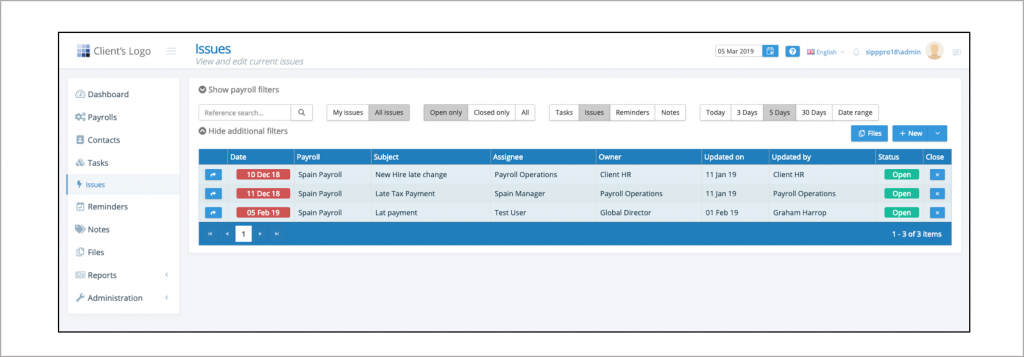
Issue management is a tool to manage and resolve problems or questions between two parties. It is a secure way to correspond on sensitive issues relating to employee data improving an organisations GDPR compliance. Issues utilises the IPPEX user security system to restrict users access to seeing issues based on their user group and payroll access. Issues list can be accessed from the main menu, from the dashboard and from any of the task, reminders or notes list screens.
Issue Navigation
To focus on the right issue, use the variety of navigation functions to adjust the list of issues.
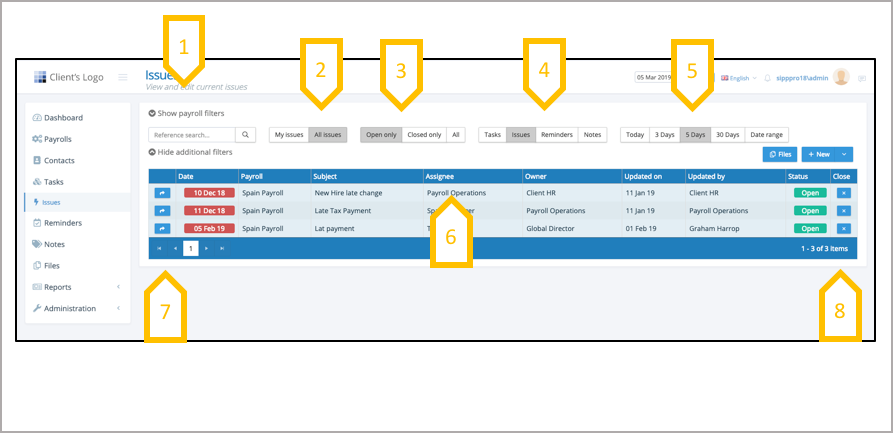
- Use the payroll filters to reduce the list of issues to a sub-set of payrolls.
- The system always opens on My Issues, click on All issues to see the issues of other users in your user group (internal and 3rdParty users) or all issues from all users (payroll users).
- View open issues, closed issues or all issues.
- Jump to Tasks, Reminders and Notes (this carries forward any of the payroll filters that have been applied.
- System opens on 5 days, select alternative period or select a date range.
- Click on column heading to sort by that column.
- Open the detail of the issue8.Close the issue
Issue Management
From the issue list open the issue detail to manage
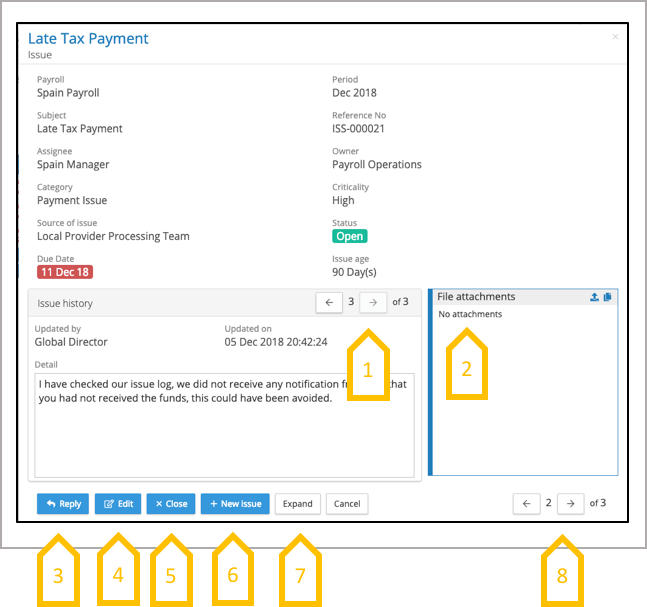
- Click through the dialogue.
- Upload, View or download attachments.
- Reply to an issues (any user with edit rights can add to the issue dialogue).
- Edit the issue and change the assignee.
- Close the issue.
- Create a new issue.
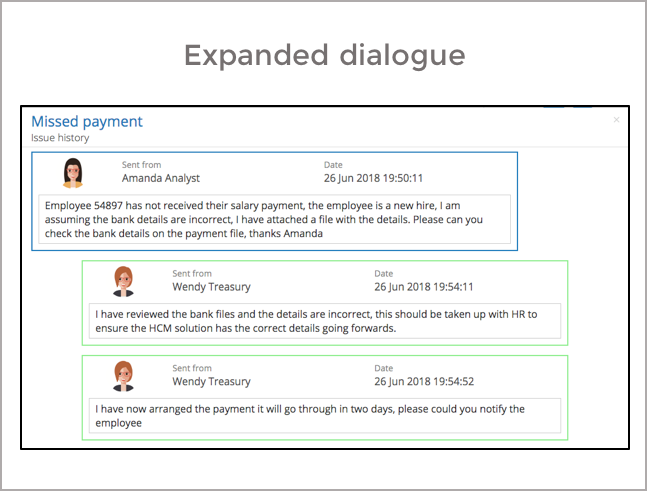
- Click expand to see all the dialogue flow.
- Page through the issues in the list●
Creating a new issue
When creating a new issue, the system will restrict the selection of assignee and owner to only those users who have access rights to that payroll
After pressing save there are two more steps to the process, adding notifications and attaching files.
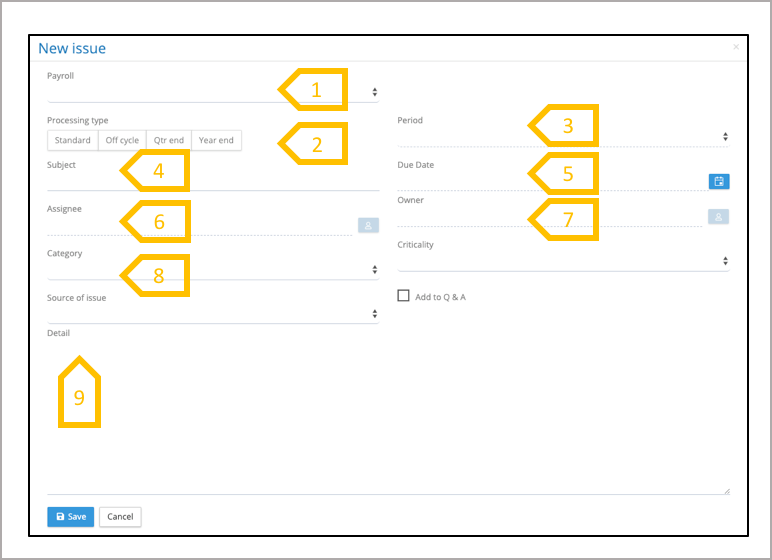
- Select payroll, this has to be done below the owner or assignee can be selected.
- The system will automatically populate the period with the current pay period, adjust if required.
- The system will automatically select the standard processing type if there is a supplementary period (e.g. off cycle) for that period, it will list these as options.
- Add a subject.
- Select the due date for this issue to be resolved by.
- Select the assignee (the person responsible for resolving the issue).
- Select the owner (the person who wants the issue resolved).
- Option requirement to select category, criticality and source.
- Enter a description of the issue
Saving a new issue
The final step in the process, is to notify the assignee and/or the owner that there is a new issue, and to attach any files if required to the issue.
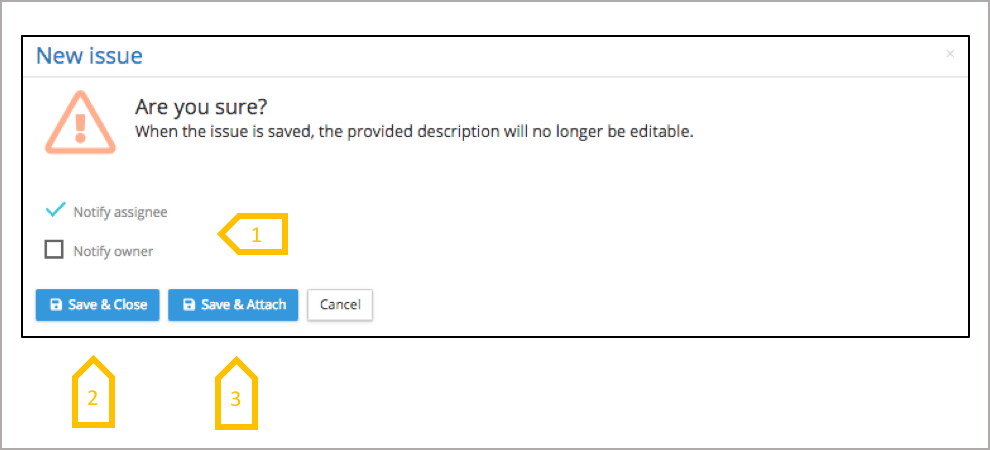
- The action will automatically select the assignee to receive an email notification of the new issue. This can be un-checked, with an option to select the owner to be notified.
- If there are no attachments required, click on save and close.
- If attachments are required, the system click on save & attach, the system will generate the new issue, and re-open the issue to enable the user to attach the required files.
Closing an issue
An issue can be closed from the issue list or from the issue detail.
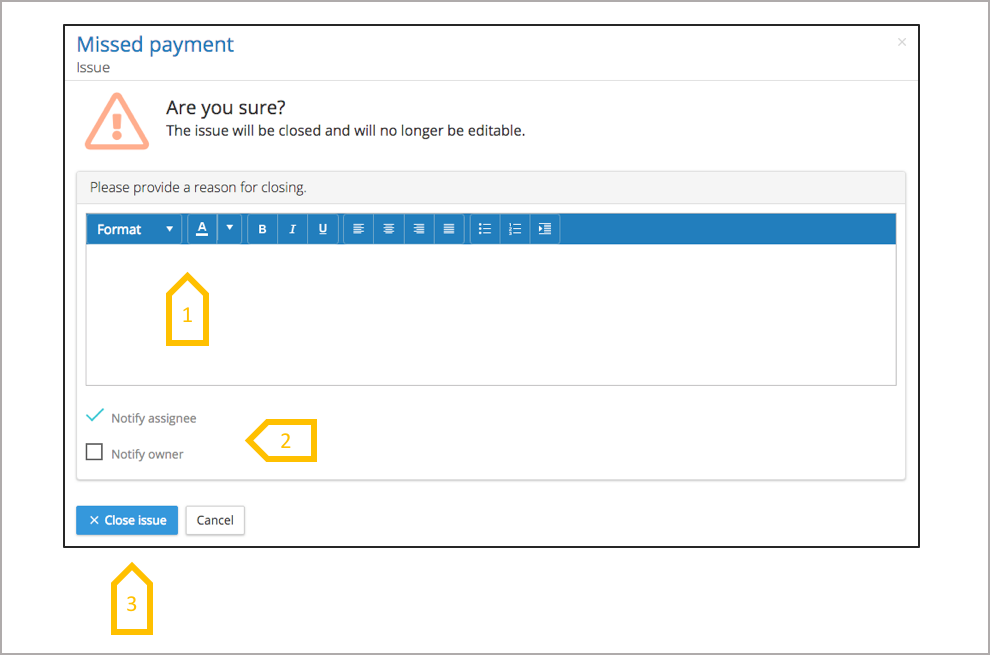
- Provide a reason why the issue is closed (mandatory).
- The will automatically select the assignee to receive an email notification that the issue is closed. This can be un-checked, with an option to select the owner to be notified.
- Click on close issue