IPPEX Cloud V 3.07.0 Release Notes

Introduction
Version 3.7.0 introduces various new features across the platform including enhanced reporting abilities, MFA capabilities, and added tool tips.
The key updates include:
- Ability to Report on Second Bank Account
- Automatic Multi-Factor Authentication
- Mauritian Rupee added to Currency List
- Allow “Exclude details tab” on all configurable reports
- New Tool Tips for Issues
- Update Tenancy Lock Screen Warning Message
- Increase GL Column Header Length from 32 to 40 Characters
Ability to Report on Second Bank Account
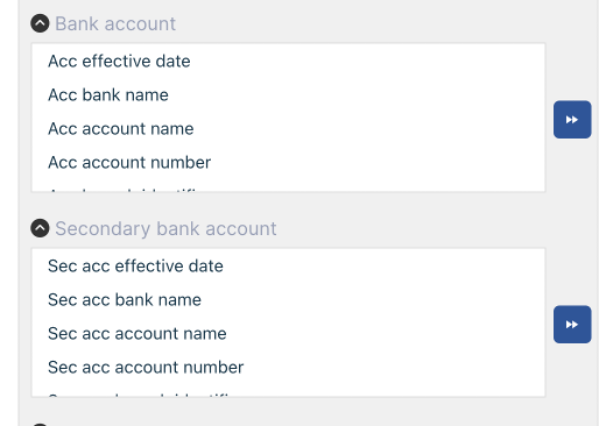
Secondary Bank Accounts (currently used exclusively on payment files for split payments) can now be reported on and added to IPPEX report configurations. The secondary bank account details now appear below the main bank account details when creating/editing a report configuration:
Automatic Multi-Factor Authentication Enforcement
Employee users that now set up Multi-Factor Authentication will now have the ‘Is Two-Factor authentication enabled?’ option on their employee user account automatically ticked upon successful setup, removing the need for system users to manually select this option.
Mauritian Rupee (MUR) Added to Supported Currency List
The Mauritian Rupee (MUR) has now been added to the Supported Currency List. It can now be assigned to a payroll for all currency types.
Allow “Exclude Details Tab” option across all configurable report types
The exclude details tab feature has now been extended to all other reports, so users can run any report type without the details tab pulling through if desired.
New Tooltips for Issues, Queries, Reminders, and Notes
On the dashboard, there are now added tool tips to explain the x/y metrics seen at the bottom of each payroll’s task list.

The tooltips are as follows:
Number of new issues: The total number of Issues raised during the currently filtered period.
The value shown as x/y represents how many Issues (x) out of the total Issues (y) you are permitted to view.
Number of new notes: The total number of Notes raised during the currently filtered period.
The value shown as x/y represents how many Notes (x) out of the total Notes (y) you are permitted to view.
Number of new queries: The total number of Queries raised during the currently filtered period.
The value shown as x/y represents how many Queries (x) out of the total Queries (y) you are permitted to view.
Number of open issues: The total number of Issues currently in an open state, regardless of due date or the currently applied time period.
The value shown as x/y represents how many Issues (x) out of the total Issues (y) you are permitted to view.
Number of open queries: The total number of Queries currently in an open state, regardless of due date or the currently applied time period.
The value shown as x/y represents how many Queries (x) out of the total Queries (y) you are permitted to view.
Number of open reminders: The total number of Reminders currently in an open state, regardless of due date or the currently applied time period.
The value shown as x/y represents how many Reminders (x) out of the total Reminders (y) you are permitted to view.
Update Tenancy Lock Screen Warning Message
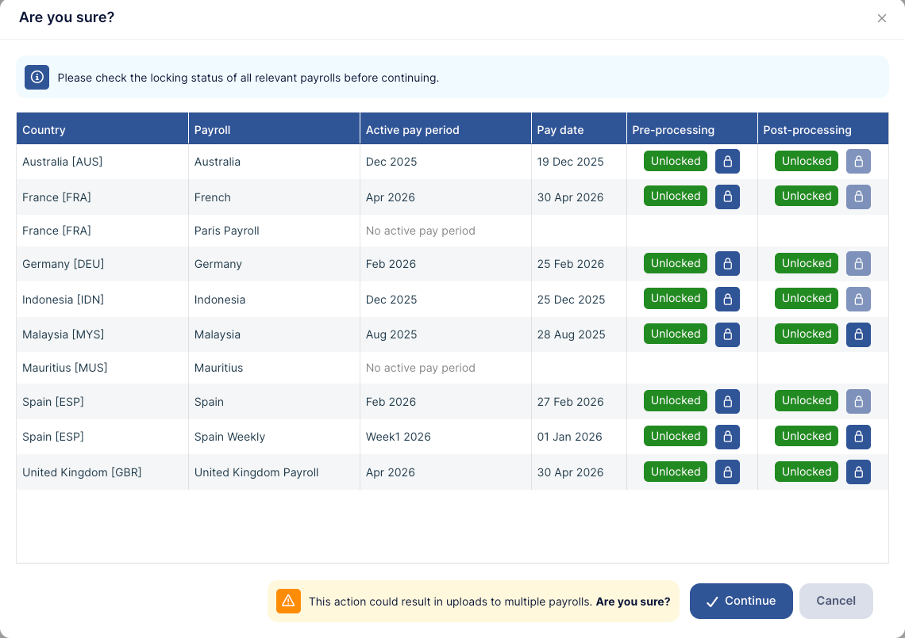
For better clarification, the Tenancy Auto-Upload Lock Screen Warning Message has been updated from “This action will result in uploads to multiple payrolls. Are you sure?” to “This action could result in uploads to multiple payrolls. Are you sure?”.
Increase GL Column Header Length from 32 to 40 Characters
On GL reports, you can now have column headers with up to 40 characters. This can be applied to any column header on the GL Report.
Payroll Re-Runs
Users will now have the ability to trigger payroll re-runs during a pay cycle. This will provide an audit trail as well as visual tracking on the dashboard to ensure re-runs are tracked and successfully processed.
First, users must have the new ‘Trigger payroll re-run’ role permission selected to proceed with a re-run.
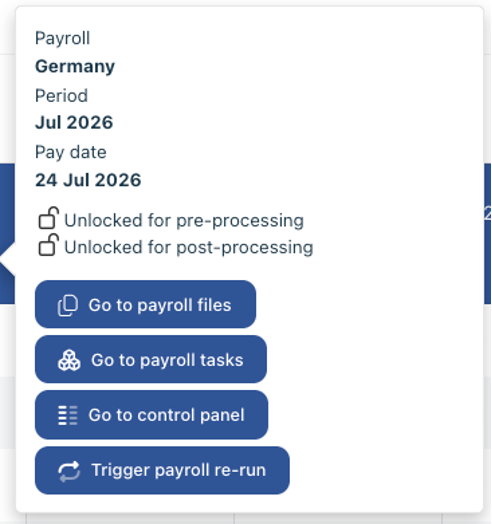
In order to trigger a payroll rerun, hover over the flag of the payroll in question, and select the ‘Trigger payroll re-run’ option:
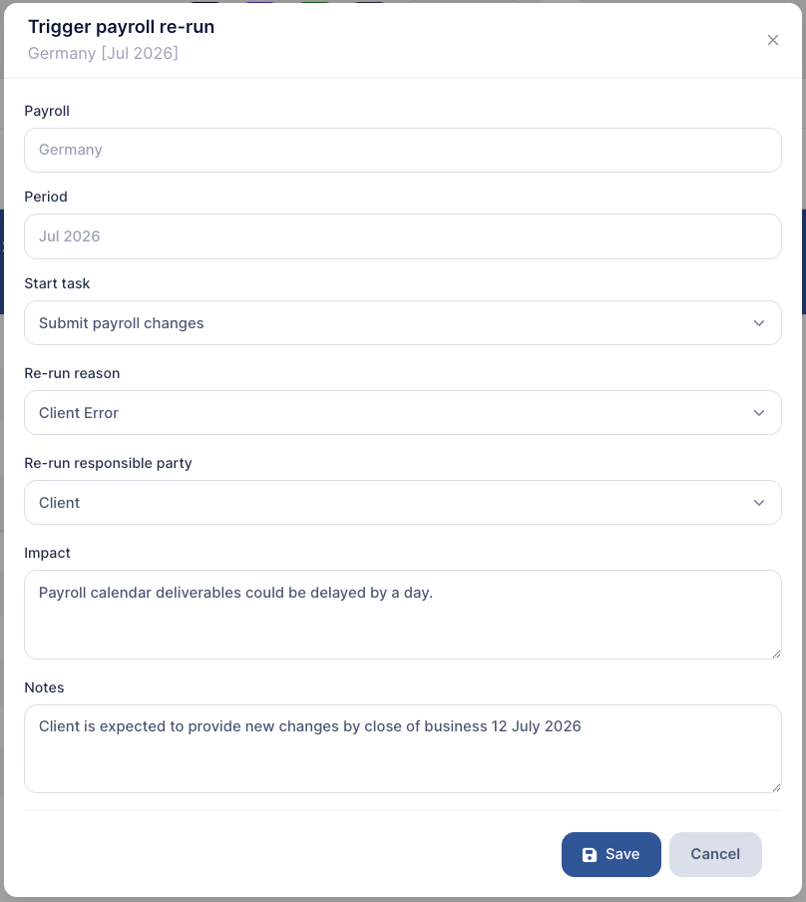
You will then be prompted with a window where the payroll and pay period will be pre-filled out (pulling from the dashboard/pay period you’ve selected. You will fill out the details of the re-run including:
- Start Task (this is which task on the dashboard you wish to have then re-run start from. All subsequent tasks that have been closed will be opened following on from the start task)
- Re-run reason (the list of reasons are now customisable lookup options similar to an issue)
- Re-run responsible party (the list of reasons are now customisable lookup options similar to an issue)
- Impact
- Notes
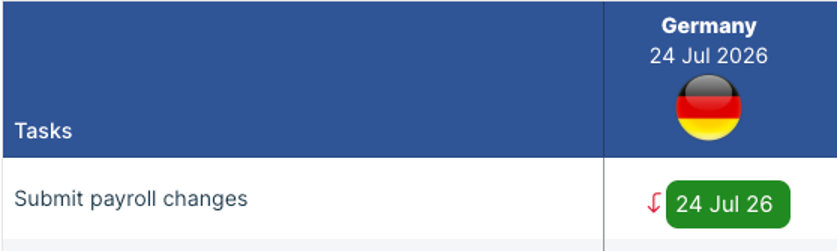
When the task(s) are re-opened, a new visual queue will appear to identify tasks re-opened as part of the re-run:
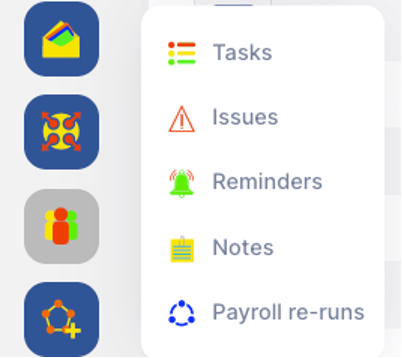
There is a new section of IPPEX Cloud to allow for the tracking and archiving of payroll re-runs that occur. It can be accessed from both the payroll dashboard and TIRNs section of IPPEX:

Here you can see re-runs triggered, both past and present with all details provided in the re-run window prompt.
Under reports there is additionally a new ‘Payroll Re-run Report’ option:
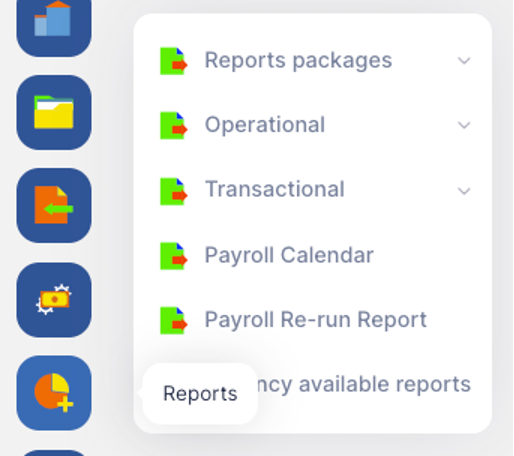
Here you can run a report similar to an IRQN report which will provide the desired payroll re-run details.
Increase Configurable Report Column Count to 500
Reports can now have up to 500 columns added to their configuration, allowing for larger reports. Users will be able to add these in the report configuration and all columns added will pull through on the report successfully without triggering an error.
GL – Support Org Unit String Tokens For GL Column Overrides
GL and non-GL org units can now be pulled through on GL reports as a string token. Using the following String Token:
%%OrgUnit:[org unit name]%%
These org units can pull through and can then be used as a base for an org unit override:
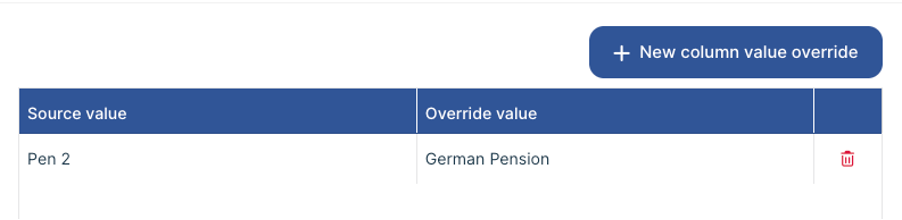
Once applied, the override value will then pull through onto the GL report:

Please note the following:
- This token can be used againt GL and non-GL org units.
- For journals that are not grouped by EmpNo/EmpName, this value will always be blank as it cannot be resolved to an individual value.
- A non-existant value or non-existent org unit will retrun blank.
- An inactive org unit value will be highlighted red (excel only)
- An override on an inactive org unit value will be highlighted red (excel only)
Mapping Warning Enhancement
When system users go to perform an upload and need to map columns that are currently unmapped, and the mapping in question already exists, the warning message will now display both the warning that a mapping already exists, as well as what column header the mapping currently is mapped to:
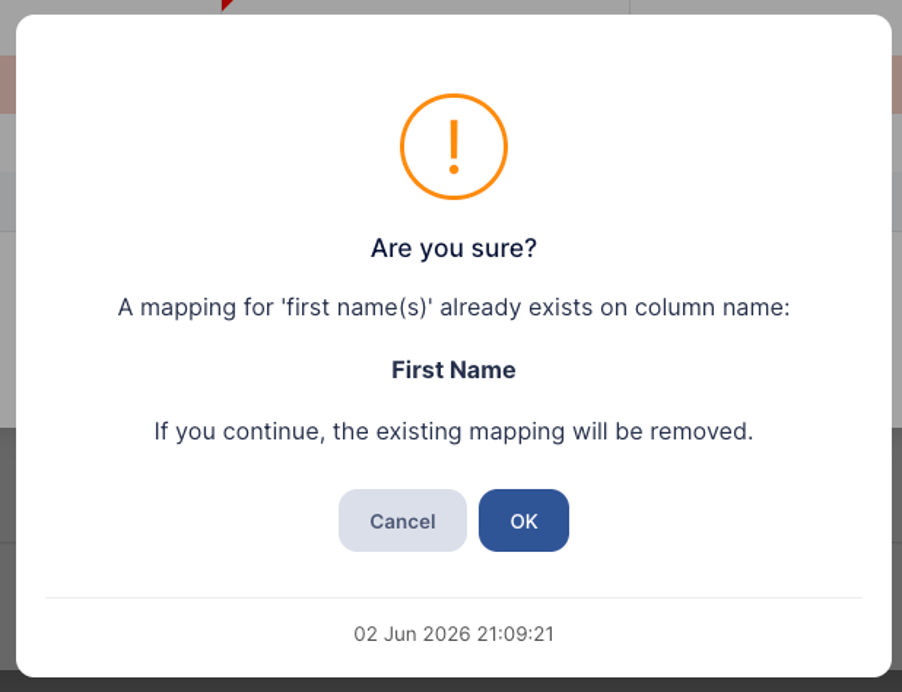
Payslips – Automatic Release
System users will now have the ability to perform PDF Document Runs and/or Manual Document Uploads with a value date, allowing them to take place before the desired day of release.
When performing a PDF Document Run or Manual Upload, you will now have the ability to select a ‘Schedule release’ button. Here you will be able to select a value date and select the option to send employee emails (utilising current IPPEX Cloud capabilities). If you wish to send employee details but not set a future release date and make payslips available upon upload, simply leave the value date blank:
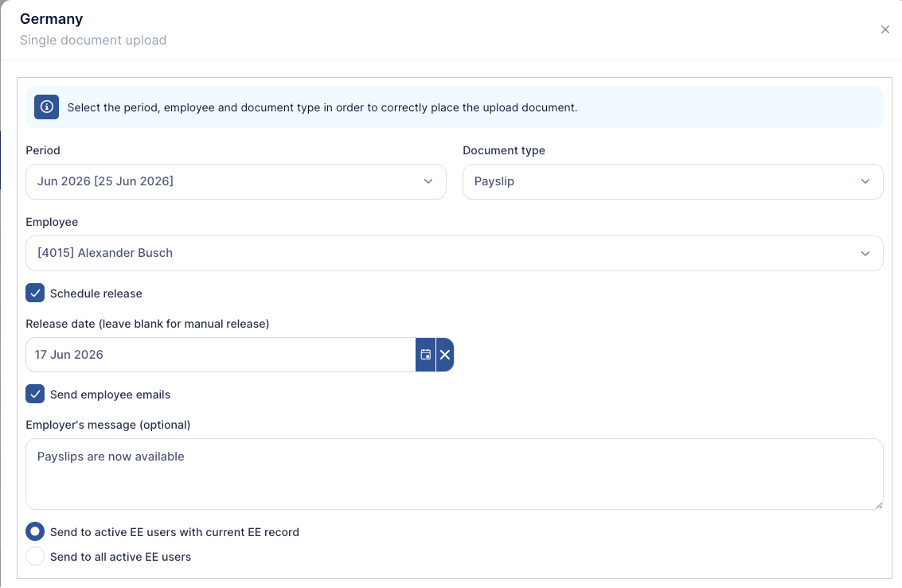
Once performed, system users will be able to track scheduled PDF Document Runs and Manual document uploads with value dates in the new ‘Document Runs’ button on the payrolls menu:
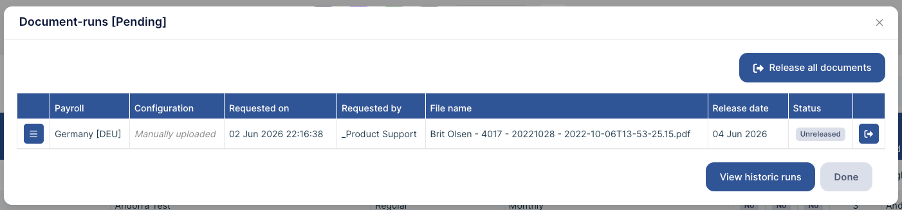
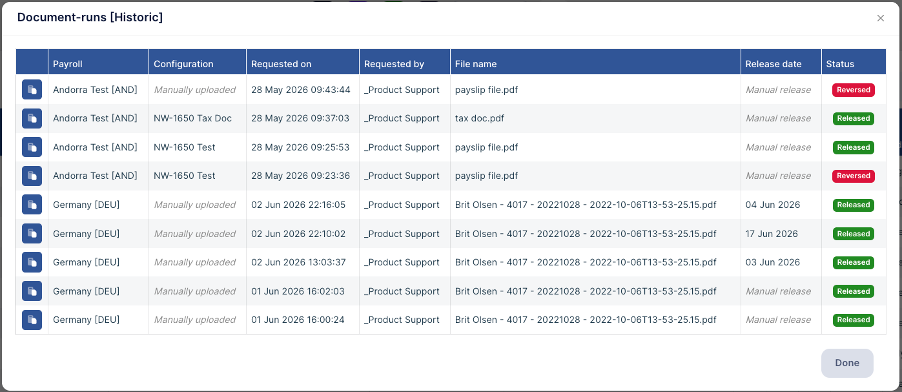
There is also a ‘View historic runs’ button where released and reversed runs can be accessed in a display menu as well:
Remove User Access
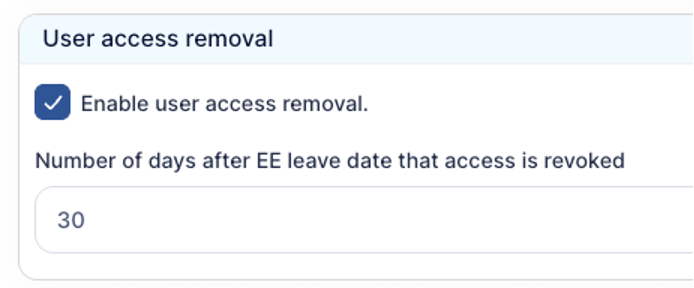
System users can now set at a tenancy level automated user access removal. In the tenancy settings under the ‘security’ tab, users can now select the ‘Enable user access removal’ option. Once selected a box titled ‘Number of days after EE leave date that access is revoked’ where you put the number of days desired. Once input, employee users who have a payroll leave date applied will start the counter and their access will be disabled once the number of days has been reached.
Employees who appear on multiple payrolls will only be automatically disabled if they have a payroll leave date applied to every payroll they are a part of. If multiple payroll leave dates are applied, access will be disabled in the days following the latest payroll leave date that appears.