IPPEX Cloud V 2.04.0 Release Notes
Introduction
Version 2.4.0 includes a multitude of new features including a new features and enhancements. This includes a new employee report that can be run at a tenancy level, as well as enhancements to the flexible changes report. 2.4.0 has also introduced the ability to add a session time out and a password auto expiry to tenancies. We have also introduced the ability for employee users to download all documents via the employee portal. Finally there have been various security and performance enhancements.
Issue Notification Enhancements
The Issues function in IPPEX Cloud has been updated to allow for notifications to be sent to the user group of the selected assignee & owner.
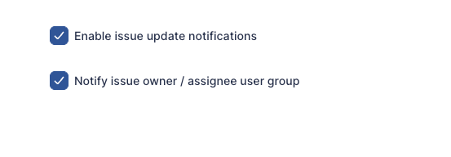
This is able to be set at a tenancy level by going to Administration > System > Settings. There under the ‘Settings’ Tab, in addition to the ‘Enable issue update notifications’ option, you can also select the ‘Notify issue owner / assignee user group’ option:
Once this is selected for a tenancy, when creating, updating or closing an issue will display the following notice:
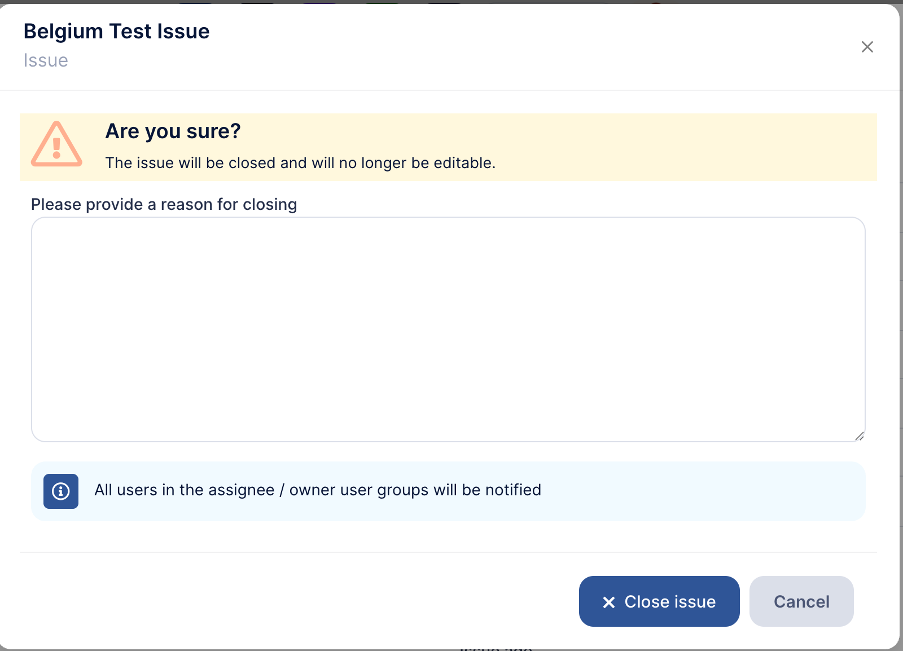
When created, updated, or closed, all users in the same user groups as the issue owner and assignee will also receive email notifications.
Password Auto Expire/Renewal
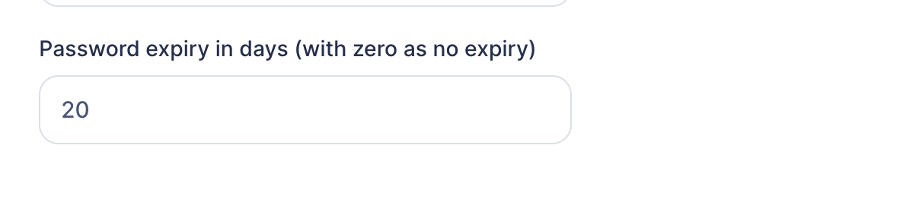
Tenancies can now set a number for ‘password life days’. This number of days will be tracked against users when they last changed their password. Once they have reached the specified number of days, they will be prompted to reset their password. Resetting the password will reset the Last Password Reset Date for the user. (max days to set is 999)
This feature is under Administration > System > Settings in the ‘Security’ Tab:
Session Timeout
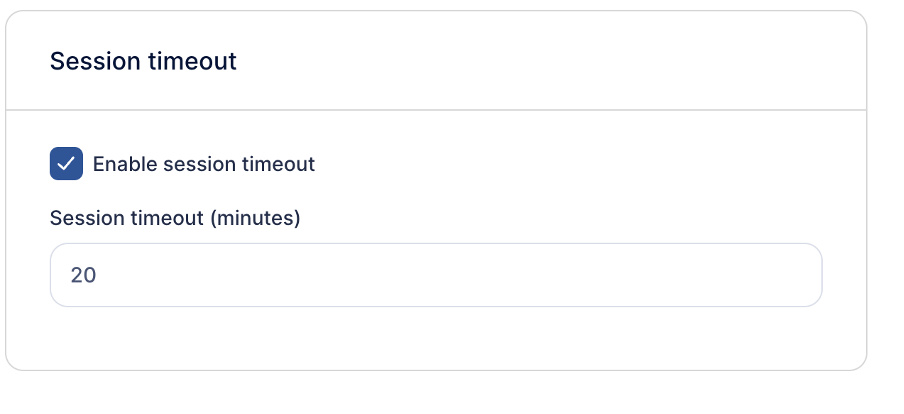
Tenancies now also will have the ability to set a session timeout quantified in minutes. This will cause a user to be logged out after a period of inactivity (as defined in the timeout setting). This can be set by going to Administration > System > Settings in the security tab:
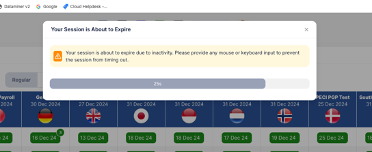
30 seconds before timeout is reached, a countdown dialog will be presented:
Amended Last Pay Period Rules
We have amended the rules for what can apply a last pay period to make it more user intuitive.
The Last Pay Period will now apply the Pay Period in which the Payroll Leave Date is applied in an upload. Permanent Pay Elements will also be closed off with the same effective end date to ensure they are not pulled onto unnecessary reporting. The following rulesets will apply:
During upload, if the previous Leave Date differs from the new Leave Date:
- When a Leave Date is added:
- Set the Last Period to the Leave Date Period, unless there is an existing Last Period
- Close all open permanent pay elements with the Leave Date
- If the Leave Date is edtited:
- Edit the Last Period to the new Leave Date Period if it corresponds with the previous Leave Date Period.
- Edit end dates of all permanent pay elements having the previous Leave Date to the new Leave Date.
- If the Leave Date is removed:
- Remove the Last Period if it corresponds with the previous Leave Date Period.
- Remove all permanent pay element end dates having the previous Leave Date
Note that if the upload has Last Period set, or permanent pay element End Date set, this will always take precedence over the rules above.
Note that we remove a Leave Date in combined upload using the #clear# keyword.
Employees with a Last Pay Period Assigned will now also appear on payment files if there is a payment against them for that pay period.
Mandatory Task Downloads
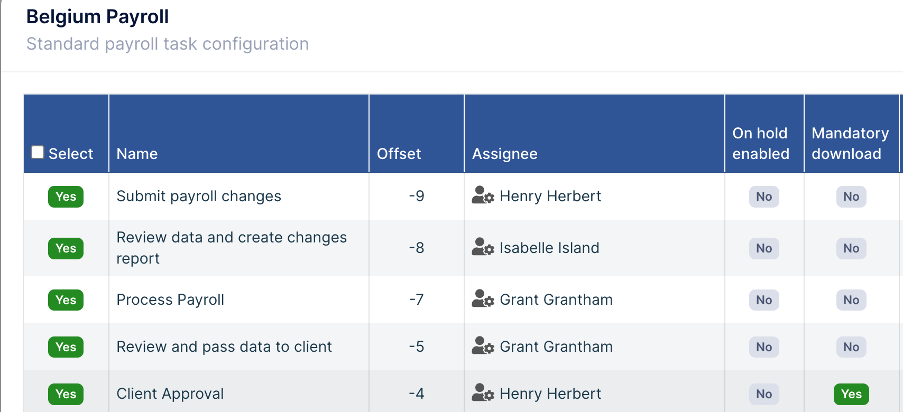
Tasks can now be configured to make downloading files from a selected inbox mandatory and part of the task closure action. To do this, in ‘Task Configuration’ you can enable a download to be mandatory by selecting the ‘Yes’ Option:
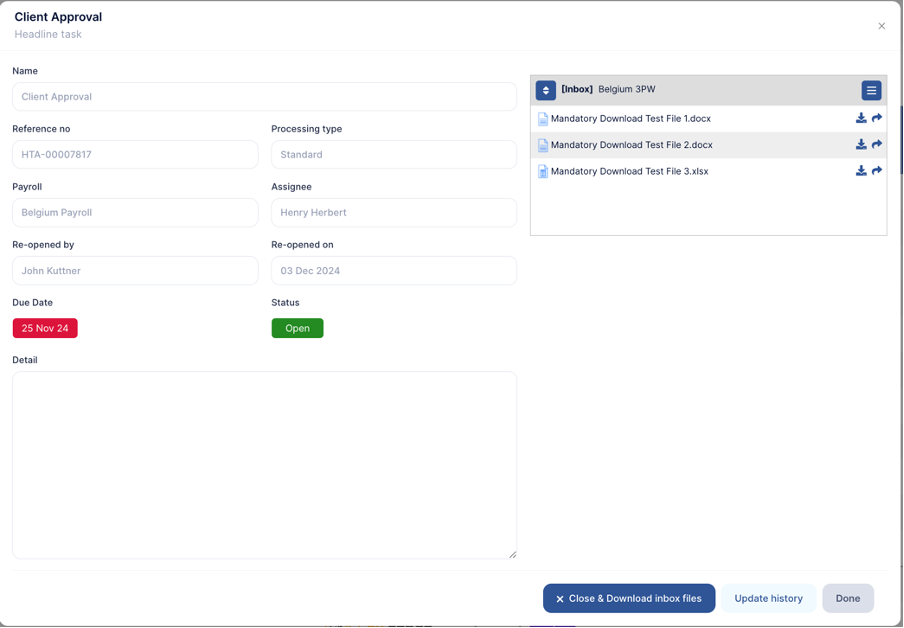
This will have the ‘close task’ button now appear as ‘Close & Download Inbox Files’. This will have the inbox files downloaded as a ZIP automatically upon closure of the task by a system user.
Download All Documents
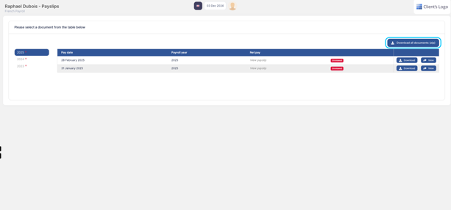
Employees will now have an option to download all documents (Payslips and Year-End Documents) upon being assigned a Payroll End Date. When Assigned a Payroll End Date, this button will become available in the employee portal as a one time action where they can save all documents in one click.
Employee Details in Flexible Changes Report:
Persistent Employee Details can now appear listed out in a Flexible Changes report when the ‘Report All Effective Data’ options is selected in a List tab on the configuration. When selected, all active persistent employee details will be listed out with the changes highlighted in Red and the unchanged details in Black.

Multi-Payroll Employee Core Data Report:
IPPEX Cloud has introduced a new Tenancy Level report which allows for system users to provide an extract of the current active employees for all payrolls (the system user will have permissions to access) and list them out along with their core employee details. This is presented in a similar layout to the transaction report.
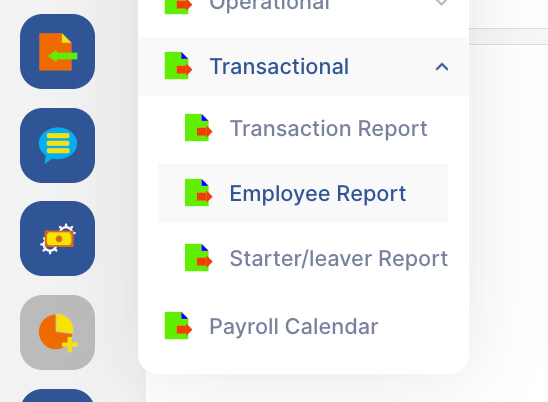
To access this, go to Reports > Transactional > Employee Report:
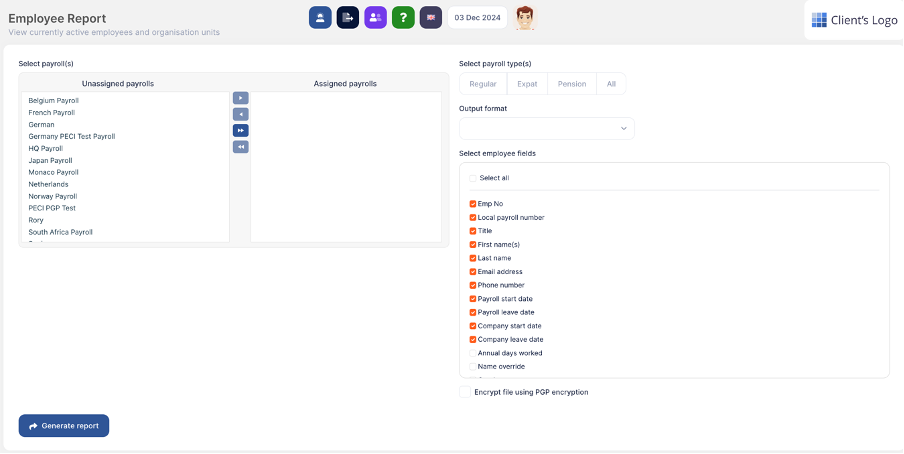
From here you can select the payrolls to be included in the report, the payroll type, the output format, and the select employee fields to be included:
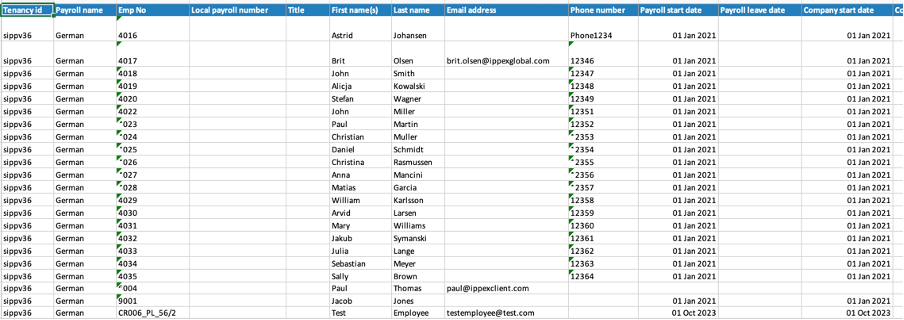
The Extracted Report will contain the specified active employees along with the selected details listed out:
Please note that the snapshot will be the pay period of the payrolls that falls on the date the report is run. So any payrolls not currently active in the pay period will not be included. (For example, if you run the report on December 02 which calls in the Dec 2024 Pay Period for a payroll, and that payroll is currently in Nov 2024 Pay Period based, the employees will not appear until the payroll has been locked and December becomes the active pay period.