IPPEX Cloud V 2.03.0 Release Notes
Introduction
Version 2.3.0 includes a variety of user interface enhancements to the Issues section of IPPEX Cloud. There is also the addition of Additional String Tokens for reports. Version 2.3.0 also includes enhancements to PDF document runs, including the ability to run multiple PDF documents in a single action, as well as the ability to perform a PDF Document export with a manifest file that can be sent via SFTP.
Enhancements to issues
The User Interface of the Issues field in IPPEX Cloud has been enhanced to include a variety of new functionalities.
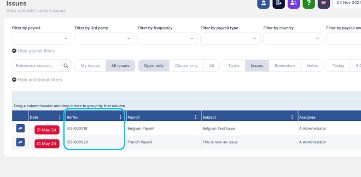
First the ability for the unique Issue Reference Number to appear on the Issues page is now available:
Additionally, there is now the ability for a number of customisations users can make to the Issues page including:
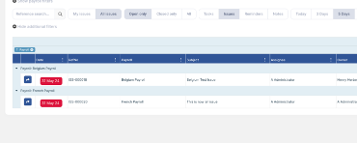
The ability to drag column headers to the specified field above which will then group issues by the specified column header:
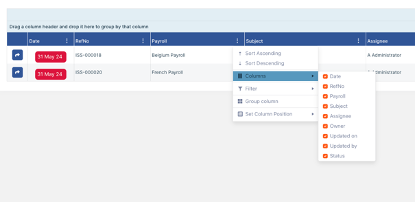
You also have the ability to select/deselect relevant columns you would like to appear on the issues page:
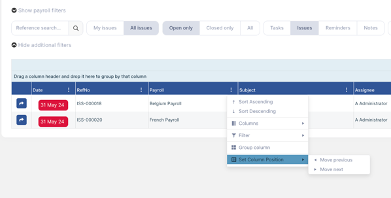
You can also set the column positions to control the ordering of the Issues headers (you can also do this by dragging the columns left and right:
Additional String Tokens for Reporting
The following keywords can be used to add data items to the report header/footer:
%%EmployeeCount%%
[The count of active EEs on payroll]
%%EmployeeUserCount%%
[The count of active EE users on payroll]
%%UniqueEmployeeCount%%
[The count of unique EEs]
%%pre: pay element name%%
[The count of unique EEs with non-zero pre-proc pay element]
%%post: pay element name%%
[The count of unique EEs with non-zero post-proc pay element]
%%perm: pay element name%%
[The count of unique EEs with non-zero permanent pay element]
For Variance Reports, the %%post: pay element name%% will count the rows where the variance is a non-zero value.
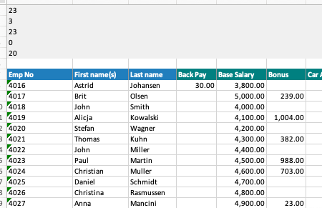
Multiple Rows can be used which would be displayed in the order in which they are placed in the configuration:
Multi-PDF Document Run Support
Multiple PDF Documents are now able to be run in a single action. To do this, simply go to perform a PDF Document Run as usual. Where you would usually add the one PDF file, you can now add multiple:
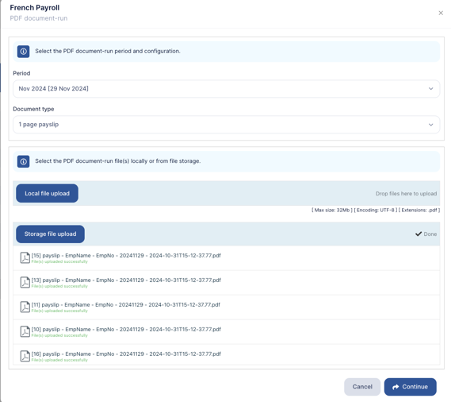
When you click continue, the PDF document run will proceed as normal for each of the files. You will also receive confirmation when each file has been loaded successfully.
PDF Document Support Export with Manifest File
PDF Document runs can now be copied into an SFTP folder to be transferred.
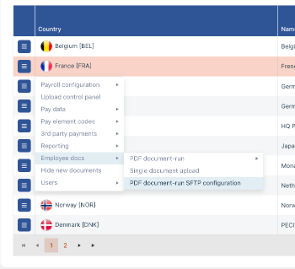
To set this up, select your payroll, go to ‘Employee docs’ then select ‘PDF Document-run SFTP Configuration’:
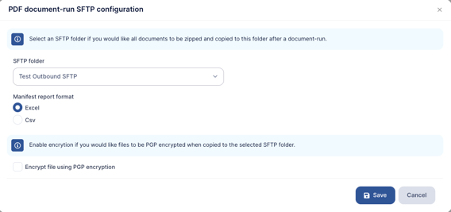
From there you can select the SFTP Folder for the PDF Documents to be copied to, the report format (Excel or CSV) and if you would like the Document file to be encrypted using PGP.
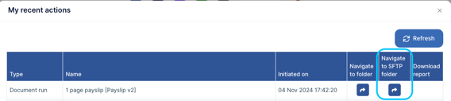
When performing a PDF document run, in the My Recent Actions view, you will be able to direct yourself to the SFTP folder where the payslips are ready to be transferred:
Here you will see the Zip Folder containing the Payslips and the Payslip Manifest ready to be transferred:
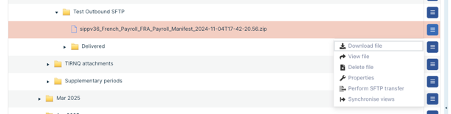
The Zip file will contain the employee payslips split out per employee with the following naming conventions:
First Name Last Name – Employee Number – Pay Date – Creation Date Timestamp.
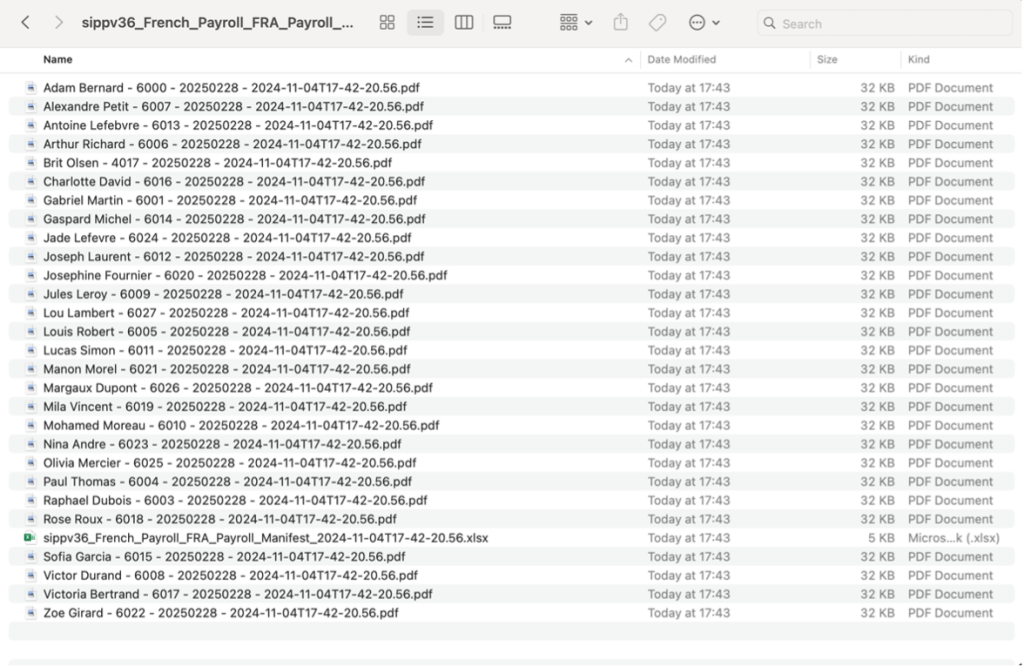
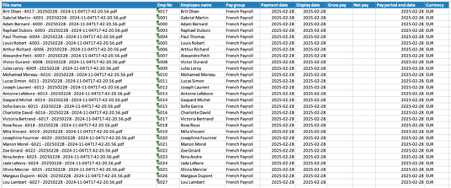
Within the Zip File there is also a Payroll Manifest which contains the following:
- File Name – The File Name of each of the PDFs embedded within the Zip Folder
- Emp No – The Employee Number associated with the employee (pulled from their IPPEX Profile)
- Employee Name – The Employee Name associated with the employee (pulled from their IPPEX Profile)
- Pay Group – The payroll associated with the employee
- Payment Date – The payment date associated with the payroll
- Display Date – The payment date associated with the payroll
- Gross Pay – The gross pay from the pay period (optional and configurable)
- Net Pay – The net pay from the pay period (optional and configurable)
- Pay Period end date – The last day of the pay period
- Currency – The payroll currency of the associated payroll (located in ISO 3 Letter Format)