IPPEX Cloud V 1.36 Release Notes

Introduction
Version 1.36 is a collection of enhancements to the system, the most significant is the changes we have made to workspaces and how tasks can be configured to embed transfer folders into specific tasks.
- Workspaces have been updated to enable internal to 3rd party and 3rd party to internal transfer folders.
- Tasks have been updated to allow the configuration of an individual task to embed a specific transfer folder(s).
Symbols to indicate the type of task owner
When reviewing the users assigned to specific tasks , the system has three types of symbols to indicate payroll, 3rd party and internal users.

In the above example:
Andy Abercrombie is a Payroll User
Henry Harrington is an Internal User
Betty Betterridge is a 3rd Party User
Dashboard automatically showing supplementary tasks
The menu item to show off-cycle, quarter-end and year-end tasks in the dashboard has been removed, the application will automatically determines if there are supplementary tasks assigned to the pay period, and displays those tasks when appropriate.
Overview of workspaces
Workspaces are used for two purposes, creating working areas for a payroll and creating transfer folders for payrolls. A transfer folder enables documents to be transferred:
- between internal users and payroll users,
- between 3rd party users and payroll users
- between 3rd party users and internal users
A working area is a single folder assigned to a payroll group to store and access data by payroll and pay period. Transfer folders consist of a pair of folders assigned to a payroll group to allow the exchange of files between two user types e.g. Internal users and payroll users. The user group and payroll group hierarchy must be carefully mapped when using transfer folders, to ensure only those users who need access to the transfer folders and working areas have permission.
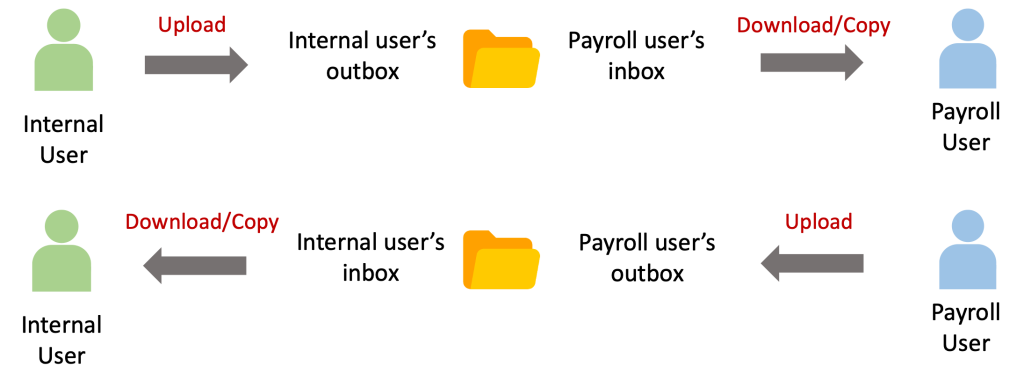
When a transfer folder has been configured, a user see an inbox and an outbox pair, the other party will see a corresponding inbox and outbox. The following image shows the transfer folders for a payroll and pay period.
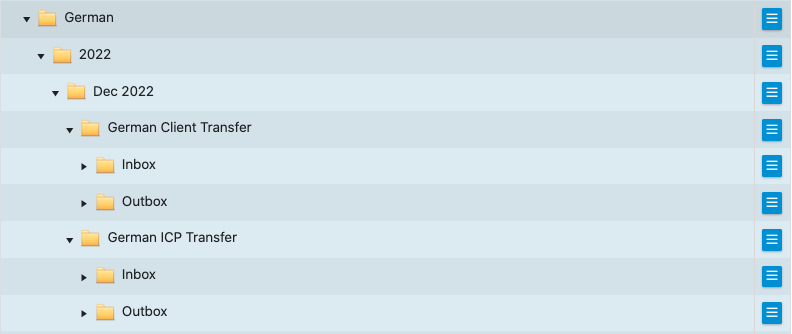
Below is a representative view of the transfer folders by a payroll user, this user has access to a pair of client transfer folders and a pair of ICP transfer folders.
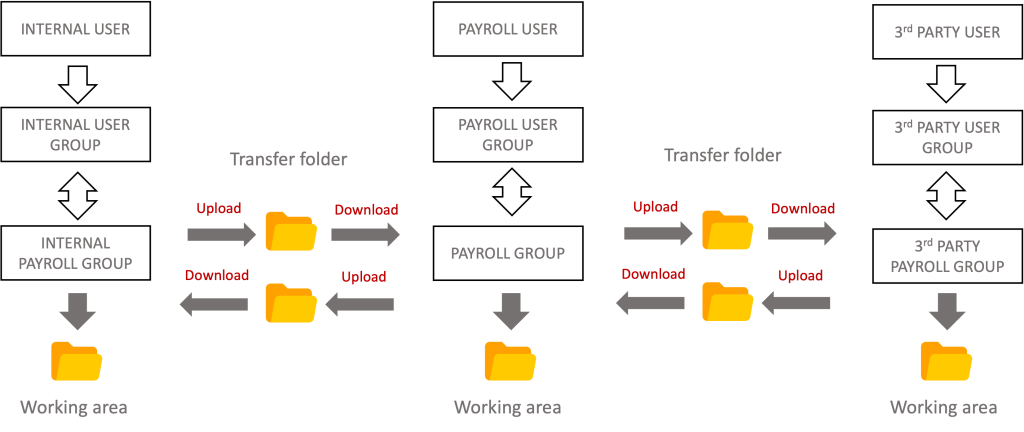
Internal users or 3rd party users gain access to a transfer folder or working area if their user group connected to the payroll group which the folders have been assigned. All payroll users can see all transfer folders including internal to 3rd party folders. Configuring the user groups and payrolls groups for a complex global organisation requires planning, the access to tasks, issues, reminders and notes is governed by user groups and the access to working areas and transfer folders is governed by payroll groups. The IPPEX Cloud system provides considerable flexibility to accommodate global, region and country specific functions. The following diagram is an example of this.
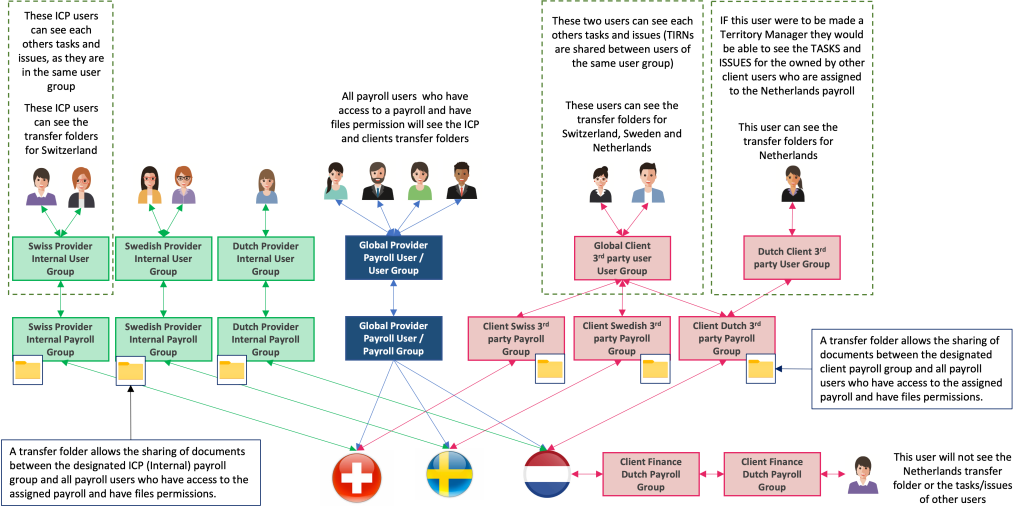
IPPEX recommends that there is a one to one mapping of an individual payroll to an individual payroll group, allowing for multiple user groups to be connected to the payroll group. In the example above a country client function and the global client function can access the transfer folder for an individual country (e.g. Netherlands).
Setting up a workspace
Within the administration function you will find Workspaces.
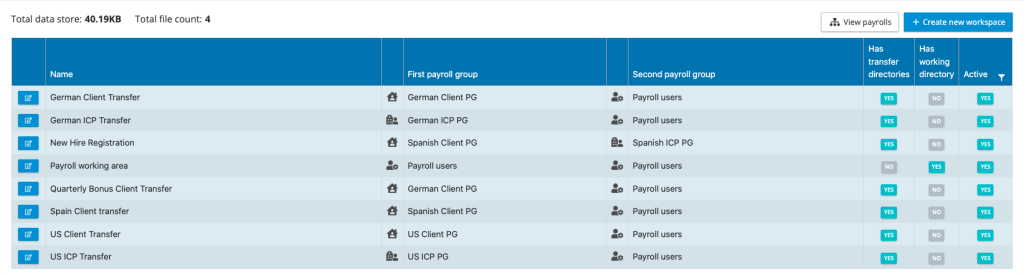
The system will display the current workspaces, showing the name, the first payroll group, second payroll group, and whether there is a transfer folder and/or working area. Where a workspace is providing a transfer folder from an internal payroll group or third party payroll group to a payroll user, you do not specify the payroll user group, as all payroll users with rights to the assigned payroll can access the transfer folder.
Creating a new workspace
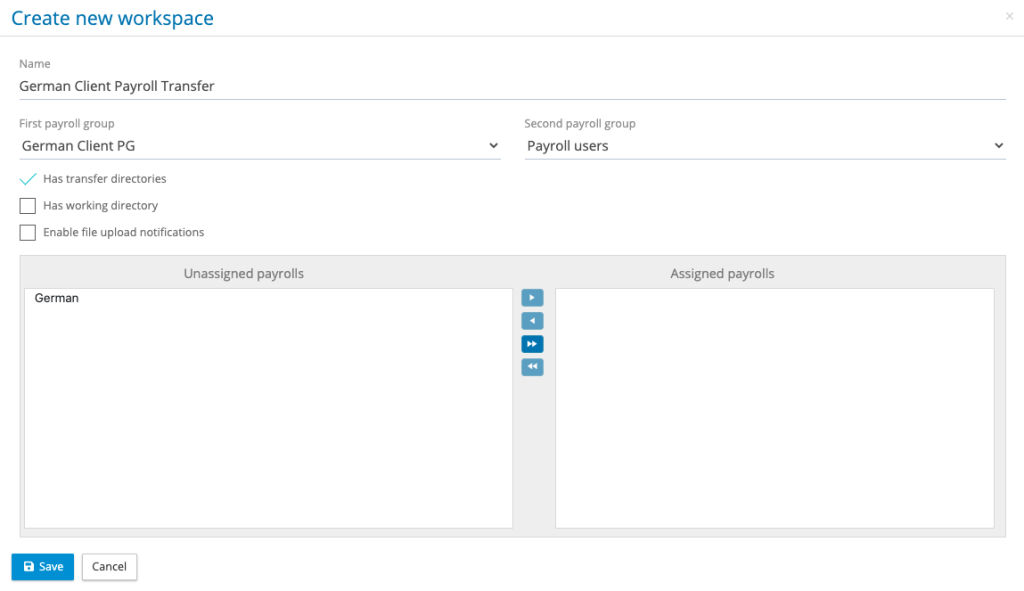
Click on create new workspace:
- Give the workspace a meaningful name
- Select the first payroll group (Internal or 3rd party payroll group), this will populate a list of payrolls belonging to that payroll group into the unassigned payrolls area. If you have a one-to-one mapping of payroll-to-payroll group, only one payroll will be listed.
- The second payroll group will default to Payroll Users, alternatively select an internal or 3rd party payroll group as the second group. Please note you cannot set up an internal to internal or a 3rd party to 3rd party relationship.
- Check the has transfer directories to create transfer folders.
- Check has working directory; this will create a working folder for first payroll group where it is an internal group to payroll user and two working folders where it is an internal to third party payroll group relationship.
- Assign the payroll(s) which require the workspaces.
Task file attachment
Task file attachment concept
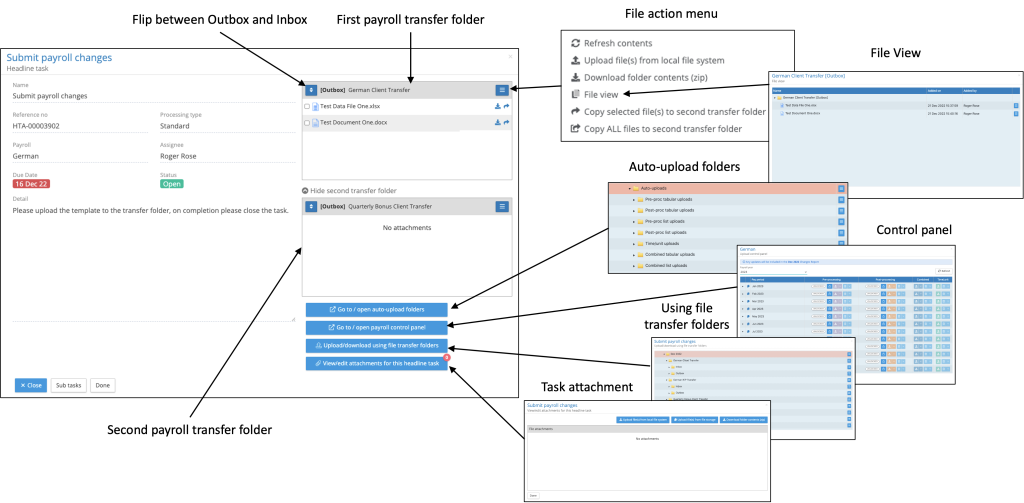
To improve the efficiency and accuracy of uploading files to transfer folders, tasks can be configured to allow the upload or download from one or two transfer folders. Each task can be uniquely configured to present a specific outbox or inbox from a transfer folder, plus links to auto-upload folders and the control panel. For example, in most payroll processes the payroll process starts with client data submission or data upload. In this example the task can be configured with the client outbox for data upload, a link to auto-upload or a link to the control panel.
The task file attachment options are as follows:
- Simply the task with no file options
- A single files area showing a transfer folder which can be configured to be an outbox or inbox for a specific transfer folder
- Two files areas each showing a transfer folder that can be configured to be either an outbox or inbox for specific transfer folders.
- The ability to copy all files or selected files from the first transfer folder file area to the second file area transfer folder
- A function to expand a folder using file view to provide the detail of who uploaded the file and when
- A link to take the user directly to the upload control panel
- A link to take the user to the auto-upload folders
- The attachment of files to the task
- A window into FILES displaying the transfer folders for that payroll and pay period
The above options can be setup through the task configuration function.
The following image provides a view of a task fully configured and how the functions interact.
Configuring Task Files
From the payroll menu go to open payroll task configuration:
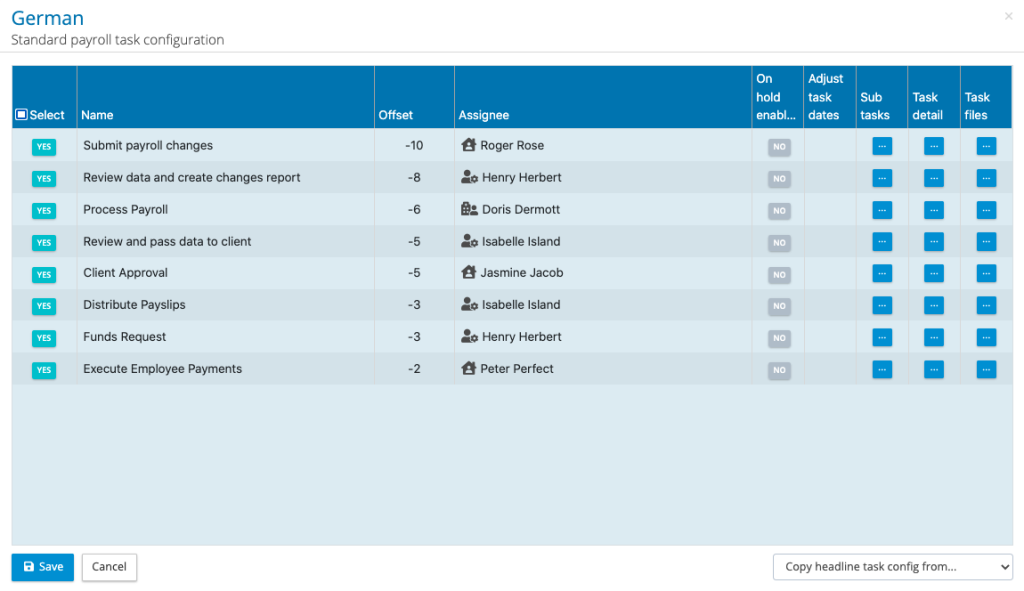
In the column Task files, select the action button against the task you would like to edit.
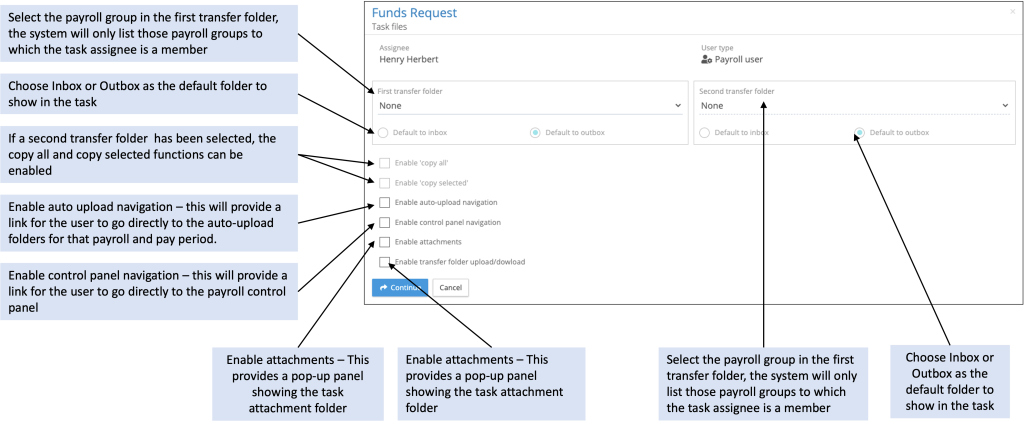
The transfer folders available for a given task are in relation to the payroll groups belonging to the task owner. Some or all of the options can be selected for a task. When a transfer folder has been selected, the default folder type should be selected (Inbox or Outbox).
Task file attachment examples
Where a client is responsible for submitting changes on templates via the transfer folders. One transfer is folder is enabled with the outbox configured as the default.
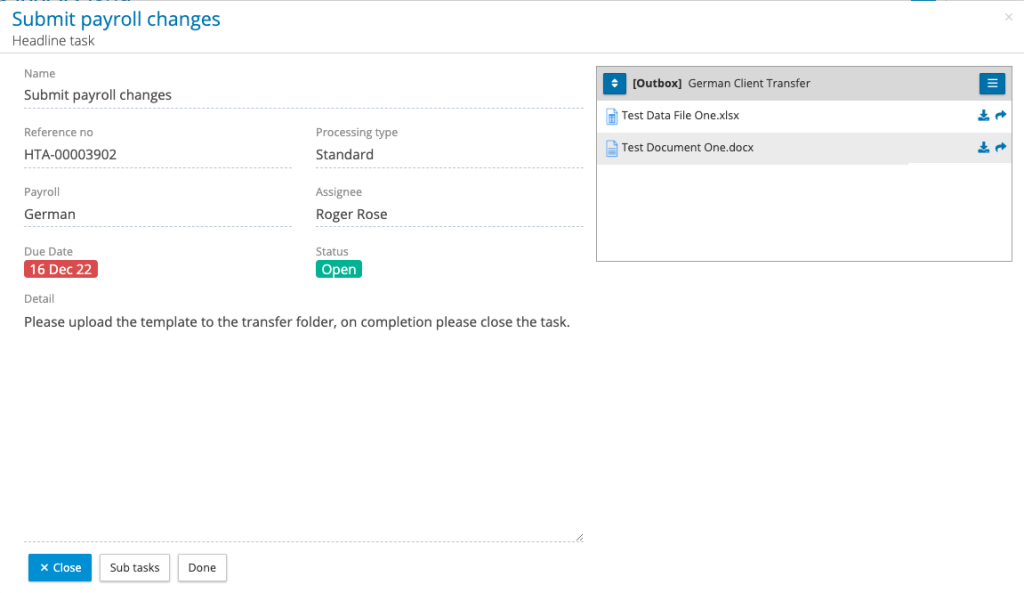
A client responsible for auto-uploading an HCM data file, submitting supporting data for the payroll via the transfer folder and locking the pre-processing pay period via the control panel.

A global payroll team reviewing the data files and copying them to an ICP transfer folder.
