IPPEX Cloud V 1.34 Release Notes

Introduction
Version 1.34 extends the combined upload, pre and post-processing uploads to support list files. In addition, the old annual salary record has been enhanced to support a variety of salary frequencies. IPPEX have migrated the recording of new and edited salaries, addresses, bank accounts and civil status from a time-based inclusion with the changes report to a tagged changes period. This ensures that new and edited records holding a future effective date are included in the changes report in the period they were uploaded or entered on screen.
IMPORTANT NOTICE
IPPEX will be removing the individual employee upload facilities in favour of the combined upload. For those users who are still using the employee upload (including employee address and bank account uploads) located at the bottom of the upload control panel, we recommend migrating to the combined upload as soon as possible.
With the introduction of the new salary frequencies and modification we have made to the civil status fields IPPEX have removed the mapping of these components in the employee upload, concentrating on our efforts on the combined upload. As a refresher, the combined upload provides the facility to upload employee record information, employee details, organisation units and pre-processing data in a single upload. It also supports both tabular and list upload formats and has the auto-upload capability.
With the introduction of the new salary frequencies the current combined upload mapping for salary, will require re-mapping to the new salary types.
List Upload
List upload extends the capability to import data into the IPPEX platform for pre and post processing data, including organisation unit and employee record data. To accommodate the list upload, the control panel has been modified to with a drop-down button for each upload.
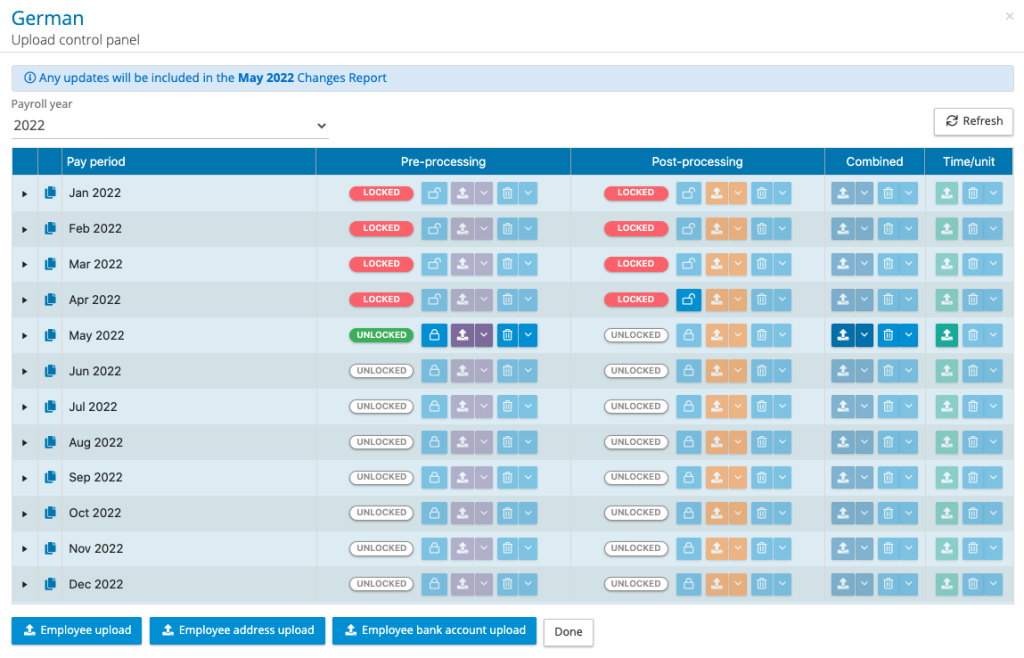
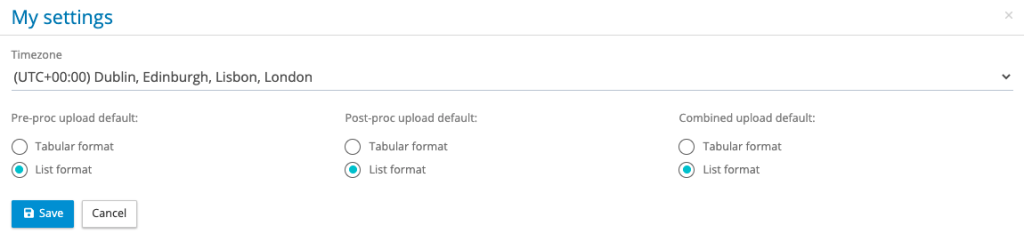
The behaviour of the upload button has a default setting of tabular upload, a user can change the default setting through their user profile settings.
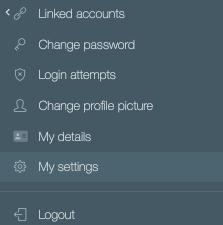
By clicking on My Settings, a user can set the defaults for the upload button.
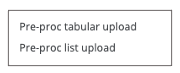
In the control panel to the left of the pre-processing, post-processing and combined upload is a drop-down arrow. This lists the two upload types, tabular or list.
A list upload process follows the same process as a tabular upload, with the exception there is a two-stage mapping process, just like the time/unit list upload process. The upload the file, the first stage is to map the column headings.
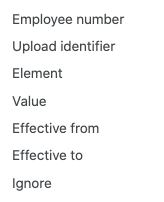
- Employee number – Primary upload key used for upload
- Upload identifier – The upload identifiers have been extended with three new ones for list upload for combined, pre and post processing uploads.
- Local Payroll Number – This can be used as the alternative key for pre-processing and post-processing upload. If using the local payroll number as the upload key, then the employee number should not be mapped.
- Element – Column containing the employee record, org unit, pay element names
- Value – Column containing the value for the employee record field, pay element or org unit
- Effective from – Date from which an address, salary, bank account, civil status or permanent pay element becomes effective.
- Effective to – Date to which a permanent pay element is effective.
- Ignore – Data columns to be ignored on upload
The next step in the upload process is to map the elements to employee record fields, employee details, org units and pay elements. Click on save mappings and continue and submit the upload, the system will process the file in the background and return a results email.
The mappings for list upload and tabular are independent of each other.
Salary Type
IPPEX has extended the employee salary record to cover the following salary frequencies:
- Annual
- Quarterly
- Monthly
- Weekly
- Daily
- Hourly
As part of the Version 1.34 deployment the existing annual salary values recorded in all tenancies will be migrated to the new annual salary type. Each of the salary frequency has three fields, effective date, salary (value) and an optional currency override. All payrolls have a defined payroll currency, there are circumstances where employees have a contracted salary rate in an alternative currency. It is now possible to edit a salary via the UI and add a currency override to the value.
The employee salary user interface has been changed to include salary frequency and last update period.
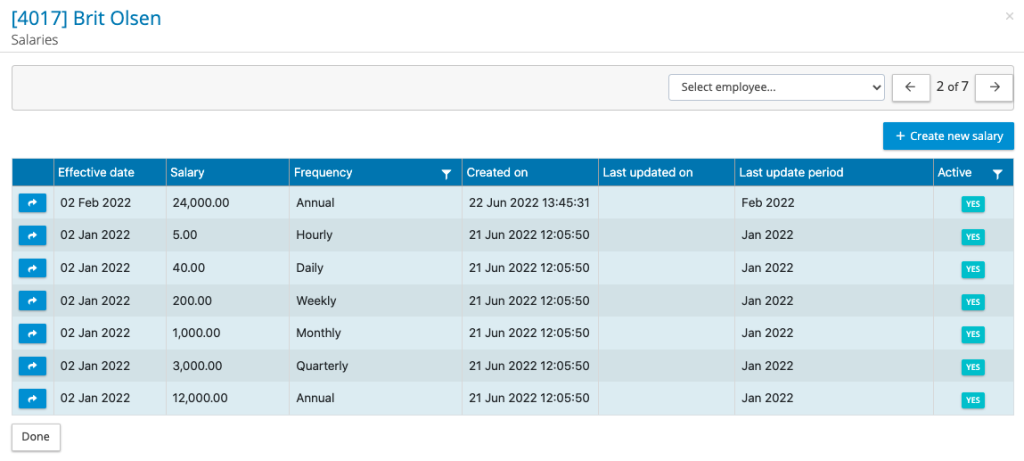
An employee can have multiple salary frequencies, salary values can be uploaded via the combined upload or entered via the UI. To view the salary, click on the action button next to the salary, it will open the following screen.
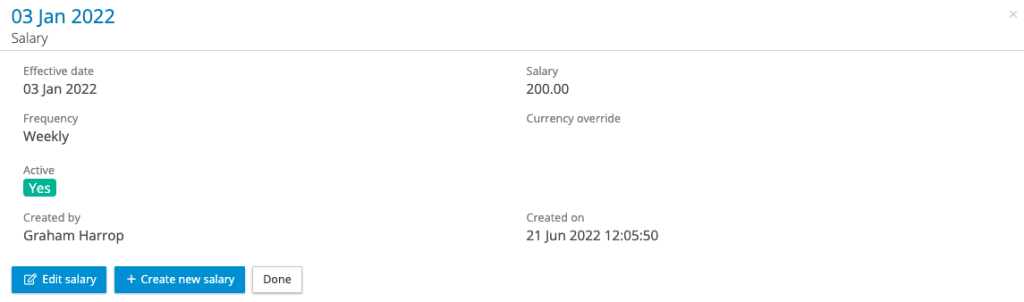
A salary value can be edited; however, the effective date and frequency cannot be changed. To add the salary, override to a record this can only be achieved through the UI. When the salary record has been edited, the system will tag that edit with the active changes period.
Reporting Inactive Salaries – If a salary has been entered incorrectly, it can be made inactive. The following describes the reporting rules for inactive salaries.
When a salary has been edited to be inactive it will be tagged with the changes reporting period. The changes report will include the salary record that has been made inactive as well as the prior effective date salary record. This provides the information to the local provider organisation with the data to reset the salary. A new salary can be entered to replace the inactive salary record with the same or different effective date, this new record will also be reported.
For variance and all data reports – when a salary has been configured/assigned to the report, when the report is run for a particular pay period, the system will return the salary value that has the effective date closest to the pay date.
Salary Local Codes – Salary frequencies can be assigned local codes, enabling the substitution of the frequency name with local code in the flexible changes report.

The flexible changes report has a filter option to select local code, this will substitute the IPPEX system salary frequency name with the Local Code.
Address Upload and UI changes and reporting
The employee addresses format remains the same, IPPEX has adjusted the system rules associated with editing, upload and reporting of addresses.
The employee address UI has been modified to include last update on, this field is showing the last changes reporting period in which the address was either created or last edited. When performing an upload or an onscreen edit the system will remind the user in the notification bar, which changes period the edit or upload will be reported in.
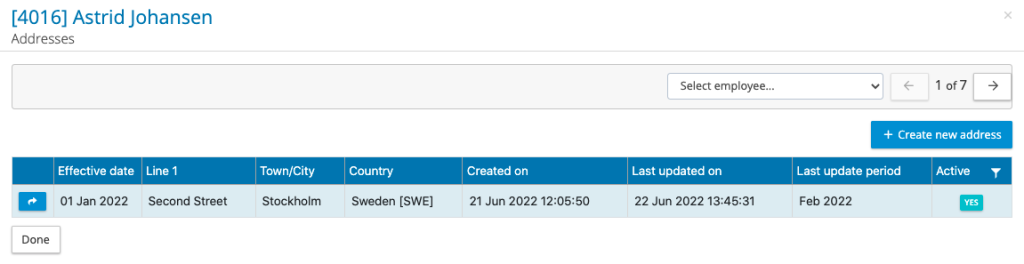
IPPEX records every edit to an employee address record, holding the information on which fields had been changed. The system tags each edit with the changes pay period in which the creation or edit is performed. The tag is used to determine the information provided in a changes report.
Mandatory fields – Prior this release an address country was a mandatory field. This has now changed, an address must contain a minimum of one field, this can be building number, line 1, line 2, city/town, region, postal code or country.
Editing an address – Prior to this release an address could only be edited in the pay period in which it was created. An existing address (based on effective date) can be edited via the UI, or via upload in any future period. The effective date cannot be changed only the address fields can be changed. When editing an existing address via an upload, the effective date must match the date of the record being edited.
Inactive Address – If an address record has been loaded and it has the wrong effective date, the record can be made inactive. This removes the record from all reporting with exception of the changes report.
Flexible Changes Report – If an address tab/sheet has been added to a flexible changes report, we recommend assigning the active field to the report. The report will return all new and edited address records for that changes period, and if an address has been made inactive, the prior effective address will also be published.
Tabular reports such as all data report – An all-data report is a tabular report, which offers one line per employee, so can only return one address. The system will provide the address fields for the address record with the most recent effective date to the pay date.
Upload Effective date – When uploading addresses, an address effective date column must be mapped, if an address does not have an effective date present in that column the system will apply the date of the upload.
Bank Account Upload and UI changes and reporting
The employee addresses format remains the same, IPPEX has adjusted the system rules associated with editing, upload and reporting of bank accounts.
The bank account UI has been modified to include last update on, this field is showing the last changes reporting period in which the bank account was either created or last edited. When performing an upload or an onscreen edit the system will remind the user in the notification bar, which changes period the edit or upload will be reported in.
IPPEX records every edit to a bank account record, holding the information on which fields had been changed. The system tags each edit with the changes pay period in which the creation or edit is performed. The tag is used to determine the information provided in a changes report.
Mandatory fields – There has been no change to bank account mandatory fields, however the bank account address, country used to be mandatory, and it has changed to an address must contain a minimum of one field.
Editing a bank account – Prior to this release a bank account could only be edited on the day it was created. Any existing bank account can be edited via the UI. The effective date cannot be changed only the bank account fields and bank account address fields can be changed.
Inactive bank account – If a bank account record has been loaded and it has the wrong effective date, the record can be made inactive.
Flexible Changes Report – Bank accounts can be reported in the tabular output, and the system will publish the most recent effective date bank account in the changes period.
Tabular reports such as the all data report – An all-data report is a tabular report, which offers one line per employee, so can only return one bank account. The system will provide the bank account fields for the record with the most recent effective date to the pay date.
Reminders and Notes Tenancy Setting
Under administration > settings a tenancy administrator can enable or disable the reminders and notes functionality for a tenancy.
New Issue Notifications and Dashboard Display
To draw the attention of users to a new issue, the email notification has been amended to make it a high priority, and the message title says New issue created. The dashboard has been updated to highlight an issue count when it is greater than zero.