IPPEX Cloud V 1.30 Release Notes

Introduction
Version 1.30 introduces a reports package. The reports package has been designed to enable the production of multiple reports across one or several payrolls as a single process.
A report package can be run from the main menu under reports or can be run from a payroll where the reports will be restricted to only those relevant to that payroll.
Also included in this release is a PDF upload reversal function, for example if payslips have been uploaded to an incorrect pay period or the wrong documents have been uploaded, the batch of documents included in that upload can be removed using the PDF upload reversal.
Default reporting parameters
In Version 1.29, default reporting parameters were added to each of the following reporting types.
- All data
- Changes
- Flexible Changes
- Variance
- GL Journal
The default reporting parameters are used by the reporting package. When a report is being initiated for a given payroll and pay period, there are a number of parameters which are selected in the report kick-off such as the output format (Excel or CSV). To enable the reports package to operate, these parameters have to be pre-set within the report configurator.
Default parameters tab has been added to all existing reports configured on your payrolls. The default parameters are NOT needed when initiating the report through the current kick-off process, they will only be needed if that report is going to be included in a reports package.
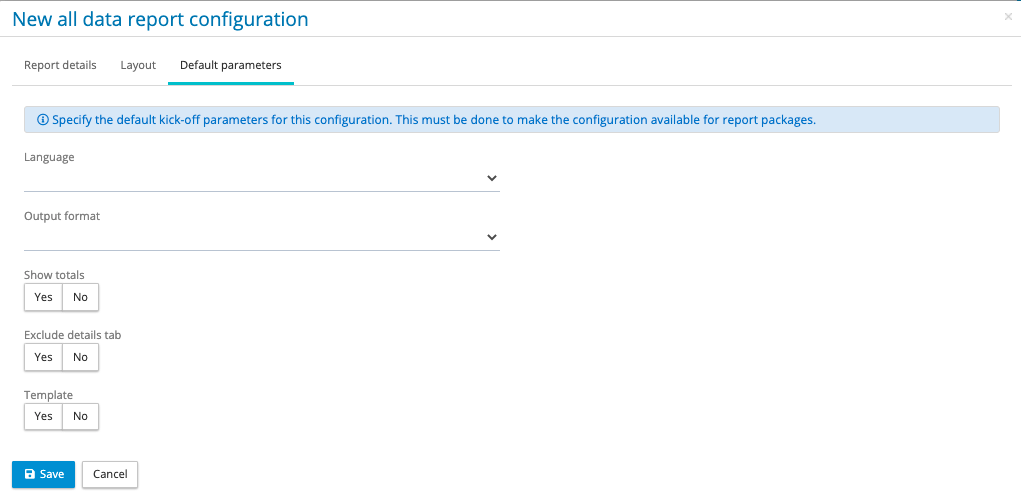
Any report included in a report package must have the default parameters configured.
Reports Package Access Rights
Tenancy administrators have the privilege to create a reports package, any user with report user privilege can run a reports package.
Creating a reports package
Under Reports on the main menu is a new item called Reports package, this has two sub menu items, Run Package and Configuration. Click on configuration and it will show all existing packages created and the ability to create a new reports package.

Click on New reports package. A reports package can be made up of any number of reports from any payroll.
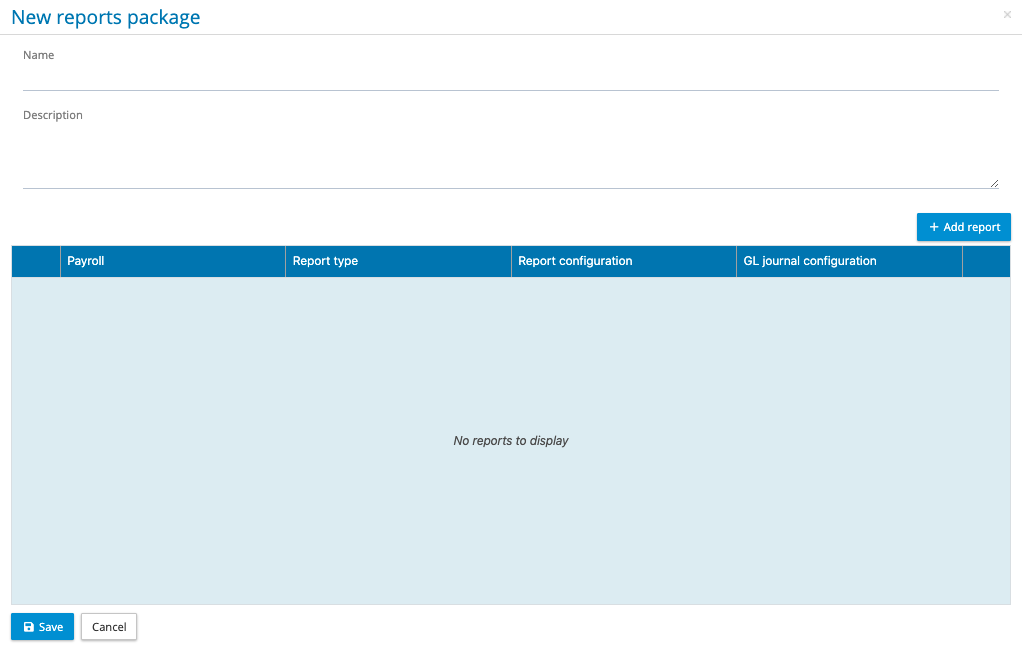
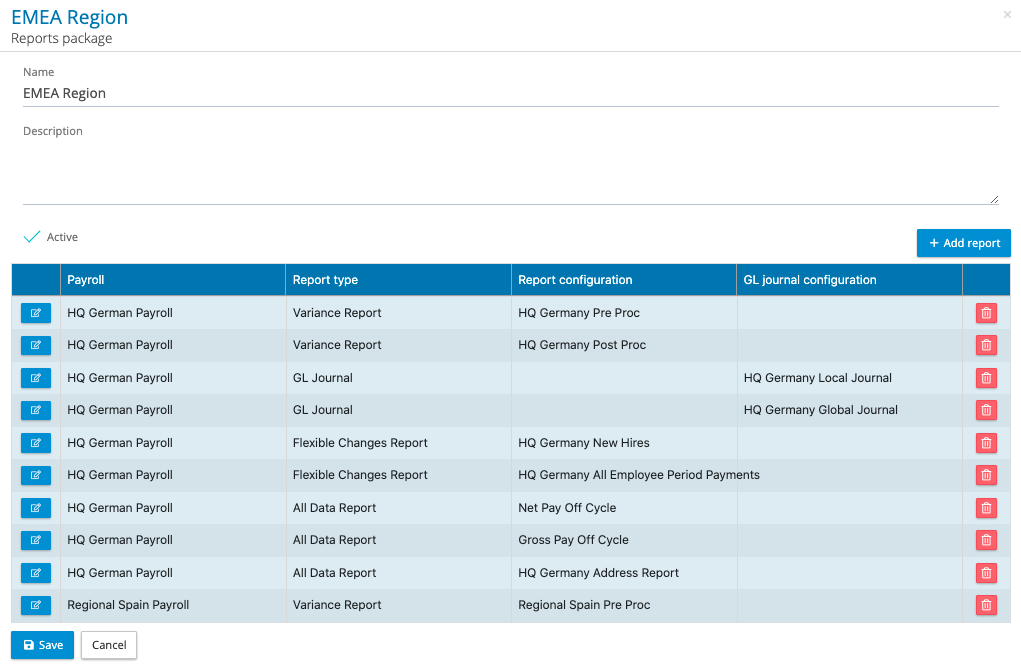
Enter the name of the reports package, and if required enter a description. The next step is to start added reports to the package.
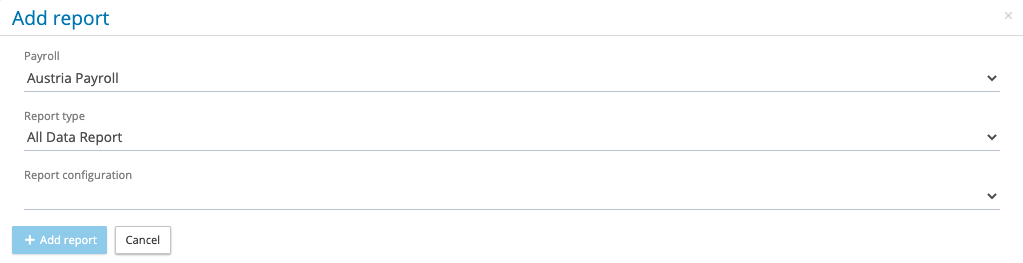
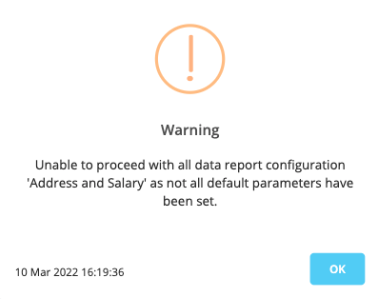
In the add report screen select the payroll, report type and report configuration, click on + Add report. Continue to build up your reports package until it is complete and then save. If you select a report that does not have the default report parameters set, you will get a warning and the report cannot be added to the package.
When managing the reports package one option is to click on the action button next to a report and change that report or delete the report from the package. Also a reports package can be set to be inactive.
Running a reports package – main menu
From the main menu click on Reports and then Run package. This will present the following screen.

Select your reports package you wish to run and this will present the contents of the reports package:
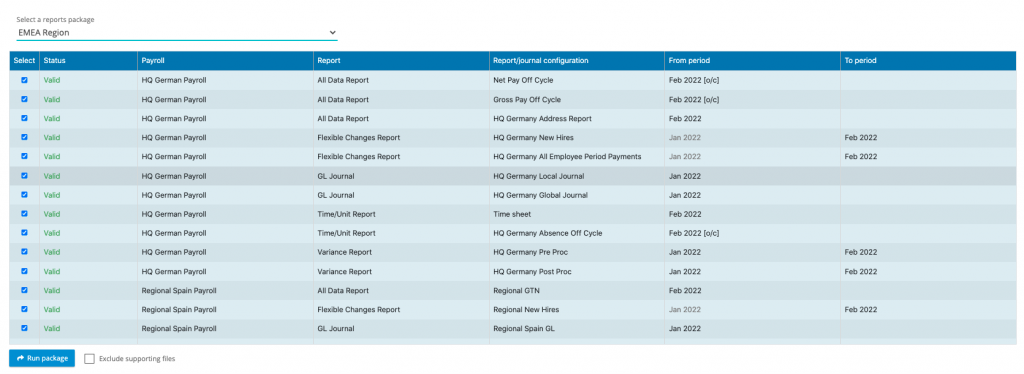
The system will only show those reports the user has access rights to which is based on their user group and payroll group.
The report kick-off screen has the following functions:
- Uncheck reports that are not needed – The system will show all of the reports that are part of the package. If some are not needed uncheck those reports.
- Pay period selection – The report package uses the payroll locking status to determine the pay period for the report. For example, a GL Journal can only be run for a pay period if the post processing is locked, it will show the most recent locked post processing period. The user can change the reporting period for each report in the package.
- Invalid reports – If a report does not have a valid period or the default parameters are missing, the system will mark the report as invalid.
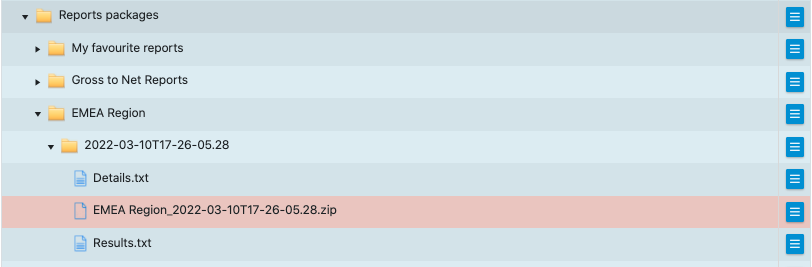
- Exclude supporting files – When the report package has been run, all of the reports are delivered in My Files under reports package. The reports are put into a zip file. Each report comes with a details.txt file and a results.txt file. These can be excluded from the package by checking the exclude supporting files.
The reports package in My file has an overall details file containing the reporting selections and an overall results file for the package.
Running a reports package – payroll menu
A reports package can be run from the payroll menu, using the action button next to the payroll, select reports > reports package. The system will only present those reports for that payroll within that package.
PDF Document-run Reversal
When uploading PDF documents through a PDF document run there is now a facility to reverse the upload. This reversal function will delete the documents placed in the employee folders from that particular run.
The document run process creates a folder in FILES under the payroll > tax year > pay period > PDF document-runs.

Against the PDF document run folder which requires reversing, using the action button next to the folder click on Reverse document run. This will present a warning, click OK, and the system will interrogate the employee folders, removing the PDF documents that were loaded with that precise time stamp.
On completion of the reversal process the system will refresh the files menu and will place the word [Reversed] next to the folder name.