IPPEX Cloud V 1.25 Release Notes

Introduction
Version 1.25 introduces new functionality for the storing and reporting of unit pay and time related data. IPPEX have developed a flexible framework for the upload or on-screen input of time sheet, unit pay and time-off data. With the ability to record cash or unit values by pay period, by element type for an employee.
The cash or unit values can be stored with associated user definable attributes such as approval manager, location of activity etc. This information can then be reported by pay period to drive the local payroll process or the data can be held for reference purposes only.
IPPEX has introduced the concept of time/unit categories, this defines the type of data being uploaded and stored, such as, time sheet information, vacation data or overtime data. Any number of categories can be configured in the system. Within each category any number of time/unit elements can be created for example for Up to ten attributes can be defined, each attribute can be assigned to one or a number of categories.
Version 1.25 also includes an extended transaction report and the ability to re-open an issue.
Time/Unit Overview
- Upload format – Time/Unit data must be upload in a list form
- Data storage – Time/Unit values are held against an employee for a pay period for a given element and category
- Category – Has a data usage type, a defined list of time/unit elements and an option to add data attributes.
- Data usage types – This defines the core time unit data held for a category, there are six usage types
- Value date range – Time/unit Element which has a numeric value combined with a start date and end date.
- Unit date range – Time/unit Element which has a numeric unit combined with a start date and end date.
- Value date worked – Time/unit Element which has a numeric value combined with a date worked
- Unit date worked – Time/unit Element which has a numeric unit combined with a date worked
- Value only – Time/unit Element which only has a numeric value
- Unit only – Time/unit Element which only has a numeric unit
- Attributes – Up to ten time/unit attributes can be created for a client tenancy, one or a number of these can be assigned to a category, these are supporting data items, and can the form of a decimal (numeric value), a date or a string (alphanumeric)
- Time/Unit view and edit – Using the employee data screen, time/unit values can be viewed for an employee and edits.
- Time/Unit reporting – Time/Unit reports can be configured for a payroll
Time/Unit Configuration
First step is to enable the time/unit functionality for the tenancy, go to administration > settings > features and check the enable time/unit.
Creating Time/Unit Attributes
The core data fields for time unit data are unit/value, start date, end date, date worked. Additional information fields can be added these are called attributes. An attribute can be either a decimal (numeric value), a date or a string (alphanumeric). From the main menu go to Administration > Time/Unit > Attributes.
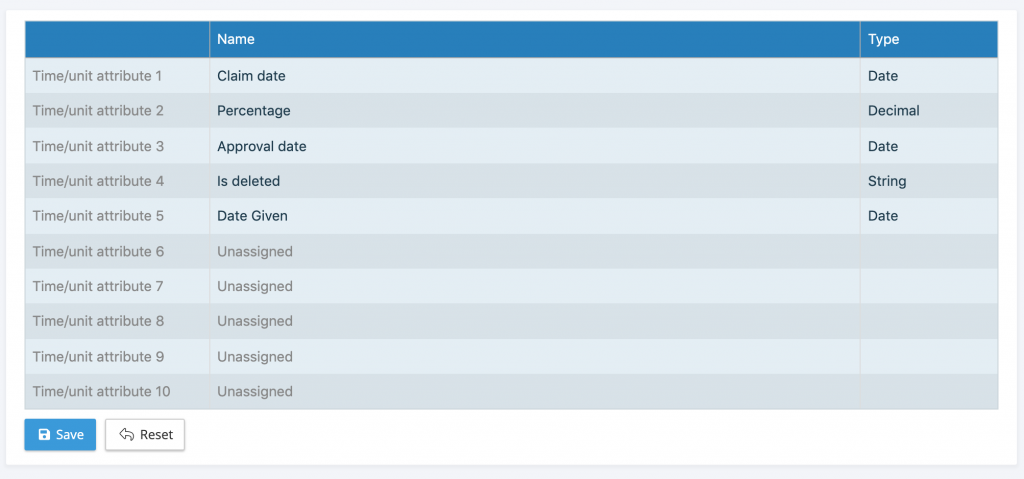
Add the time unit attribute name, select the type. Continue until all of the attributes have been added and click on Save.
Creating Time/Unit Categories
A category is a group of associated time/unit elements, e.g. absence data being maternity leave, sick leave and vacation. From the main menu go to Administration > Time/Unit > Categories. Any number of categories can be created.
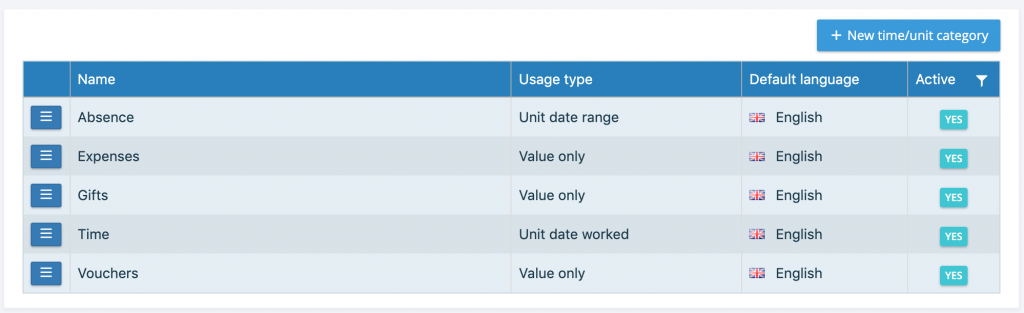
To add a new category, click on + New time/unit category.
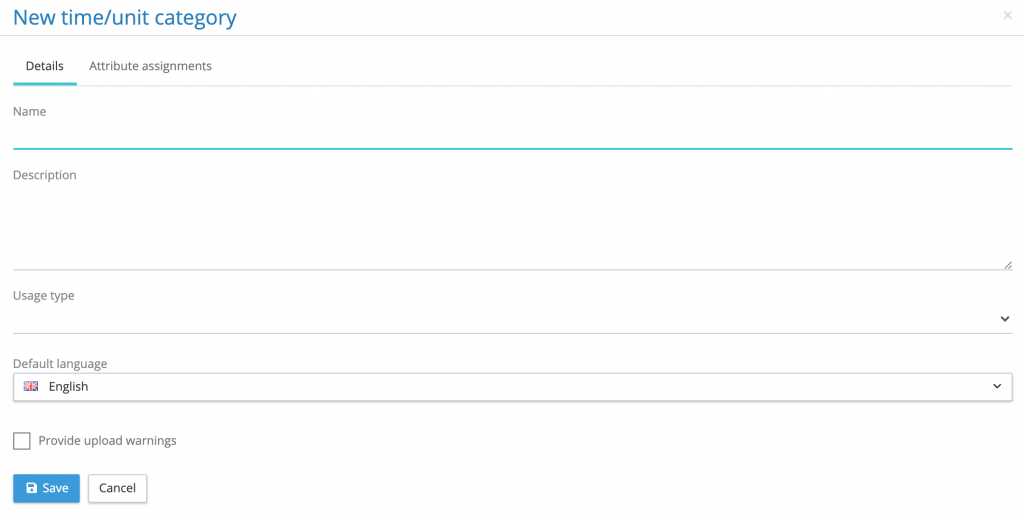
- Name (Mandatory) – Add name of the category
- Description (Optional) – Add description
- Usage Type – Select one of the six usage types. The usage type will define the mandatory fields for that category. For example, if value date range has been selected, for uploads and inputs a time/unit element must have a value, start date and end date.
- Provide upload warnings – By checking this box, the upload results file will provide warnings if there a duplicate element values to those already in the system with the same start/end dates or date worked.
- Attribute assignments – Select those attributes that are required for this category. NOTE: attributes must be defined before they can be assigned to a category
Creating Time/Unit Elements
When a time/unit category has been created, elements can be created for that category. Using the action button next to the category, select time/unit elements.
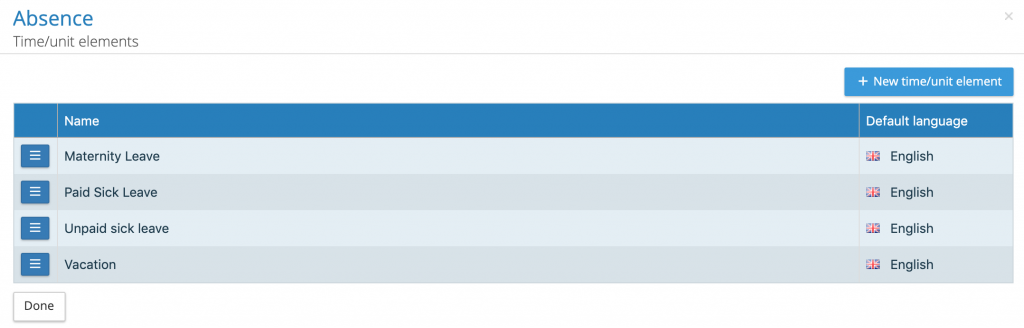
Any number of time unit elements can be added to a category. New time/unit elements can also be created during the upload of data.
Uploading Time/Unit Data
From the payroll menu item, using the action button for a payroll click on the upload control panel. Time/Unit data can be uploaded for a pay period when either the pre-processing or post processing period is unlocked. Click on the Time/Unit upload and select either a local or system file for upload.
The upload process has two mapping steps, the first is to map the upload file column headings.
The employee number is the key used for upload, each column in the upload spreadsheet has to be mapped to time/unit headings, attributes or no mapping. The column in the file containing the time/unit element names must be mapped to Elements
The upload file can have units and value in separate columns or in the same column, for values and units in the same column, this must be mapped to Unit/Value.
When the column headings have been mapped, click on save mappings and continue, the step in the process is to map the time/unit elements to those created for specific categories. Uploads can contain elements from multiple categories.
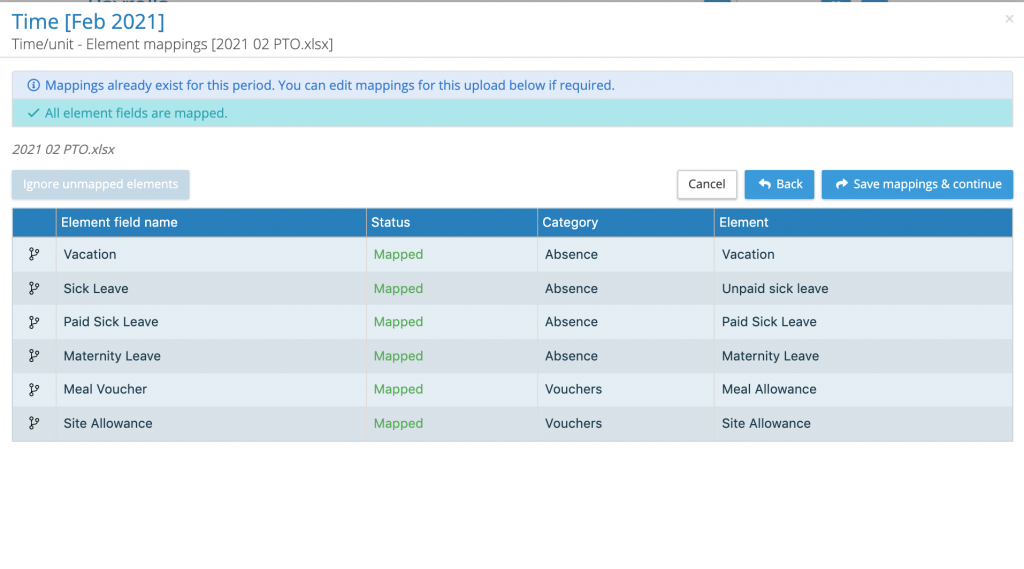
The pay elements can mapped to an element or ignored. When the element is mapped to an element, there is a choice to map to an existing category/element or to create a new element within a category. On completion of the mapping click on save mappings & continue, the system will take you to the final step in the process which is to submit upload.
NOTE: All uploads are additive to the current pay period values, if the identical file is upload twice it will result in duplicate values against the employee. Warnings will be provided in the results file provide the category has warning checkbox option selected. If duplicate values have been uploaded, this can be resolved using the cleardown function. Cleardown is performed by time/unit category.
Viewing and editing Time/Unit employee data
From the payroll menu, select pay data > employees. Using the action button against an employee select Time/Unit elements. This will open up a view on the time/unit date for the current pay period.
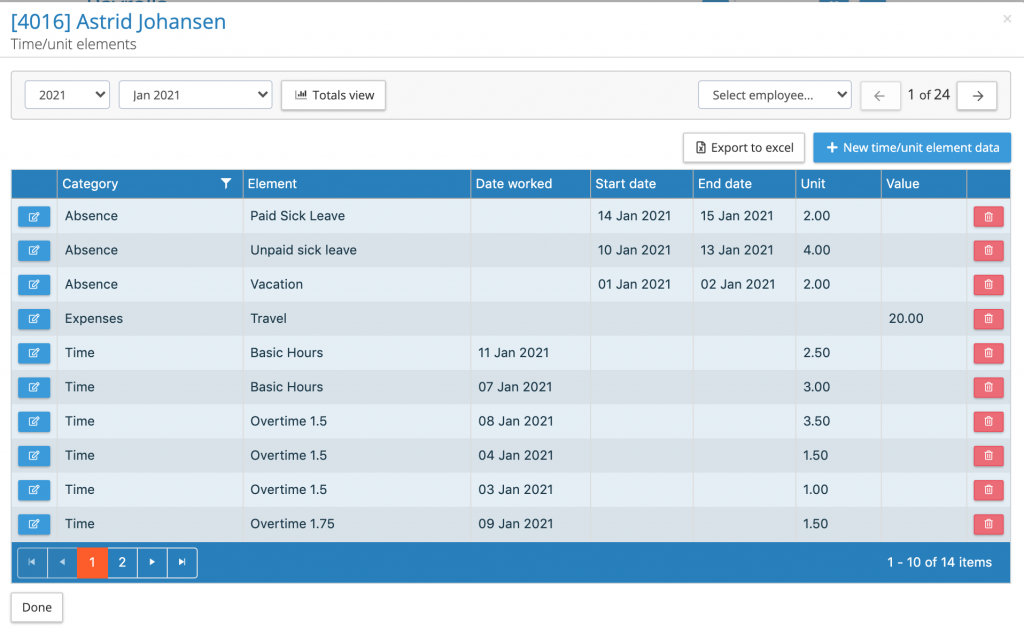
The time/unit element screen has the following functions:
- Change to another period and tax year
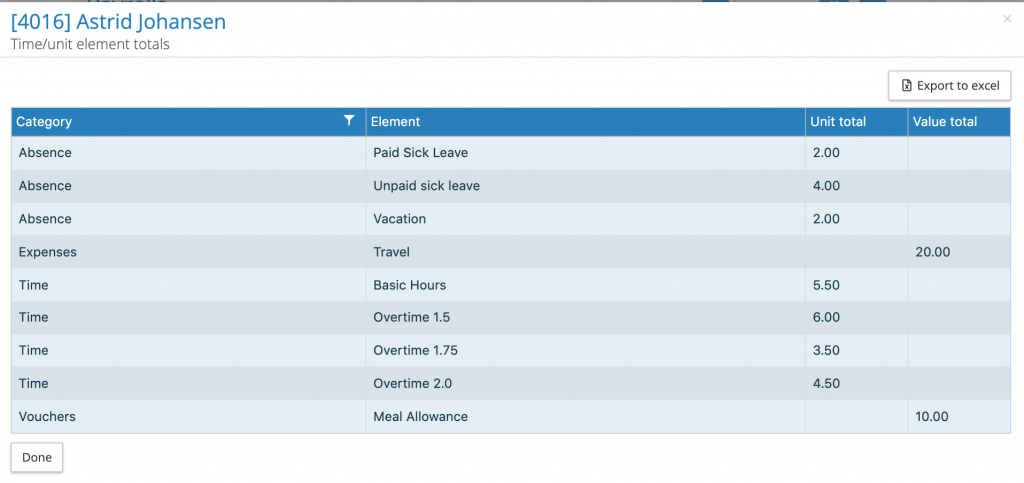
- Click on totals view, the system will summate the values and units for each element
- Export this periods time/unit data for this employee
- Jump to another employee to view the data for this pay period
- List of all the periods elements and values, click on the action button next to given element and value to view the full details include any attribute values.
- Delete an entry clicking on the red trash can symbol.
- Add a new time/unit element data, the system will display all of the attributes for that particular category.
The following image shows the totals for an employee.
Time/Unit Reporting
Any number of time/unit reports can be configured for a payroll. From the payroll menu select reports > configurations > Time/unit reports. Review the existing reports or create a new report. There are two parts to the report configuration, selection of the time/unit elements and then the layout of the report. All reports are in a time/unit element list format.
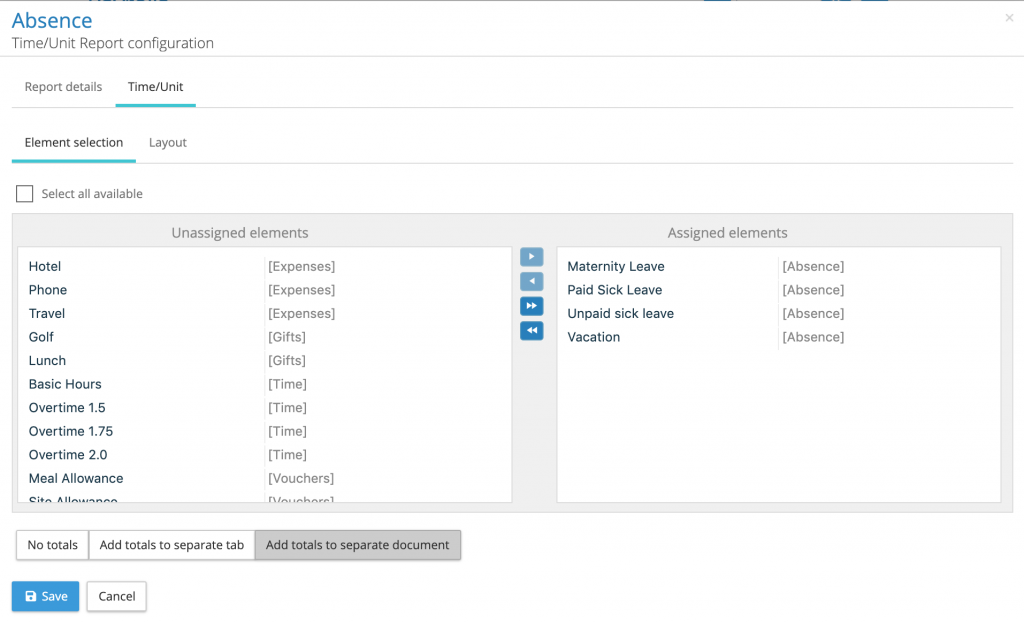
The report configuration will show all of the time/unit elements available for the tenancy grouped by category. Select the ones need for your report. At the bottom of the configuration screen are a choice of three options:
No totals – the report will have two sheets, details recording the report parameters and the second sheet containing the list of time unit values.
Add totals to separate tab – This option adds a third sheet to the report, summating all of the time/unit elements by employee.
Add totals to separate document – This options creates a second output file with a summation of the unit/values by element and by employee.
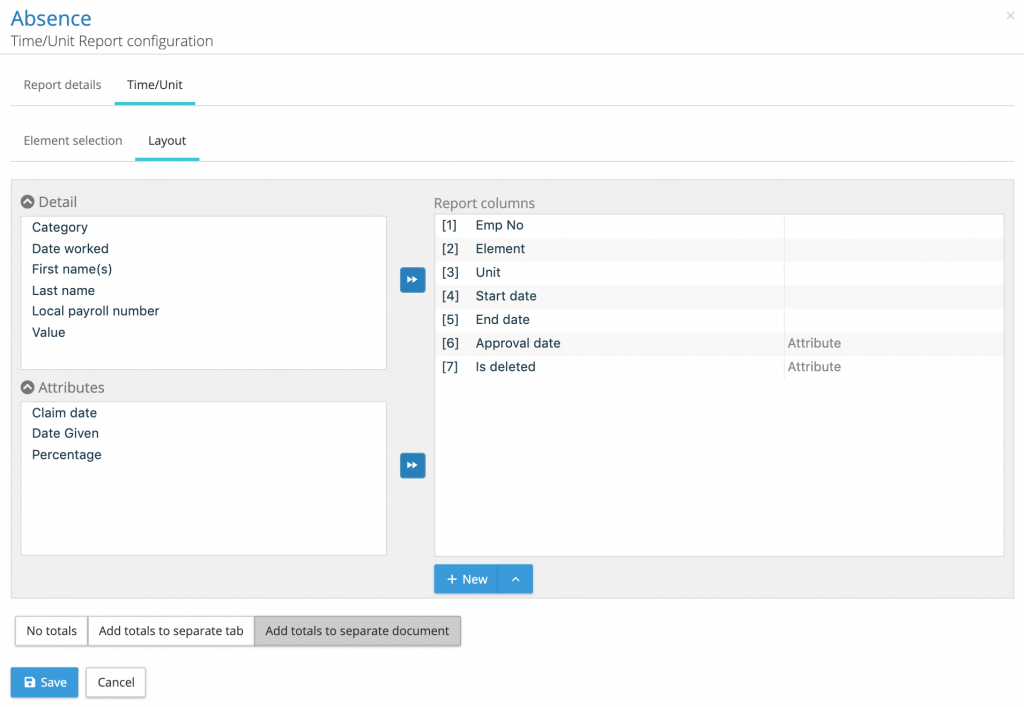
To complete the report configuration select the fields to be included in the time/unit report. There is also the facility to add constant columns to the report.
Extended Transaction Report
The transaction report has been enhanced to include a number of new data types. The following lists the new report headings highlighted in red.
| Tenancy id |
| Payroll name |
| Country (Payroll country) |
| Pay period |
| Pay date |
| Employee number |
| Local Employee number |
| First name(s) |
| Last name |
| Pay element |
| Value [payroll currency] |
| Payroll Currency |
| Exchange rate |
| Value [reporting currency] |
| Org unit e.g. Cost Center |
| Org unit description e.g. Cost Center Description |
| Pay element group |
| Pay element sub-group |
| Payment type |
| Debit GL Grouping |
| Debit GL Name |
| Debit GL Code |
| Credit GL Grouping |
| Credit GL Name |
| Credit GL Code |
Re-open an Issue
IPPEX have introduced the option to re-open a closed issue.