IPPEX Cloud V 1.19 Release Notes

Introduction
Version 1.19 is a release focusing on enhancing pre-processing pay elements. The release will migrate current persistent pay elements into a permanent pay element, which is defined by a value, an effective from date and an effective to date. A pre-processing pay element has two forms; permanent and period, a period pay element is a value for per employee in a specific pay period. Whilst making the change to the pre-processing pay elements, we enhanced and modified other areas of the application. The release included the following items:
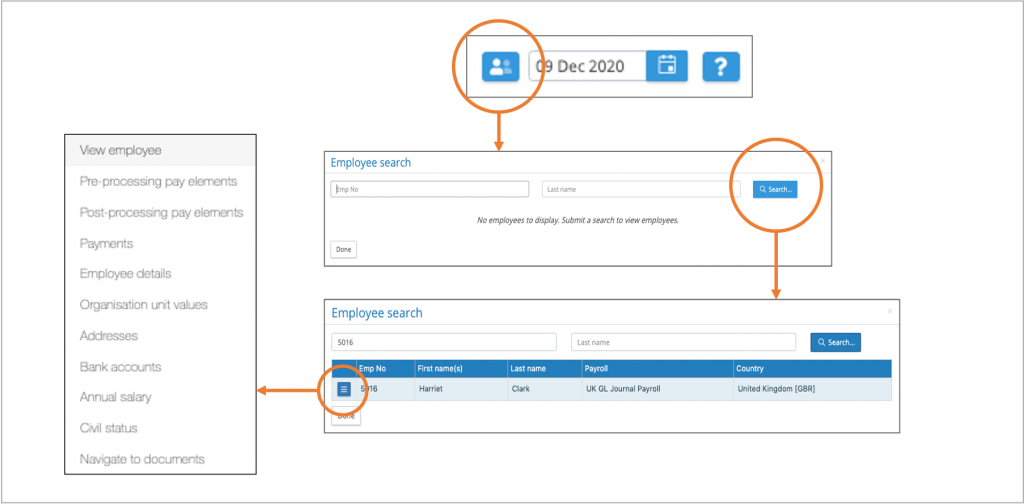
- Global employee search – new facility from the application banner allowing a user to search for an employee in any payroll of the client tenancy.
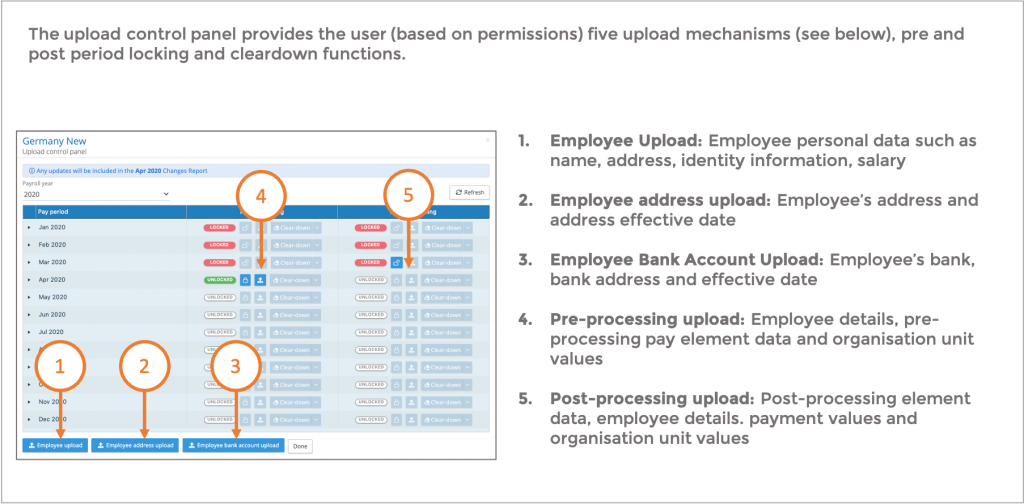
- Upload control panel is now the only route to perform pre- and post-processing data uploads. Legacy upload controls have been removed
- On-screen editing of pre-processing, post processing, employee details, organisation units and payments.
- New employee paging of data – When viewing an employee’s data (all data types) the user can page forwards and backwards from employee to employee and also ‘jump to’ an employee.
- Modified locking and unlocking process – Any number of pre-processing periods can be unlocked; although the unlocking process has to be performed sequentially (pre-post-pre etc). This may have implications in respect to your change reporting.
- New persistent employee details and organisation unit carry forward mechanism, which is now performed on post processing lock.
- Enhanced changes report to include permanent pay elements and a new period changes report to show what pre-processing changes take effect in that period.
- Cleardown rules have changed to cater for multiple unlocking of pre-processing periods and the cleardown of permanent pre-processing pay elements
- Pre-processing upload extended to cater for the new permanent pre-processing pay elements.
- Last pay period changes and reporting
- Ignore a dash on pay element upload
- File transfer notifications and issue update notifications
Global Employee Search
Next to the date field in the application banner is a new employee search icon. This will open the employee search. Enter an employee number or surname to search for any employee matching those details. The action button next to the employee provides access to the employee details menu.
On-screen data edit and employee navigation
We have introduced the following new features
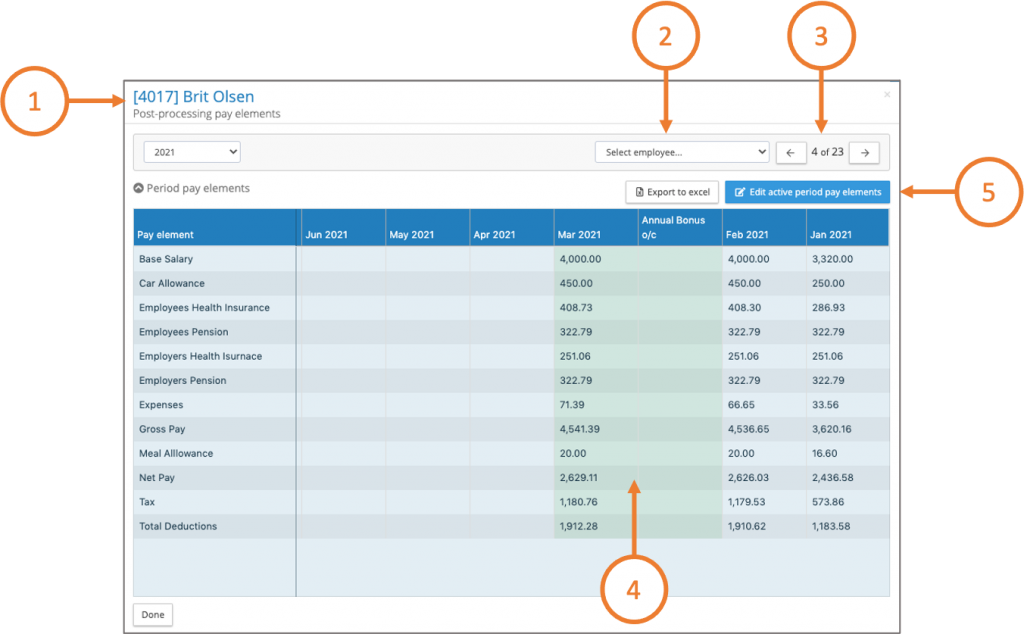
- The employee number has been added to the employee’s name, to ensure you are viewing the correct employee
- Ability to jump to another employee, drop down list of all employees on the payroll
- Page backwards and forwards through the employees on the payroll
- The green shading indicates that the pay data is editable, this diagram also shows a pay period with a supplementary period.
- To edit the period pay data, for pre-processing data the pre-processing period has to be unlocked and for post processing data the post processing period has to be unlocked
On-screen editing
It is now possible to edit on-screen employee details, organisation units, pre-processing and post-processing pay element values.
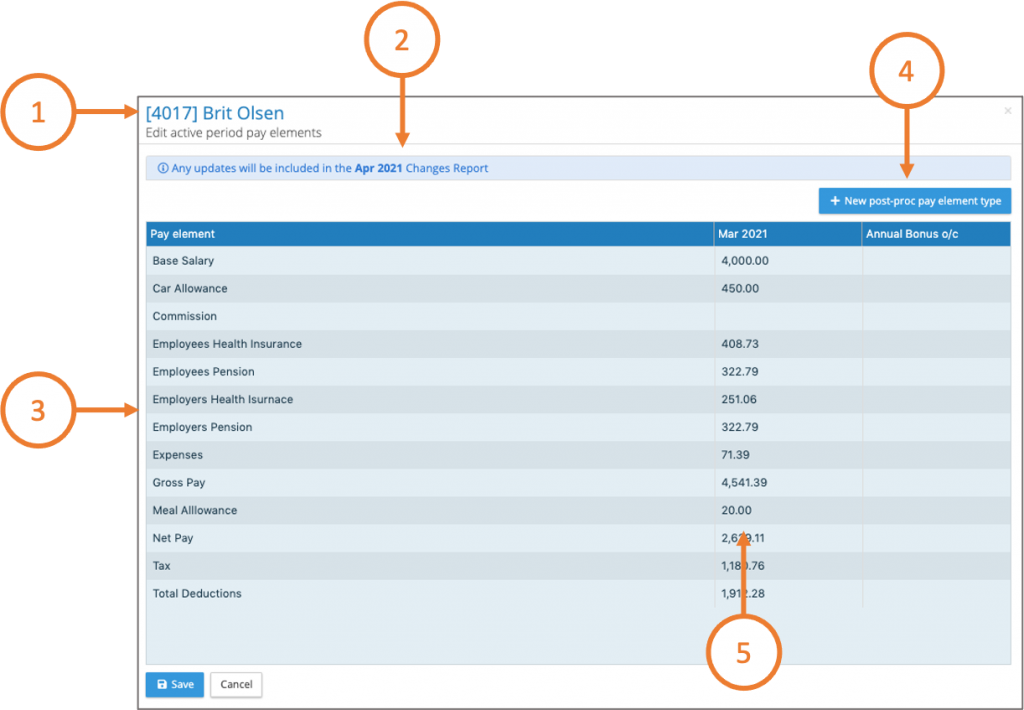
- When editing pay data for an employee, make sure you are working on the right employee
- When editing pre-processing pay elements, org units, employee details check which pay period the changes data will be applied to.
- The above image is showing post processing data, in edit mode the application lists all of the post processing pay elements available
- If a new post processing element is required, click on the add new post-proc pay element type
- Enter the values on screen
Upload control panel has replaced pre and post processing upload
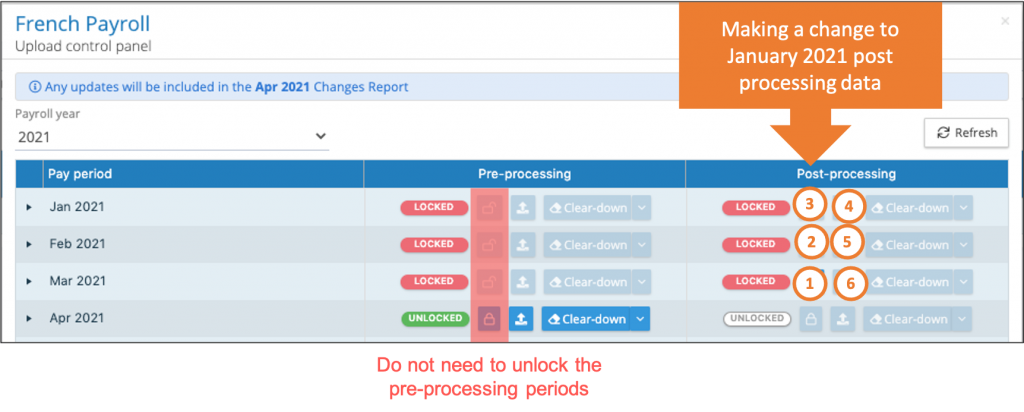
Unlocking post processing pay periods
Any number of post processing periods can be unlocked without unlocking the pre-processing periods. Unlock the post processing periods sequentially until you have reached the period you want to edit.
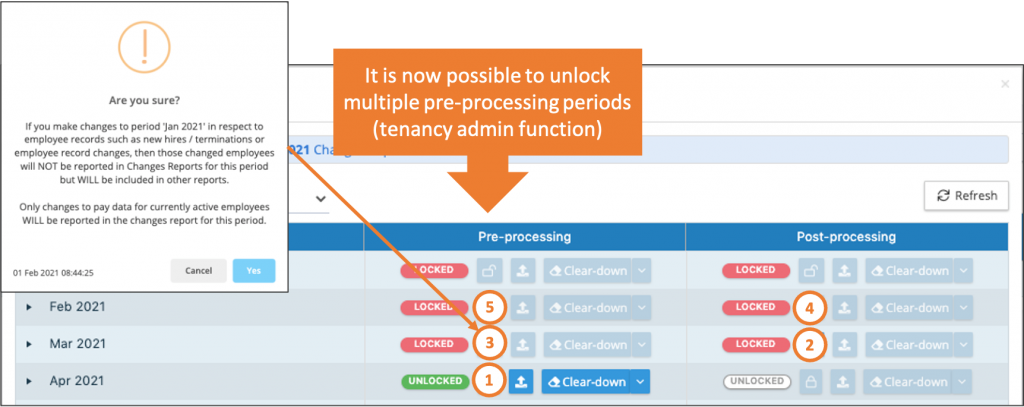
Unlocking multiple pre-processing periods
The current pay period for a payroll can be locked and unlocked as many times as you wish, it is now possible to unlock periods prior to the current period. This requires tenancy administration privilege. For those organisations using IPPEX Cloud to generate changes reports, the action of unlocking prior periods may affect the contents of the changes report. To unlock pre-processing periods, the user has to sequentially unlock both post and pre-processing periods.
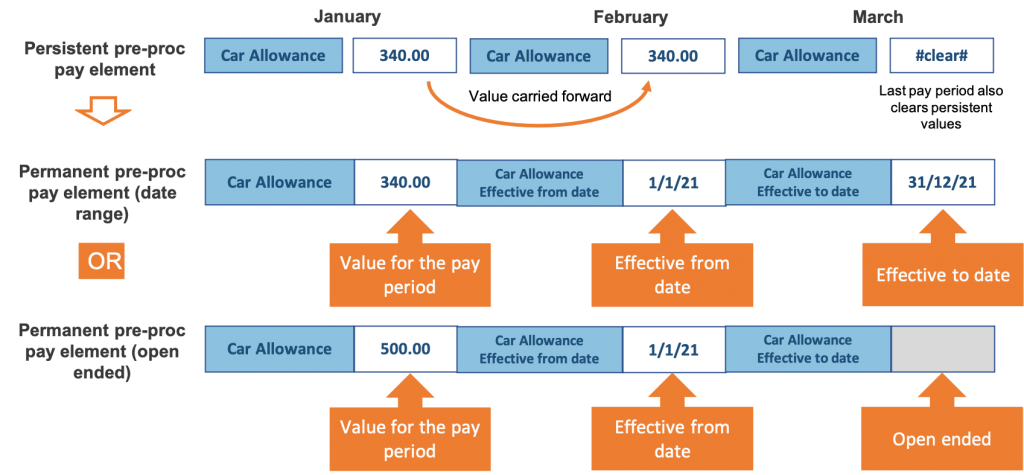
Replacing persistent pre-processing pay elements with permanent pre-processing pay elements
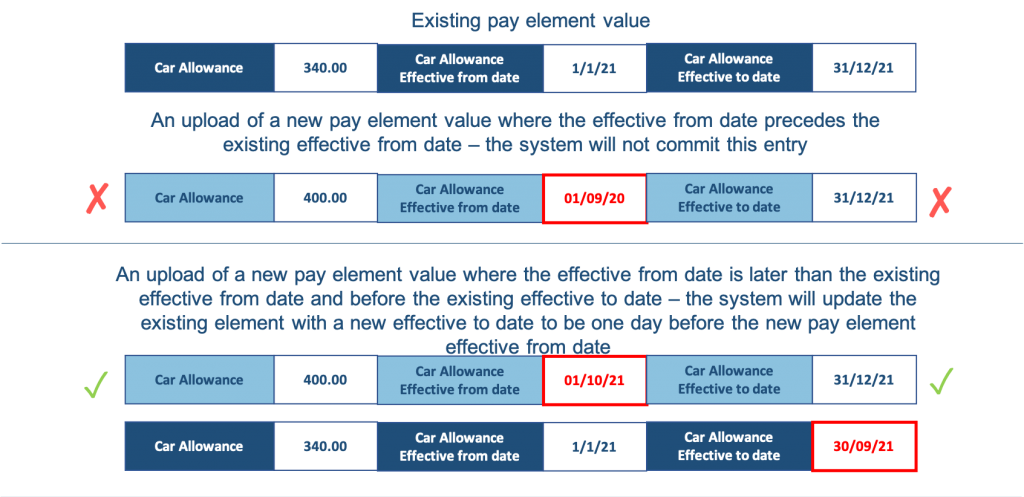
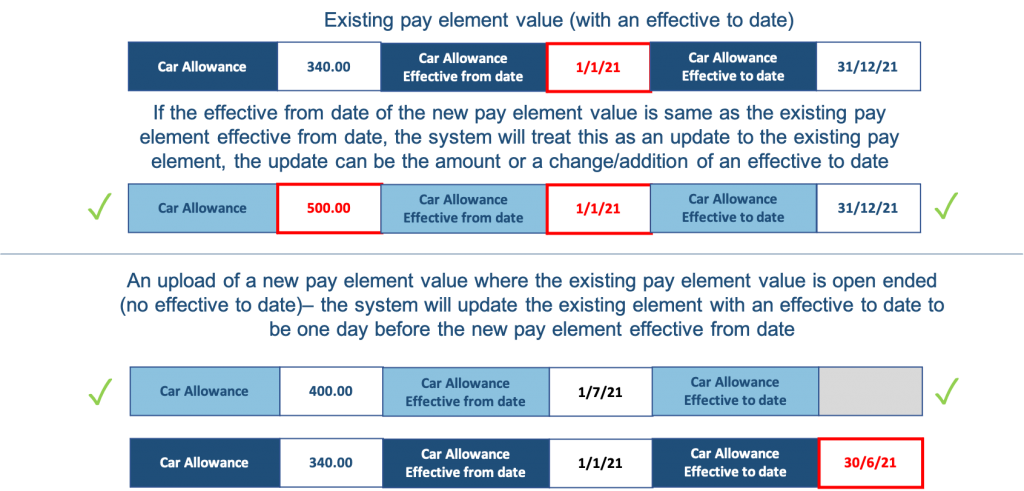
Prior to this release IPPEX Cloud supported persistent pay elements where the value was carried forward one pay period to the next, until the value was updated, cleared or the last pay period had been enabled for an employee. These elements have been changed to the new name of ‘permanent pay elements’. Permanent pay elements have three components, a value for the pay period, an effective from date and an effective to date. A permanent pay element can be set up to be open ended by not adding an effective to date.
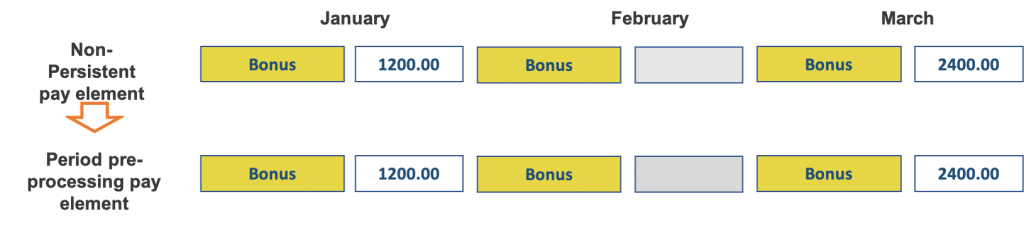
Replacing non-persistent pre-processing pay elements with period pre-processing pay elements
The name of the pay element type has changed, nothing else has changed, pre-processing period pay element values continue to be scoped to a pay period.
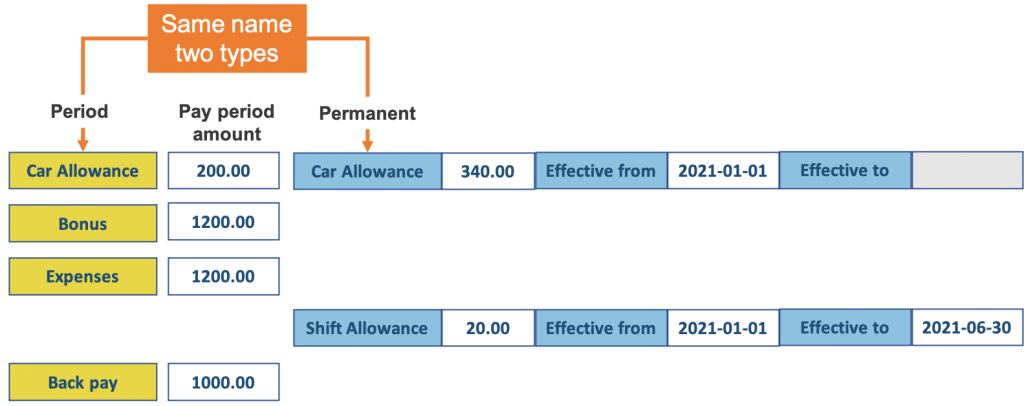
A pre-processing pay element can be both permanent and period based
Pre-processing pay element names are shared between period and permanent pay elements. This enables a particular pay element to have both period values and permanent values defined by effective dates.
Viewing pre-processing pay elements
There is a new view for pre-processing pay elements, permanent pay elements can be seen on the upper half and period pay elements on the lower half of the view.
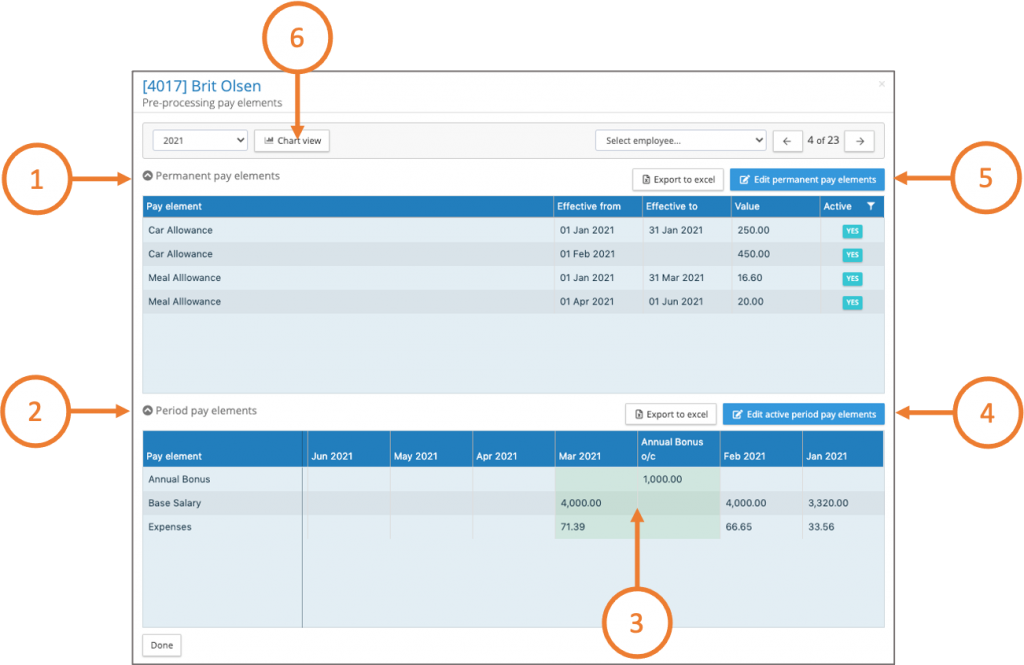
- Collapse and expand the permanent pre-processing pay elements.
- Collapse and expand the permanent post-processing pay elements.
- The green area of the screen indicates the period pre-processing pay elements can be edited for a given period.
- Click on the edit active period pay elements to input or change values
- Click on the edit active permanent pay elements to input or change values
- Chart view gives a graphical representation of the pre-processing pay element values.
Pre-processing chart view
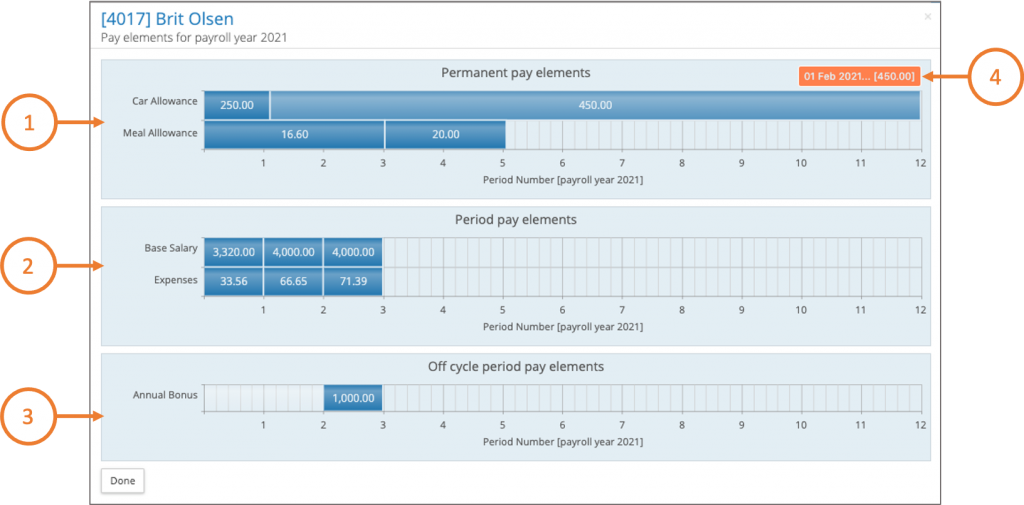
This view shows a graphical representation of the permanent pay elements, period pay elements and supplementary periods (e.g. off-cycle) pay elements. By hovering over a cell or bar on the chart it will show the value and date range for a particular pay element.
Edit permanent pre-processing pay elements
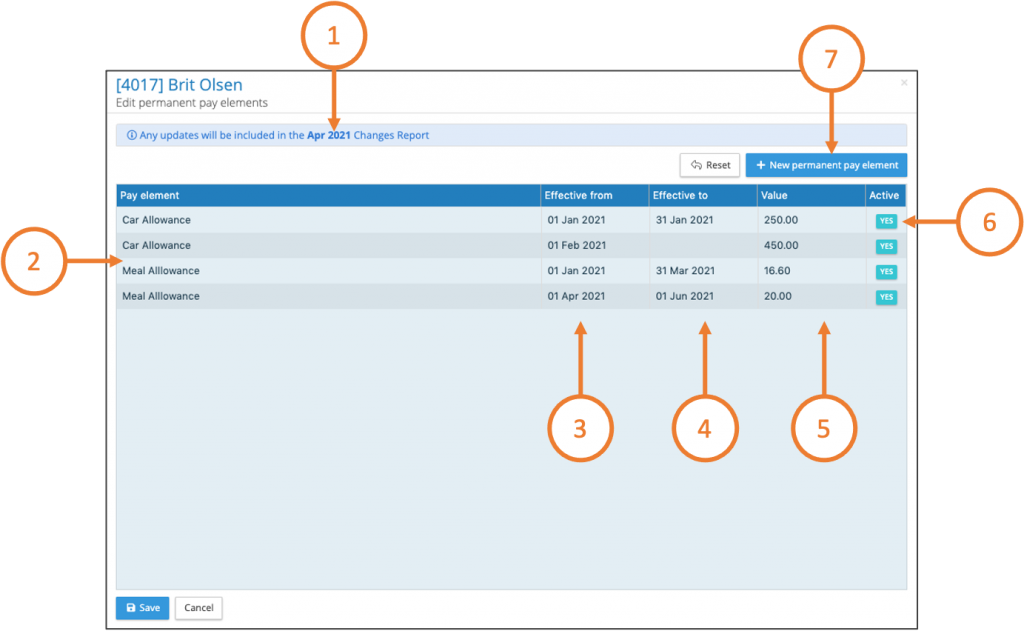
- When editing permanent pre-processing pay elements the application notifies you about in which changes report the entry will be reported in.
- The list is grouped by pay element, listing all of the entries for that pay element for a given tax year.
- Effective from dates cannot be edited, if an entry has been made incorrectly the pay element line item can be de-activated.
- Effective to dates can edited or added.
- Pay element values can be updated
- A pay element line item can be de-activated
- A pay element value can be added, this also allows for the creation of new pay elements. Permanent Pre-processing pay element upload rules
The pre-processing upload mechanism has been extended to include the permanent pre-processing pay elements.
Persistent pre-processing upload file format
To upload a permanent pre-processing pay element value, the pay element value requires an effective from date and an effective to date (the effective to date is optional if you are uploading open ended pay elements). When uploading multiple types of permanent pay elements it is important to differentiate the effective from and effective to headings in the upload file (Each column heading has to be unique to enable the application to map column headings to pay elements) Dates have to be in the ISO date format and the file as to be a CSV (please use UTF-8 format)

Upload mapping
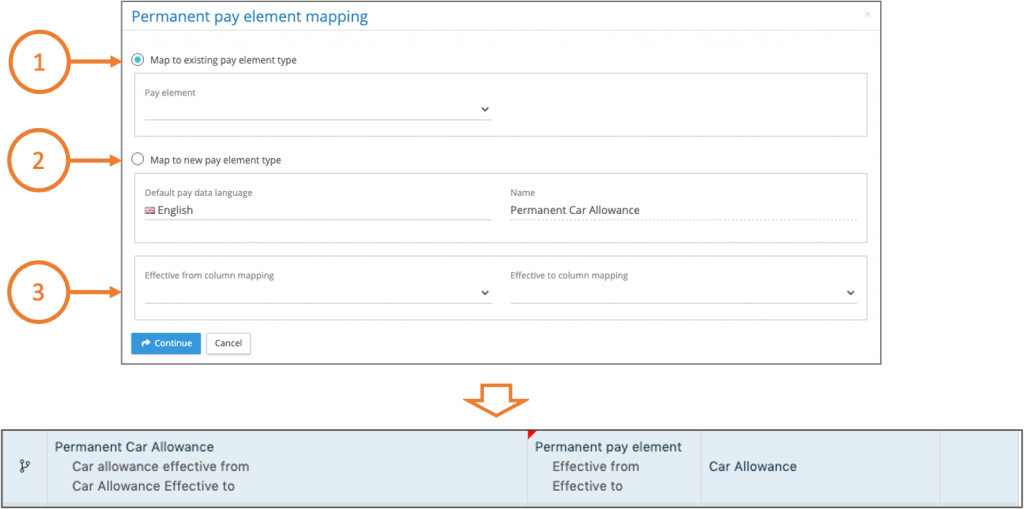
The upload mapping has been enhanced to group the permanent pay element value with the effective from and effective to dates. When mapping an existing pay element, click on ‘map to existing pay element type’ select the pay element, the select the column headings for the effective from column mapping and the effective to column mapping. When mapping to a new pay element, click on ‘map to new pay element type’ accept or edit the column heading name to produce the new pay element type, the select the column headings for the effective from column mapping and the effective to column mapping.
Carry forward of persistent employee details and organisation units
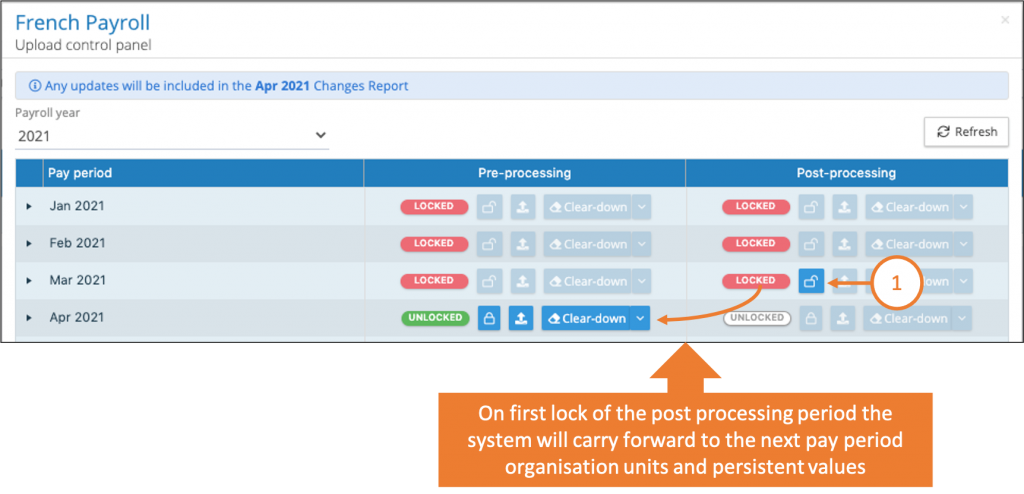
The carry forward of persistent elements used to occur on the first upload to the pre-processing period, with the introduction of the permanent pay element the carry forward mechanism has been changed to be triggered by the post processing lock. The carry forward works on the following basis:
‘For each employee and persistent element (employee detail or organisation unit) the application checks to see if there is a NULL value (empty field) in the next pay period, if this is the case it will carry forward the prior periods value into the new pay period. In summary the values are carried forward once, if changes are made to an organisation unit or persistent employee detail in a prior period, and required in the future periods, each period will require editing up to the current period.’
Pre-processing cleardown
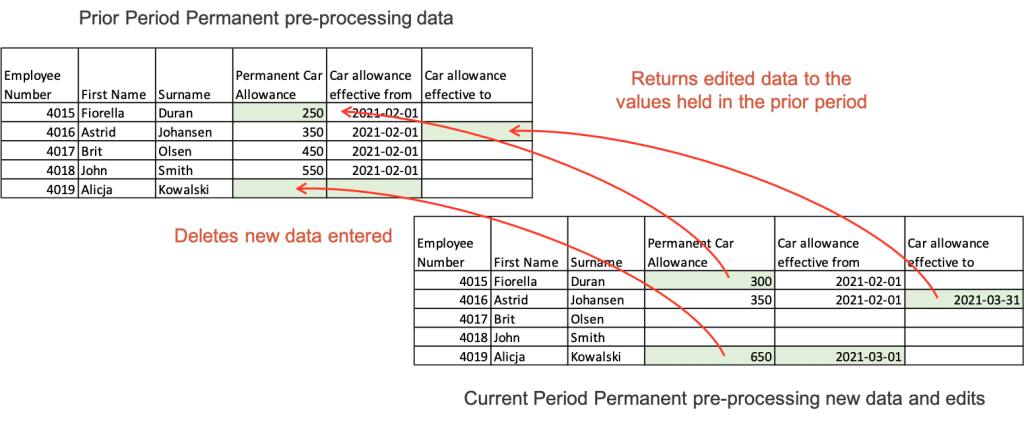
The pre-processing cleardown functionality has been extended to introduce permanent pre-processing roll-back. Rollback of permanent pay elements deletes the new permanent pay element values and where edits have been performed on existing permanent pay element values, the application returns these to the values held in the prior pay period.
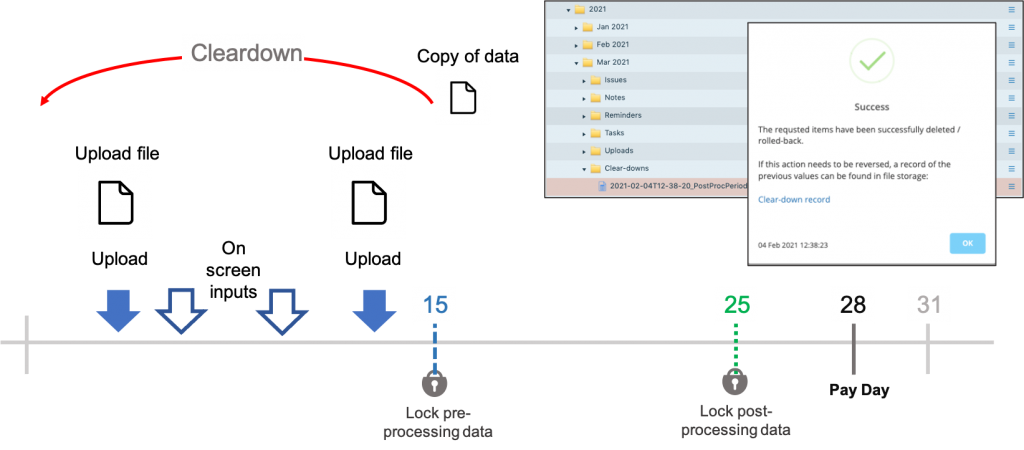
Data copy made before a cleardown
With a choice of on-screen editing or data uploads, tracking of data changes could be more challenging depending on the rigour of your processes. We have introduced a new feature to safeguard the potential of deleting important changes when a roll-back or cleardown is performed. When a cleardown or roll-back is performed, the application takes a copy of the data being removed for that period and stores it in the pay period folder. This allows users to restore the data if the roll-back or cleardown had been a mistake.
Last Pay Period
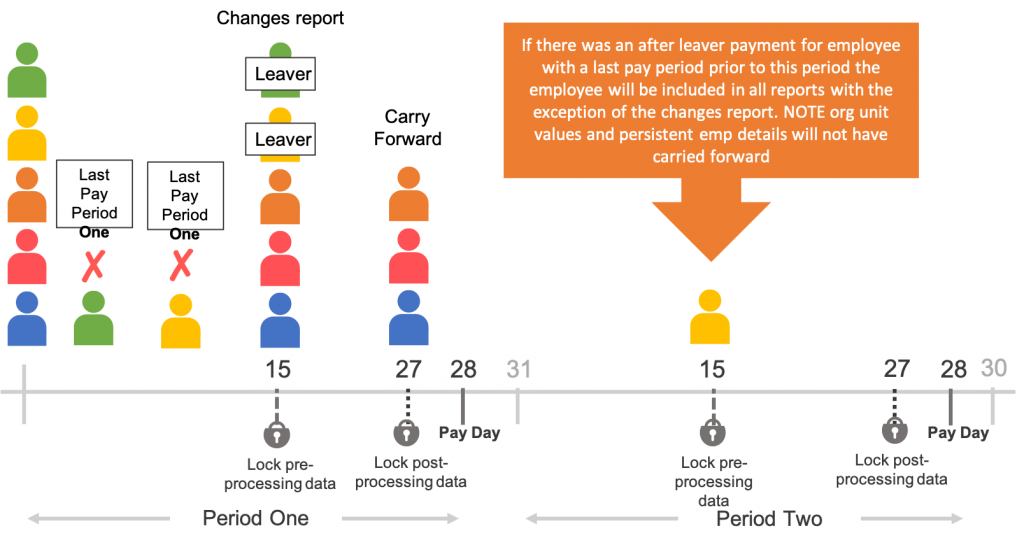
Employees leaving an organisation require a payroll leave date and within the application they require a last pay period to be set. The last pay period does three things:
- Sets the employee as inactive from the next pay period.
- Excludes the employee from future employee snapshots which are taken on pre-processing lock, ensuring the employee does not appear in future changes reports.
- Ceases the carry forward of persistent employee details and organisation units.
Where an organisation is using pre-processing pay elements, and there is a need for an after-leaver payment to an employee who has a last pay period set for a prior period. It is important to change the last pay period to the current period to ensure that the payment data appears in the changes report. Please note employee details and organisation unit values will be missing, as the original last pay period would have cancelled the carry forward of this data for that employee.
If an employee is re-joining the payroll, it is important to clear the last pay period from the employee record, the employee will be active from this point forwards and all persistent employee details and organisation unit values will carry forward from the pre-processing period in which the employee was re-activated.
Changes report and reconciliation report
The recording (entering or uploading) of permanent pay elements and the reporting of those pay elements can vary depending on the processes and systems of the client and those being using to process the payroll. HR systems will export all of the changes entered into their system, some of these could take effect in a future pay period. The way permanent pay elements are reported in changes reports can vary, based on the ability of the local payroll systems to handle those permanent data instructions. IPPEX offers the following reporting options
Changes Report
Permanent pay element changes are recorded in a specific change reporting period, this could include pay element values that take effect in a later period. An employee could have more than one change to a permanent pay element in a given period. A new tab has been added to the changes report showing permanent pre-processing pay elements.
The new permanent pay dialog has two set-up tabs, they are pay element selection and layout.
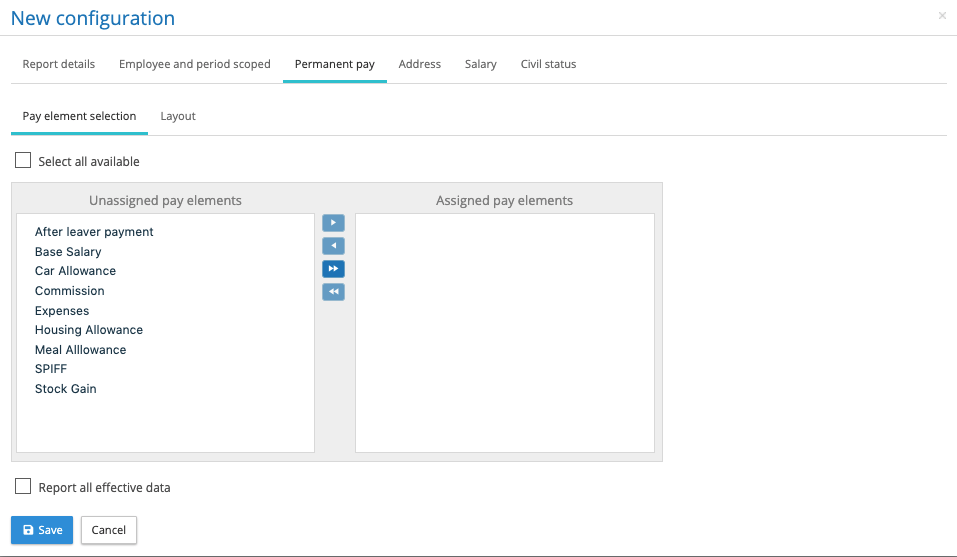
The pay element selection tab enables the user to select all of the pay elements they require in the report. There is an option to check the box for ‘Select all available’, this feature ensures any new pre-processing pay elements types created, will be automatically included in the report.
There is a second checkbox, which enables reporting of all effective data, this changes the dynamics of the reports significantly.
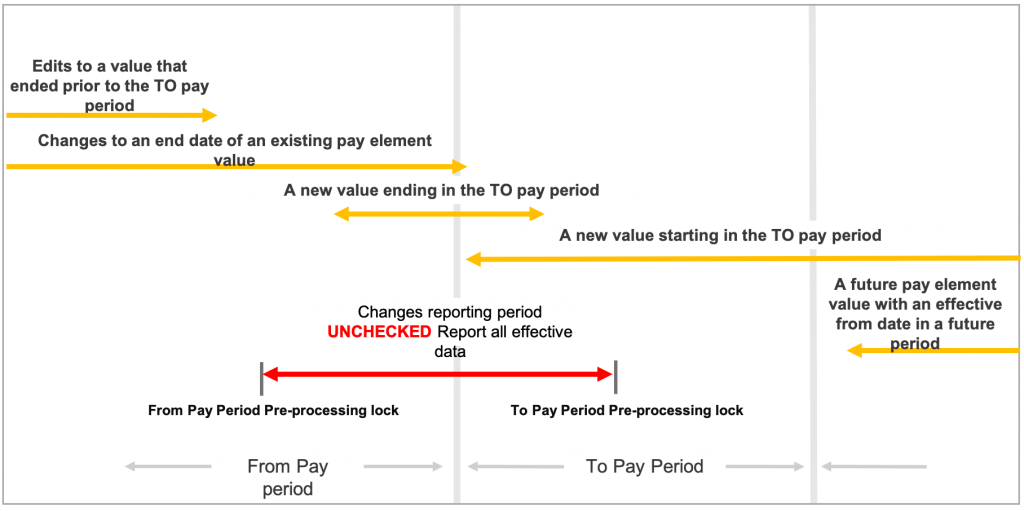
UNCHECKED Report all effective data
When permanent pay element data is entered or uploaded to the application it is tagged to a specific changes report based on the locking status of the pre-processing period. The application displays an information banner reminding the user which changes period the new data will apply to. If the report all effective data is UNCHECKED, the changes report will return any change added to that report, provided the pay element has been selected to appear in the report. See diagram below.
CHECKED Report all effective data
If the report all effective data is checked the changes report will include all effective permanent pay elements that are ‘in effect’ between the from period date and the to period date. The reporting rules are as follows:
- The permanent pay element value will be included in the report if the effective from date is before the from period pay date and the effective to date is on or after the from period pay date.
- The permanent pay element value will be included in the report if the effective from date is after the from period pay date and on or before the to period pay date.
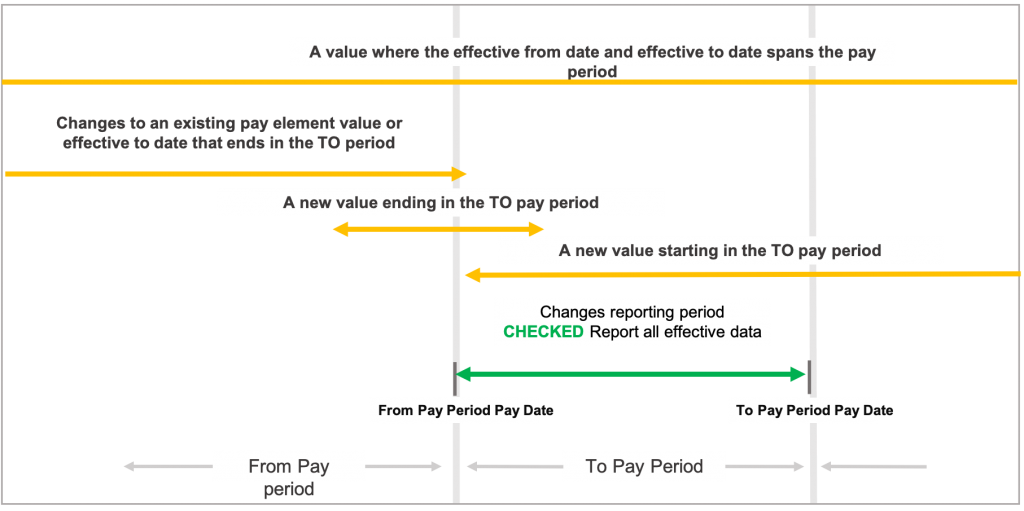
Those permanent pay elements where the effective from or effective to date is greater than the from pay period pay date and on or before the to pay period pay date will be highlighted in red. This ensures they stand out from the existing permanent pay elements that span the to pay period.
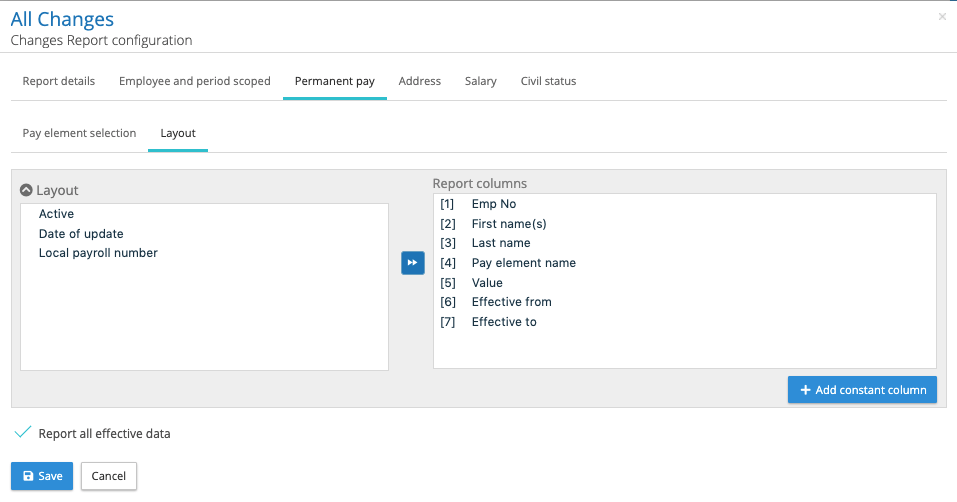
Permanent Pay – Layout
The layout tab for the permanent pay elements in the changes configurator provides a list of fields to include in the permanent pay element report list. Select and order the columns as required and add any constant columns as needed.
Reconciliation Report
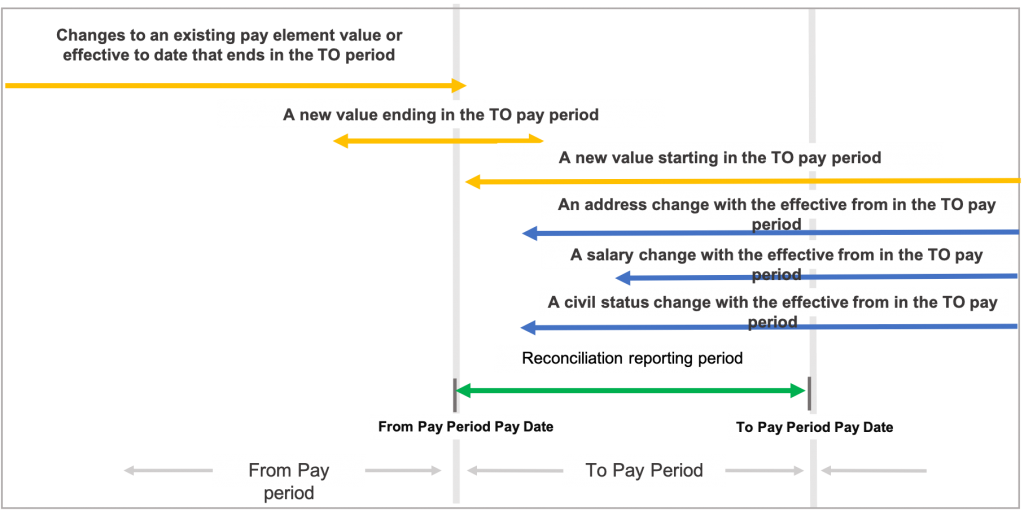
The reconciliation report has the same structure as the changes report, however it only reports data that has an effective date that falls within the pay period. This report is used to validate if the changes to permanent pay elements, addresses, salary and civil status have been applied in the payroll process.
All other reporting and last pay period
If an employee has had a last pay period set in a prior period to the reporting period and has pay data associated with them in the reporting period, the employee will now be included in all reports with the exception of the changes report. For example, when running an All data report, the application will check all of those employees with a last pay period set in the past to see if there is either pre-processing or post processing period pay element values, if yes, the employee is included in the report.
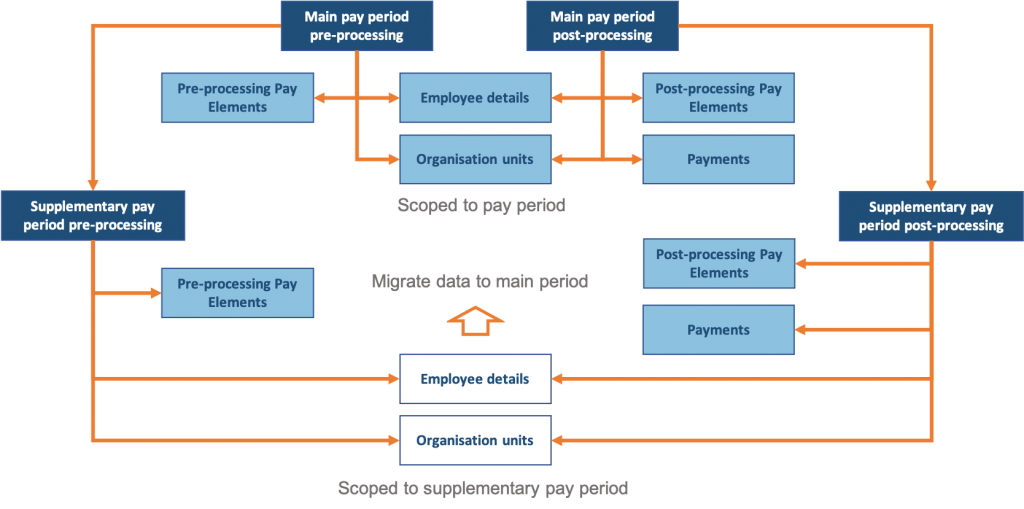
Removal of employee details and organisation unit values for supplementary periods
From Version 1.19 supplementary pay periods e.g. off cycle will share the organisation unit values and employee detail values held in the main pay period.
Adding, editing and deleting pay elements and employee details
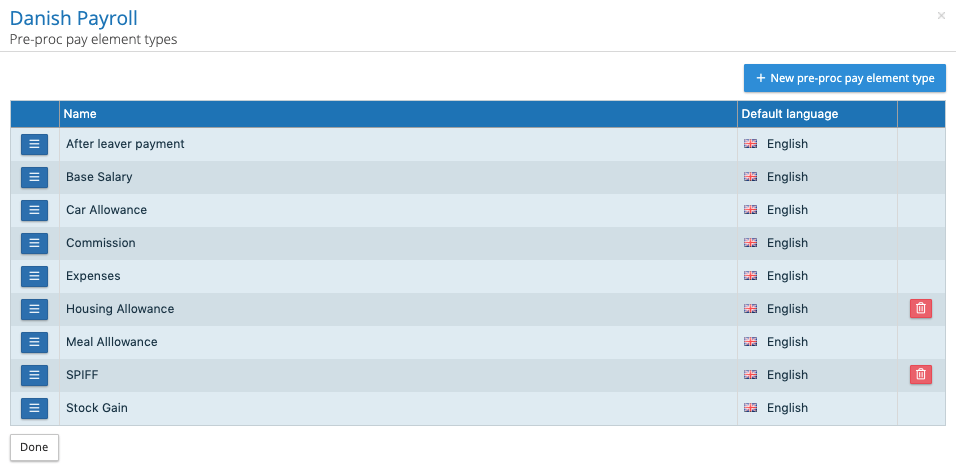
From the payroll menu, select pay data -> pay element types or employee detail types, the functionality has now been enhanced and the following functions can be performed (see image below of the pre-processing element types)
- Add a new pay element or organisation detail
- Change the name or correct the spelling for a pay element or employee detail, if you are renaming a pay element care must be taken as pay data may be associated with that element.
- Delete a pay element or employee detail name, this is only permissible if the pay element or organisation unit does not have any payment data associated with it.
Ignore dashes on pay element upload
A number of gross to net systems create reports with a single dash ‘-‘ character to indicate no value or a zero, IPPEX Cloud validates the upload to ensure a pay element value is numeric. This has caused a problem where a gross to net file has many fields containing a single dash ‘-‘ character, as they have to be removed manually. We have modified the upload mechanism enabling users to upload file containing fields containing a single dash character, the application will now ignore the dash ‘-‘ , substituting the field with no-value (NULL).
File transfer folder notification
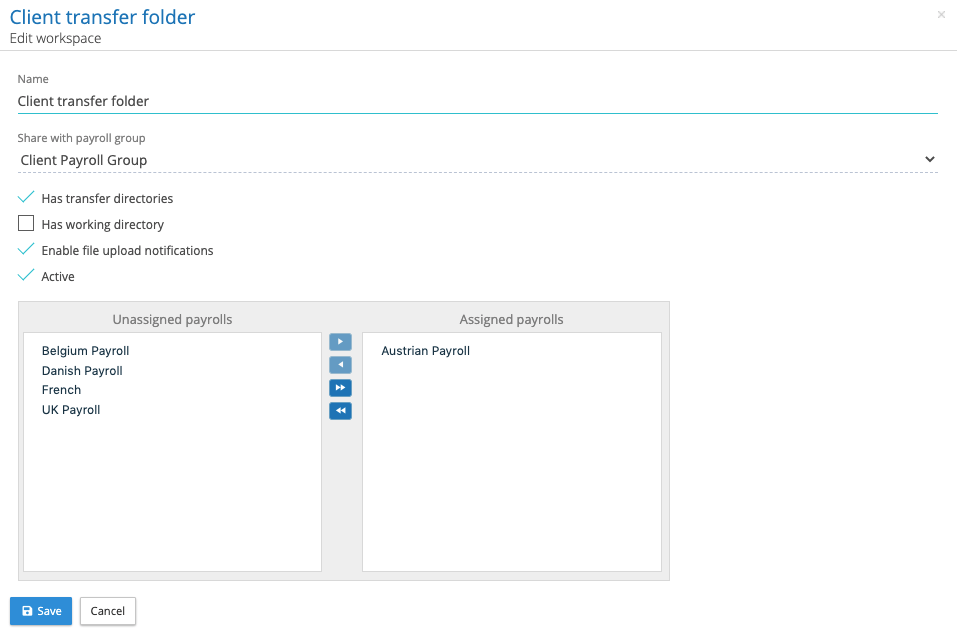
A workspaces enhancement, now allows when a file has been uploaded to a transfer folder, those users who have access rights to the corresponding inbox can receive a email notification. The notification can be set for a given transfer folder. This can be enabled from Administration -> workspaces and edit a workspace, there is now a checkbox to ‘enable file upload notifications’.
Issue update notifications
When creating an issue the user can select the issue assignee and owner to receive a notification, we have introduced a tenancy setting (Administration > Settings > Settings) to ‘Enable issue update notifications’. Once checked, each time a user replies to an issue, the owner and assignee will receive an email notification that there has been an update.