IPPEX Cloud V 1.18 Release Notes

Introduction
In this Release IPPEX have continued to add enhancements to a number of functions and controls, these are primarily focused on the usability of the platform. The new upload control panel provides a productivity gain when managing the locking and data uploads. It also sets the foundation for the future introduction of a new pre-processing pay element.
Upload control panel
Initiating uploads and locking pre or post processing pay periods has been significantly enhanced with the introduction of an upload control panel. From a single control a user can initiate any data upload, lock payrolls and perform clear downs. From the payroll action menu select upload -> upload control panel.
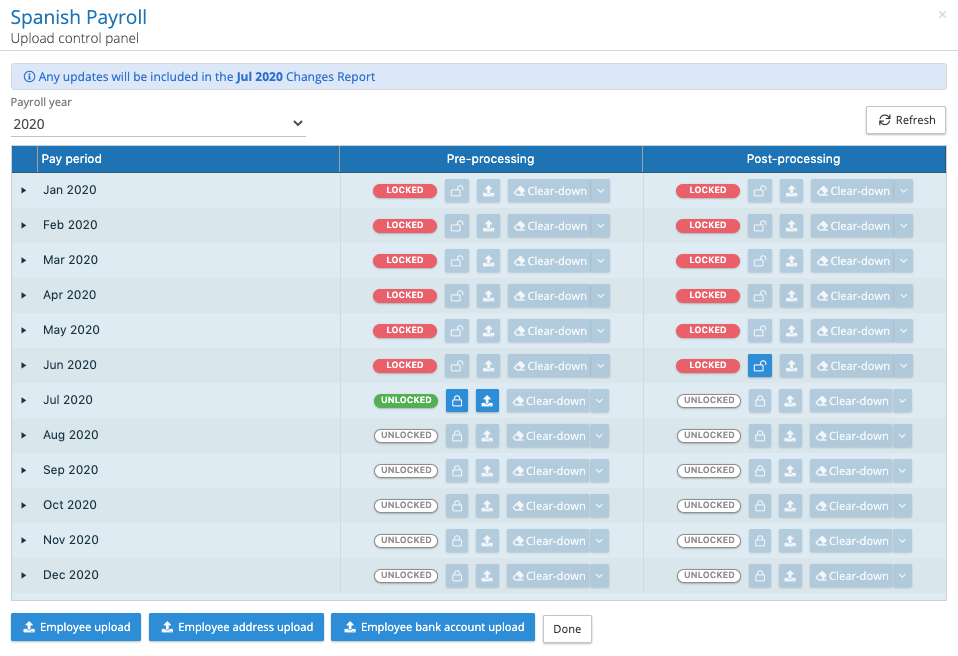
The new panel has the following features:
The test in the information panel informs the user of the active pay period for which any upload of employee record information will be committed and which changes report that information will appear in. A changes report will compare employee record information between two locked periods or the current open period and the prior locked period.
The pay period year is shown, a user can select prior payroll years.
The control shows which periods have been locked (red) and the current unlocked period which is ready to receive upload data (green).
The locking and unlocking process maintains existing rules:
First upload of pre-processing data to the current pay period will result in the prior pre-processing pay period being permanently locked.
Post processing pay periods can be unlocked for any number of prior periods; the unlocking does not require the pre-processing period to be unlocked. Post processing lock has to be performed in sequence (pay period by pay period).
To perform a pre-processing upload, the prior post processing period has to be locked, likewise, to perform a post processing upload the prior pre-processing period has to be locked.
The cleardown function allows for the cleardown of pay element data, employee details, organisation units, payments and upload mappings.
Employee upload, employee address and bank detail uploads can be performed from the upload control panel.
The following image shows a payroll with the post processing period unlocked to Feb 2020, allowing for new data to be uploaded to this unlocked period plus the ability to clear down data for that period.
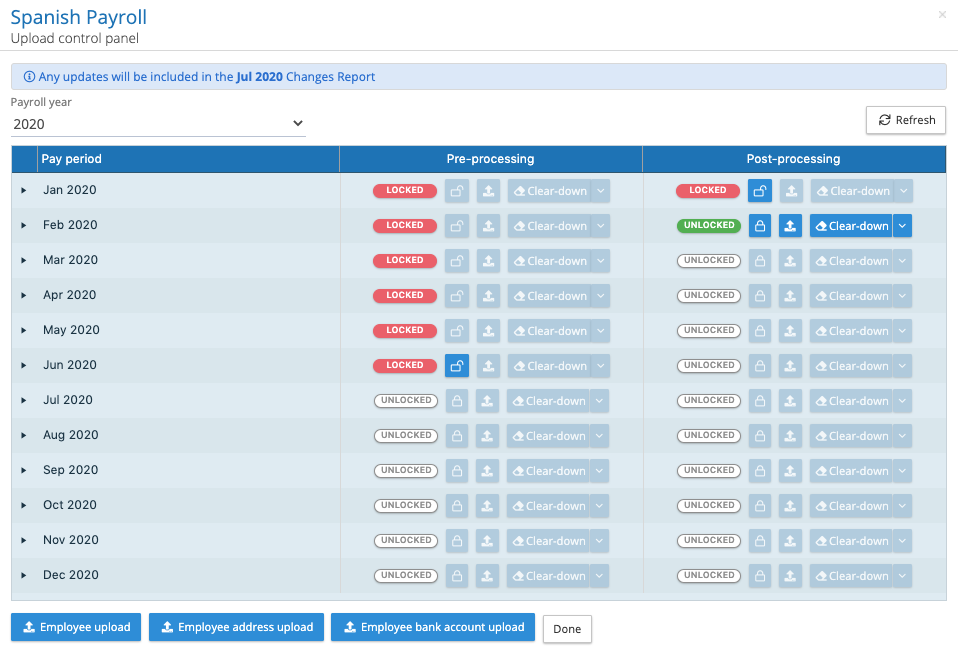
When a pre-processing or post-processing upload is executed with the instruction to lock on competition, the application will close the upload control panel, to prevent a user from locking the period before the background upload process is complete.
Legacy upload controls are still available, allowing users time to migrate to using the new control panel.
Bulk disablement of employee users
Additional functionality to disable users has been added to the employee users screen.
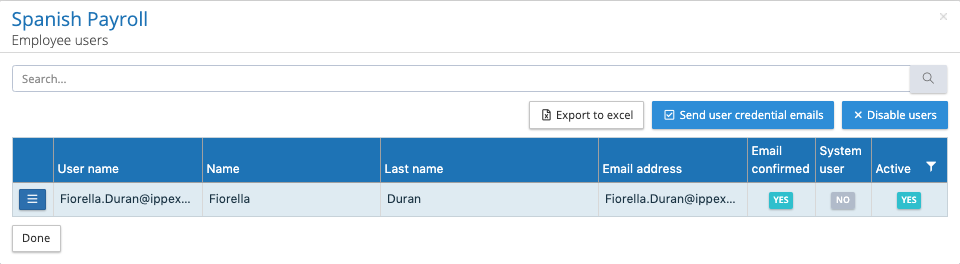
Select the blue disable user button, you will be presented a list of all employee users. You can select one or a number of users, alternatively select all users and click proceed, this will disable the user accounts. The list also indicates if a user is a member of multiple payrolls, if a user is disabled, they will no longer have access to their account including any of the payrolls they have been a member of.
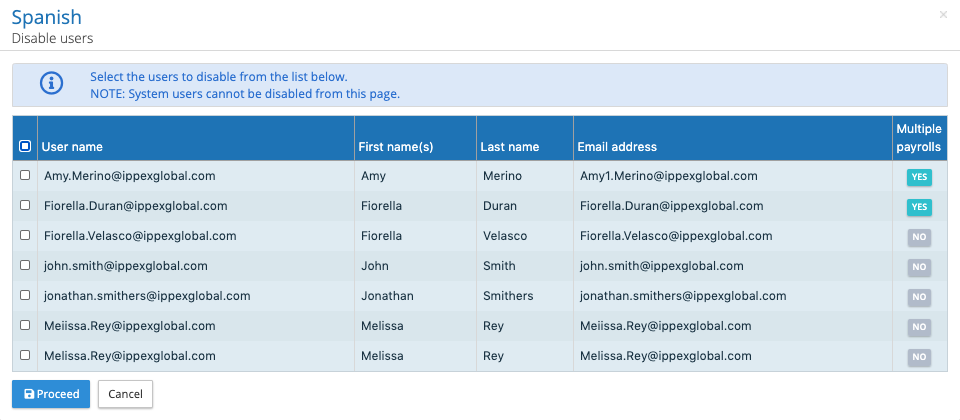
Individual users can continue to be disabled from the action button on the employee user list.
Disabling a user does not delete the data held against the employee record, a user can be re-enabled from the employee user list. Using the filter, select disabled users and using menu against the user account, select edit, and check the checkbox next to active.
Task calendar Excel export
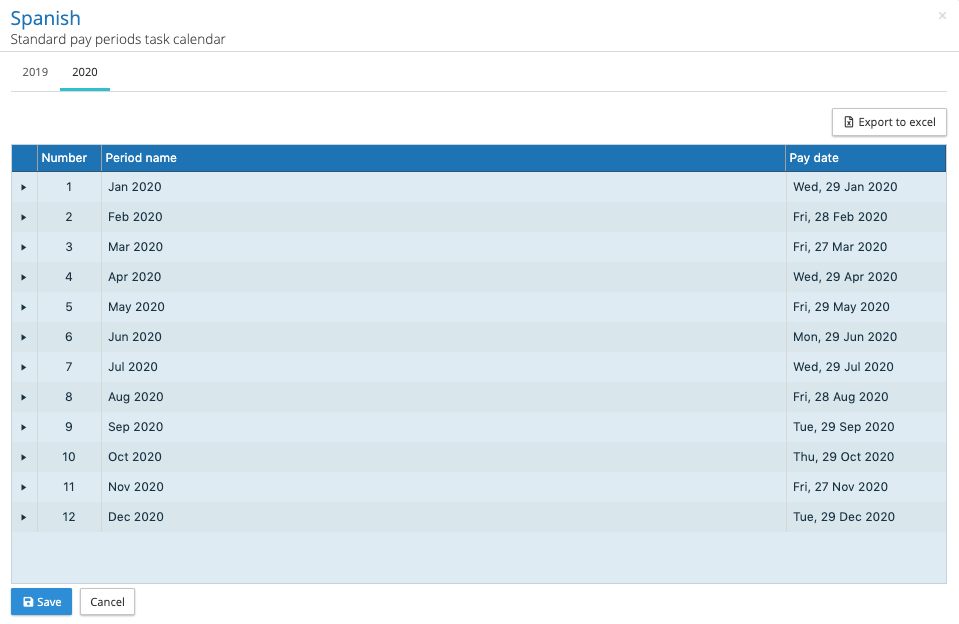
When viewing the task calendar from the payroll configuration menu, a new button has been added to ‘Export to Excel’. This will export the headline task calendar dates for the whole of the tax year displayed.
Payroll Calendar Report
A new multi-payroll report has been added to the reports section (main menu), to produce a report of all the headline tasks due in a given time period for one or a number of payrolls. The report is produced by payroll, listing headline tasks, the task owner with a column for each pay period (with a pay date within the selected time period) and the due dates of the tasks. Select Reports -> Payroll Calendar and you will be presented with the following report kick off control.
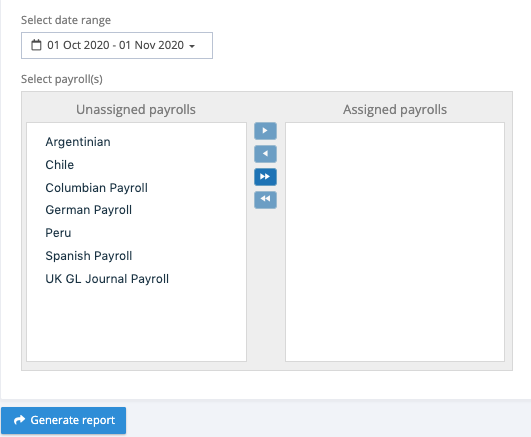
Select a time period, any task due in that time period will be included in the report, select the payrolls for which you want to report. Click on generate report, the payroll calendar report will be generated as a background process, an email will be sent on completion and the report will be available in My Files.
Multi-payroll Operations Reports
The original TIR report has been replaced by two new reports extending the reporting types and functionality. The two reports are, tasks and IRQ (Issues, reminders and queries). From the main menu select Reports and expand the Operational reports menu, select the report type you require.
Tasks Report
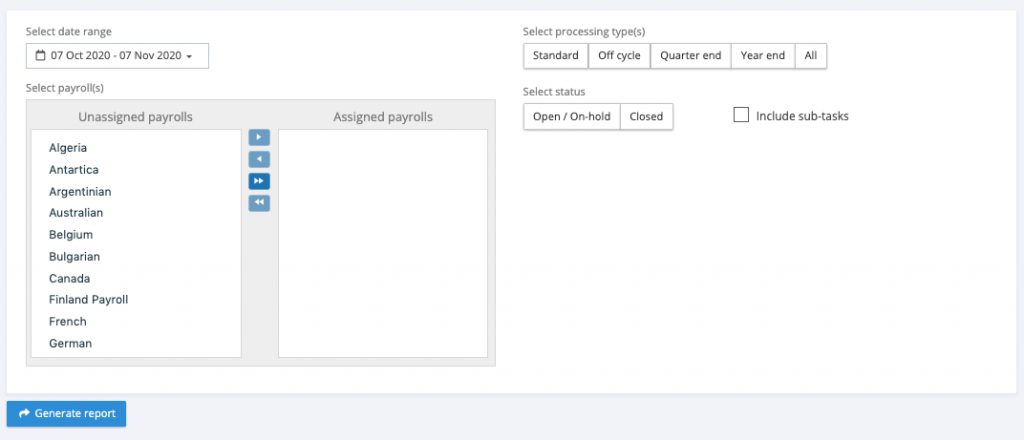
The tasks report will create anmulti-tab Excel output containing one row per task with the following columns of information:
- Task Type
- Reference Number
- Name
- Status
- Due Date
- Assignee
- Payroll Owner
- Payroll Name
- Payroll Type
- Pay Frequency
- 3rd Party
- 3rd Party contact
- Country
- Pay Period
- Payroll Year
- Pay date
To create a report:
- Select Date range
- Select payroll by dragging the require payrolls from the unassigned column to the assigned column
- Select processing types – standard, off cycle, quarter-end, year-end or All
- Select Open/On-hold tasks or closed tasks
- Check include sub-tasks if these are needed in the report
- Click on generate report
The report will be created as a background service, a report completion mail will be sent to you and the report will be saved to your My Files folder.
IRQ Report
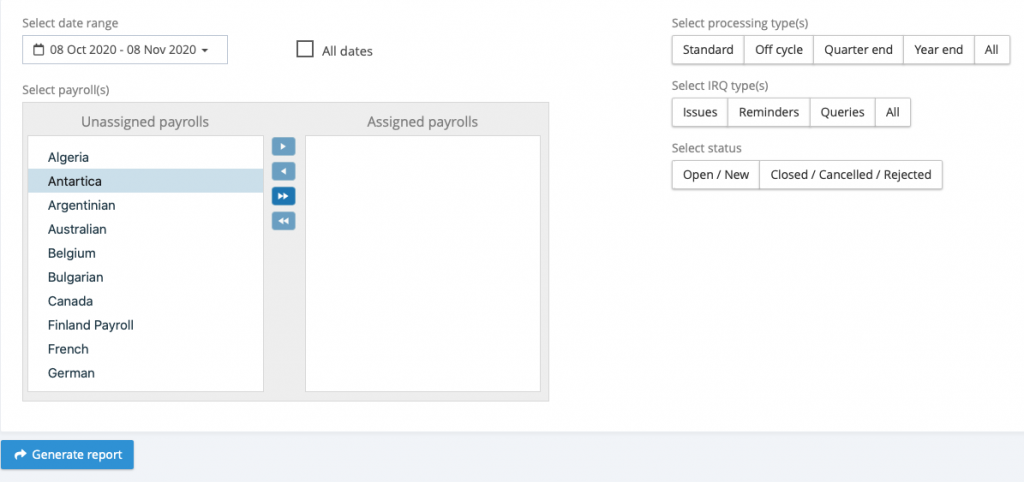
The IRQ report will create an multi-tab Excel output containing one row per Issue, Reminder and/or Query with the following columns of information:
- Task Type
- Reference Number
- Name
- Creation date
- Created by
- Age (days)
- Status
- Category
- Source
- Criticality
- Due date
- Closed on
- Closed by
- Assignee Owner
- Employee Escalated Issue
- Payroll Owner
- Payroll name
- Payroll type
- Pay frequency
- 3rd party
- 3rd party contact
- Country
- Pay Period
- Payroll year
- Pay date
To create a report:
- Select Date range or select ALL (All will return every item recorded based on the other parameters selected)
- Select payroll by moving the require ones from the unassigned column to the assigned column
- Select processing types – standard, off cycle, quarter-end, year-end or All
- Select Issues, Reminders, Queries or All
- Select status open/new or closed/cancelled/rejected
- Click on generate report
The report will be created as a background service, a report completion mail will be sent to you and the report will be saved to your My Files folder.