IPPEX Cloud V 1.14 Release Notes


Introduction
IPPEX Global are excited to release Version 1.14, IPPEX’s payments module. Supporting ISO 20022 bank payment file standard IPPEX Cloud can deliver payment files for many of the major banks.
The ISO 20022 standard defines a set of XML codes used by banks to execute a financial transaction. Each bank has interpreted the standard to create their own payment file format. IPPEX has produced a library of the XML code structures commonly used for employee payments, enabling us to create payment file configurations for the majority of banks utilising this standard.
The payment module provides flexibility, enabling clients and global providers to centralise their payment processes through one global banking organisation, as well as giving organisations the option to create payment files for their local banks. IPPEX will work with your organisation to review and set-up the payment files for each client.
Overview of Payments
IPPEX payments brings together employee record information, company address and bank account information and a payment value per employee used to generate a structured XML payment file.
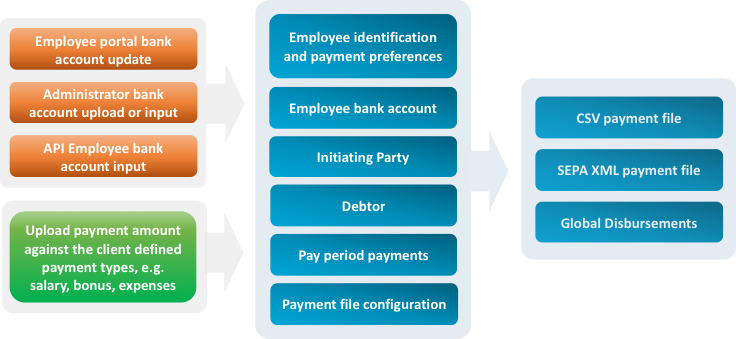
Many organisations using global disbursements have set up beneficiary templates for each payee, these have to be maintained when changes occur. IPPEX payments provides organisations with a choice of continuing with beneficiary templates, or to utilise the banking and employee identification data held within IPPEX Cloud to execute the payments. The IPPEX employee upload tool and on-screen editing simplifies the mechanism for maintaining employee payment reference data, in addition, the employee portal provides the option for employees to submit their own address and bank updates.
Payment file creation utilises data held within IPPEX Cloud in the following areas:
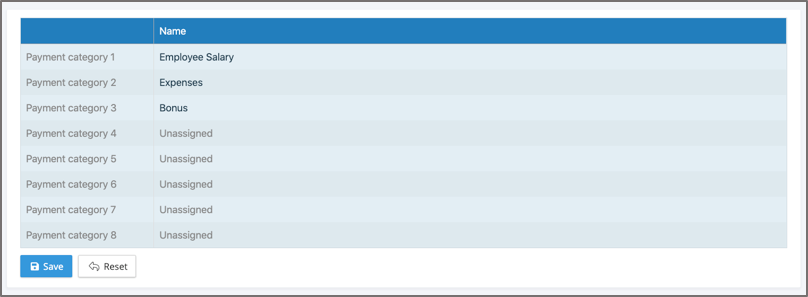
Payment Categories – For each client tenancy up to eight user defined payment categories can be created, these are defined for all payrolls within a tenancy, e.g. Salary ACH payments, Salary urgent payments, Expenses, Annual Bonus. For each pay period on a payroll, values can be uploaded for each employee payment category.
Payment Currency – The currency of the payments is defined by the payroll payment currency. From the payroll menu, payroll configuration > edit payroll, there is a currencies tab. Note: The payment currency is overridden when making equivalent amount payments (see employee payment configuration)
Employee Record Identification Information – Depending on the payment jurisdiction, specific private identification data may be required, such as national ID, passport, date and place of birth. The payment file can be configured to use the values from the employee’s record.
Employee Address and Bank Details – Address and bank details can be entered or uploaded for each employee, the payment file uses the most recent address and bank details in relation to the payment date.
Company bank accounts and company addresses – When configuring a payment file for a specific payroll and payment type, information is required to identify the initiating party, debtor organisation, debtor bank account and where needed ultimate debtor company.
In release 1.14 we have concentrated on producing credit transfer payment files based on the ISO 20022 standard (Pain.001.001.003). This standard has been adopted by a number of global banks who are operating in the Single European Payments Area (SEPA). The Primary Payment Market Infrastructures (clearing systems) are also migrating their services to utilise the ISO 20022 standard for electronic data interchange between financial institutions, each clearing system has published a plan to meet the standard between 2023 and 2025.
In addition to supporting the ISO 20022 standard banking output, IPPEX will configure, on request, a bespoke payment file outputs for a specific payments partner.
Payment File Configurator
Each bank has interpreted the ISO 20022 standard, IPPEX will work with you to create a bank file configurator to meet your chosen organisation and payment type. There are two steps to creating a payment file for a payroll and payment category:
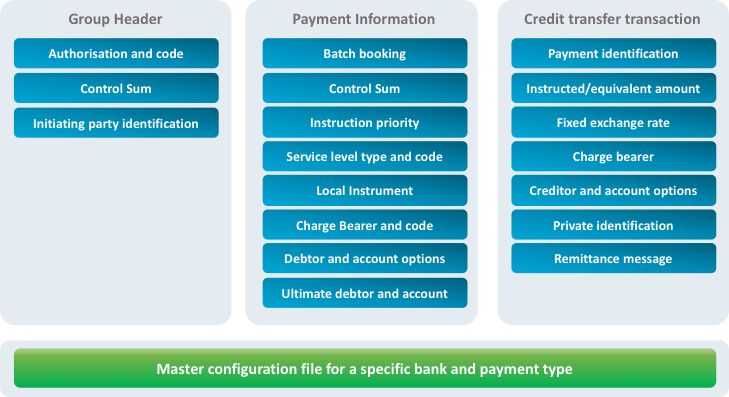
Step 1: IPPEX will analyse the payment file requirements for a given bank and payment type e.g. HSBC SEPA, setup the mandatory and optional configuration settings (see diagram) and deploy the ‘master’ payment file configuration to the client tenancy or tenancies. Each master payment file configuration will be deployed to a test environment to work with the banking organisation in order to validate the file format.
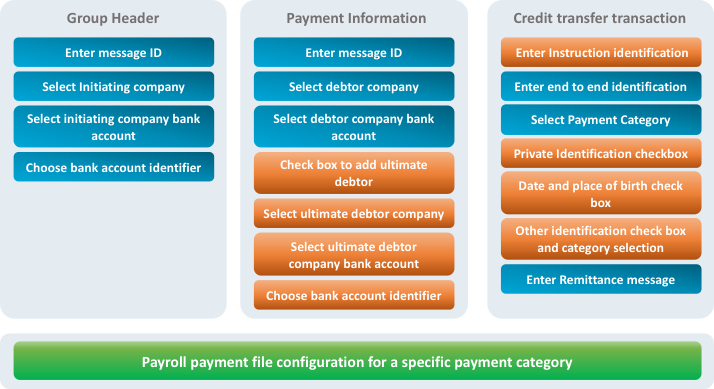
Step 2: The payment file configuration is set-up for a payroll and payment category e.g. salary payment, expenses etc. The set-up entails selecting address and bank details for the initiating party, debtor and ultimate debtor (if required), adding payment message identification, remittance message and, depending on the payment type, selecting the employee identification requirements. The payment file configuration is then saved and used to create the payment file for each pay period. Go to payrolls ® Reporting ® configuration ® payments and create a new payment configuration.
Payment Categories
Within a tenancy up to eight payment categories can be created, these can be used to hold pay period payments for each employee. Go to Administration ® Payment Categories and define the payment headings for the client tenancy.
Using the post processing upload tool, payment values are mapped to the payment category.
Employee Payment Configuration
The payment file for a bank and type can be configured to automatically use the employee’s payment configuration settings. Each employee record has a section ‘Payment configuration’.
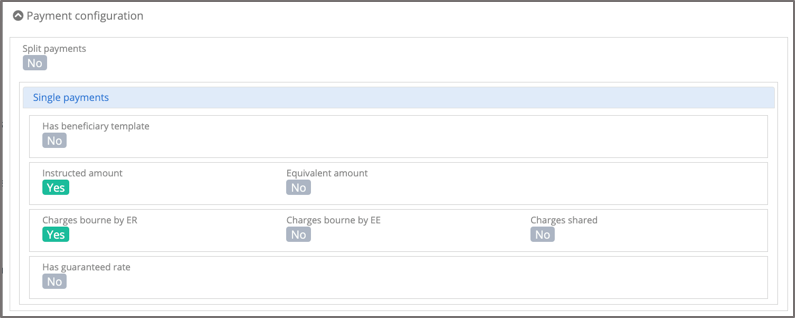
The payment file configurations have the following default settings:
- Split payments – NO
- Has beneficiary template – NO
- Instructed Amount – YES
- Charges borne by the employer – YES
- Has guaranteed rate – NO
For the majority of employee payments, the default settings will apply. However, where there is a need for specialist payments, typically those associated with global disbursements for expatriate employees, different settings may be needed.
Split Payments – This allows for a payment to be split by an amount or by a percentage between two target bank accounts. Each split can be configured to have instructed or equivalent amount, different charge bearing and fixed exchange rates can be applied. If an employee has been configured for split payments, they will require a secondary bank account and address to be entered.
Beneficiary Templates – If a payment file has been configured to use beneficiary templates, the creditor’s agent and creditor’s account will be disabled. The creditor’s personal identification will use the beneficiary ID from the employee’s record. Set ‘Has beneficiary template’ to YES and enter the beneficiary ID, this can also be performed using the employee upload.
Equivalent Amount – The majority of payment files are configured for ‘Instructed Amount’, where the employee received the exact amount stated in the payment. For FX transactions some employees may be configured to receive the equivalent amount, where the sum received by the employee is based on the exchange rate at the time of the transaction. For equivalent amount payments, the payment value is defined in the currency of the debtor’s bank account and the payment currency is defined in the currency of transfer. NOTE: For all payment files the application will look to see if an employee has been configured for equivalent amounts, if the payment configuration has been set for instructed amount only, the payment file will exclude those employees with equivalent amount set to YES.
Charge Bearing – For the majority of payment files the charge bearing is the same for all of the payments and is defined in the payment information block, typically the payment fees are borne by the employer. If the charge bearer is set-up to be in the credit transfer transaction block of the payment file, the system will take the charge bearing code from the employee’s payment configuration.
Fixed Exchange Rate – Fixed exchange rates can be agreed for specific payments for an employee, where the payment configuration has been enabled for fixed payments, the application will check the employee’s payment configuration file to see if ‘Has guaranteed rate’ been set to YES. If so, the rate, contract ID and rate type will be taken from the employee’s record.
Company Addresses and Bank Details
A payment configuration utilises information held in company addresses and company bank accounts. Under companies there is a tab for Address and one for Bank Accounts.
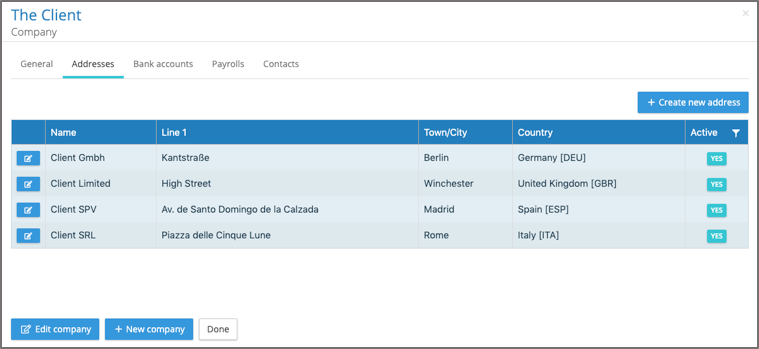
Any number of company addresses can be added. When setting up a new payment file configuration, ensure the company for the initiating party, debtor and ultimate debtor (if being used) has be selected. The application will present a list of company names, these are the local names entered into the addresses, both the local name and all/some of the address will be used in the payment file. NOTE: The payment file creation process validates company status and if it has been set inactive it will prevent the payment file from being created.
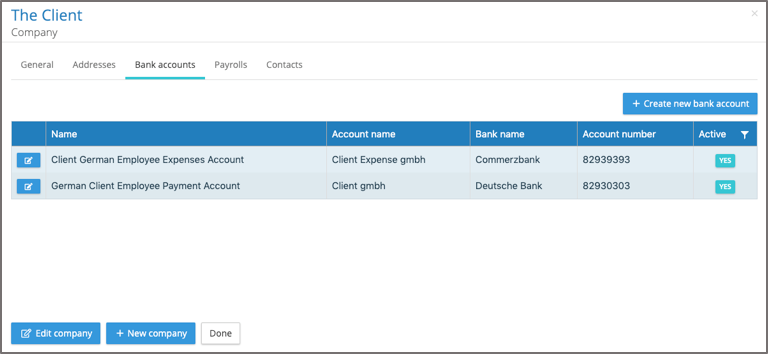
Any number of company bank accounts can be recorded against a company, similar to addresses, these are used in the payment file configuration for the initiating party, debtor and ultimate debtor (if needed). Many payment files use the attributes from the bank account and bank account address. Swift/BIC and IBAN fields in the bank account are non-mandatory, but are vital in the payment file and IPPEX Cloud will validate if there is a value present during the payment file creation.
Payment Report Creation
Go to payrolls ® Reports ® Payment File, this will start the reporting kick-off process.
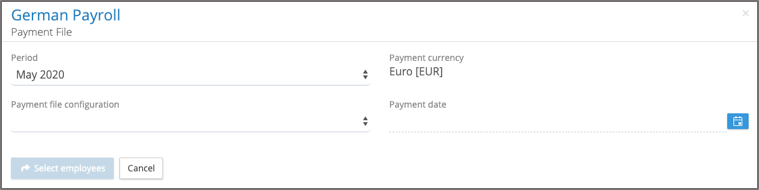
The application will always show the most current locked post processing pay period, however a previous pay period may be selected. Select the payment file configuration and the payment date. If the payment file configuration contains company addresses and bank details that are inactive, the application will give a warning and prevent the user from progressing. If the payment date is greater than 1 month from the current date, a warning is given, however, this does not prevent the user from progressing with the payment file creation.
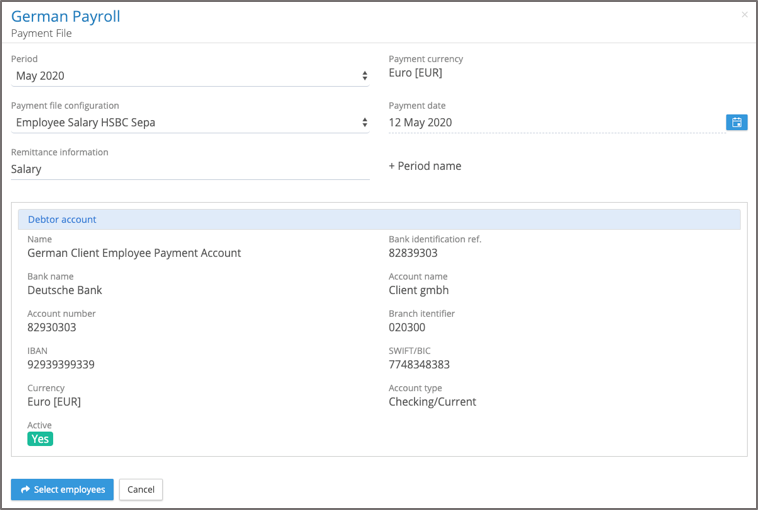
On selection of payment file configuration, the application will show the debtor account, the payroll payment currency and the remittance information (text that will appear in the employee’s bank account) held in the configuration, the remittance information can be overwritten. The application will automatically add the pay period name to the remittance information.
If the information is correct proceed by clicking Select employees.
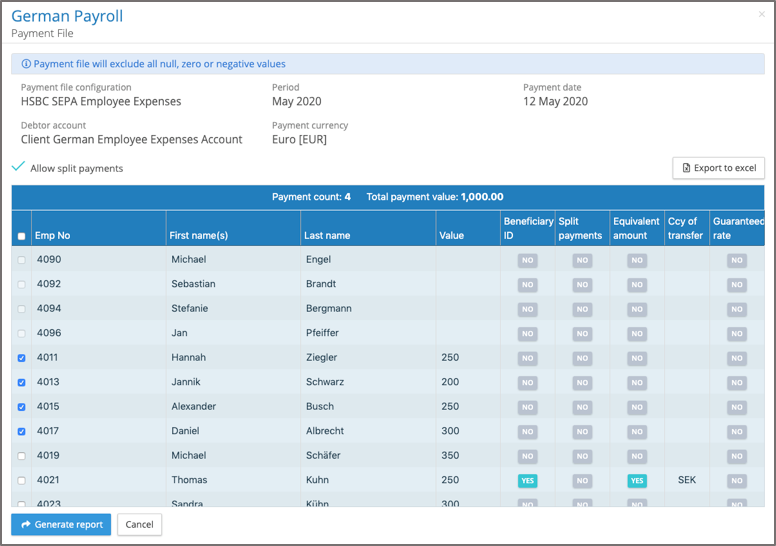
The upper section of the screen reminds the user which payment file configuration is being used, the name of the debit bank account, payment currency, pay period and payment date.
The application will automatically calculate any split payment configurations which have been set-up for specific employees, the split payment option can be unchecked and it will process all of the payment value to the primary account.
The employee payments list shows if there are any settings made for beneficiary ID, split payments, equivalent amount or guaranteed exchange rate. Export to Excel enables the user to export a list of all the employees, the payment values, their payment configuration settings and their bank account details. This allows the user to perform a visual check on each of the payments.
The payment file will list all of the active employees on the payroll, any employee with a Null, Zero or Negative value will appear at the top of the list and the application will not allow the user to process these employees. The user can select all employees with positive values to be included in the payment file or select specific employees. Based on the employee selection the application will display the number of payments and calculate the total value of those payments.
When all of the selections have been made, select ‘generate report’. The application will generate the payment file as a background task, delivering the completed report to My Files along with a details file, results file and an Excel payment checking report.
The results file will list all successfully processed employees along with any errors, IPPEX Cloud will perform a number of validation checks, such as missing BIC or IBAN values in the employee’s bank account. Based on the payment date, the system will select the most current employee address and bank account in relation to the payment date.
Permissions
There are three permissions relating to employee bank accounts and payment files.
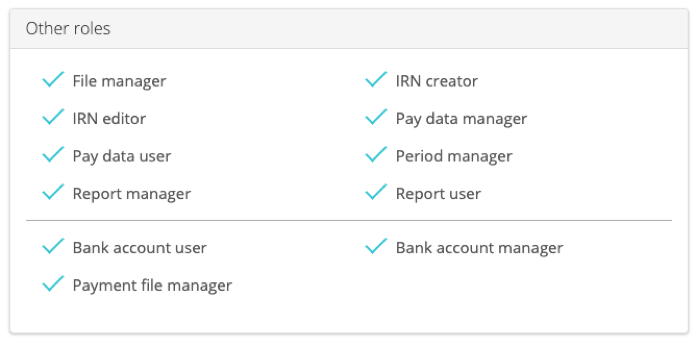
Bank account user – Can view employees bank accounts and run reports which include bank details.
Bank account manager – Has the permission to upload or update employees bank accounts and run reports which include bank details.
Payment file manager – Has the permission to view, add and update company bank account details, create payment file configurations and to run payment reports. A payment file manager cannot view, edit or update employee bank account details unless the user has been granted one of the other permissions.