Initiate PDF Document-run overview
The Initiate PDF Document-run utilises a PDF document-run configuration to split the uploaded file into individual documents, analysing each individual document to extract the document keys and matches that document uniquely to the document keys stored against an employee. Final action is to place that document into the employees file management folder with a specific naming convention.
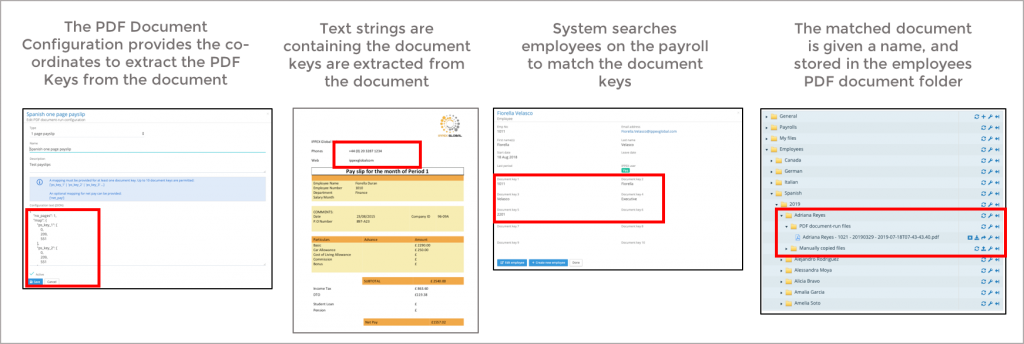
Before initiating a PDF documents-run we recommend clicking on hide new PDF document from the payroll action button.
Initiate PDF Document-run – kick off page
From Payrolls select PDF Document-Run → Initiate PDF Document-run. The payslip run is designed to take a PDF payslip file or document file, segment the file into individual documents for each employee and posts the PDF payslip/document into the employees PDF document-run folder. The Initiate PDF Document-run requires the selection of a pay period, a PDF Document-run configuration and file to be processed.
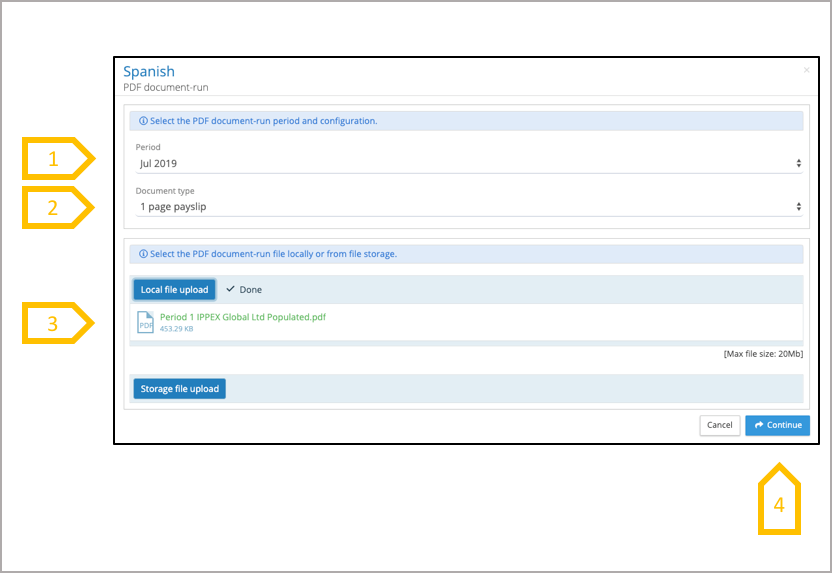
- Select the pay period. The PDF document run process names each payslip, the naming convention includes the pay date for that pay period. It is essential the correct pay period is selected for the payslip run, as the system displays the payslip to the employee for the given pay period.
- Select the document type, this will automatically select the active PDF Document-run configuration. (see warning on next slide).
- Upload the PDF Document run file from either a local file system or from the IPPEX file system.
- Click continue.
Initiate PDF Document-run – Document Type Selection
When selecting the document type, the system will pop up a warning, detailing the active PDF document-run configuration, to proceed with that configuration click on yes. If it is the wrong configuration, go back to the PDF document run configurations and review the active and inactive configurations for that document type.
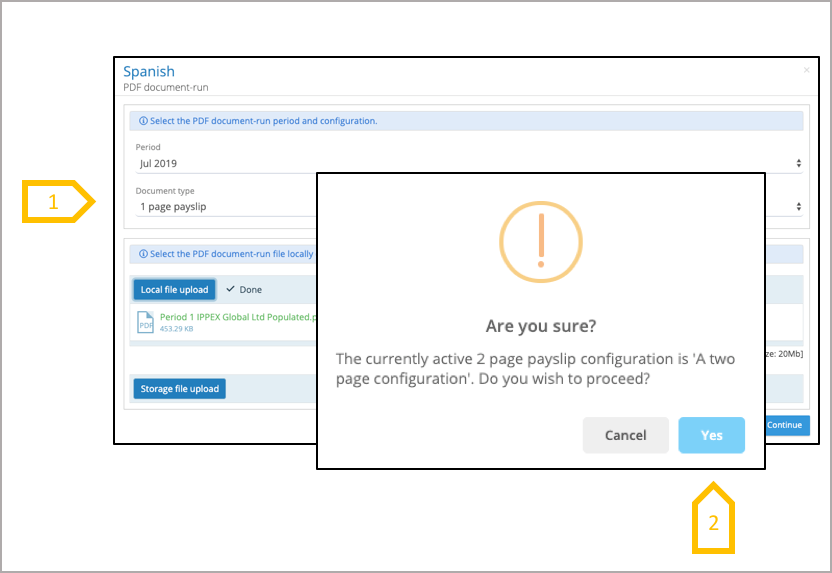
- When selecting the document type the system will provide a warning listing the currently active PDF document-run configuration.
- If the PDF document-run configuration is correct click on Yes, to proceed.
Initiate PDF Document-run – All employees or selected employees
The PDF Document-run can be performed for all employees or for selected employees. The will post only those documents contained in the file and only those documents that can be matched to an employee.
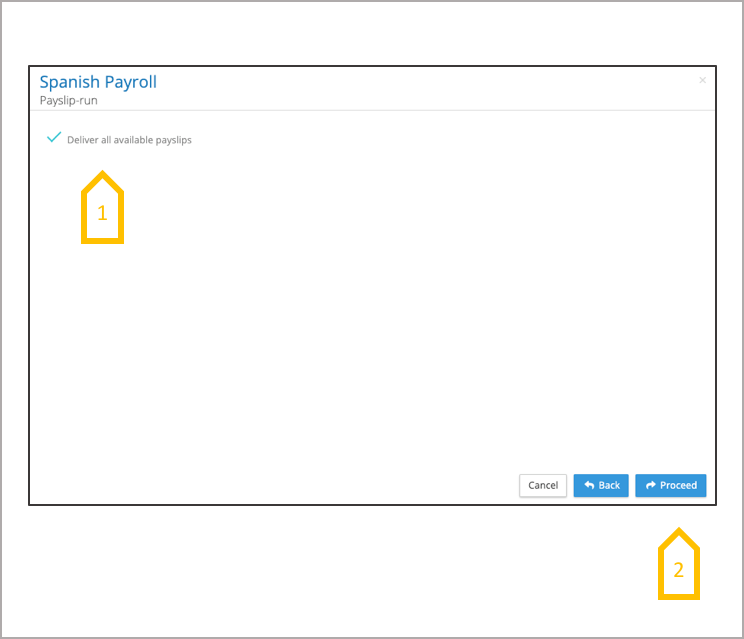
- The default option is to process and deliver all employee documents contain in the file. If you uncheck the box, the user is presented with a list of employees to choose.
- Proceed if you want all employees processed. The system will split the uploaded file, into one document per employee, matching the document to an employee based on the employee document keys. Note, if you perform two uploads for all employees for the same pay period a duplicate payslip will be deposited in the employees folder. Each employee document-run adds a time stamp to the employee document file name. The payslip distribution process is a background service, when completed the user will receive an email. ●
Initiate PDF Document-run – Selected employees
The PDF Document-run can be performed for all employees or for selected employees. The selected employee payslip run is typically used when an the error has resulted in undelivered documents. The underdelivered documents can be reprocessed when the error has been resolved.
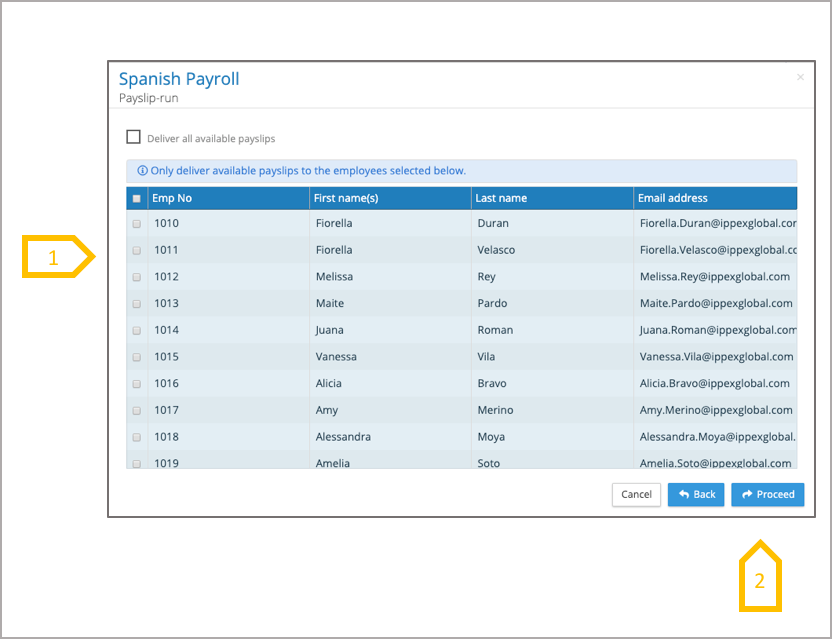
- Select the employees to be processed in the PDF Document-run. Only those documents matching the employee(s) chosen will be transferred to the employee(s) PDF Document-run folder.
- When the employees have been selected click on proceed. The document distribution process is a background service, when completed the user will receive an email. ●
Initiate Payslip Run – Results email
When he payslip run completes the system will send an email to the user who initiated the process, with a message if the process has completed successfully. A success run means all of the documents in the process have been matched to employees.
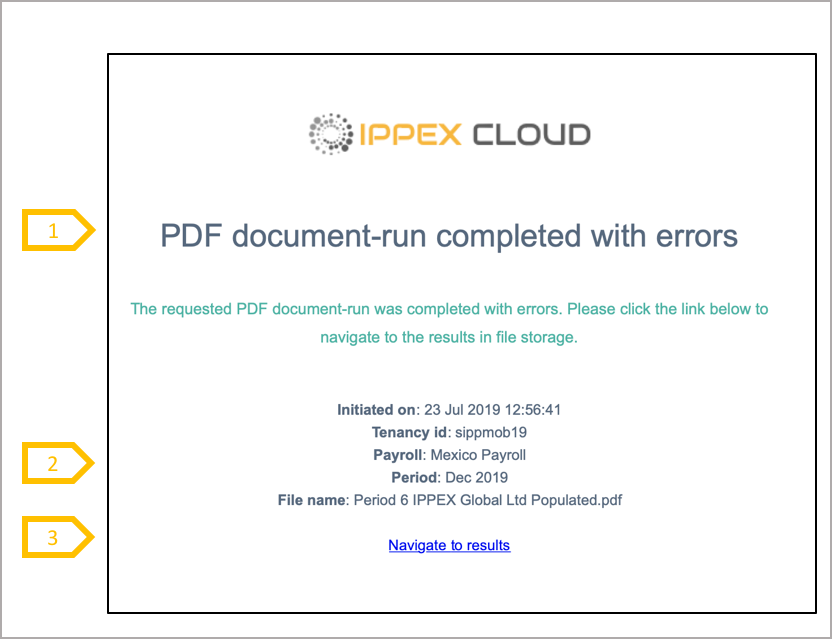
- The email will tell the user if the process completed successfully or if it completed with errors. Errors are due to matching issues which could be caused by a number of reasons, new hire not uploaded to the system, incorrect payslip keys or the payslip format has changed. Please refer to the section on error handling.
- Summary of the payslip run process, time of process, client tenancy, payroll, pay period and pdf payslip file name submitted.
- Link to the results folder which can be found in files for the payroll and pay period.
Initiate PDF Document-run – Validate delivery of documents to employees folders
It is important to check a proportion of the employee PDF document-run folders to ensure the documents have been delivered, and to view the document to ensure it has been allocated to the right employee.
There are two ways to navigate to the employees folder from the payroll menu using the action button against the payroll, select pay data → employees, and using the action button against the employee select Navigate to documents. The alternative way is to go to files, and open the employee folders, navigating by payroll → payroll year → employee → PDF Document-run files.
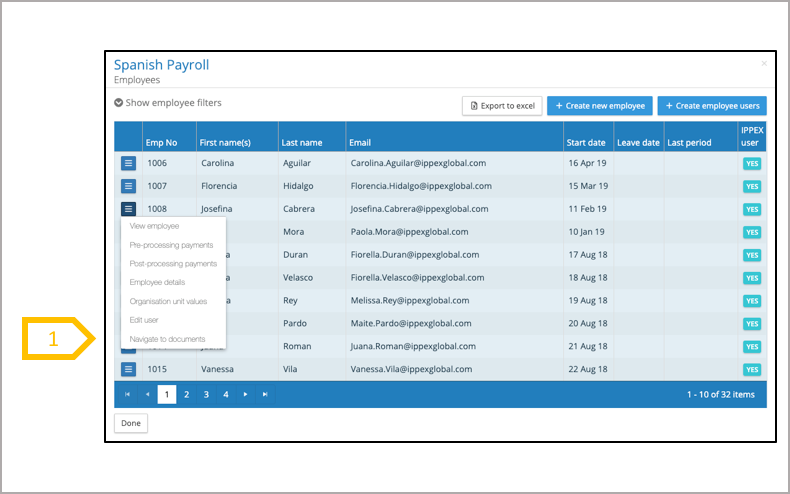
- Select Navigate to documents, this will open files on the employees folder.
Initiate document-run – Validate delivery of document in employees folders
It is important to check a proportion of the employee PDF document-run folders to ensure the documents have been delivered, and to view the document to ensure it has been allocated to the right employee.
There are two ways to navigate to the employees folder from the payroll menu using the action button against the payroll, select pay data → employees, and using the action button against the employee select Navigate to documents. The alternative way is to go to files, and open the employee folders, navigating by payroll → payroll year → employee → Payslips.
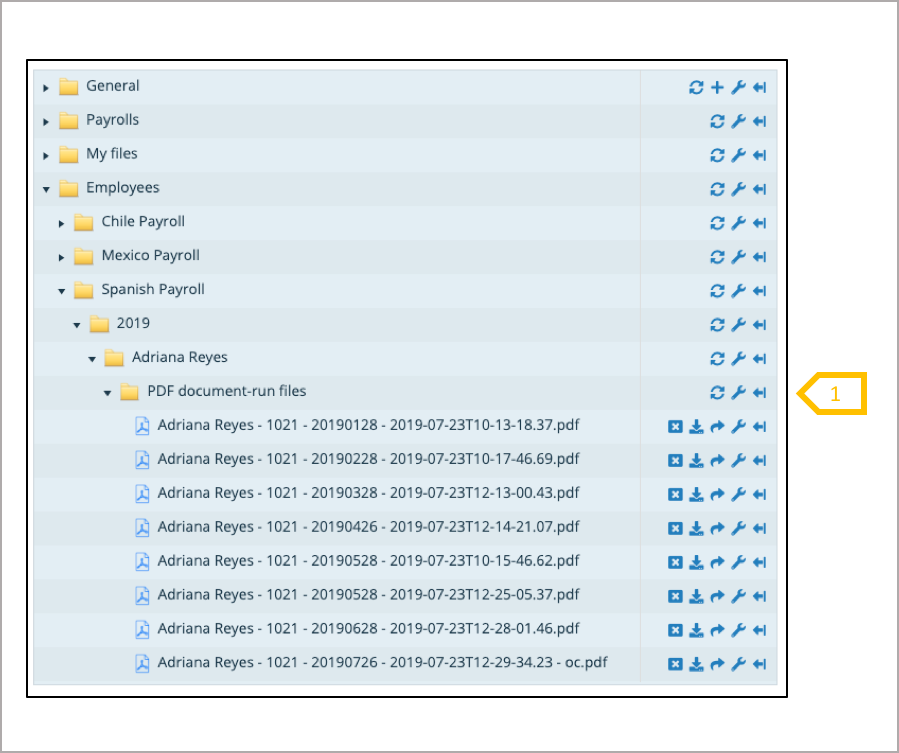
- View or download the employee document to validate ●
Initiate PDF Document-run – Employee payslip
The employee user has the following view of their e-payslips. They can view or download the payslip from the list.
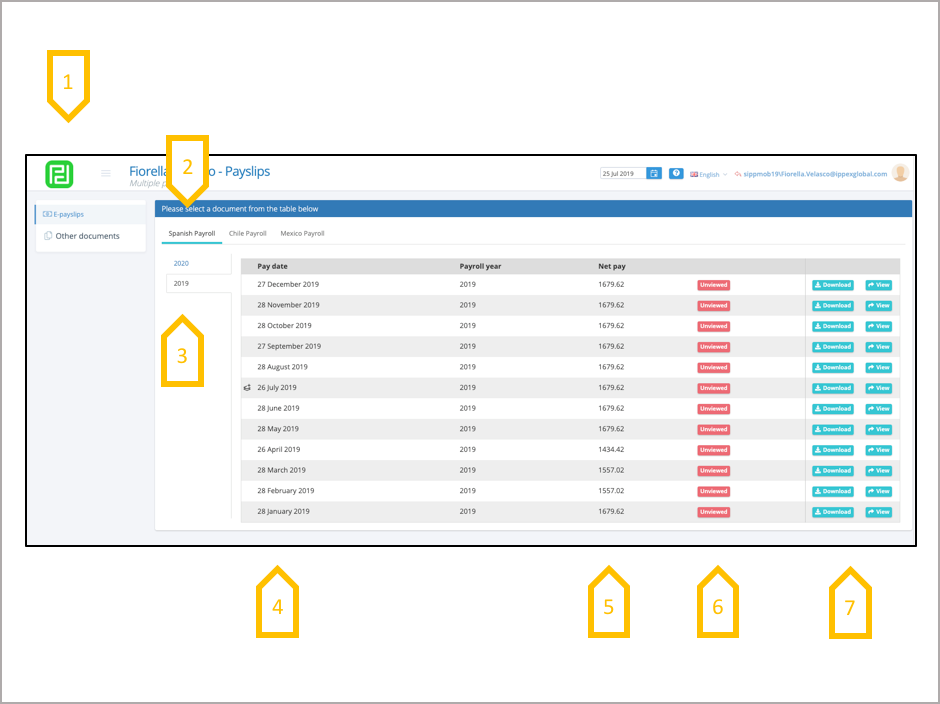
- Company logo.
- Payroll(s), if an employee has transferred payroll, the previous payrolls will also be available.
- Payslips organised by payroll year.
- Each payslip is organised by pay date (taken from the payslip run pay period).
- Where possible the net pay will be extracted from the payslip, if this is not possible it will say please view payslip.
- The system tells the employee user if the payslip is un-viewed.
- Download or view payslip
Initiate PDF Document-run – Employee other documents
The employee user has the following view of their other documents. They can view or download the document from the list.
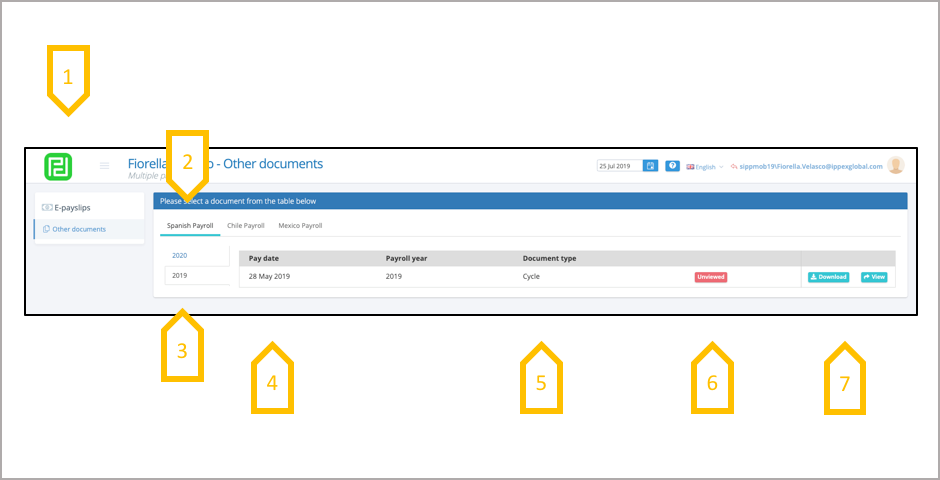
- Company logo.
- Payroll(s), if an employee has transferred payroll, the previous payrolls will also be available.
- Other documents organised by payroll year.
- Each document is organised by pay date (taken from the payslip run pay period).
- Document type is listed, providing the document context.
- The system tells the employee user if the document is un-viewed.
- Download or view documents
Initiate PDF Document-un – Results folder
When the PDF Document-run has completed the results and any undelivered documents can be found in a folder called PDF document-runs in files under the payroll and pay period which was selected on the initiate PDF document-run kick off page. A new folder is created for each PDF document-run initiated, labelled with the time stamp of the run.
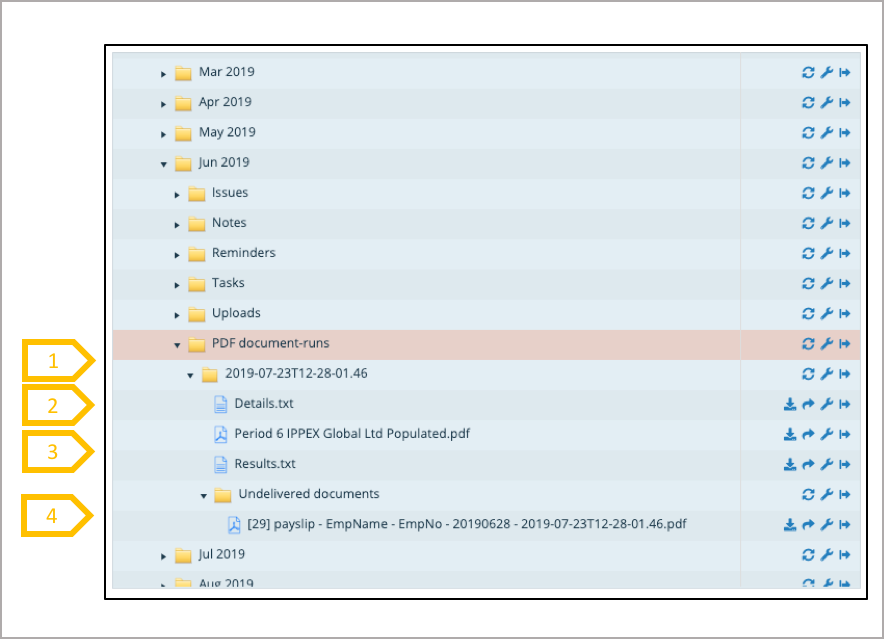
- Details.txtcontains the instructions submitted in the PDF Document-run.
- A copy of the PDF document-run file stored providing an audit trail of what was uploaded.
- Results.txtdetails the documents processed and any errors encountered during the PDF document-run.
- A folder is created to store any undelivered documents.
Initiate PDF document-run – Results.txt file
When the PDF document-run has completed, check the PDF document-run results file. The results file will list the document errors, those documents ignored and those that were successfully processed.
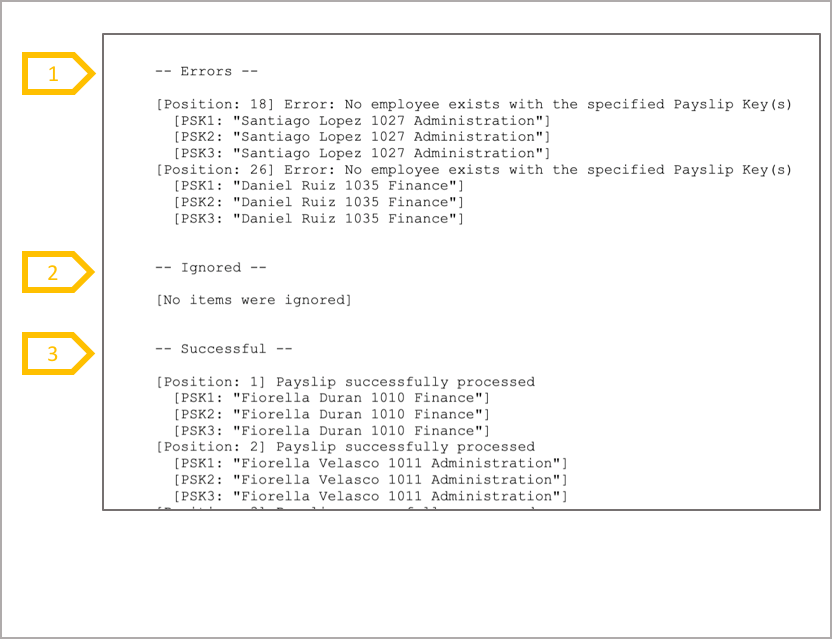
- Errors – During the PDF document run, the system splits the document file and based on the payslip run configuration it will extract the document key data. The system will look for a perfect match of the data held in the document keys in an employees record to the extracted document key data. If a document does not match with any of the employees on the payroll it will result in an error and the document will be placed in the undelivered documents folder.
- A document will be ignored, if the employee has not been selected in the initiate PDF document-run.
- The system will list all of the documents successfully delivered.
Initiate PDF document-run – Error handling
If the PDF documents-run has errors, the result.txtfile will list the documents which where undelivered. The first step in the process is to find the cause of those errors.
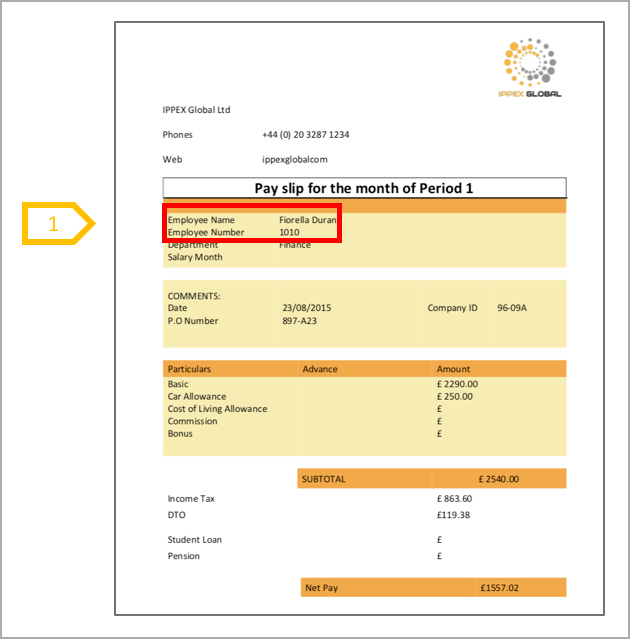
- The PDF document-run configuration will extract a block of data from the document using co-ordinates to locate the information.. If the document format has changed, the data location may have moved. If this happens the payslip run configuration code will need to be changed to reflect the new location of the payslip key data.
- Mismatch of document key data – open the PDF document look for the document key data and check this with the employee record document keys. For example if the employee has changed their last name, the document may have the new name and the document key is the old name.
- A new hire that has not been created in the IPPEX system or the document keys have not been entered for a new hire.
Initiate PDF document-run – Manual transfer or upload of an employee payslip
Undelivered documents can be transferred to the employee’s document folder. Open the document to identify the owner, rename the document with the correct naming convention and transfer the document to the employees manual upload folder.

- Click the properties function (spanner symbol) to edit the file name.
- Payslip location in the payslip file, must be deleted from the file name.
- The type of document (in this example payslip) tells the system where the document should be located.
- Rename EmpNamewith the employees first name last name (look at a previous document uploaded to the employee).
- Rename EmpNowith the exact employee number held in the IPPEX system.
- Pay date – this should be left unchanged.
- Time stamp – this should be left unchanged.