GL Journal Components
There are five components that are required to generate a GL Journal report.
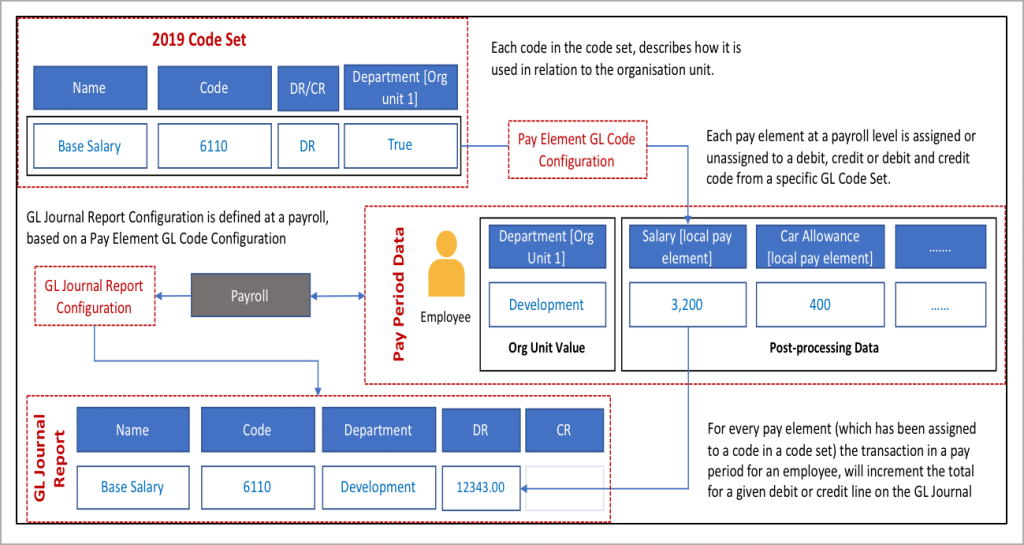
GL Code Sets: A code set is a list of general ledger codes used in a GL Journal report. IPPEX Cloud will allow for multiple code sets to be stored for each client tenancy.
Pay Element GL Code Configuration: For each payroll, a GL Code Configuration can be created which binds pay elements to the GL codes within a specific code set.
Organisation Units: IPPEX Cloud supports up to five organisational unit structures, employees will have organisational unit values assigned to them at a payroll level.
GL Journal Report Configuration: This defines the report structure for a given payroll, selecting the pay element GL Code Configuration.
GL Journal Report Submission:Under reporting for a given payroll is a kick off page for generating a GL journal for a pay period.
GL Journal Component Relationship
The diagram provides the relationship between the GL Journal code set, the pay element GL code configuration and GL Journal report configuration.
GL Code Configurations
To create a GL Journal the pay elements for a payroll have to be assigned GL codes. A GL Code Configuration creates the connection and assignment between a GL Code Set and the pay elements. Multiple GL Codes Configurations can be created, enabling an organisation to change GL codes or to support two accounting environments. To create a GL Code Configuration a GL Code Set has to be set-up for the client tenancy, defining all of the allowable debit and credit codes.
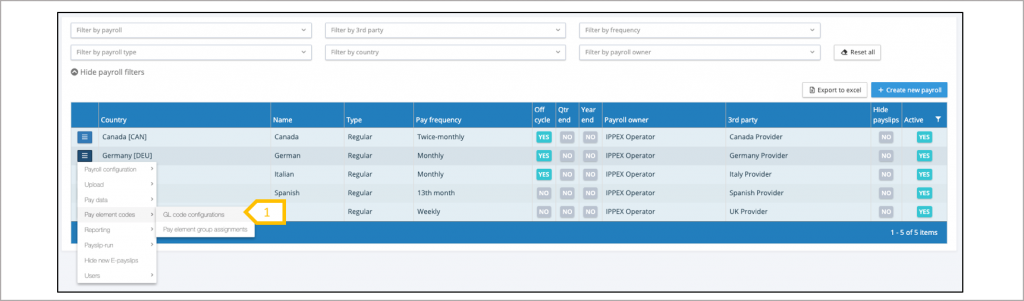
- The payroll action menu select pay element codes > GL Code Configurations
Creating a new GL code configuration
When creating a GL code configuration for a new payroll, the GL code configuration list will be empty and the first action will be to click on ‘+ new pay element code configuration’. Complete the details section, and when selecting the code configuration the system will prompt you to select the GL Code Set you would like to use in this configuration.
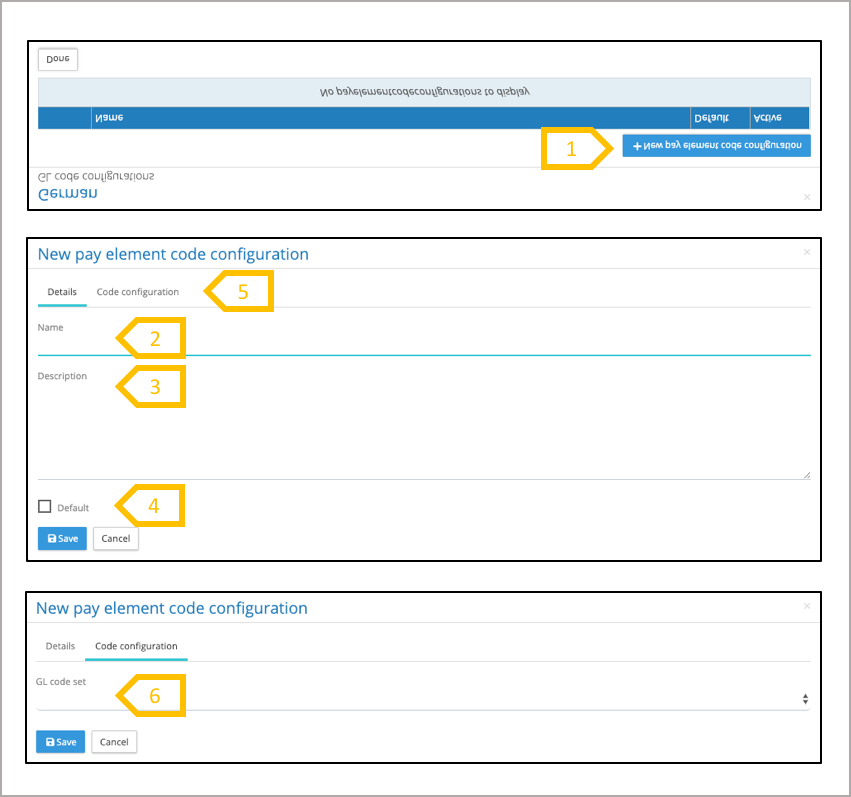
- Select ‘+ new pay element code configuration.
- Enter name of new configuration.
- Enter description.
- Check if this configuration will be the default configuration for this payroll. The system will automatically present this configuration when running a GL Journal report.
- Click on code configuration and a new pop up box will appear to select the GL Code Set.
- Select the GL Code set and save, this will take you into the code configuration screen,
Code configuration
For each pay element the appropriate Debit, Credit, Debit and Credit or no code has to be selected. To save a GL Code Configuration all pay elements have to assigned to one of these four options. When a configuration is complete, and a new pay element has been added to the payroll the code configuration will require updating. The new element can be easily identified, it will be in red indicated it requires coding. Creating a configuration for the first time all elements are displayed in red with a warning symbol to the left.
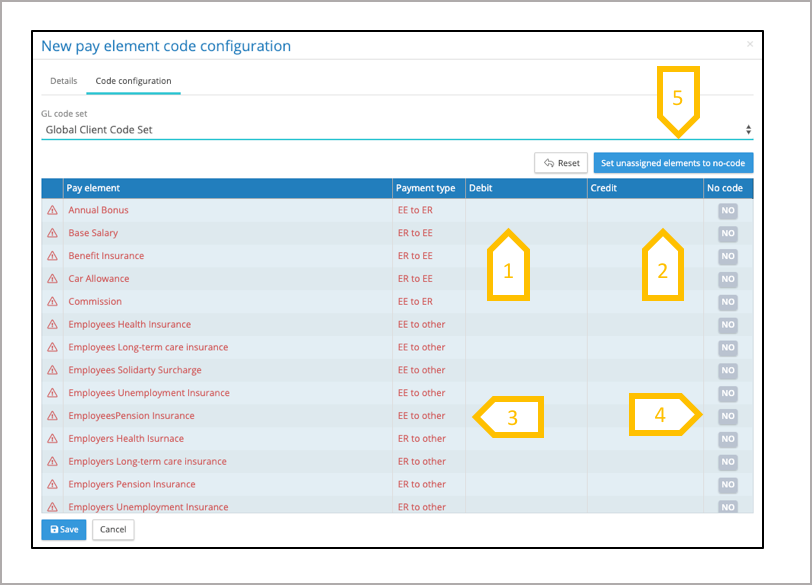
- Add debit code from drop down list of available debit codes which have been defined in the GL Code Set selected for this configuration.
- Add credit code from drop down list of available credit codes which have been defined in the GL Code Set selected for this configuration.
- The payment type will be displayed on if the pay element has been assigned a pay element grouping.
- Toggle to set no code for a pay element.
- When all of the debit and credit codes have been selected use set unassigned elements to no code is a quick way to complete the configuration.
Editing a GL Code Configuration
When creating the code set and you discover a you are missing a debit or credit code in the code set, to save that configuration, temporarily set that pay element to ‘no code’ so that all of the pay elements have been assigned to something and save the configuration. Go to you GL Code Set and add the new debit or credit code, revisit the GL Code Configuration, toggle the no code to remove this from the pay element and select the newly added debit or credit code.
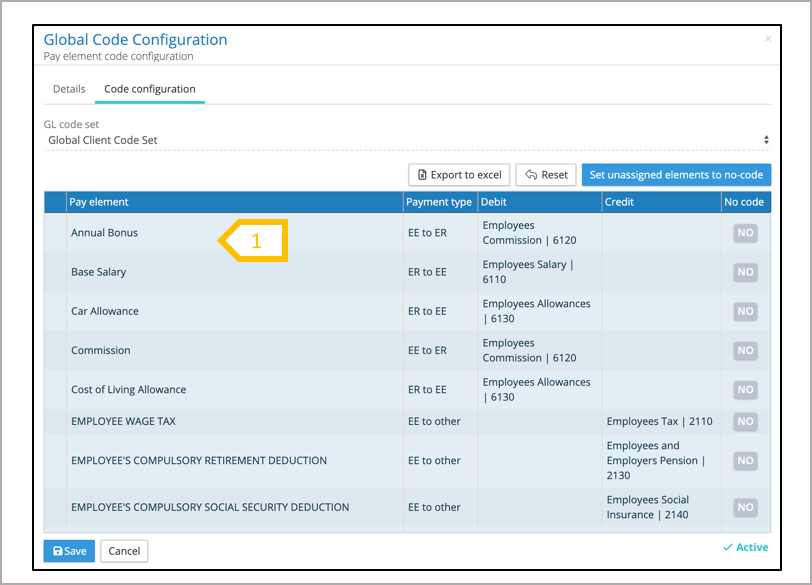
- When a pay element has been assigned either a debit, credit or no code the writing will be displayed in black. All pay elements require an assignment before a GL Code configuration can be saved.