GL Transaction Report
The GL Transaction Report combines the payroll transactions with the employee cost centre(s) and GL codes. The report is made up of one line per transaction for any given pay period, for each transaction it will list the debit and credit code plus any organisation units by which the code is grouped.
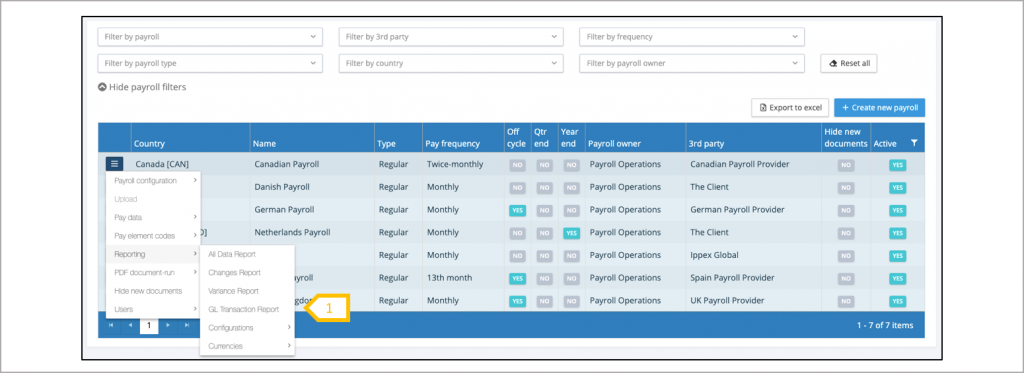
- Select GL Transaction Report.
GL Transaction report configuration
From the payroll action menu, select the payroll action button and select Reporting ®GL transaction report. A report kick-off screen will be displayed:
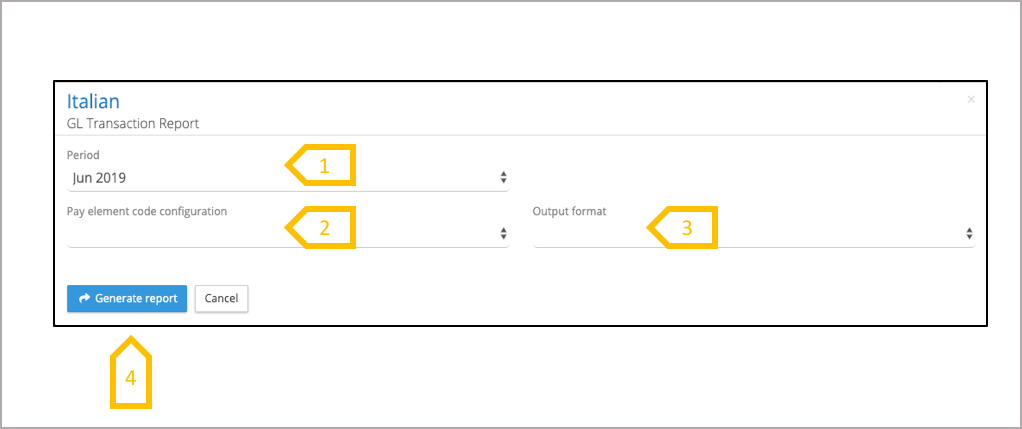
- Select pay period for the report.
- Select pay element code configuration (this defines the assignment of GL codes to the pay elements for this payroll). The GL codes are held in a GL Code Set, and each debit or credit code specifies if it is grouped by one or a number of organisation units.
- Select output format which is either Excel or CSV.
- Click on generate report
GL Transaction report structure
The report production is a background task and the output is saved to your My Files folders. The following provides the business rules applied to the transaction report.

- The transaction report is based on the uploaded post processing data and will list all of the transactions:
- The assignment of codes to pay elements will vary according to the GL reporting, the following is an example:
- Gross payment, such as salary, will have a debit code assigned and will be grouped by one or more organisation units.
- Total Gross Pay will have no GL code assignment
- Pay elements such as net pay will have a credit code assigned
- Pay elements such as employers social insurance payments will have a debit and credit code.
- The assignment of codes to pay elements will vary according to the GL reporting, the following is an example:
- The transaction report will only show the org unit values where the GL Code Set has defined a grouping for a specific GL code.
View or downloading a report
To access a report generated by the system, open files and select My Files. The system has a folder hierarchy of report type, payroll and report configuration. The GL transaction reports following data items: Tenancy ID, Payroll Name, Pay Period, Pay date, Employee Number, First Name, Last Name, Pay Element, Value (in payroll currency), Debit GL Name, Debit GL Code, Org Unit(s) – One or more columns based on the number of org units enabled, Credit GL Name, Credit Code, Org Unit(s) – One or more columns based on the number of org units enabled
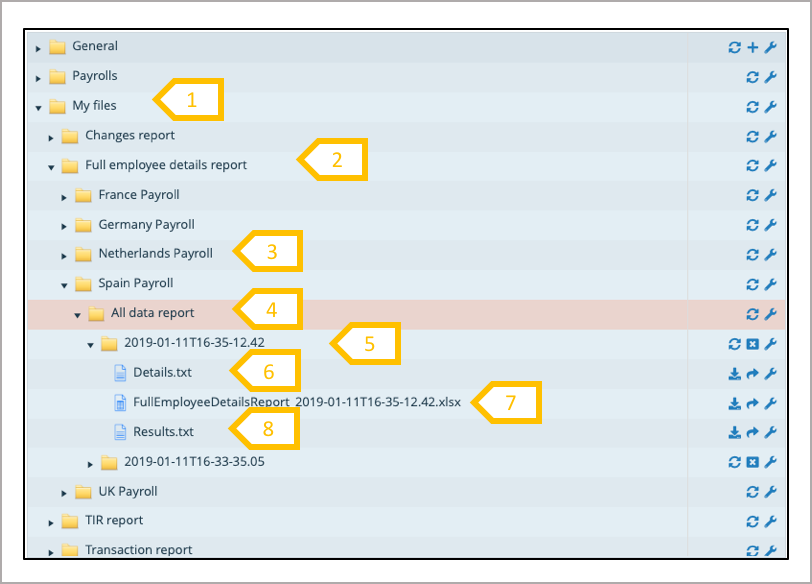
- Open my files folder.
- A folder per reporting type.
- A folder per payroll.
- A folder for each reporting configuration.
- Folder for the generated report.
- Details – reporting parameters.
- The report – view, download, rename or transfer report.
- Results – outcome of the report process
Validating the pay element code configuration
The following is a quick way to validate a Pay Element Code Configuration, ensuring that that the correct assignment of GL codes to pay elements have been made. Open the transaction report for a payroll and pay period and create two pivot tables, one for credits and the other for debits. The following example is based on a GL Journal which is grouped by GL Code and one organisation unit called Cost Centre.
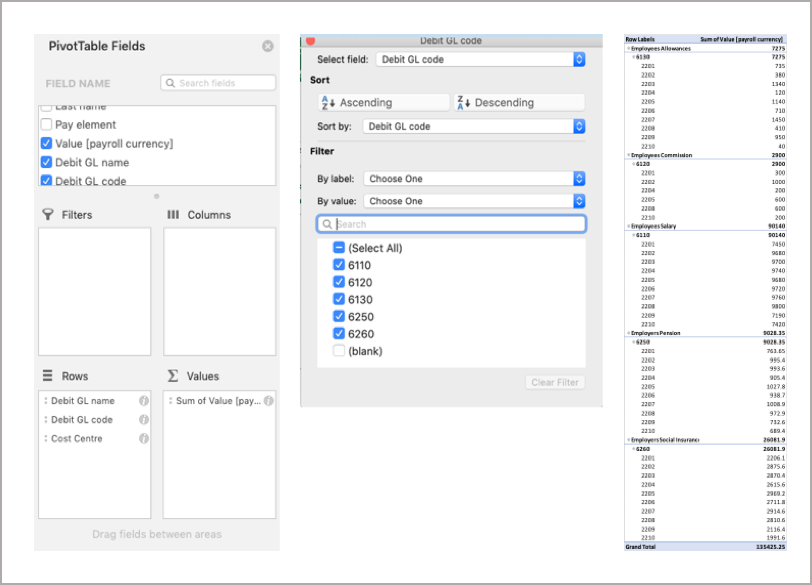
- Create a pivot table selecting all of the data in the transaction report.
- Add the Debit GL Name, Debit GL code and Cost Centre to the Rows section of the report.
- Add the transaction value in the Values section of the report.
- At the top of the pivot table results, click on the filter and remove blanks from the GL Code, the result will be a table of transactions summed by cost centre and by GL code.
- Repeat the same process with credit pivot table, note the second column for cost centre will have a bracket (2)