Flexible Changes Report
Flexible Changes Report
The flexible changes report provides users with the ability to configure a report in a variety of formats and to utilise a set of filters to ensure only the data needed is contained within the report. The following describes the building blocks and features contained in the report.
From the payroll menu, against the payroll go to reporting and then configurations selecting the flexible changes report.
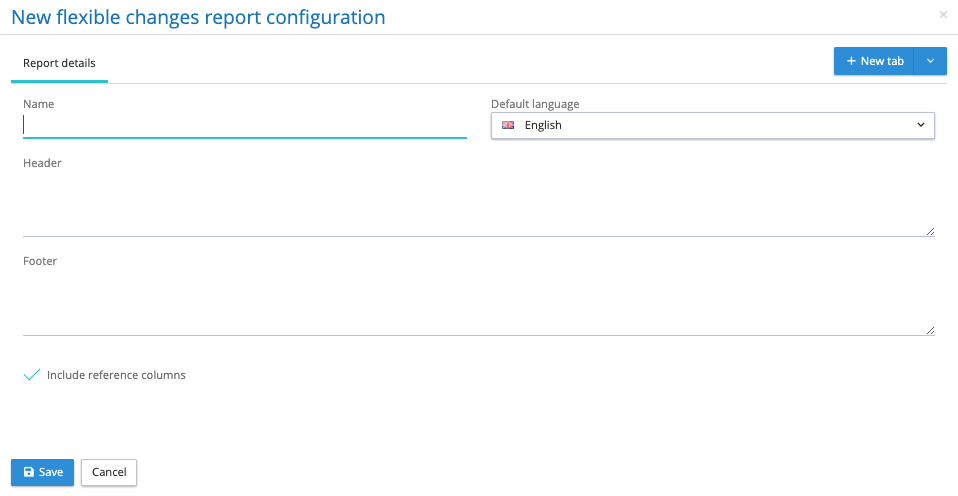
It is mandatory to give the report a name. The next step is to add sheets or separate files to the report, any number of these can be added. Click on the drop-down arrow next to the +New Tab. This offers four choices.
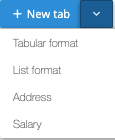
- Tabular format – A tabular report is made up of a column heading and one row per employee detailing the changes for employee record information, organisation units, pre-processing period pay elements and employee details for those items that have been selected.
- List format – A list report is where the element names (pre-processing period or permanent pay elements, organisation units and employee details) are contained in a single column and the values are shown in another column.
- Address – This is a list output detailing all of the employees with address changes.
- Salary – This is a list output detailing all of the employees with a salary change.
Tabular Format
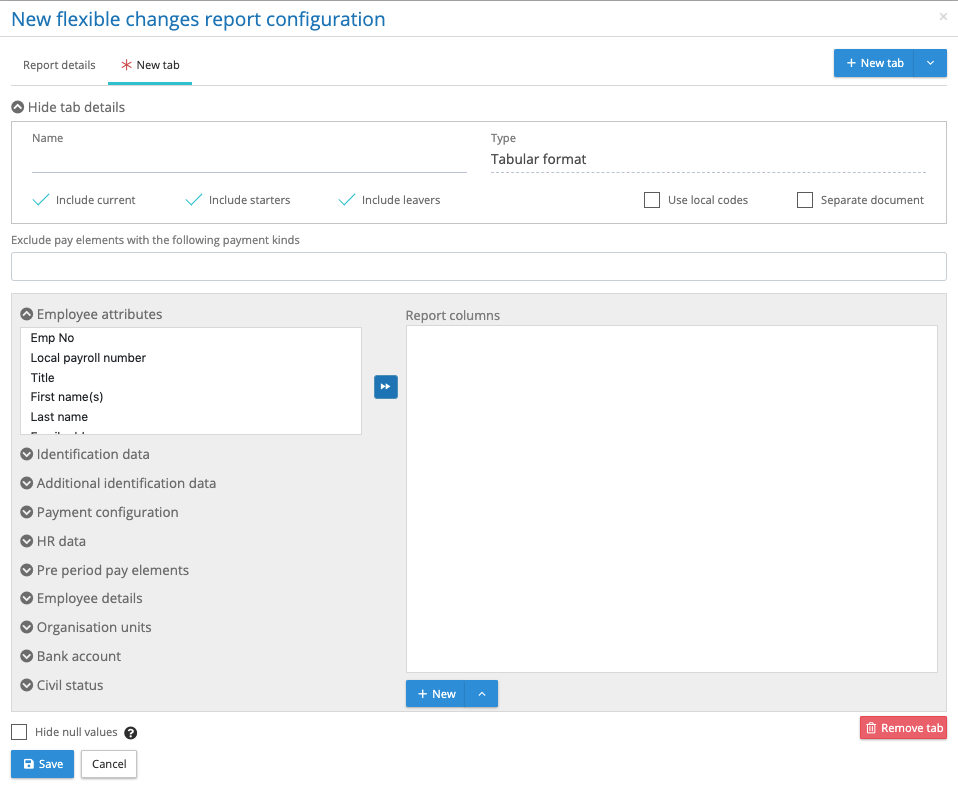
How to configure the tabular report:
Name – The new sheet/file requires a name. If the output is a separate file, the file name will be a combination of the report name and tab name.
Include – Current, starters and leavers – This is a filter, for current it will include all those employees who are not showing a payroll start date or payroll leave date within this changes reporting period. Include starters are those employees with a payroll start date in the reporting period and include leavers are employees with a payroll leave date in this reporting period.
Use Local codes – This is a check box, when checked the pay element names are replaced with the local codes for each of the pre-processing pay elements and employee details. Where a local code has not been specified for an element the system will enter the element name in square brackets, this indicates a local code is needed for this element.
Separate Document – This is a check box, when checked the tab configuration will report as a separate file.
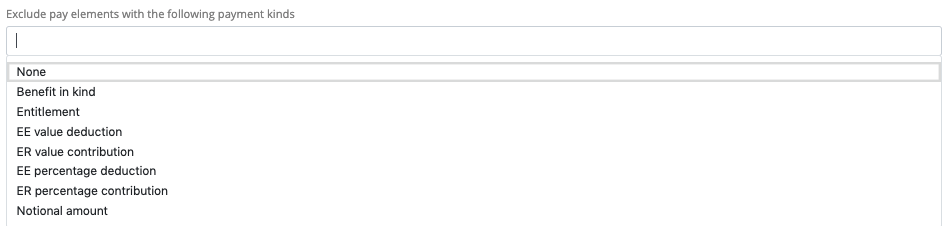
Exclude pay elements with the following payment kinds – Click on the box below the heading, it will show of list of pay element kinds that could be excluded from the report. Incrementally add payment element kinds to be excluded, as each one is added the list of permissible values will change in the pre-processing period pay elements.
Select all available – For period pre-processing pay elements, employee details and organisation units there is a check box option called ‘Select all available’. For the pre-processing pay elements, this works in conjunction with the ‘Exclude pay elements with the following payment kinds’. If a new element is created for that payroll, that is within the list of payment kinds selected for that report, the system will add the new element to the end of the report columns. This ensures nothing is missed in the changes report.
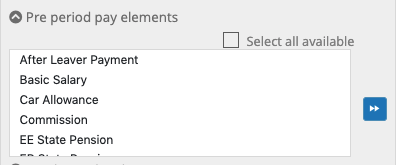
Hide null values – At the bottom of the report configurator is a checkbox called hide null values. This will remove any columns from the report where the results for a given pay element are nulls for all the employees (no value). Please note a zero is regarded as a value.
List Format
This shares the following features as found in the tabular report: Name, include current/starters/leavers, exclude pay elements with the following payment kinds, use local codes, separate document and select all available. This report is restricted to permanent pay elements, period pay elements, employee details and organisation units.
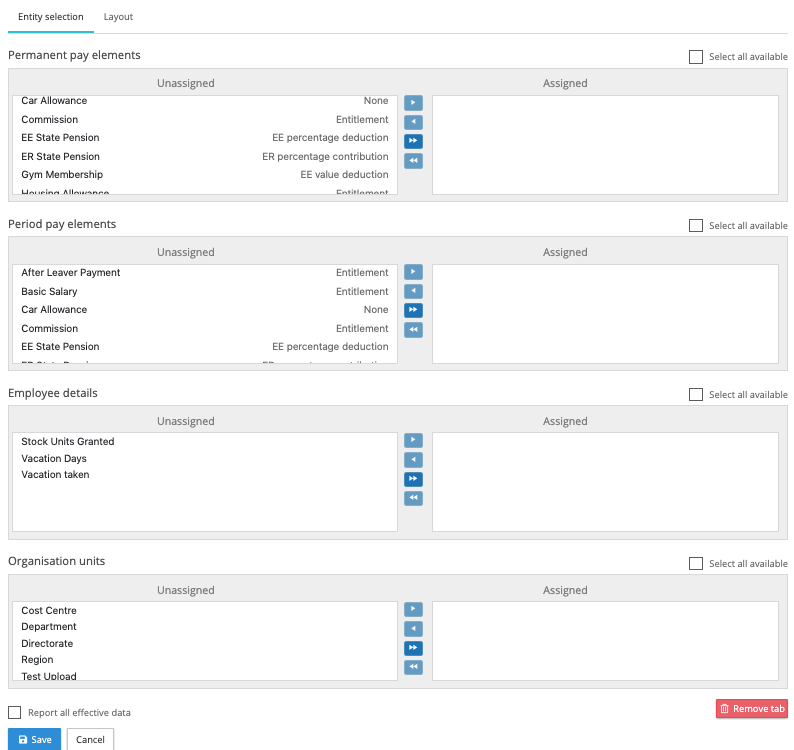
There are two parts to the configuration, entity selection and layout.
Entity selection – Select the pay elements, employee details and organisation units needed in the report. Please note the pay elements work in conjunction with Exclude pay elements with the following payment kinds and the employees contained in the report will be determined by the include current/starters/leavers filters.
Layout – From the left-hand layout list select the reporting columns.
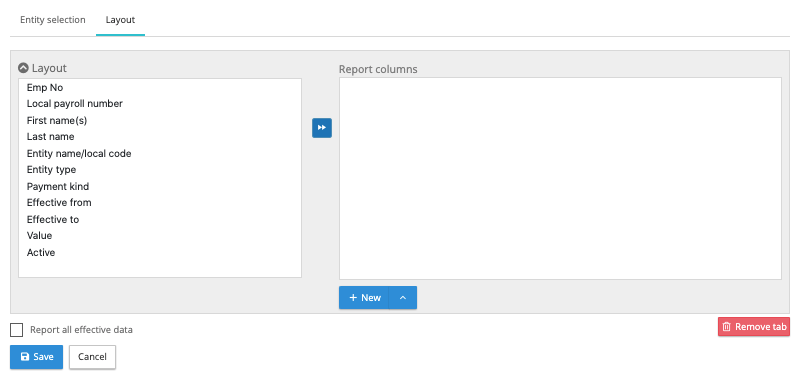
Report all effective data – This checkbox extends the permanent pay element reporting to include those elements that are currently effective for this pay period, which is those that have an effective end date that is between or greater than the two pay dates (from period and to period), and the effective from date is before or between the two pay dates (from period and to period).
Address and Salary Tabs
These are similar to the existing changes reports, with the addition of including the local payroll number in the report structure.
Running a flexible changes report
The kick-off process is identical to the standard changes report, from the payroll menu using the action button next to the payroll, select reporting and flexible changes report. Select the report configuration, then the to period and whether you want full employee list or only employees with changes and click on generate report.