Employee Users
The employee user accounts are held against the client tenancy, and have links to the employee on a payroll. To gain access to the employee users, from the payroll screen click on User → employee users. It will list all of those employee users associated with that payroll. A number of employees will lose their activation email or they will attempt to log in many times with the wrong password and will be locked out. Both situations will require action by the tenancy administrator.
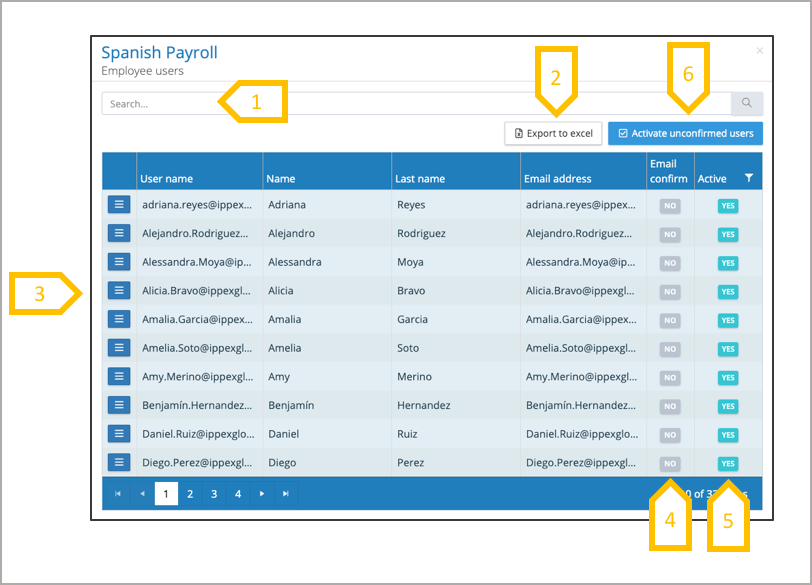
- Search for an employee user.
- Export the employee users for this payroll into an Excel sheet.
- Action button to log on as this user, edit the user or unlock the user account.
- Email confirm shows which users have activated their accounts (confirmed user account using the activation email).
- Active – A user can be set as inactive using the edit function.
- Bulk or individual activation mailing to unconfirmed users.
Activate unconfirmed users
This enables the bulk sending of activation emails, when setting up employee users on a new payroll or selecting those users who have mislaid their first activation email. On the employee user page for a payroll, click on activate unconfirmed users, this will show a list of users who have not activated their accounts. This process of activating employees can be performed as many times as needed.
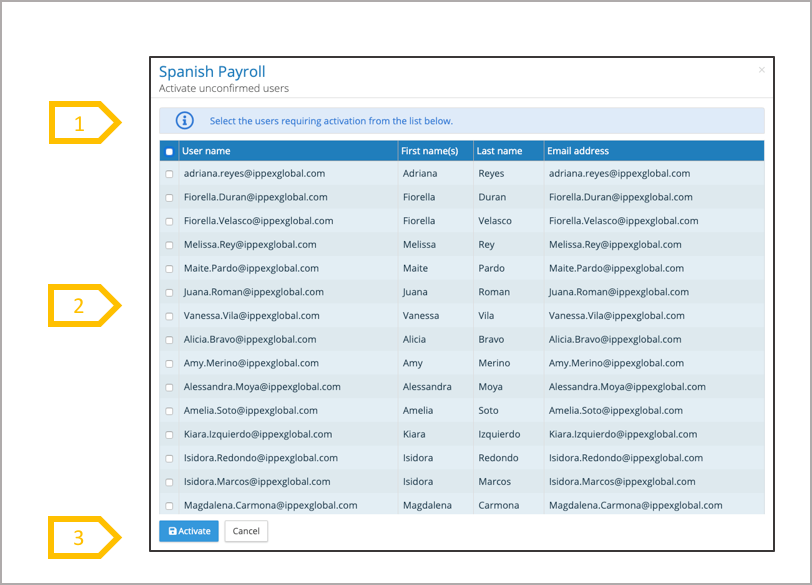
- Select ALL or
- Select individual users
- When the selection has been made, click on Activate
Employee User – Log on as this user
This is a tenancy administration function. If there is a need to log on to an employees user account to resolve an issue, from the employee users screen from the action button next to the employee user click on log on as this user. It will open the users account on their home page.
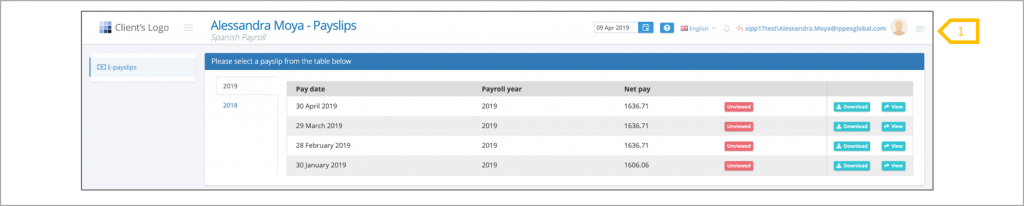
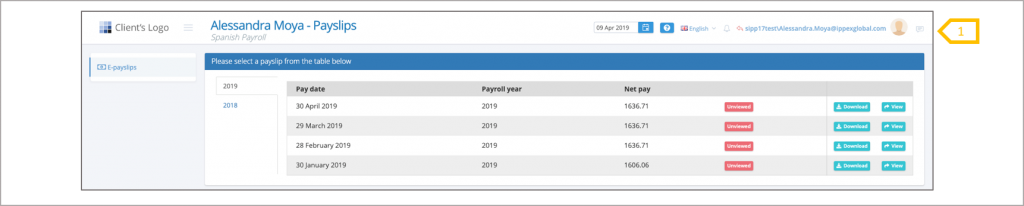
- To get back to your user account, click on the employee user name, and the first option on the pop-up menu is Go back to my account.
Employee User – Edit User
From the employee users screen from the action button next to the employee user click on edit. When an employee user account has been created in the system, it creates an internal link to the employee’s record on a payroll. Editing and changing details in a user account does not change details of the employee record on the payroll. If the employee moves payroll, and their email address changes, it is important to change the employee user account’s email address first, before creating the new user on the new payroll.
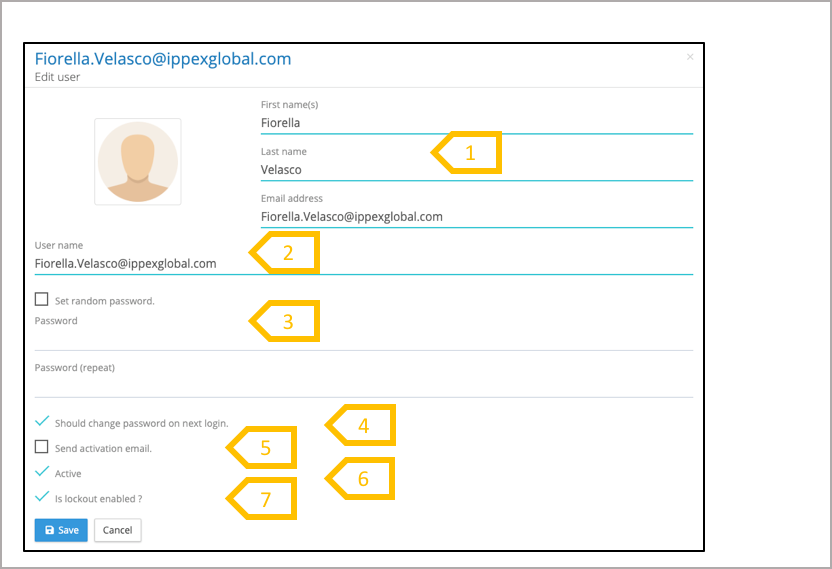
- First name(s), last name and email address can be changed.
- User account name can be changed, it cannot include any spaces.
- A specific password can be set for a user, or if re-activating the account let the system generate a random password.
- Our recommendation is to force the user to change password on first log-in.
- If you require a new activation email to be sent, check the send activation email.
- Uncheck Active to de-activate employee users account.
- We recommend keeping Lockout enabled ●
Employee User – Unlock
If an employee user has tried multiple times to enter their account with the wrong password, the system will lock the user account. To unlock the user account, from the employee user list, using the action button against the employee user click on unlock.
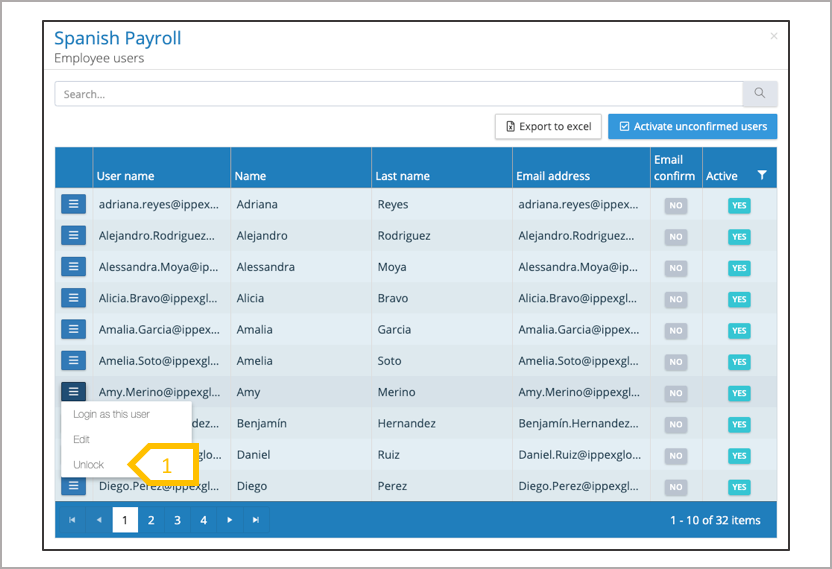
- Click on unlock, and the employee user account will be ready to use again.