Create Payroll
When creating a new payroll there are five areas used to configure the payroll, general, authorization, payroll currency, 3rdparty assignment and workspaces. The configuration has a number of dependencies on other parts of the system and a number of the fields are mandatory. Only when the payroll has been configured can the tasks be set-up and the payroll calendar created.
When a payroll has been created, it cannot be deleted as employee data may have been stored against the payroll. A payroll can be set as in-active. IPPEX Global will provide ‘sandbox’ environments for clients to test payroll configurations.
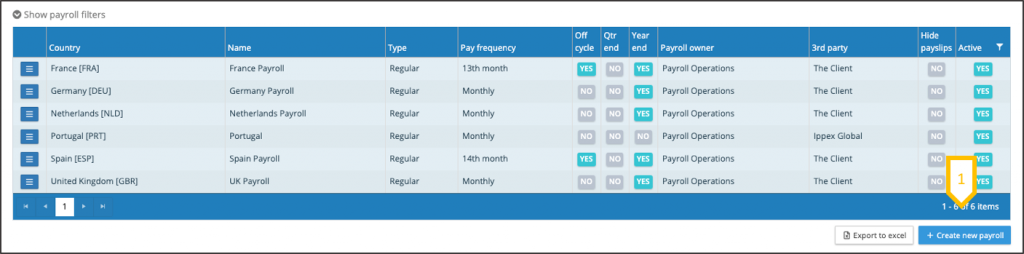
1.Click on create new payroll.
Create Payroll – General (1)
The general tab is used to set up key paraments such as payroll type, frequency, start date. The configuration is used by other parts of the system for task creation and payroll calendars.
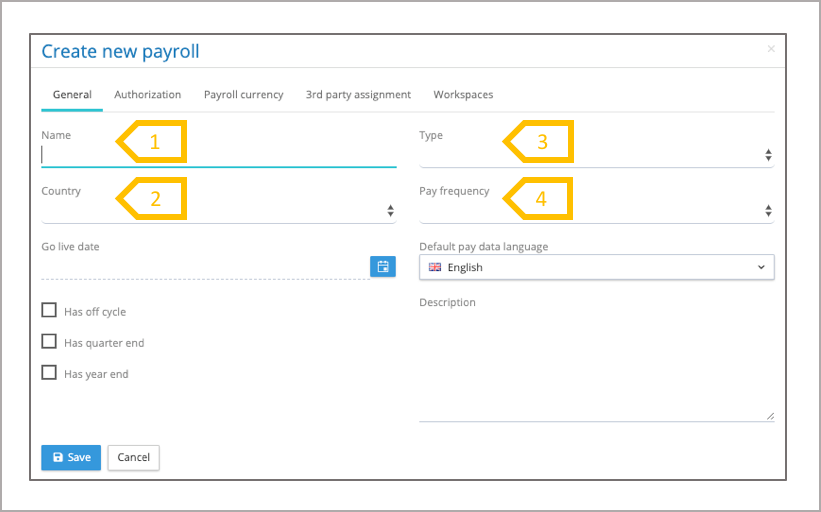
- Give the payroll a name, this can be the legal entities name, you may want to include the country in the name. A payroll name has to be unique, the system will validate the name against all the other inactive and active payroll names.
- Select the country to which the payrolls belongs.
- Select the payroll type (regular, pension or expat), this selects the task template that will be used for this payroll.
- Select the pay frequency, this informs the system of the number of pay periods for a calendar year.
The general tab is used to set up key paraments such as payroll type, frequency, start date. The configuration is used by other parts of the system for task creation and payroll calendars.
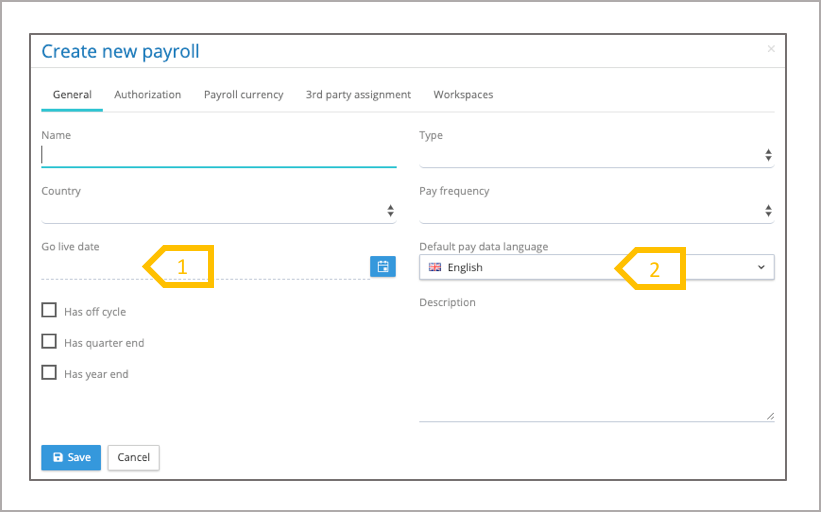
- Select the go live date, this determines the first pay period created in the system for this payroll. The system will look for the next pay date after the date given in the go live date. A payroll can be set-up to have historic pay periods, where pay data and payslips may be loaded. NOTE: tasks will not be created for historic pay periods.
- Depending on who is the primary user of a payroll, the pay elements and employee details headings may be held in a local language or the system language. The default pay data language, tells the system which language is being used for the upload and creation of pay elements and employee details. Each pay element and employee detail heading can be translated into another language.
The general tab is used to set up key paraments such as payroll type, frequency, start date. The configuration is used by other parts of the system for task creation and payroll calendars.
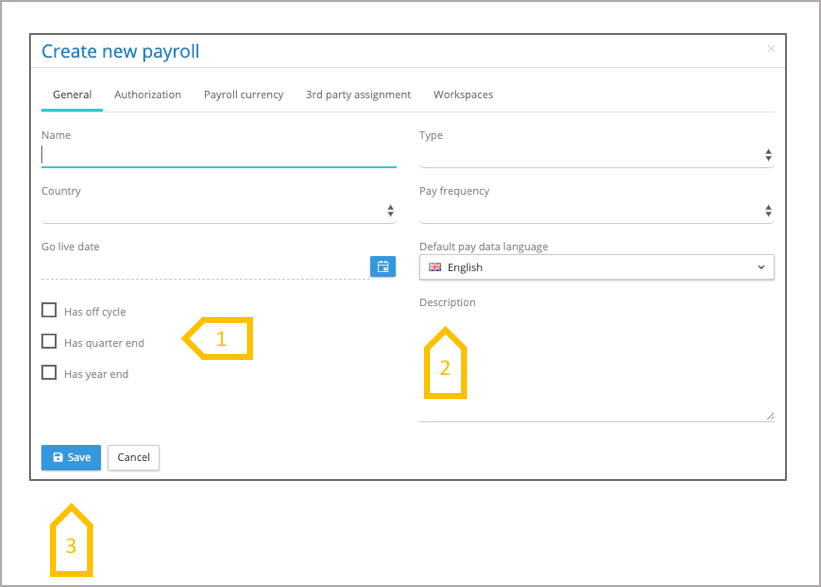
- Additional processing tasks. For configuring the payroll with tasks for off-cycle, quarter end and year-end tasks, select the check boxes required for this payroll.
- Description – This is a free text area for adding information about this payroll
- The configuration cannot be saved until the mandatory information has been completed in the other tasks.
Create Payroll – Authorization
For system users to have access to a payroll, the payroll has to belong one or a number of payroll groups. A payroll has to have a primary owner, the owner has to be a payroll user (Cannot be a tenancy admin, internal or 3rdparty user). The Authorization page enables the selection of the payroll primary owner and the assignment of the payroll to the payroll groups.
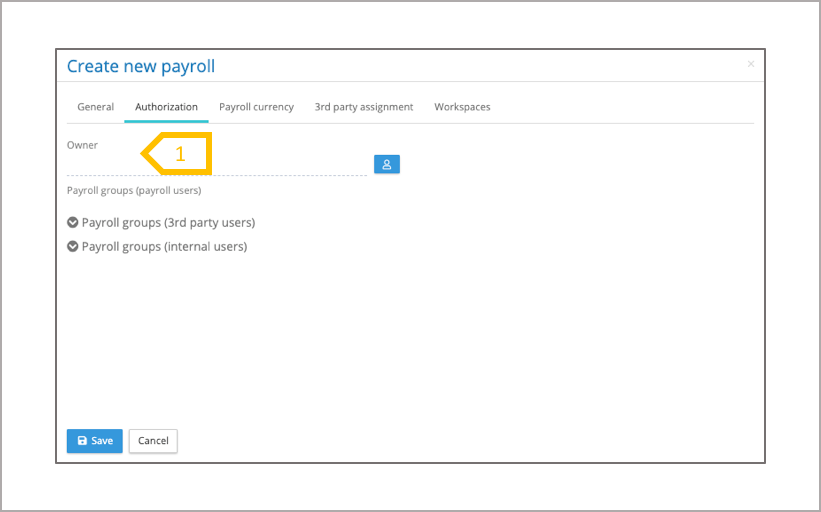
- Select the payroll owner, the drop down menu will show all of the system users who are payroll users.
After selecting the primary owner for the payroll, the next step is to assign the payroll to the payroll group(s) for that user.
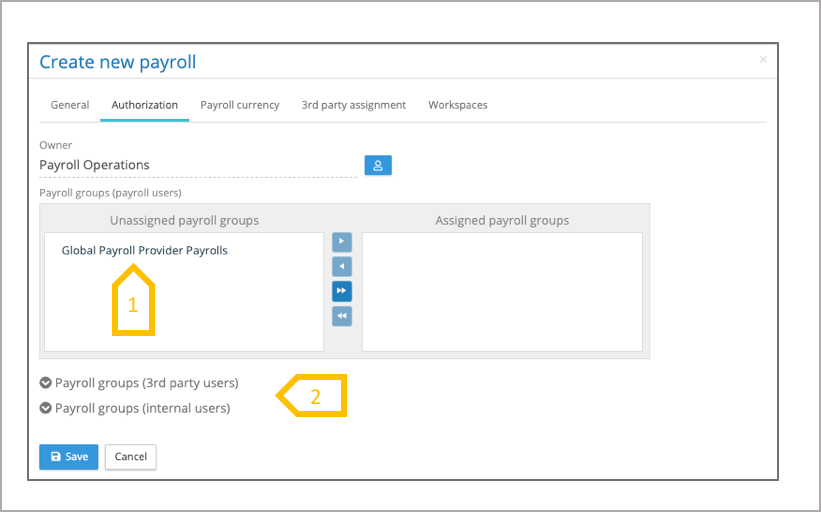
- The user will be assigned to one or a number of payroll groups. Select one or a number of the un-assigned payroll groups and transfer them to the assigned payroll groups. A user can only access a payroll if their user group is connected to a payroll group containing the payroll. Drag a drop the group or use the action arrows to move the payroll groups.
- Expand the Payroll groups (3rdpart users) and payroll groups (internal users)
The final authorization step is to assign the payroll to the appropriate internal payroll groups and 3rdparty payroll groups.
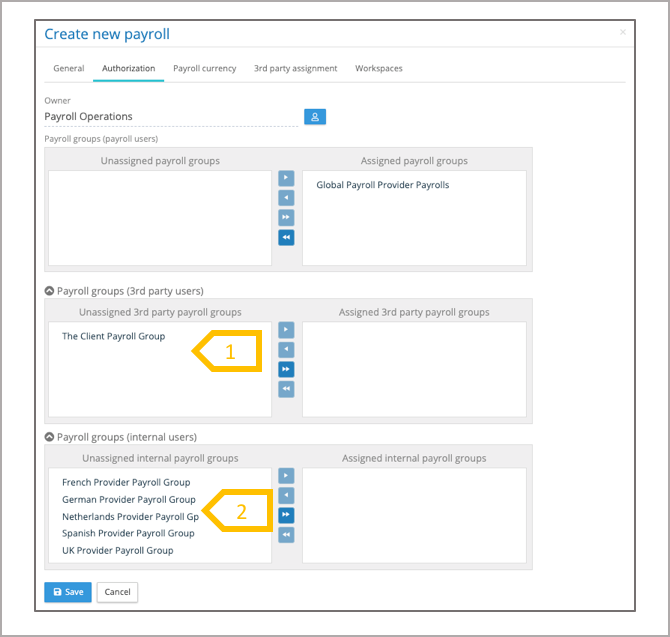
- Assign the payroll to the appropriate 3rdparty payroll groups
- Assign to the payroll to the appropriate internal user groups
Create Payroll – Payroll Currency
Payrolls can have multiple currencies associated with them, these are used or will be used by the system to support reporting and invoice management (future functionality)
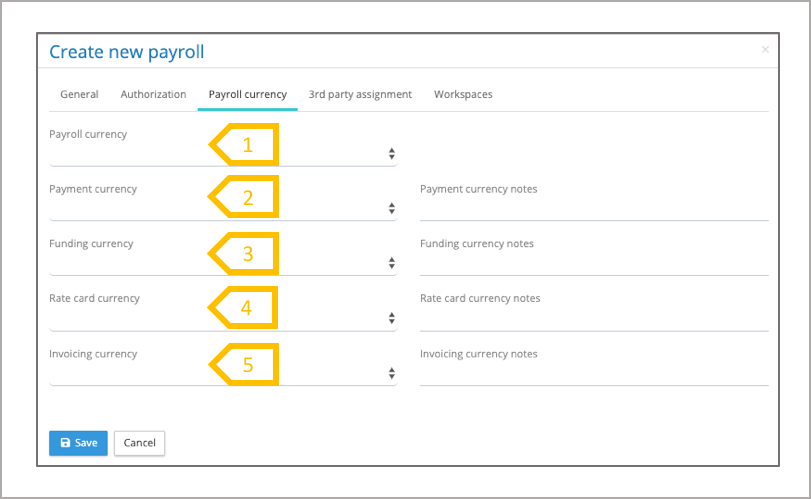
- Payroll Currency – the statutory payroll currency
- Payment currency – the principle currency in which the employees are paid, the notes field is used to cater for special arrangements.
- Funding currency – the principle currency used to fund the payroll, please use the notes field to cover special funding arrangements
- Rate card – the currency used to calculate the payroll fees.
- Invoicing Currency – Currency used to generate the invoice.
Create Payroll – 3rdparty assignment
A third party is an organisation who is responsible for processing the payroll, this is reference information and the organisation is shown on the payrolls list.
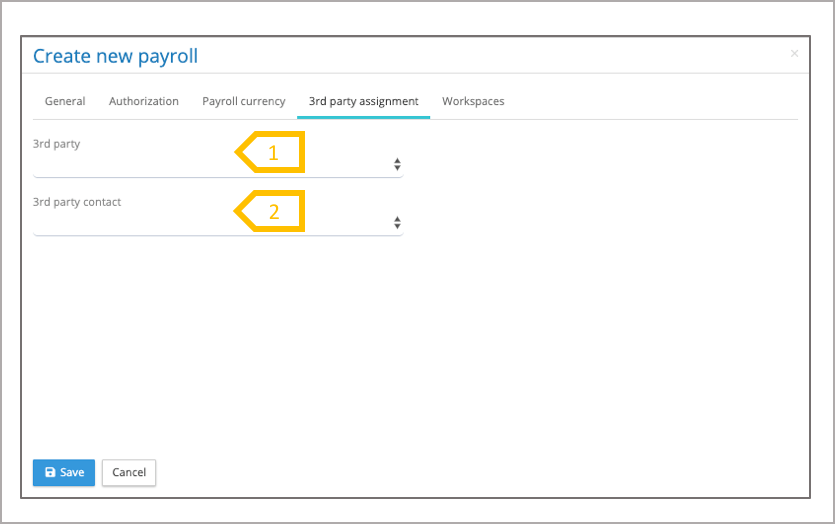
- It is mandatory to select the 3rd party organisation associated to this payroll, this is the client organisation.
- For reference purposes you can record the name of the primary contact for this payroll in the 3rd party organisation.
Create Payroll – Workspaces
Workspaces is a term given to specific pay period transfer folders and working areas. This tab shows the workspaces assigned and unassigned to a payroll. New workspaces can be created by the tenancy administrator, under administration and workspaces. Transfer folders are created to exchange files between internal payroll groups and payroll users, and between third party payroll groups and payroll users. A work area is assigned to a specific payroll group to store data for a given payroll and pay period. Any number of transfer folders can be created for a payroll group.
Workspaces is a term given to specific pay period transfer folders and working areas. This tab shows the workspaces assigned and unassigned to a payroll. New workspaces can be created by the tenancy administrator, under administration and workspaces. Transfer folders are created to exchange files between internal payroll groups and payroll users, and between third party payroll groups and payroll users. A work area is assigned to a specific payroll group to store data for a given payroll and pay period. Any number of transfer folders can be created for a payroll group.
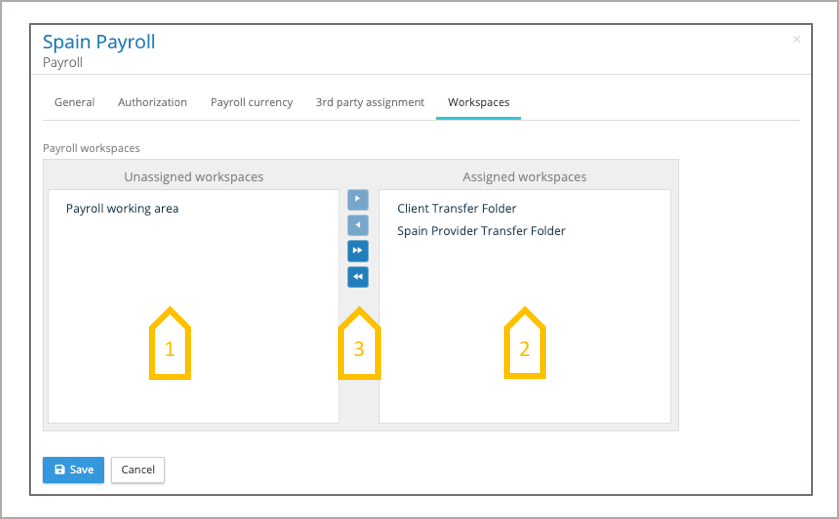
- Unassigned workspaces available to this payroll
- Workspaces assigned to this payroll
- Transfer action buttons to move workspaces between assigned and unassigned. Also workspaces can be dragged and dropped between assigned and unassigned.