IPPEX Cloud V 1.21 Release Notes

Introduction
Version 1.20 focuses on two key areas of the system, enabling Excel (.xlxs) upload files for employee record, pre-processing and post-processing uploads and providing a new template upload mechanism to accelerate the tenancy configuration.
Excel Upload
IPPEX has added the Excel file format to the upload mechanism for the following:
- Employee record upload
- Employee address upload
- Employee bank account upload
- Pre-processing upload
- Post-processing upload
When uploading the Excel formatted data to IPPEX Cloud it is important to understand how the system will handle the information
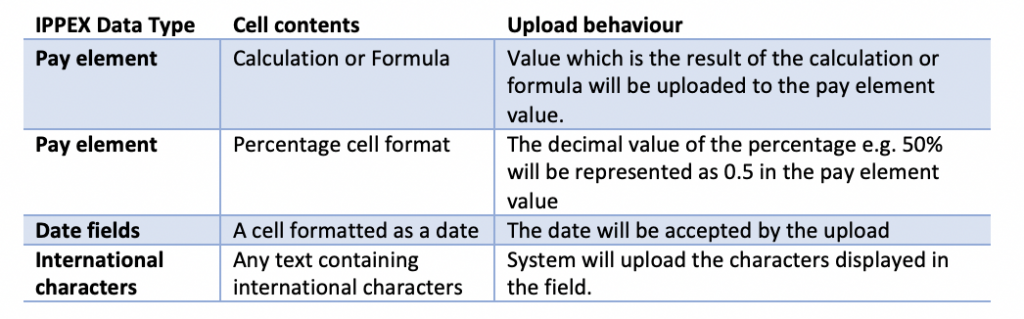
IPPEX continues to support the CSV uploads, the new Excel uploads will reduce the time taken formatting CSV files especially when it comes to the date format.
Tenancy Configuration
To accelerate the deployment of new client tenancies and the maintenance of existing tenancies, IPPEX has released a set of configuration templates covering the following areas:
- Companies
- Contacts
- System Users
- Task Templates
- GL code sets
- Organisation unit values
- Pay element groups
- Payroll calendar amendments
The new upload framework provides a common approach to each area of the system. Within an existing tenancy a template can be downloaded, this contains all of the existing values, allowing a tenancy administrator to add new items and edit existing items. The file can then uploaded back into the system to update area it is associated with. Alternatively, the data can be used to populate a new tenancy, this is particularly useful with contacts, users and task templates.
When creating a new tenancy, there is a logical way in which to add your information, for example companies have to be created before contacts can be uploaded. To upload user accounts, user groups have to be created. Before a payroll can be set-up the task lists have to be uploaded. Guidance on all these areas is contained in the following upload options.
All uploads made to a tenancy or to a payroll (Calendar) are recorded in the files system. There is a new folder in the files section called tenancy, with sub-folders for each of the upload types.
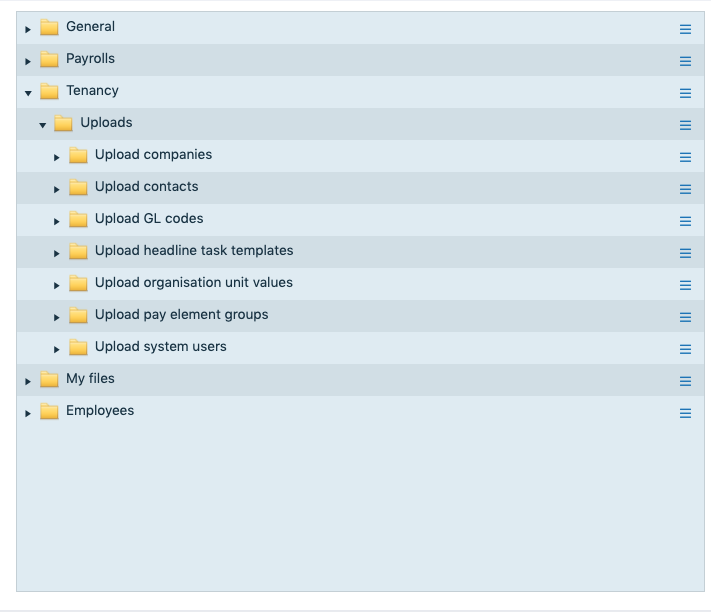
The task calendar upload folder is under the payroll > payroll year.
Company Upload
When setting up a new tenancy or adding new payrolls to an existing tenancy companies have to be added for the client and local providers. We recommend creating a master list of the local country partner company names to populate a new tenancy, on upload you can decide which ones to be added by selecting those companies required for that tenancy.
The template company export and upload facility enables a tenancy administrator to edit or add companies to an existing tenancy, or to upload companies to a new tenancy.
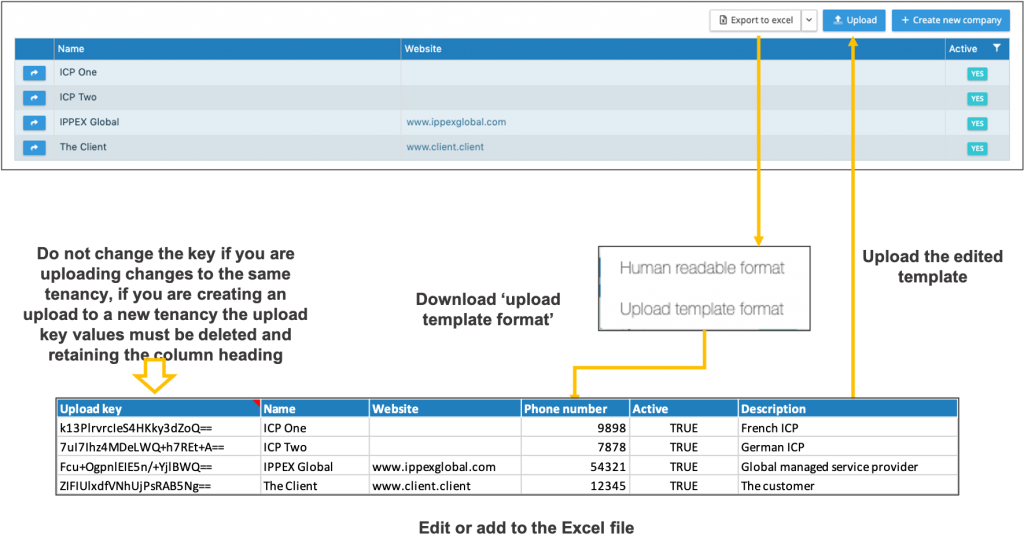
The process is as follows:
- Click on companies
- Expand the Export to Excel button
- Select upload template format, this will download a template, if you already have a number of companies set-up these will be included in the download file.
- The Excel download has a fixed number of columns and headings which are used by the system to upload the company name, website, phone number and description.
- For all existing companies in the list, there is a reference key, do not change this value as this is used by the system to match the line item in the Excel file to the company entry.
- Company name, website, phone number and description can be edited for the existing companies in the list. Inactive companies can also be set to active.
- New line items can be added to the template for these they will have a blank reference key, enabling the system recognises that they are to be added. Each new company must have the word TRUE entered into the active column.
- Click on the upload button and select the completed template, the system will list those items that have changes, and new line items with the option to select all or to select specific line items to be added.
- If the name of an existing company has been changed, all those contacts connected to that company will now show the new name.
- When uploading the companies to a new tenancy please ensure any reference keys have been removed, the column heading has to remain in the upload file.
Contacts Upload
The contacts template export and upload facility enables a tenancy administrator to edit or add contacts to an existing tenancy, or to upload contacts to a new tenancy.
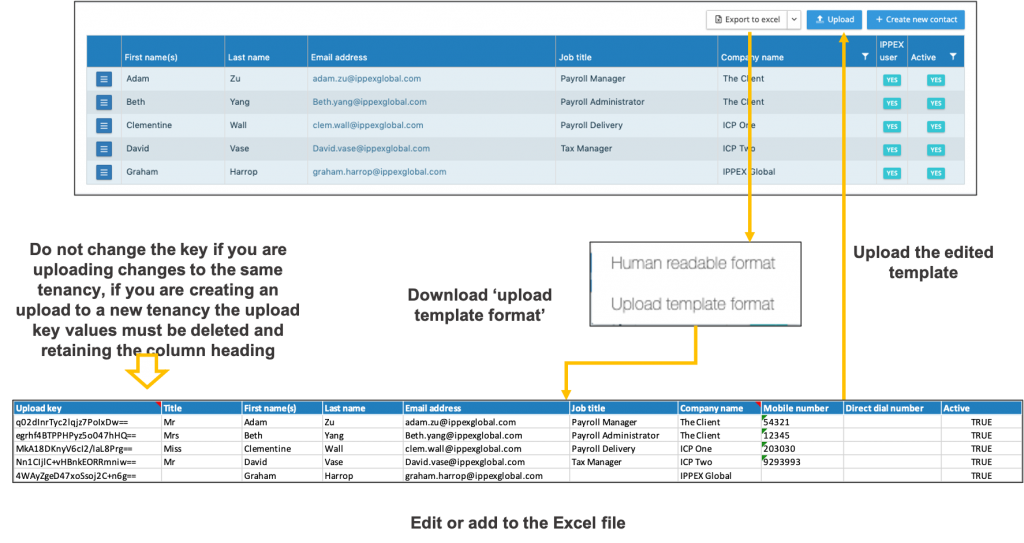
The process is as follows:
- Click on contacts
- Expand the Export to Excel button
- Select upload template format, this will download a template, if you already have a number of contacts set-up these will be included in the download file.
- The Excel download has a fixed number of columns and headings which are used by the system to upload the title, first name(s), last name, email address, job title, company name, phone number, direct dial.
- For all existing contacts in the list, there is a reference key, do not change this value as this is used by the system to match the line item in the Excel file to the contact entry.
- The title, first name(s), last name, email address, job title, company name, phone number, direct dial can be edited for the existing contacts in the list. Inactive contacts can also be set to active.
- New line items can be added to the template for these they will have a blank reference key, enabling the system recognises that they are to be added. Each new contact must have the word TRUE entered into the active column.
- The name of the company for a new contact has to match exactly to an existing company name on the system. The template downloaded from a tenancy will have a note on the company column heading listing the names of the companies that are present on the tenancy.
- Changing the email address for an existing contact does not change the email address of a system user account, the system maintains the internal link to the system user account which was based on the old email address.
- Click on the upload button and select the completed template, the system will list those items that have changes, and new line items with the option to select all or to select specific line items to be added.
- When uploading the contacts to a new tenancy please ensure any reference keys have been removed, the column heading has to remain in the upload file and the companies given to the each of the contacts have been set-up on the system.
System User Upload Template
The system upload enables the bulk creation of system user accounts ready for the sending of user activation codes. The following explains the components required for creating a system user:
- A system user must contain an email address of a contact
- A user name has to be entered, typically this is the email address of the contact
- A primary role must be given, a note on the primary role heading lists the permissible role types
- A user group has to be entered, this must match one of the user groups on the tenancy and must align with the user group type (Payroll user group, internal user group and third party user group)
- Under the active column the TRUE must be entered
- For of the other roles e.g. bank account manager, bank account user, file manager etc. a value of TRUE or FALSE has to be entered.
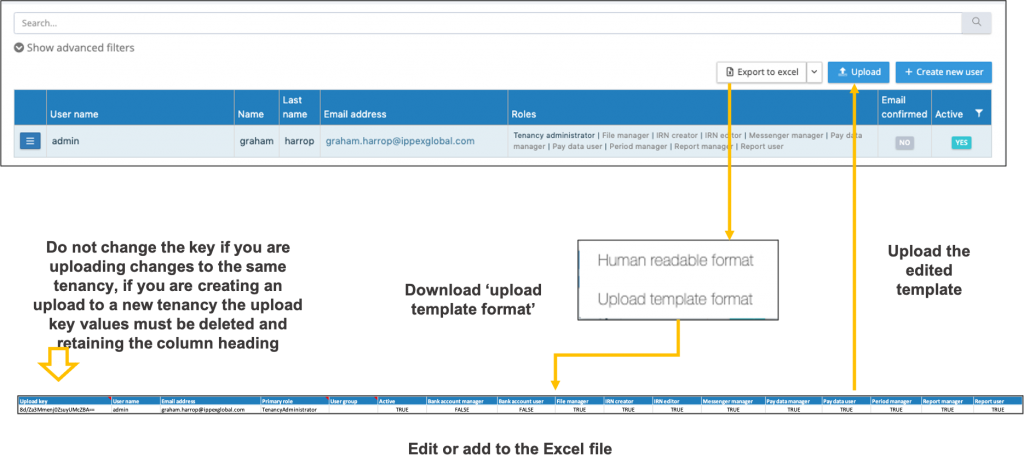
The process is as follows:
- Click on system users
- Expand the Export to Excel button
- Select upload template format, this will download a template, all existing users will be included in the download file.
- The Excel download has a fixed number of columns and headings which are used by the system to upload the title.
- For all existing users in the list, there is a reference key, do not change this value as this is used by the system to match the line item in the Excel file to the contact entry.
- Amend or add users to the template.
- Click on the upload button and select the completed template, the system will list those users that have changes, and new users with the option to select all or to select specific users to be added.
- When uploading the users to a new tenancy please ensure any reference keys have been removed, the column heading has to remain in the upload file.
- The system will create the user accounts, but does not send the activation email.
Task Template Upload
The contacts template export and upload facility enables a tenancy administrator to edit or add headline tasks to a task template on an existing tenancy, or to upload headline tasks to a task template on a new tenancy.
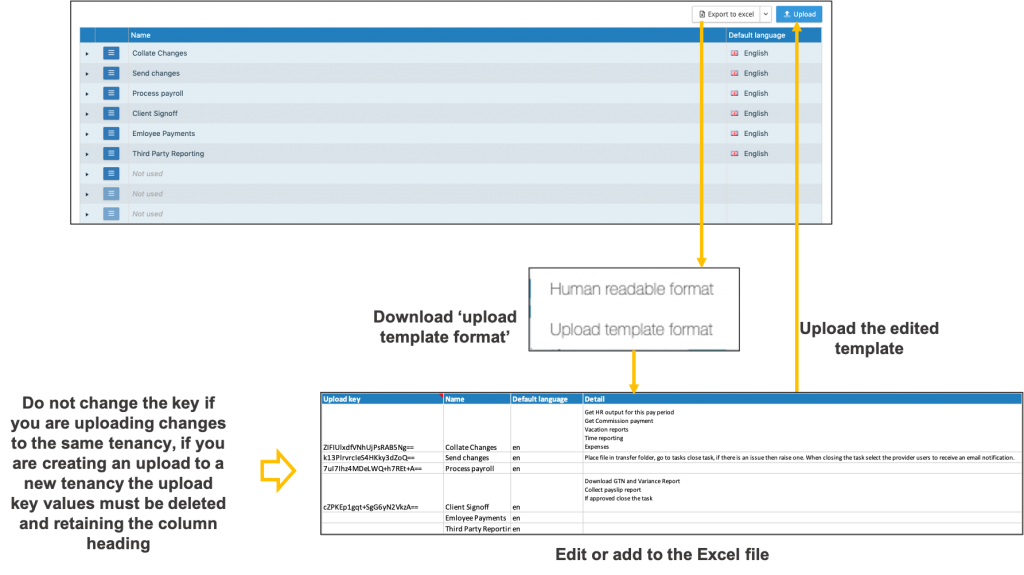
The process is as follows:
- Open the task template
- Expand the Export to Excel button
- Select upload template format, this will download a template, if you already have tasks assigned in the task template it will include these
- The Excel download has a fixed number of columns and headings which are used by the system to upload the tasks.
- For all existing tasks in the task template, there is a reference key, do not change this value as it is used by the system to match the line item in the Excel file to the task in the system.
- Task names and task details can be edited, please do not change the reference key value.
- New tasks can be added to the template for these they will have a blank reference key, so the system recognises that they are to be added. A task requires a name and default language e.g. en for English.
- Click on the upload button an select the completed template, the system will list those items that have changes, and new line items with the option to select all or to select specific line items.
- If you are editing an existing task names please note these may already be assigned to users on a payroll.
General Ledger Code Set Upload
Two changes have been made to the GL code sets, the grouping, name and codes are now editable and there is now an upload facility to import a client’s code set.
The new template export and upload facility enables a tenancy administrator to edit or add codes to an existing code set, or to upload values to a new code set.
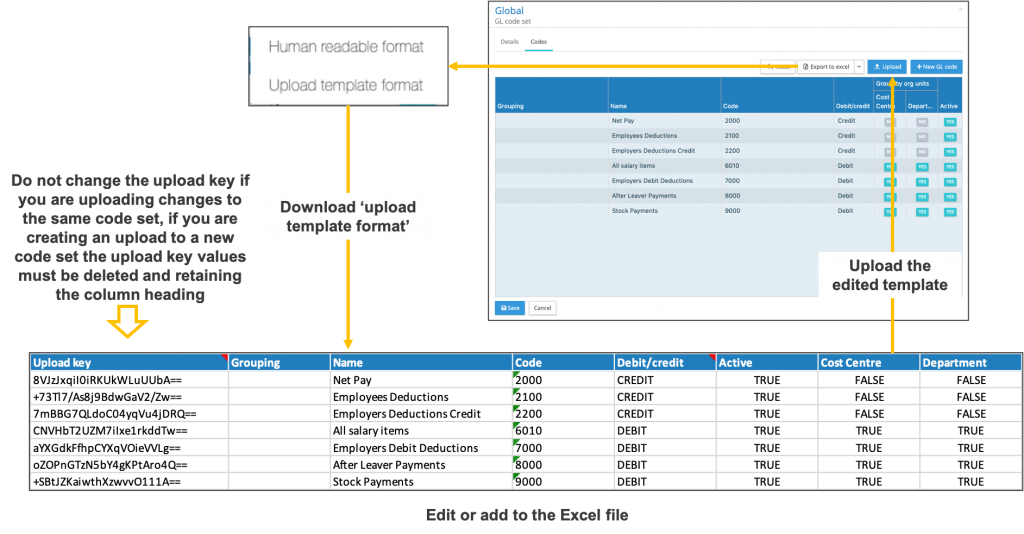
The process is as follows:
- Open the code set on the codes tab
- Expand the Export to Excel button
- Select upload template format, this will download a template, if you already have values in the code set it will include these
- The Excel download has a fixed number of columns and headings which are used by the system to upload the code set values.
- For all existing values in the code set, there is a reference key, do not change this value as it is used by the system to match the line item in the Excel file to the code set entry.
- Code set groupings, names, codes, debit/credit and organisation unit(s) can be edited. Inactive codes can also be set to active.
- New line items can be added to the template for these they will have a blank reference key, so the system recognises that they are to be added.
- Click on the upload button an select the completed template, the system will list those items that have changes, and new line items with the option to select all or to select specific line items.
- If you are editing an existing GL group, name, or code you could be affecting the output of any GL Journal reports which are using that value.
Pay Element Group Upload
In addition to providing a pay element group upload, a new payment type has been added called Notional. For some payrolls there are pay elements which are notional values, they are not part of the employee’s pay or deductions but are required for other reasons such as generating GL Journal entries. These can now be classified with a payment type of Notional.
The pay element group upload will populate the pay element group, description and payment type, pay element sub-groups can only be added through on-screen edits.
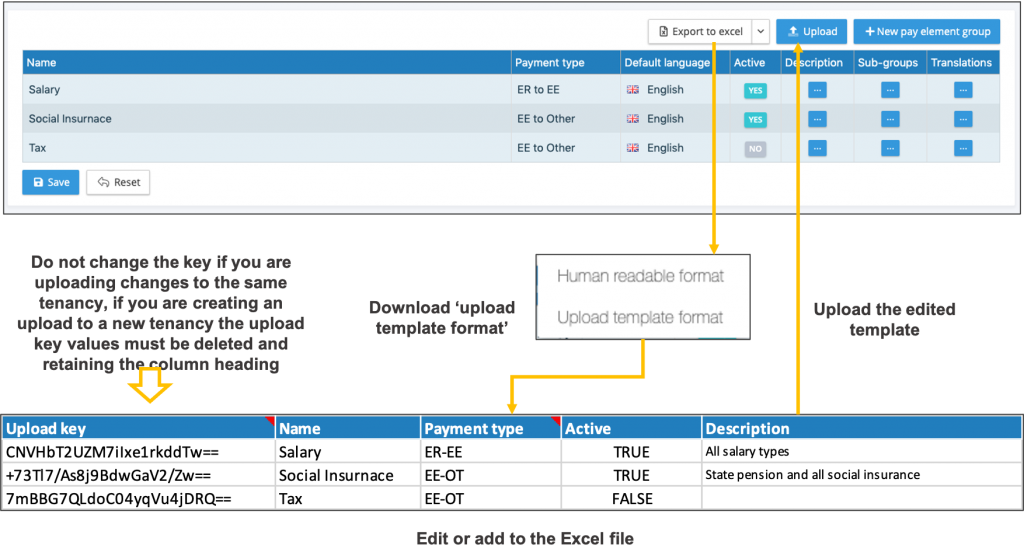
The process is as follows:
- Click on the pay element groups function
- Expand the Export to Excel button
- Select upload template format, this will download a template, if you already have a number of pay element groups set-up these will be included in the download file.
- The Excel download has a fixed number of columns and headings which are used by the system to upload the pay element groups, description and payment type.
- For all existing values in the pay element grouping, there is a reference key, do not change this value as it is used by the system to match the line item in the Excel file to the pay element group entry.
- Pay element groups, description and payment type can be edited. Inactive codes can also be set to active.
- New line items can be added to the template for these they will have a blank reference key, so the system recognises that they are to be added. Each new pay element group must have the word TRUE entered to the active column.
- Click on the upload button and select the completed template, the system will list those items that have changes, and new line items with the option to select all or to select specific line items.
- By editing the name of an existing pay element group it will change the reporting output for any pay element that had been assigned to that group.
Organisation Unit Upload
The organisation unit template export and upload facility will enable a tenancy administrator to edit or add organisation unit values to an existing organisation unit. For a new tenancy create the organisation unit by giving it a name, and save your changes, it is now ready to download the template to add the values.
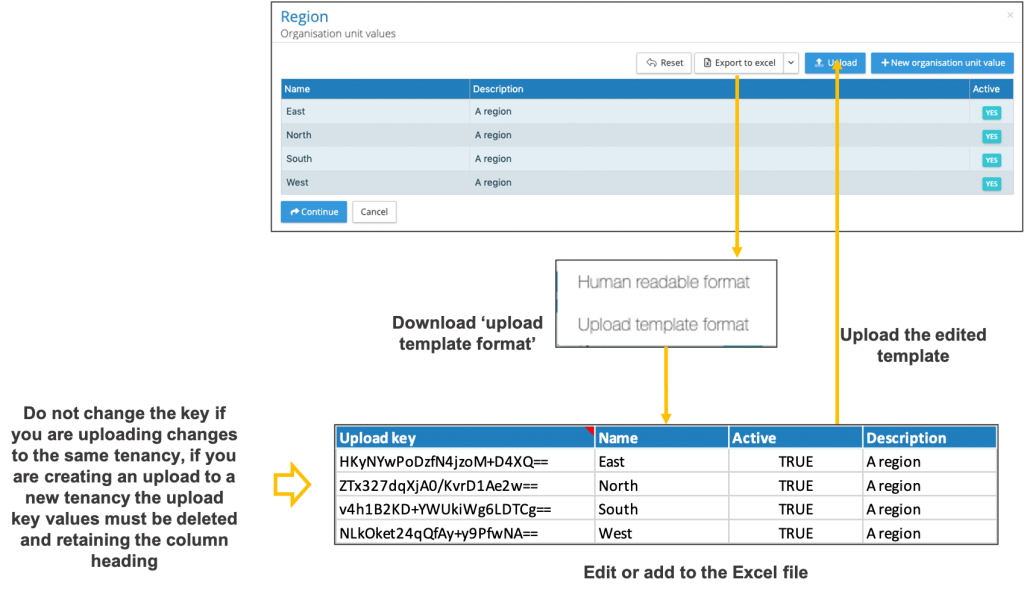
The process is as follows:
- Click on the organisation unit function
- For a new tenancy create your organisation unit headings
- Click on the organisation unit values
- Expand the Export to Excel button
- Select upload template format, this will download a template, if you already have a number of organisation unit values set-up these will be included in the download file.
- The Excel download has a fixed number of columns and headings which are used by the system to upload the name and description.
- For all existing values within the organisation unit, there is a reference key, do not change this value as it is used by the system to match the line item in the Excel file to the organisation unit value on the system.
- The existing organisation unit value names and descriptions can be edited. Inactive names can also be set to active.
- New line items can be added to the template for these they will have a blank reference key, so the system recognises that they are to be added. Each new organisation unit value must have the word TRUE entered to the active column.
- Click on the upload button and select the completed template, the system will list those items that have changes, and new line items with the option to select all or to select specific line items.
- Press continue and save the changes to the organisation units.
Payroll Task Calendar Amendments
The IPPEX system will create a task calendar using the task off sets from the pay date. Tasks may need to be adjusted to allow for public holidays and other service delivery reasons.
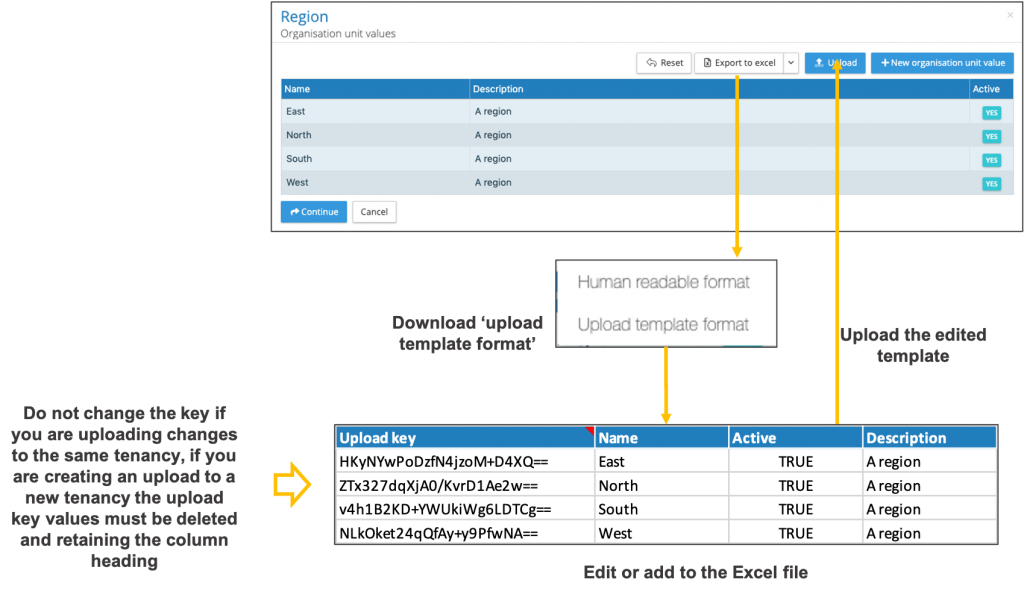
The process is as follows:
- From the payrolls menu select payroll configuration > task calendar > standard
- Expand the Export to Excel button
- Select upload template format, this will download the payroll calendar.
- The Excel download has a fixed number of columns and headings which are used by the system to upload the revised dates.
- The report will contain all of the active tasks with their due dates per pay period.
- Amend any of the dates in the calendar, if the date falls on a weekend the system will adjust the due date to the receding Friday on upload.
- Click on the upload button and select the completed template, the system will list those dates that have changed.
- The system will list all of the date changes, click on import task due dates to complete the operation.