IPPEX Cloud Messenger
Messenger
Messenger is a group chat function allowing for the communications between a group of users on a specific topic. Users who have been assigned to one or a number of messenger groups will see a function on the main menu call Messenger. Opening messenger will display a list of topics, each topic is connected to a messenger group.

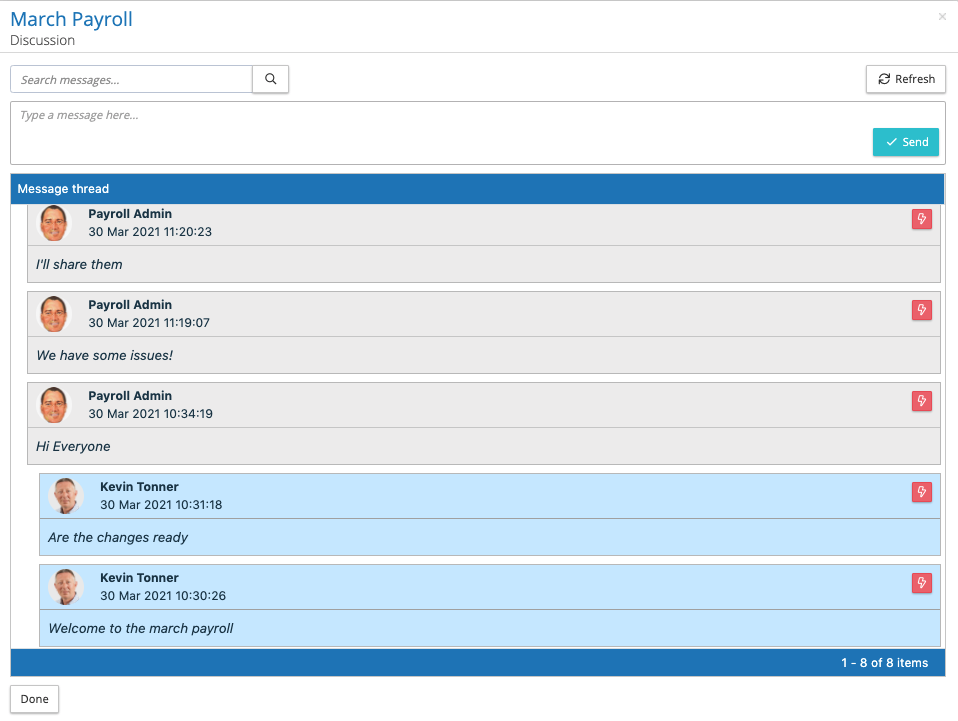
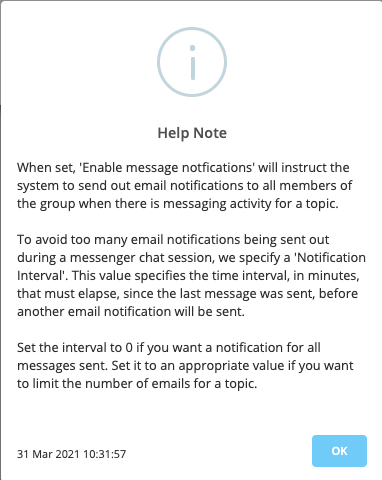
Using the action button next to the topic, the user can view the message thread and can contribute to the topic. Each topic can be configured to send a new message email notification to all of the users within the messenger group. To avoid receiving a significant number of email notifications, an interval time can be set from the last message sent to the new message, if the elapsed time is less than the interval time no email notification will be sent.
To see which users have been assigned to the messenger groups to which you are member, go to administration > user groups > messenger users.
Configuring Messenger groups and topics
Enabling messenger for the client tenancy
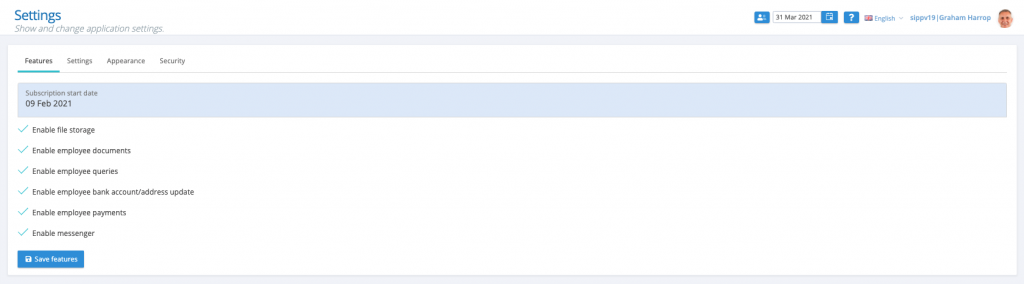
The tenancy administrator has to enable messenger for a given client tenancy. Go to Administration > system > settings and on the Features tab check the box enable messenger.
Creating a messenger group
All users within a messenger group can view and contribute to a messenger topic discussion, the group does not restrict information based on user groups or payrolls groups, and therefore it is important to understand the confidentiality of the information shared within the group.
The tenancy administrator has the responsibility to create Messenger groups, go to administration > user groups > messenger users. This will display a list of the existing messenger groups that have been set-up.
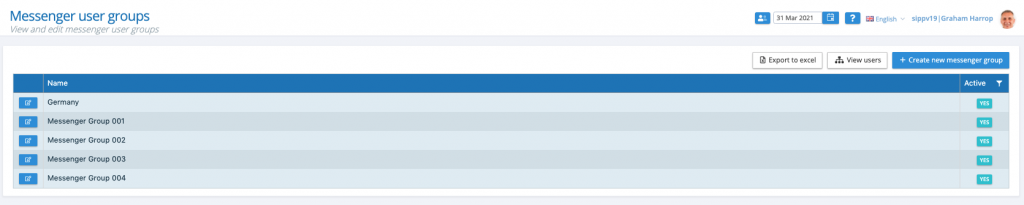
To view the members of a user group, click on the action button next to the group. There are two tabs, group information (name and description of the group, active/inactive status) and users (users who have been selected to be part of the group). Click on create new messenger group, give the group a name, description and assign the users to the group.
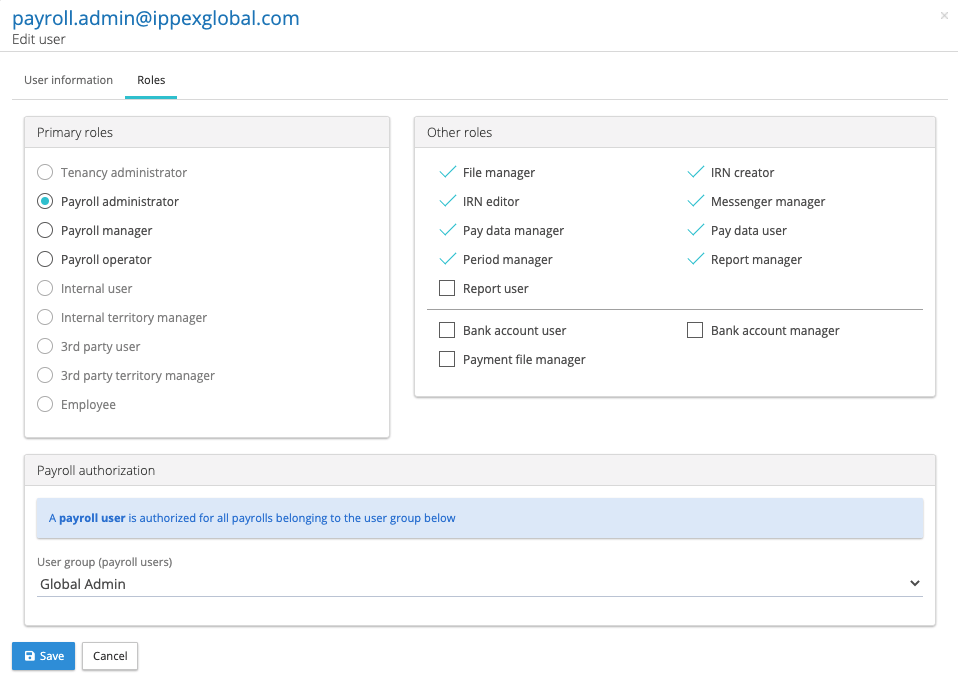
The next step is for a topic to be created within the messenger group, this can be performed by any member of the messenger group who has been given the Other roles of Messenger manager
Topic notification settings
A user with who has been given the messenger manager privilege, will have additional functionality when viewing messenger list, to create new topics and to edit topics.

When creating a new topic or editing the settings of an existing topic, there are the following options.
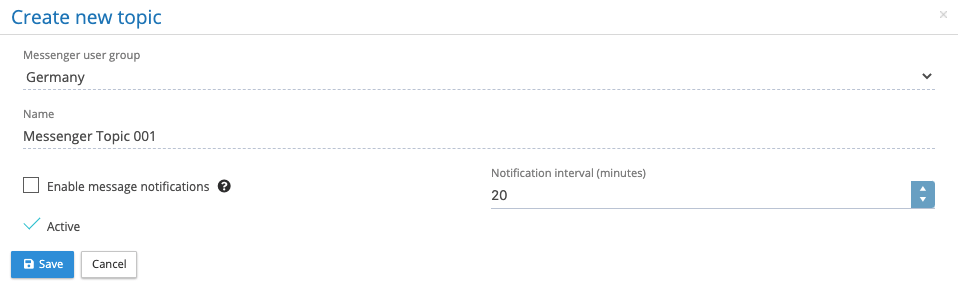
Topic name, this should describe the type of dialogue to be shared with the group, e.g. payments processing. Enable message notifications and notification interval – Click on the ? symbol and the following message will appear providing guidance on setting notifications.
A topic can be set as inactive, this will prevent all users from seeing or participating in the messenger dialogue.