IPPEX Cloud V 1.16 Release Notes


Introduction
IPPEX Global are excited to release Version 1.16, with this release IPPEX continues to expand the user experience.. In each release we seek to address the valuable feedback we are regularly receiving from our user base, the following are some of our new features: new the employee record fields, improved visibility of sub-tasks, Files properties within a folder, tools for promotion and demotion of system users.
We recommend that all system administrators and those system users responsible for delivering one or a number of payrolls should read all of the release notes.
Extending the employee record
The employee record has been expanded to add a number of new fields:
Company Start Date and Company Leave date – An employee may join a payroll and move to another payroll while remaining employed by the same business. The start date and leave date labels have been changed to ‘Payroll start date’ and ‘Payroll leave date’, with the objective of differentiating between when they joined the company and when they assigned to a payroll.
You may wish to revisit employee records for your existing payrolls to use the company start and end dates or start using these new fields going forwards with new hires and new payrolls. IPPEX has reviewed the data across all client tenancies, and the old Start Date, now called payroll start date, has had mixed usage with some using it for company start date others for payroll start date.
Title – Title has been added to the employee record, this is a free format field. For those organisations using the UK Star payroll software, title is a mandatory requirement for new hires.
Local Employee Number – When employees are processed by an in-country provider they are often allocated an employee number by the local gross to net system which is different to the corporate employee number. This new field enables the local employee number to be recorded in the employee record.
HR Data – IPPEX have expanded the amount of data that can be held against an employee on a payroll, this provides more information to supply to a local provider organisation and enhances the reporting capability. The following fields have been added to a new section in the employee record called HR Data.
- Job Title
- Job Level
- Employment/contract type
- Employment/contract status
- Contracted hours
- Tax Level/Code
- Location
- Manager
- Spouse Name
- Next of Kin
- Next of kin contact number
Payment Method / Routing – This is a new field added to the employee’s payment configuration, for some local banks there is a requirement to hold a code detailing if the payment is local to that bank or to another bank i.e. where the debit account and payee account are held at the same bank. This field could also be used for other purposes stating which payment account or method is to be used for that employee. This field is not used in the ISO 20022 payment file. Where an employee has been configured for split payments, the payment method / routing is available for the primary and secondary bank account.
Upload and Reporting – All of the above new fields can be entered onscreen or added via the employee upload. The new fields can be used in all data, changes and variance reports.
Sub-task indicator for headline tasks
Headline tasks can have any number of sub-tasks, the sub-tasks inherit the due date from the headline task. A sub-task is given a title and description and they can be activated at a payroll level and assigned to a system user. Headline tasks with sub-tasks now shows a number in a blue circle next to the date of the headline task if it contains sub-tasks, the number relates to the number of activated sub-tasks.
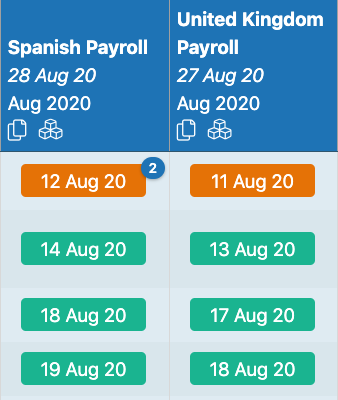
Clicking on the number displays a pop-up list of the sub-tasks (based on the user type and user group, a user will see all or only those sub-tasks they are permitted to see).
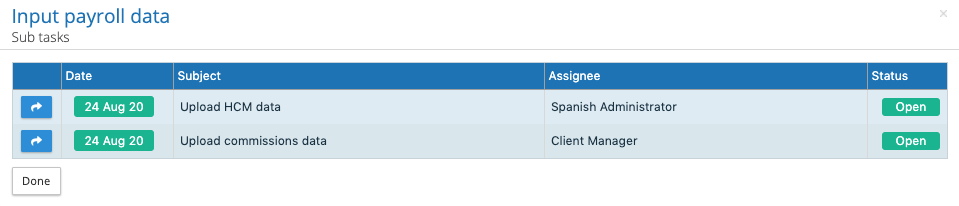
From this pop up menu the user can action a sub-task.
When opening the headline task from either the dashboard or the task list the sub-tasks button allows the user to show available sub-tasks. If there are multiple sub-tasks assigned to the headline task, the user can page through the sub-tasks.
Headline task / Sub-task closure dependency
The implementation of sub-tasks vary by client, some have used them as a simple aide-memoire or check list, when closing the headline task they may have left open sub-tasks. Others require a strict process that all sub-tasks are to be closed before a headline task can be closed. Where a headline task has one or a number of active sub-tasks, IPPEX Cloud now has two closing rules. The default system setting allows headline tasks to be closed when sub-tasks are either open or closed. Alternatively, the client tenancy can be configured so that a headline tasks with one or a number of active sub-tasks can only be closed when all of the sub-tasks have been closed.
Under administration settings, there is a new tab called settings, to enforce the sub-task closure before a headline task can be closed, check the Enable headline-task/sub-task dependency.
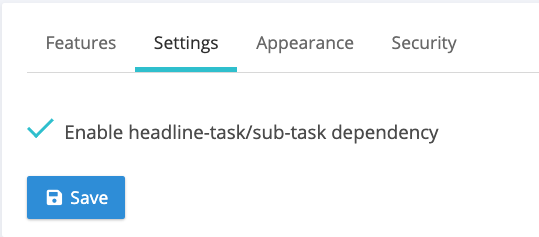
The task – sub task dependency is useful where an organisation has multiple levels of sign-off and is looking to control the approval of payroll results or the issuing of payments.
System User Export to Excel enhancements
The export to Excel function on the system user panel has been enhanced to include company, user type, user group and the payrolls the user has access to. This makes it easier to audit the active and in-active users on a given tenancy.
File View
The files system is used extensively by our clients, and for some payrolls there are significant number of files uploaded to various folders, especially transfer folders. This includes multiple versions of the same file from revisions of changes data or gross to net files.
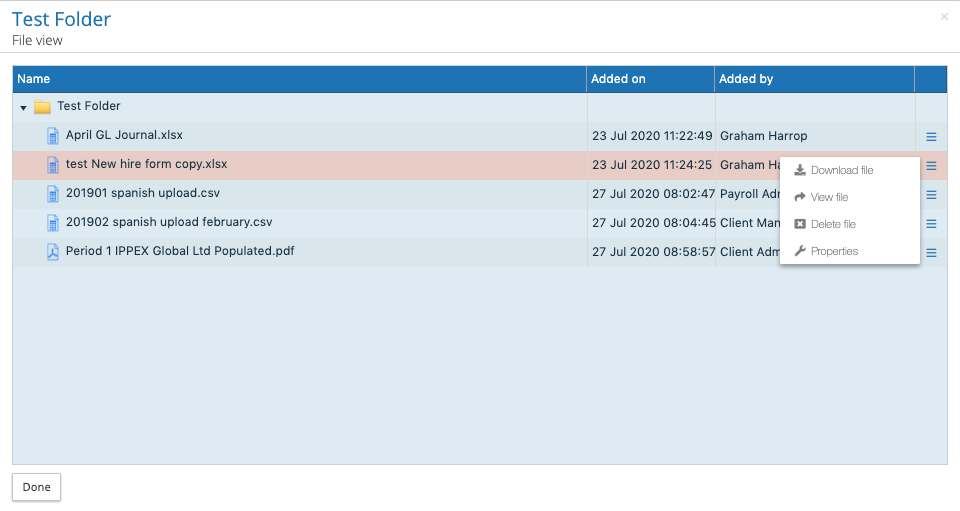
File View is a new function added to FILES, it allows a user to view a list the files contained in a folder in date order (when the file had been added to the folder). From the action button for a given folder, click on File view. This will open a pop-up listing the files, detailing when the file was added to the folder and by which system user. The file list can be sorted by column heading (name, added on and added by). From the pop-up list a user will be able to download a file, view the file or show the properties.
Issue Notification – Other users
When a new issue is created or closed, the user now has three notification options, the assignee (this user is automatically selected by the system but can be de-selected), the owner (click on check box to include) and other users. When clicking on the other users checkbox it presents a pop-up selection listing the other users who have the access rights to the payroll and user privileges for issues, reminders and notes. Select the other users who require a notification, when you have completed the user selection click on save & exit or save & attach.
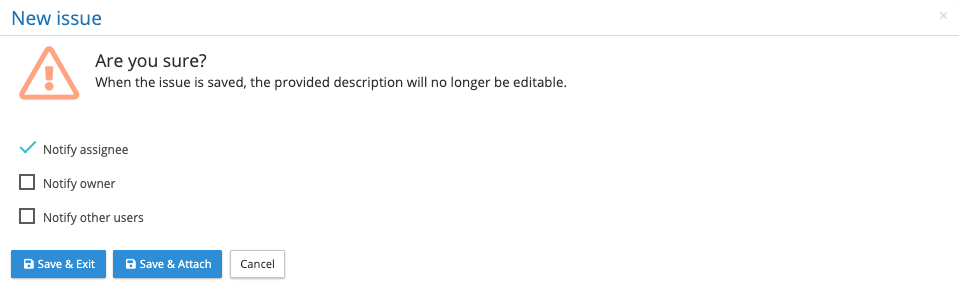
When an issue is re-assigned the new assignee automatically receives a re-assignment notification.
Restrictions on task closure for Payroll Users
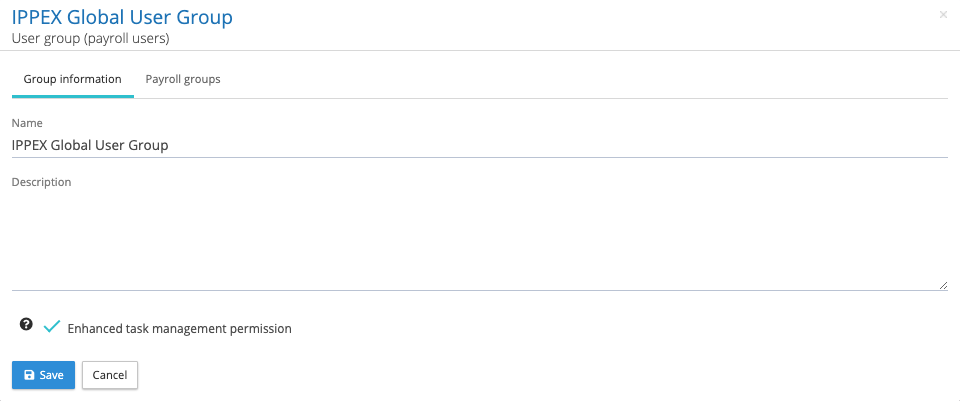
All system users of a client tenancy are configured with a user type: payroll user of which there are three variants (payroll administrator, payroll manager or payroll administrator), internal user or a third-party user. Payroll users (all three variants) have had the capability to view and close any task assigned to other payroll users, all internal users and all third-party users for the payrolls they have been granted access to. This can lead to a payroll user inadvertently actioning items outside of their user group. With the Release of Version 1.16, all payroll user – user groupswill have a default setting to restrict those users within that group to close only those tasks which have been assigned to that user or other users within their user group.
A payroll user – user group now has a check box (see below) to allow all of the users within the group to view and close any task which has been assigned to any other user type (payroll, internal or 3rd party) irrespective of the user groups they are a member of.
This now allows for the segregation of payroll users:
- Payroll user who can oversee and close any task on a payroll
- Payroll user who has view only for all tasks on a payroll and restricted to the closure of tasks that are assigned to them or users who are within their user group.
NOTE: An internal user or third-party user can only see tasks that are assigned to that user or tasks assigned to other members in their user group (all tasks). With two exceptions the internal or 3rd party territory manager user who can see the tasks of other internal or 3rd party users belonging to the payrolls to which they have access. Where a user has been assigned a sub-task and does not belong to the same group as the headline task assignee, they have view only access to the headline task.
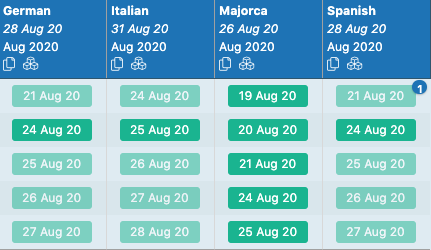
To distinguish between view only task and view/close permissions for a task, the task due date is shown in a lighter tone for view only on the dashboard and on the task list.
Map to existing pay element type
We have learnt that users performing uploads have created multiple pay elements for the same data element each with a slightly different name. This has occurred when the upload file has been altered and the data heading has been changed resulting in no mapping on upload. The system had been set up to present ‘map to new pay element’ as the default option, resulting in users creating a new payment rather than reviewing the existing elements on the system. This has now been changed, and the system will present map to existing pay element type as the default, encouraging users to investigate if a pay element already exists for that data type before they go ahead and create a new pay element.
This also applies to mapping to employee details.
Demote system user to employee user
A system user who is also an employee user, can be demoted to be just an employee user. This can be performed by the system administrator, from the System Users list click on the action button there is a new option called Demote to employee user. This option is only available if the system user is also an employee user on a payroll. Any task associated with the system user will show assignee as unauthorised user and has to be re-assigned. The system will not allow the demotion of a system user if they are either owner of a payroll or a member of a query group, if this is the case the payroll has to be re-assigned and/or the user is removed from any query group before they can be demoted. The demotion of a system user can be reversed using the promote an employee user to be a system user.
Promote an employee user to system user
An employee user can be promoted to a system user, from the payroll list using the action button click on employee users. The is a new function added to the action button on the employee user list called promote to system user. A company has to be assigned to the user, the user has to be given roles and assigned to a user group. The system provides a warning that it will generate a contact within the system for that user.
Employee Number Change
If an employee number (unique alphanumeric reference) has been incorrectly uploaded or entered in for an employee, the number can be changed using a new function added to the employee view. Got to the employee list for a payroll and view an employee’s record, at the bottom of the screen there is a new function called Update emp no. A pop-up box will display the current employee number and has a field to enter the new employee number, enter the value and press save. This will create a change to a number of key areas in the system, the PDF document file names, upload key and the employee record.
Any user with the employee data update privilege can perform an employee number change.
GL Journal Report Layout – Constant Column
IPPEX have planned a number of enhancements to General Ledger reporting, the following small enhancement has been included in this release, all the other GL enhancements will be in a future release. Similar to all other reports we have added the ability to add a constant column to a GL Journal Report