Employee Query – introduction
Employee Query can be used for all payrolls or for a selection of payrolls. One or a number of system users can be assigned to the query group for a given payroll to manage the employee’s requests.
An employee query is a question or a request from the employee to the payroll team, or from payroll team to the employee. All inbound queries from the employee have to be triaged, allocating them to a user in the payroll query group to handle. The query system enables a dialogue with the employee which is confidential and avoids the use of email to share sensitive personal information. Where an employee query requires other specialist involvement, the query can be escalated to the issue management system, raising a new issue. The system creates a link between the query and the issue. All query dialogue is shared with the employee, whereas issues can only be seen by the system users with the privilege to see the payrolls and those issues.
The mobile app enables the initiation of a query by an employee, to manage the query dialogue and to review any closed queries the user will have to log onto the web employee portal.

Employee Query – Managing query groups
Employee query has to be enabled by the tenancy administrator (see Settings User Guidance). Before employees can use the Query function, a query group for each payroll has to be populated by assigning query managers. Go to Administration → User Groups → Query groups. This lists all of the payrolls for the tenancy, against each payroll is an edit button which will open an new screen to assign system users to the query group.
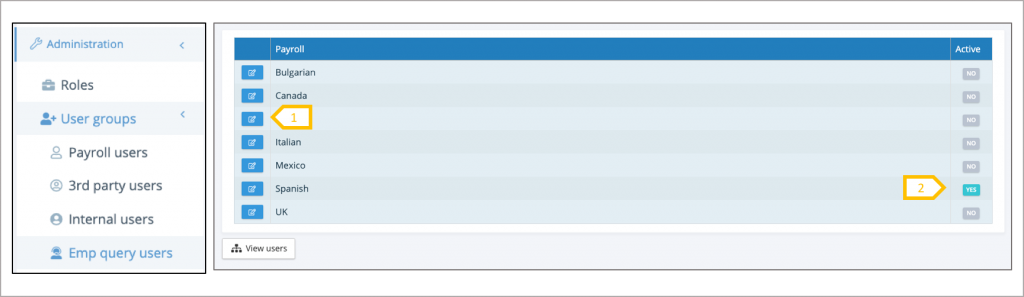
- Click on the edit button to assign system users to the query group for the payroll.
- If system users have been assign to the group, the group becomes active and employees can post queries
Employee Query – Query group assignment
Each payroll has its own query group, allowing users to focus only on those payrolls they have responsibility for. Users within the group may focus on different types of queries, this is handled when the query is triaged, and assigned to a specific user. All of the users in a query group can see and contribute to any of the queries for that payroll, all of the query correspondence can be seen by the employee.
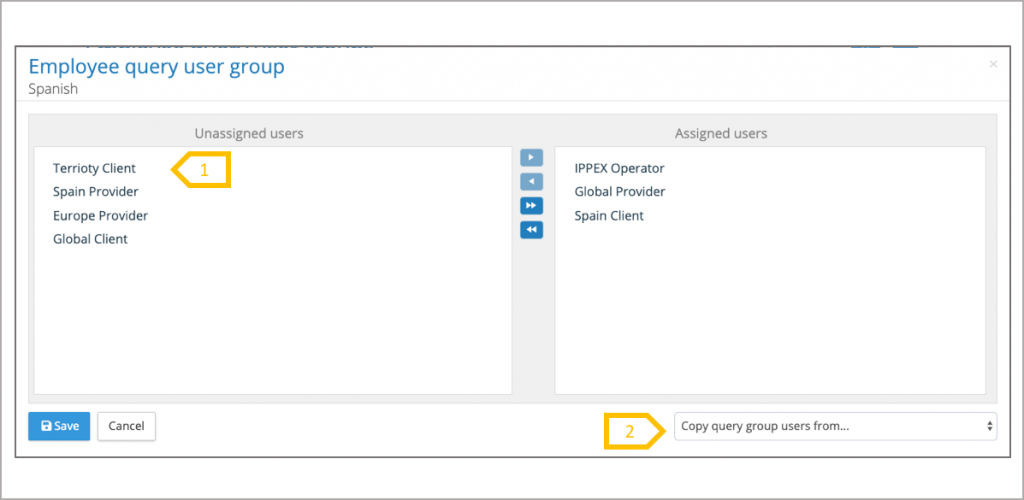
- Select the system users who are going to be part of the employee query group. Drag and drop or use the arrows in the central bar to move the users.
- If the assigned users are identical to another payroll, copy the query group from that payroll.
Employee Query – Query categories
All queries can be assigned a category, this is useful when assigning a query to a specific query manager, also useful for building intelligence and trends. Query categories are only seen by the query group and not by the employees. Assigning a query category is optional. Only those query categories set-up for the client tenancy can be selected. To create query categories go to administration → Query Categories.
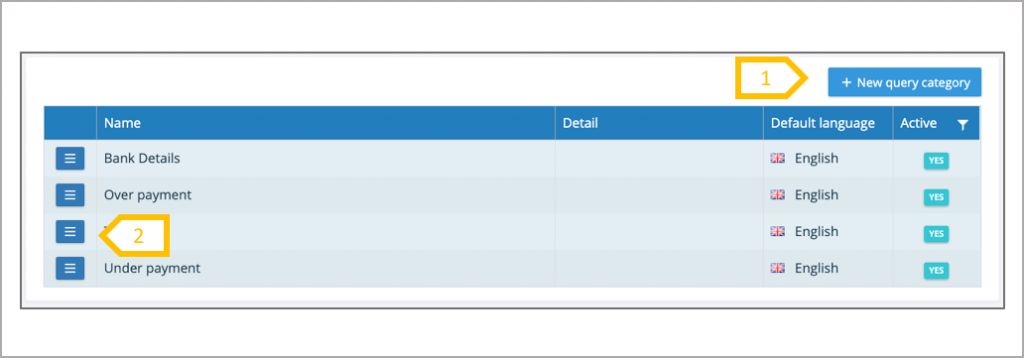
- Click + New query category to add a new name.
- Click on the action button to view a category, allowing you to set it as inactive or to re-activate a category. Click on view lookup translations to add the translation to the name and description.
Employee Query – Query group user creating a query
Queries can be created by either a system user who is part of the query management group or by an employee. Query management group system users will have a main menu item called Employee Queries.
If a client tenancy has been enabled for Employee Query, all employees will have a menu item called Employee Query, if the employee is a member of a payroll that has an active employee user group, they will see an employee query grid and will be able to post employee queries.
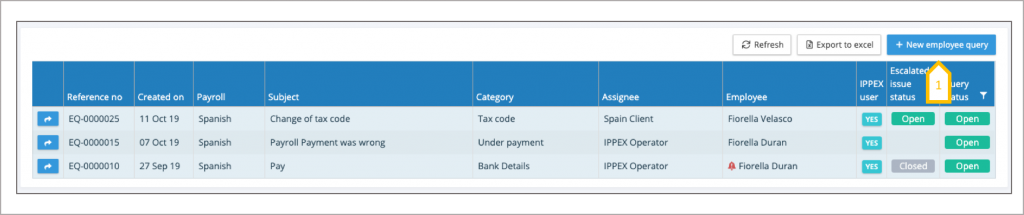
- Click + New employee query
Employee Query – Query group user creating a query
To initiate the query to the employee, complete the form. When completed and saved, the employee will receive an email notification to say they have a new query with a link to that query.
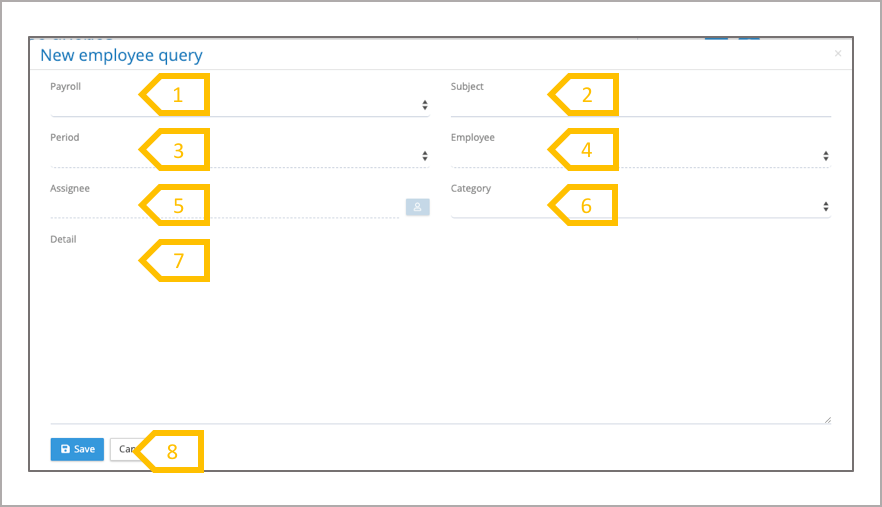
- Select payroll.
- Enter the subject of the query.
- The system will default to the current pay period, adjust if required.
- Select the employee from the list.
- Select the system user in the employee query group who is going to manage the query.
- Pick a category for the query (this is optional).
- Enter the detail of the query.
- Save the query.
Employee Query – Employee user creating a query
The employee query creation process is very simple, they have a view of an current (open) or historic (closed) queries, and can create a new query. Queries cannot be deleted from the system, they can only be closed.

- Click + New employee query ●
To initiate the query to the employee, complete the form. When completed and saved, the employee query user group will see a new employee query which will require triaging.
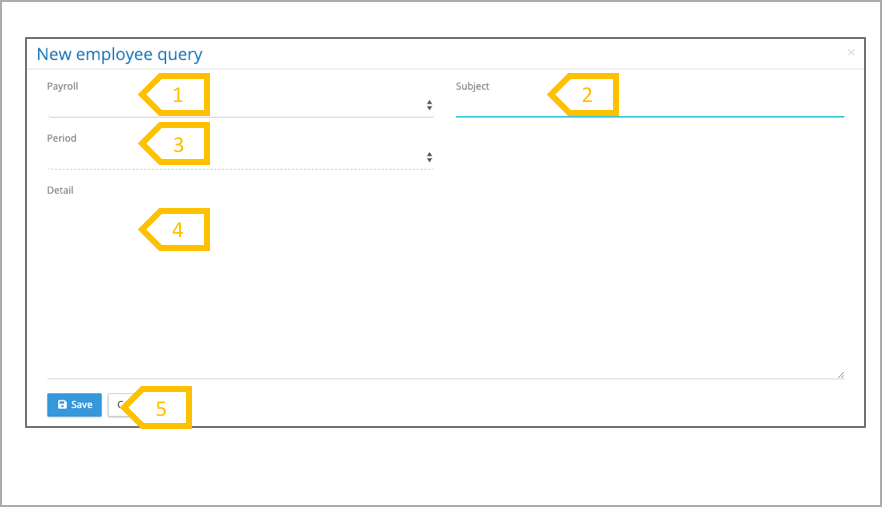
- Select payroll.
- Enter the subject of the query.
- The system will default to the current pay period, adjust if required.
- Enter the detail of the query.
- Save the query.
Employee Query – Employee user query list
When an employee has created a query it will appear in their query list and will have a status of new, there are three states for a query, new, open and closed. The query will remain in the new state, until it has been triaged and assigned to a system users within the query group. The employee can view all new, open and closed queries.

- Action button to open the detail of the query.
- System reference number for the query.
- Date the query was created on.
- The payroll, an employee could be a member of multiple payrolls.
- The subject of the query.
- Status of the query, change filter to see closed queries
Employee Query – Query group query list
A query group system user will see all of the queries for all those payroll query groups to which they have be assigned.
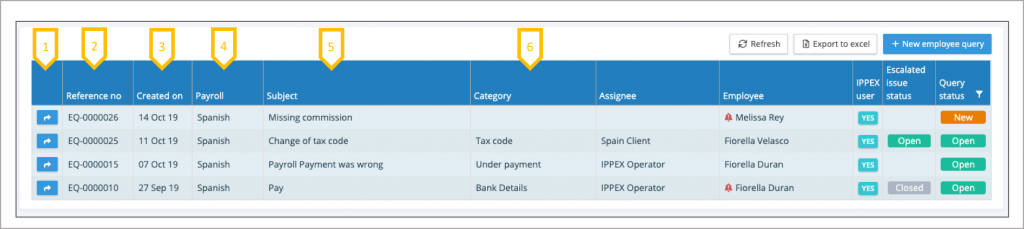
- Action button to open the detail of the query
- System reference number for the query.
- Date the query was created on.
- The payroll, a system user will see all the queries for the payrolls query groups they have been assigned to.
- The subject of the query.
- Category – each query can be assigned a category, new employee created queries will not have a category assigned.
The query list is a shared with all of the members of the query group.
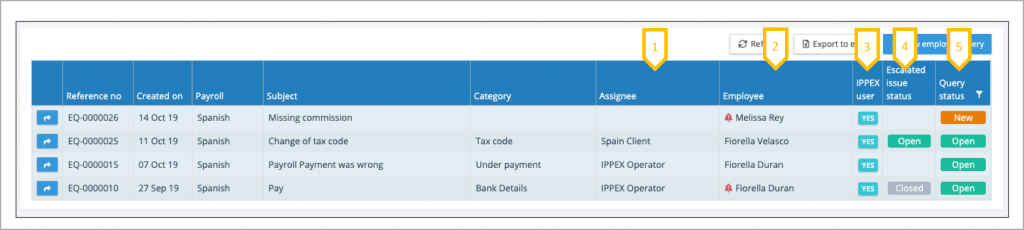
- The assignee is the user in the payroll query group is the primary owner for a particular employee query.
- The employee who has raised the query or has been sent a query by the query management group.
- A flag to say if an employee is a user, queries can be raised against no users for tracking purposes but they will not see or participate in the query dialogue. Red bell indicates most recent communication is from the employee.
- Queries can be escalated to be an issue, if they have been escalated this shows the status of the issue.
- Query status, new (require triaging), use filter to show open, closed, rejected (updates) or cancelled
Employee Query – Triaging a new query
When an employee raises a new query the it will have the status of new. The query has to be triaged, reviewed and assigned to a user. Open the query using the view button next to the new query in the query list, and click on edit to assign the query to a specific user.
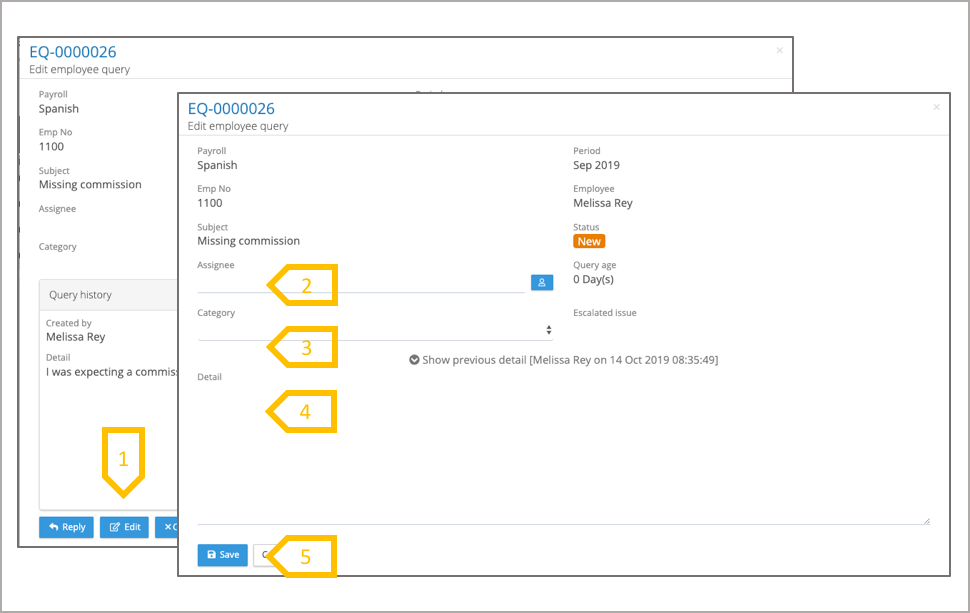
- Click on edit in the query detail screen and a new screen will appear.
- Select the assignee for the query.
- Add a category (optional).
- Enter an action or instruction to the assignee.
- Save and this will send an email to the employee to say the query has been assigned and the status will show as open.
Employee Query – Managing a query
Any system use who is part of the query group can manage a query, all dialogue in the query is seen by the employee. The query can be re-assigned, a communications (reply) can be made to another system user in the query group or to the employee.
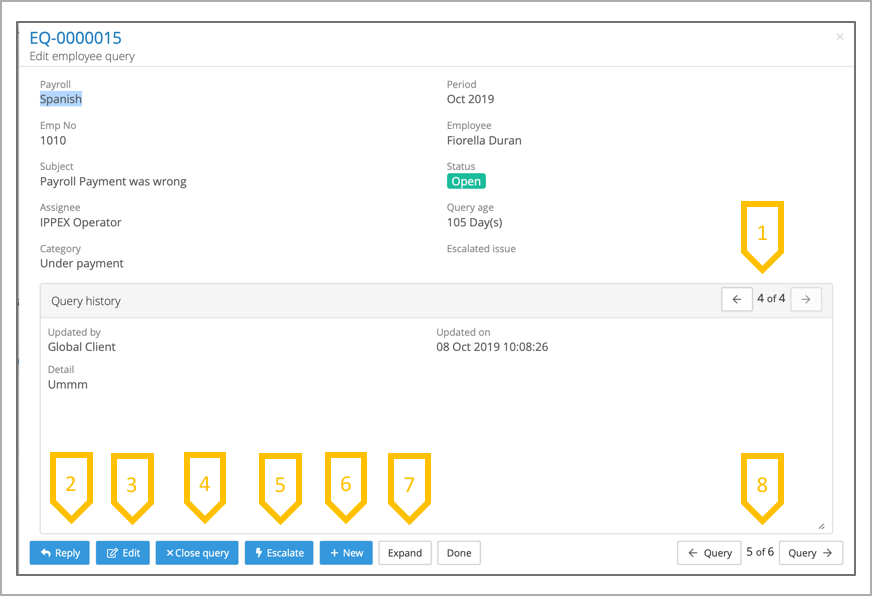
- Page through the correspondence on the query.
- Reply to the employee or to another system user in the group.
- Edit the query changing the assignee
- Close the query if resolved.
- Escalate the query to create an issue, which will enable a correspondence to users in and outside of the query user group. The issue dialogue is not shared with the employee.
- Create a new query.
- Expand the dialogue to see the flow of discussion.
- Page through the queries in the list
Employee Query – Escalating a query to an issue
An issue can be created from the query, the issue is linked to the query so the query handler can track the issue through to resolution, and to resolve the employee query.
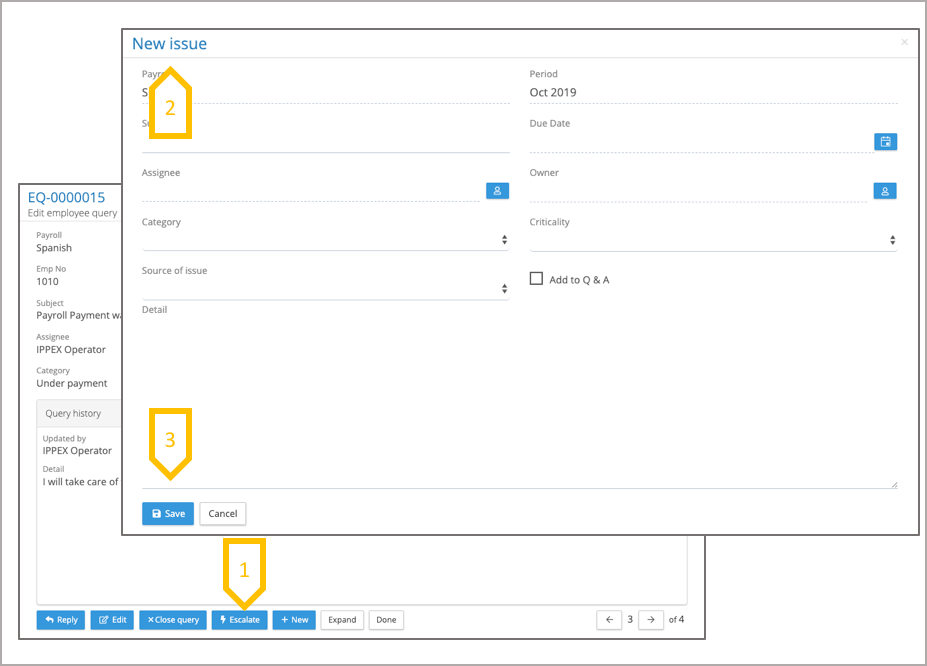
- Click on escalate issue.
- A new issue dialogue appears, complete the issue in the same way you create other new issues, the system will carry forward the payroll and pay period information from the employee query.
- When you save the new issue, the system will add a link in the query to the issue. And the query list will display the status of the issue linked to that query.
Employee Query – Linked Issue
When an query has been escalated and an issue has been created, the issue is managed through the issue management system, and will have it’s own process through to resolution. From the query list and from the query detail the user will see the status of the issue, and from the query detail a link is provided to that issue.
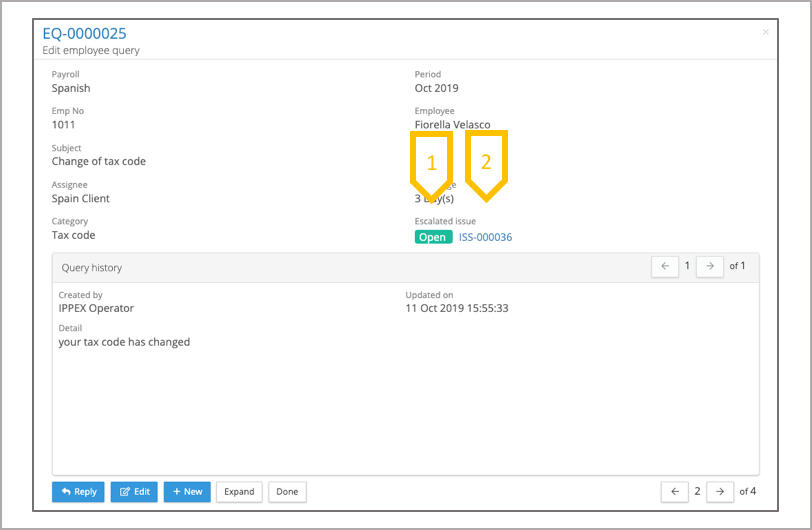
- Issue status.
- Issue link
Employee Query – Closing a query
When all of the actions or responses for a query have been completed, close the query. The employee user will receive an email to say the query has been closed. The employee can view any of their closed issues.
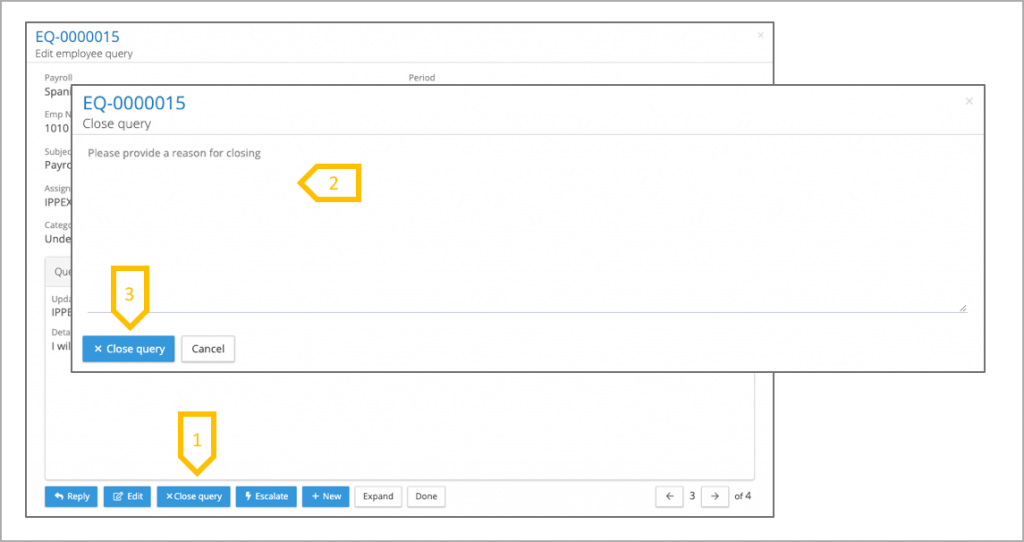
- Click on close query.
- In the pop-up dialogue box, add a reason for closing the query.
- Click on close query, the query will be removed from the open query list and the employee will receive an email to notify them that the issue is now closed.
Employee Update – Web portal
The employee user has two new menu items to their screen.
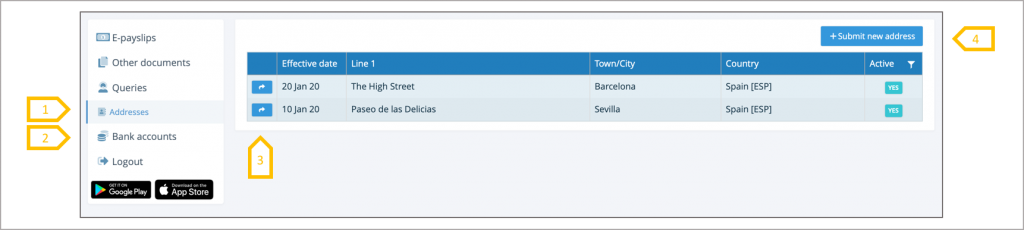
- View current and historic addresses and submit a new address.
- View current and historic bank accounts and submit a new bank account.
- Action button displays the detail of the address or bank account.
- Click on submit new to create a new entry.
Submit new address or bank account
The employee sees a new screen when clicking on + submit new address or + submit new bank account. They complete the form and click on submit.
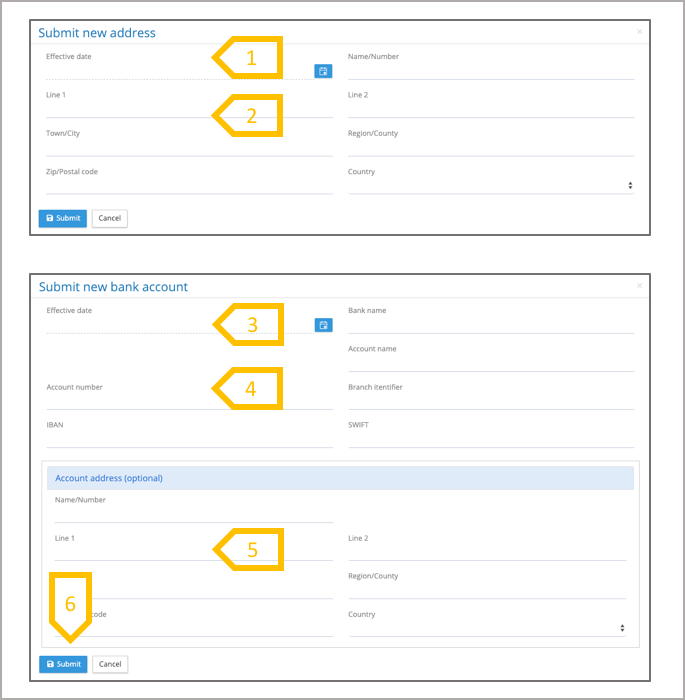
- Address effect date can be in the past or in the future.
- Line 1, Town/City and Country are mandatory fields.
- Bank effective date can be employee users current day or a date in the future. The system does not allow back dated bank accounts as payments could have been made to an existing bank account.
- Account number, bank name and account name are mandatory fields.
- The bank account is optional, if completed the first line of the bank address, town/city and country is mandatory.
- On submission the employee will receive an email notifying that they have made a submission, and it will have a link back to their submission detail.
Employee Update Submission
The employee user is notified that they have a pending update and they can view the update in the query list.
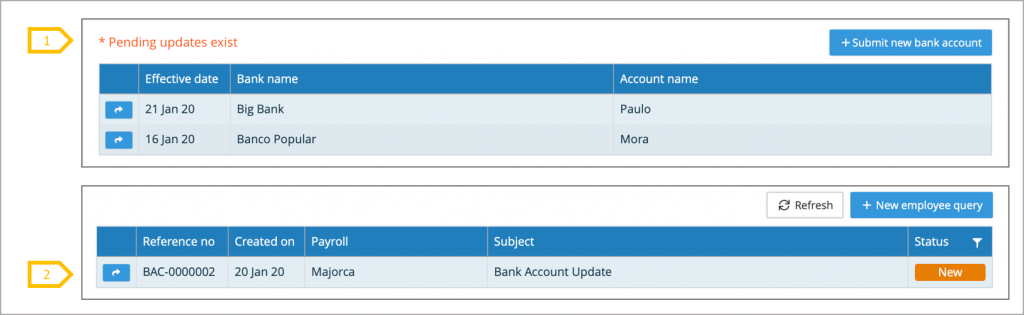
- Message on bank account and address screen stating pending updates.
- In the query screen, the bank account or address update will be listed and clicking on the action button enables the employee user to view the detail or cancel the update.
Query list – Query Administrator
The employee address and bank updates appear in the query list with a specific category and subject, the query administrator has to open the detail of the update, select accept, cancel or reject the update.
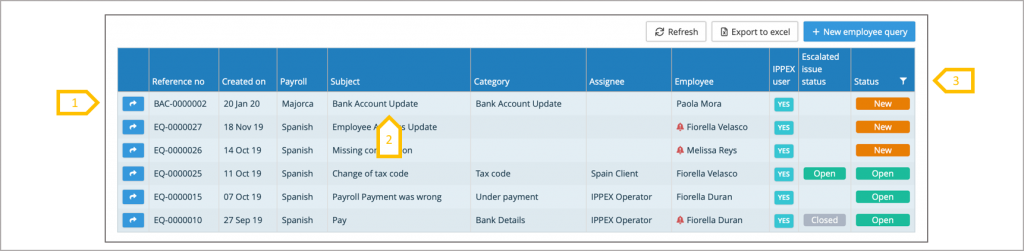
- Click on action button to open the detail of the update.
- Subject and category are predefined.
- Click on filter to view the closed, cancelled and rejected queries.
Query administrator – actioning new update
The employee sees a new screen when clicking on + submit new address or + submit new bank account. They complete the form and click on submit.
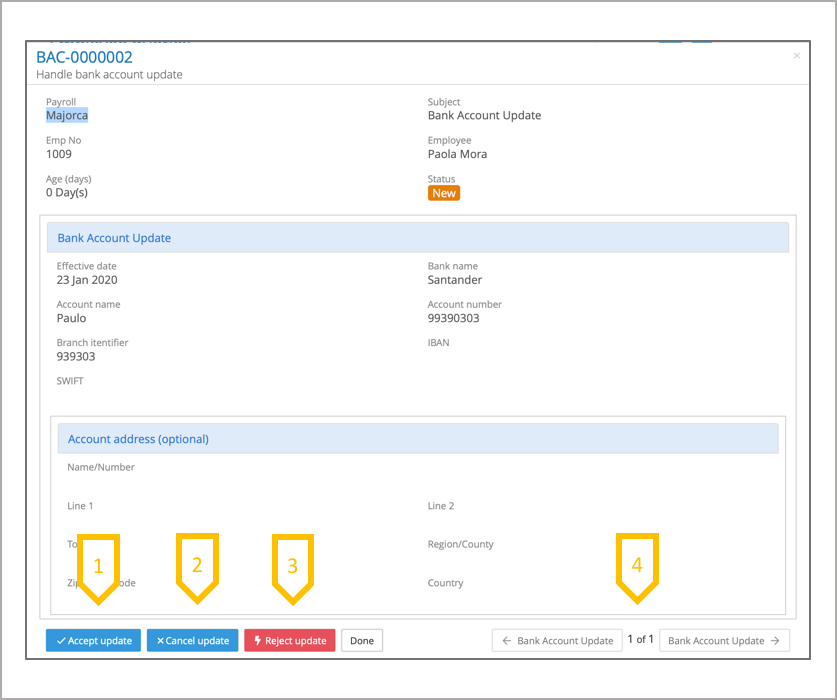
- Accept update, this will post the information to the employees address or bank account record.
- Cancel update.
- Reject update.
- Page through the other bank account updates in the list