Workspaces
Workspaces are used for two functions, creating working areas for a payroll and creating transfer folders for payrolls. A transfer folder enables documents to be transferred between internal users and payroll users, and between 3rd party users and payroll users.
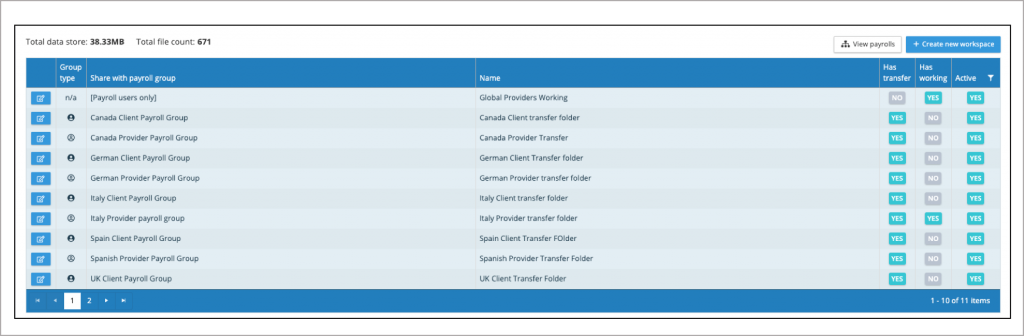
Workspaces – Transfer Folders
Transfer folders are set up against internal or third party payroll groups, It allows internal users who have access to the internal payroll group to transfer files to payroll users for a particular payroll. It is a pair of inboxes and outboxes, an internal user can upload a file to their outbox and this will appear in the payroll users inbox, similarly a payroll user can upload a file into their outbox and this will appear in the internal users inbox. The same applies to third party users exchanging files with a payroll user.
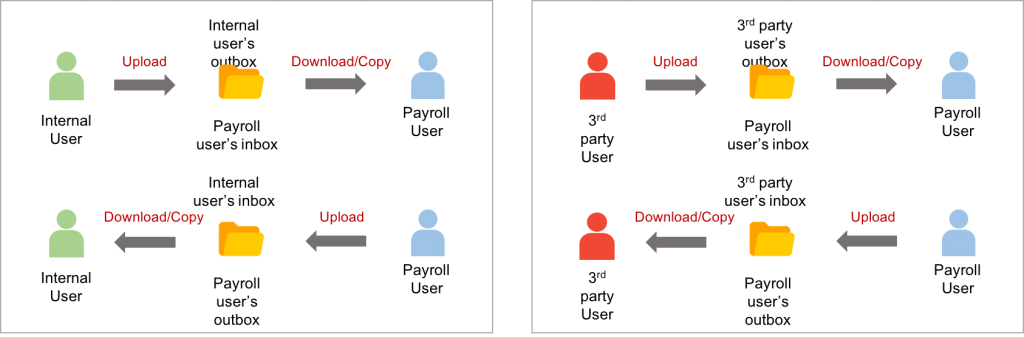
NOTE:A file uploaded to a transfer folder can be deleted up until the other party has either viewed or downloaded the file
Users, User Groups, Payroll Groups and Payrolls
A working area is assigned to a payroll group and only those users with access to that payroll group can access the files in that folder. Payroll users can see all transfer folders for those payrolls they have access rights to.
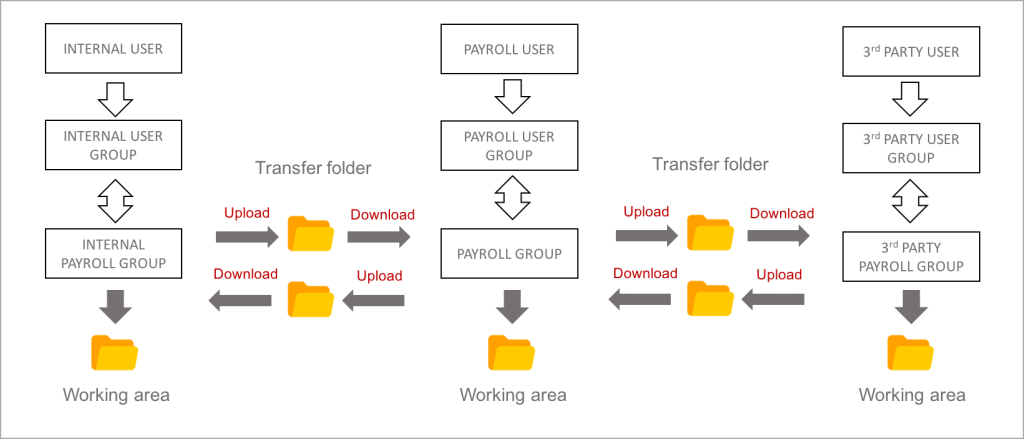
Workspace management
Management and creation of new working areas and transfer folders (Workspaces)
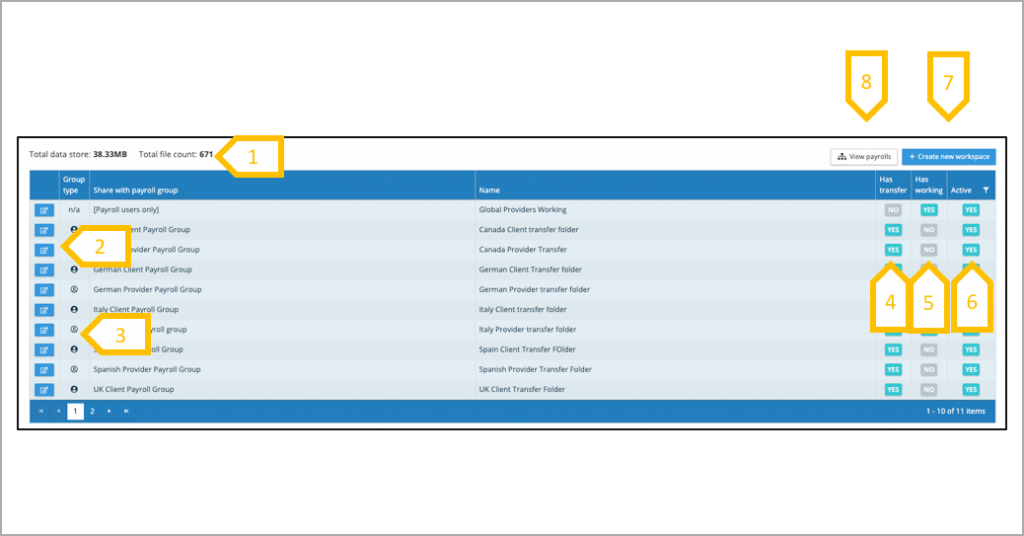
- Display of the total amount of data in file storage and the total number of documents.
- Edit the configuration of the file transfer and/or working area (workspace).
- Symbol denotes if it is an internal or 3rd party payroll group.
- Has transfer folder set up.
- Has working area set-up.
- Active or Inactive working area.
- Click to create a new workspace.
- View the payroll groups and workspaces.
Creating a new workspace
A payroll group can any number of workspaces assigned to it, some organisations require separate transfer folders for payroll changes, reports and payments.
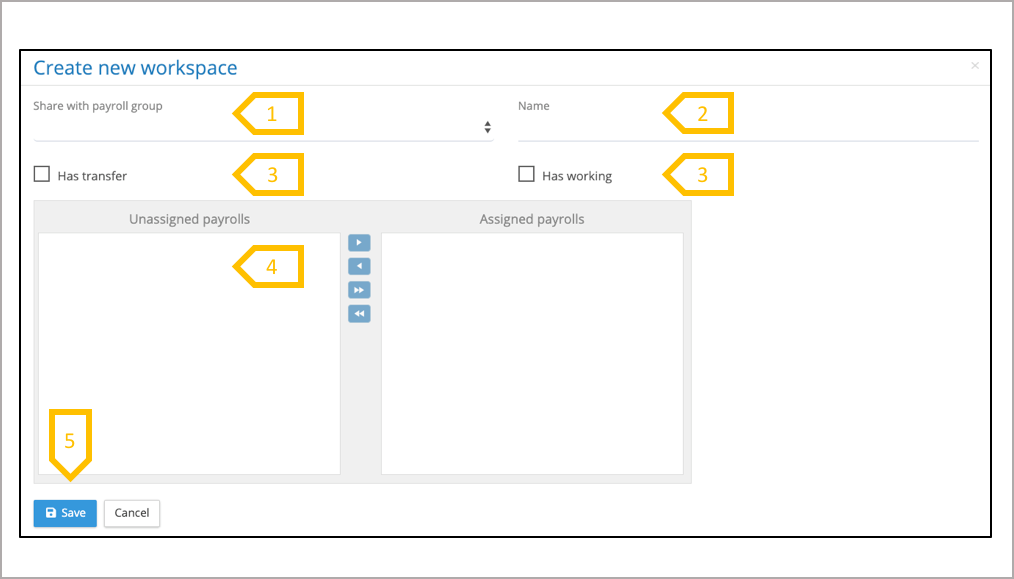
- Select the payroll group for the transfer folder and/or working area.
- The folder has to be given a name, it defaults to the payroll group’s name, it is useful to say who it is for and what it does it do such a Client Payroll Changes Transfer Folder. The folder name as to be unique, add payroll name into the workspace name if multiple workspaces are being created to perform the same function.
- Check one or both ‘had transfer’ and ‘Has working’.
- A list of payrolls which are associated with the payroll group will appear in the Unassigned payrolls. Move the payroll that require a working folder and/or transfer folder to the assigned payrolls.
- Click on Save to commit
Editing a workspace
A payroll group can any number of workspaces assigned to it, some organisations require separate transfer folders for payroll changes, reports and payments.
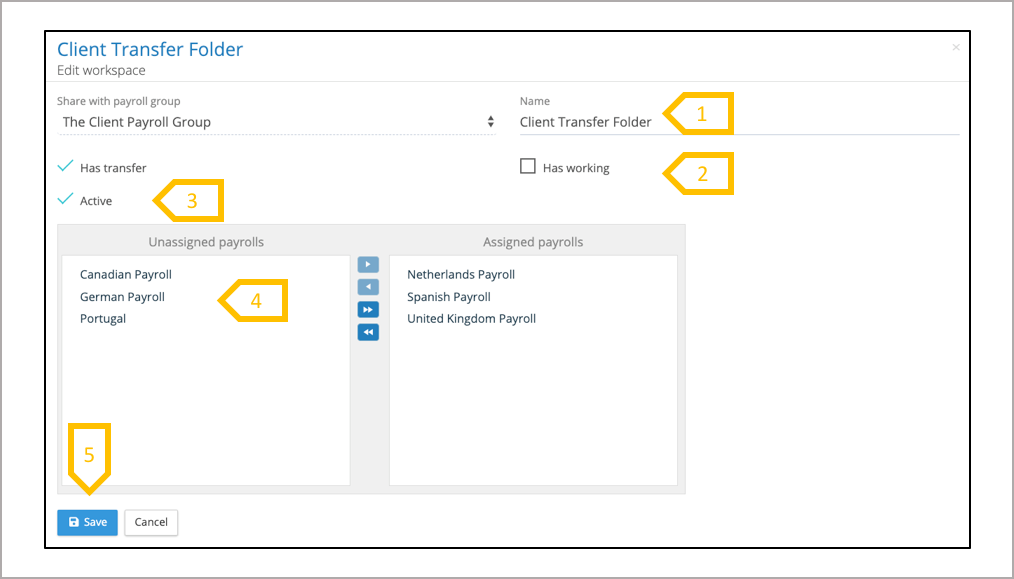
- Change the name if required.
- Add or remove ‘had transfer’ and ‘Has working’, when removing a folder the data will still be held in the system but will not be visible. Re-enable to access the data.
- De-active the workspace, the workspace can be re-activated and the data will not be lost.
- Change the assigned payrolls if required.
- Click on Save to commit the changes