Task templates
A task template defines the list of tasks that can be used in a payroll. There are three processing types, standard, expat and pension. Each of these types can have their own list of headline tasks and sub-tasks. There are three task templates for supplementary processes, off cycle, quarter end and year end. These too have headline tasks and sub-tasks. When a payroll is created, it is assigned a type which is either regular, expat or pension, this determines the tasks that can be assigned to that payroll. See task configuration under payrolls.
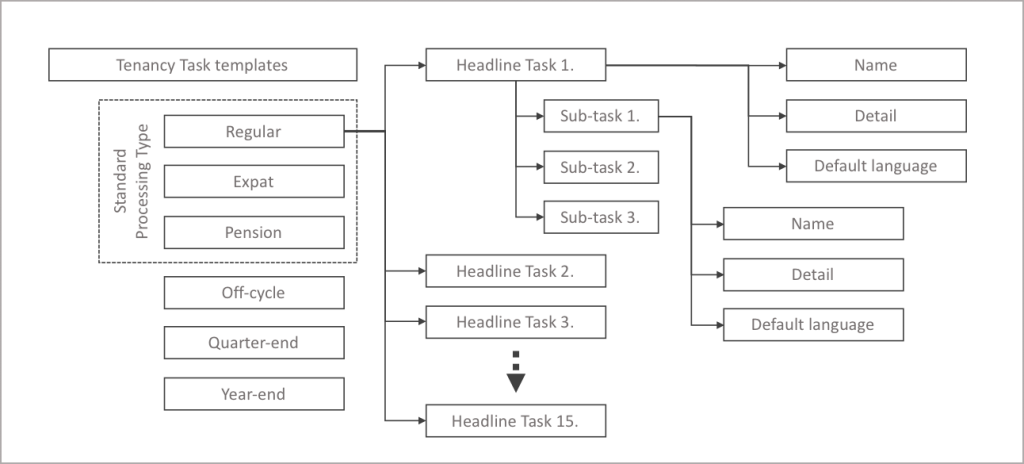
Task Template – headline tasks
Headline tasks for all processing types and supplementary processes are displayed in the dashboard in the order that they appear in the task template. So it is important to consider the logical flow of the headline task process. A task from the template could be assigned to one payroll and not to another, for example one payroll may require a second level of approval. Headline tasks defines the major milestones in the payroll process, sub-tasks are like a check list, as they inherit the due date of the headline task.
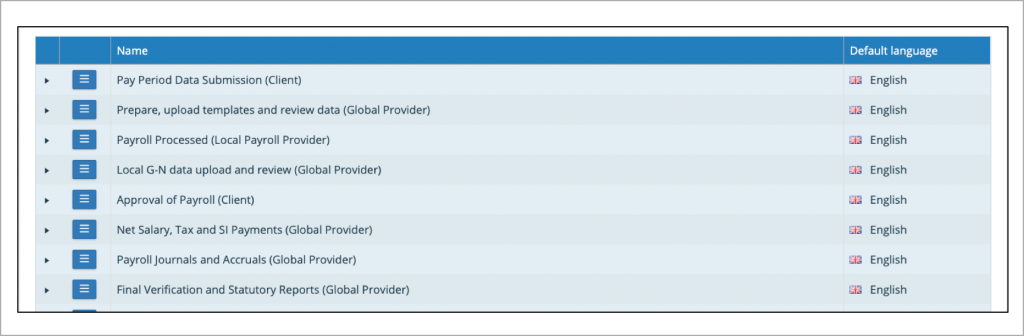
Task template – add headline task
When setting up a task template for a new tenancy, it is important to map the end to end payroll process agreeing the headline tasks which will be needed by all or some of the payrolls. Start creating these tasks for the processing type (Standard, Expat or Pension).
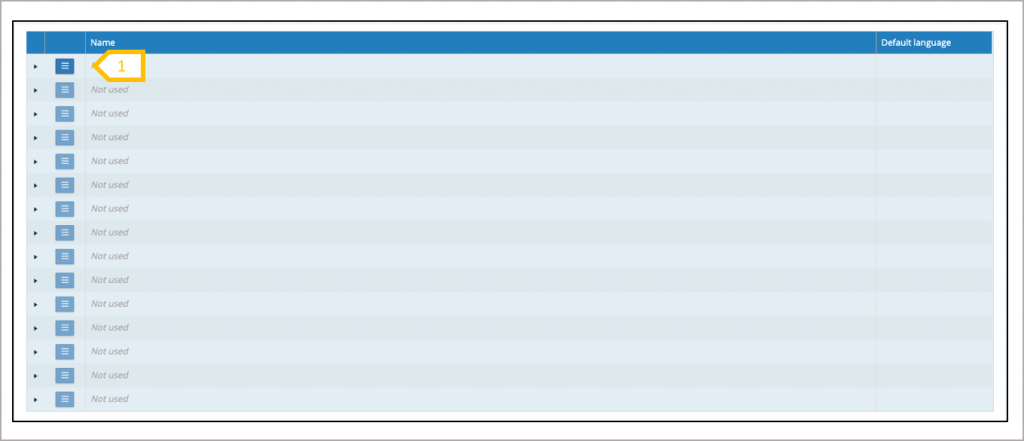
- Click on the action button to Add headline task template
Task Template – Entering task name and detail
The task template has a name and a description, the description should be describe the actions required by the user to complete that task. When a task is assigned to a payroll, the description can be edited to reflect the specific process of for that payroll.
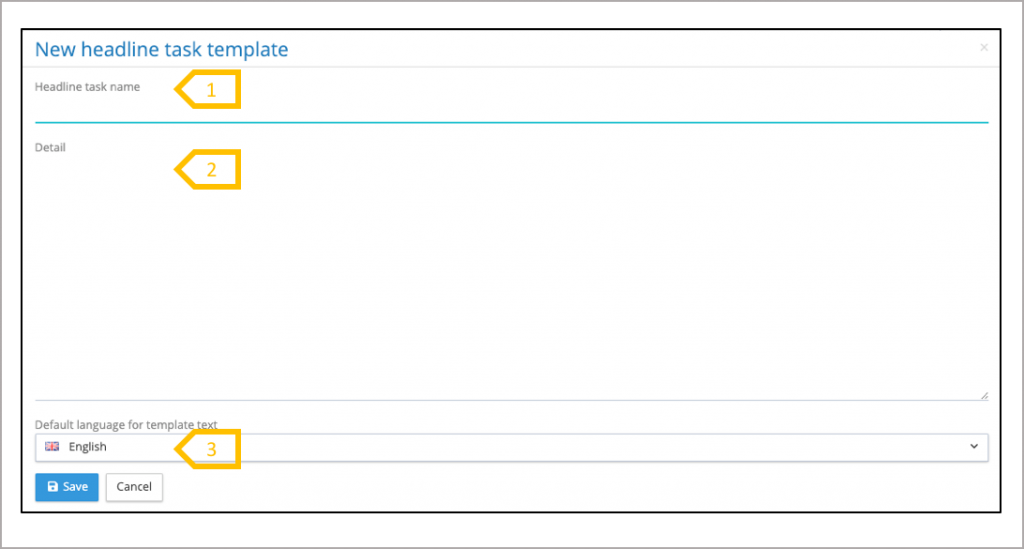
- Give the task a meaningful name.
- Add a description of the actions to be taken by the user to complete the task.
- Select the default language for a task, when the task has been saved translations to any language can be set-up for the task name and description.
Task Template – Entering headline task name and detail
When the first headline task has been saved, the system presents four options, edit the task, create a new headline task, create a new sub-task or exit to the task list.
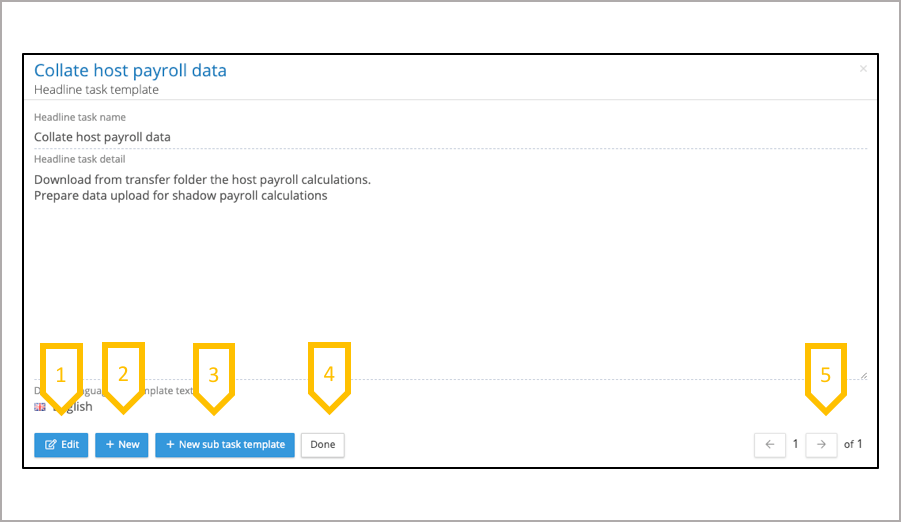
- Use the edit button to change the text of your task, if you are editing a task that has already been assigned to a payroll you should not change the meaning or purpose of that task.
- Create another headline task.
- Create a sub-task template.
- Exit to the task list5.Page through the headline tasks for this processing type.
Task Template – Creating a sub-task template
A headline task can have any number of sub-tasks, these can be enabled and assigned to user for a given payroll. The structure of a headline task is same as a headline task.
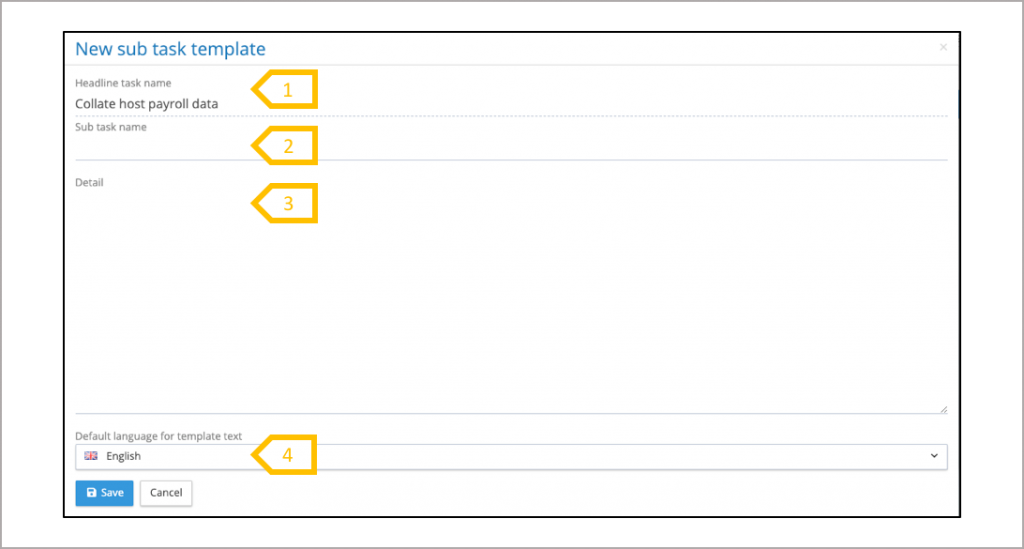
- Name of the headline task to which the sub-task is assigned.
- Give the task a meaningful name.
- Add a description of the actions to be taken by the user to complete the task.
- Select the default language for a task, when the task has been saved translations to any language can be set-up for the task name and description.
Task template – Reviewing and maintaining task templates
When setting up a task template for a new tenancy, it is important to map the end to end payroll process agreeing the headline tasks which will be needed by all or some of the payrolls. Start creating these tasks for the processing type (Standard, Expat or Pension).
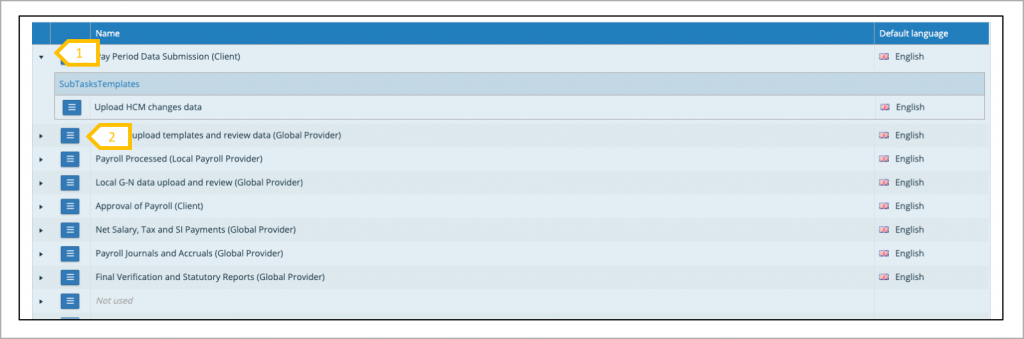
- Click arrow to list the sub tasks belonging to a headline task.
- Click on the action button to view the task detail or to add a translation to a task.
Task template – adding task translations
In the example below the Spanish language has been chosen.
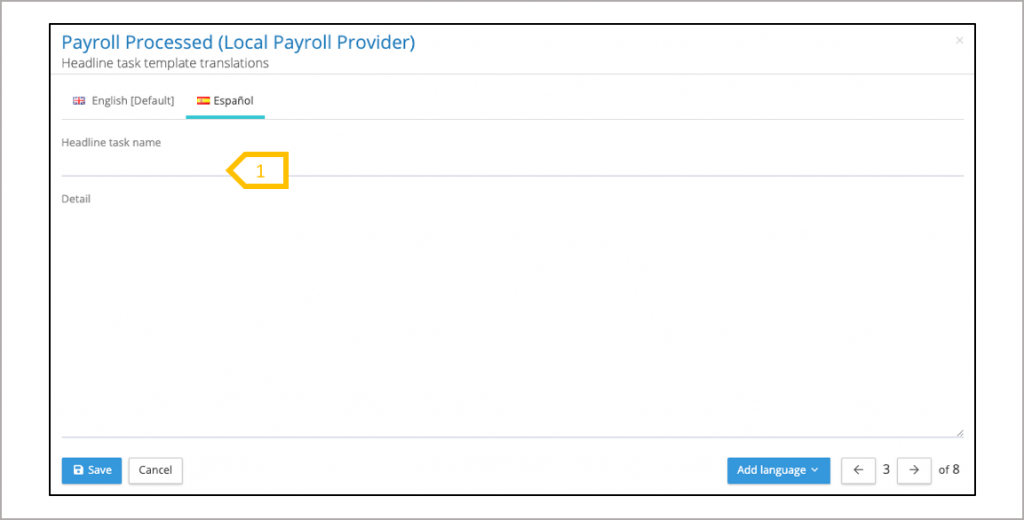
- Enter task name and detail in the translated language.