System Users
There are two types of IPPEX Cloud users, system users and employee users. A system user is a person who is performing administrative functions. To learn more about the relationship between users, user groups and payroll groups, please study the administration overview documentation. From the administration functions selectsystem users. Only tenancy administrators can manage and create new system users.
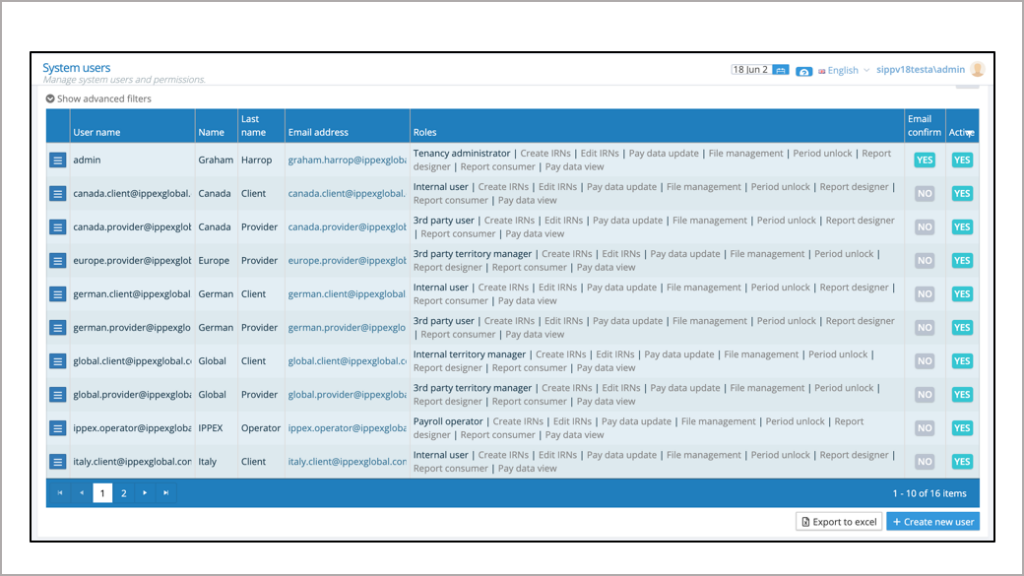
- Click on column headings to sort by type.
- Primary role and other roles.
- Only those users who have activated their account will show as confirmed users.
- Filter on active and inactive users.
- Export user list to Excel6.Create new user.
Creating a system user
Click on the + Create new User at the bottom right of user list. New users can also be created from contacts screen, A system user has to be created as a contact before they can become a system user.
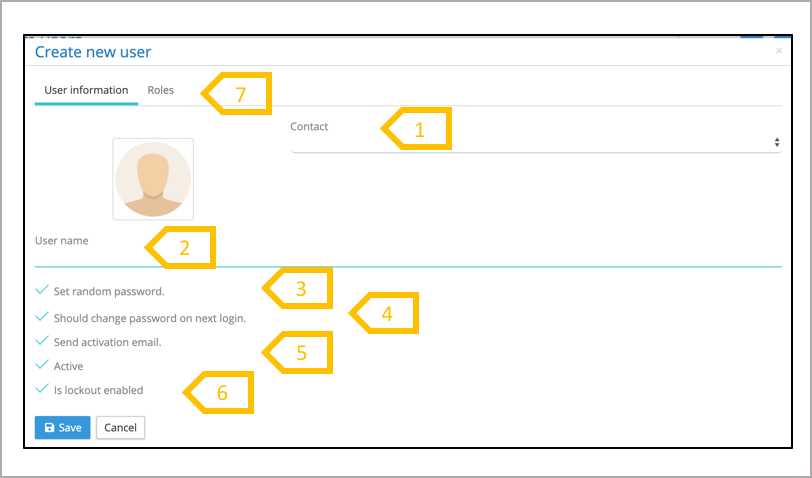
- Select from the available contacts who have not been set-up to be a user.
- System will default the user name to the contacts email address, and unique name can be given to a user.
- Set a random password, when checked the system will generate a random password for the new user, unchecked a specific password can be set for the user. This is useful when an organisations firewall removes the IPPEX system generated activation email. A user can activate their account with the tenancy ID, user name and password.
- Check should change password on next login, our advise is to do this every time.
- Send activation email – uncheck if the user is confirming their account manually.
- Check active and is lock-out enabled.
- Select roles to complete the user creation
Creating a system user – primary role and user group assignment
There are three components under roles, the primary role (type of user), other roles (allocating permissions to specific functions within the system) and user group (connecting the user to a user group, and payrolls via payroll groups). Go to Administration and Roles to understand the basic permissions each role is given.
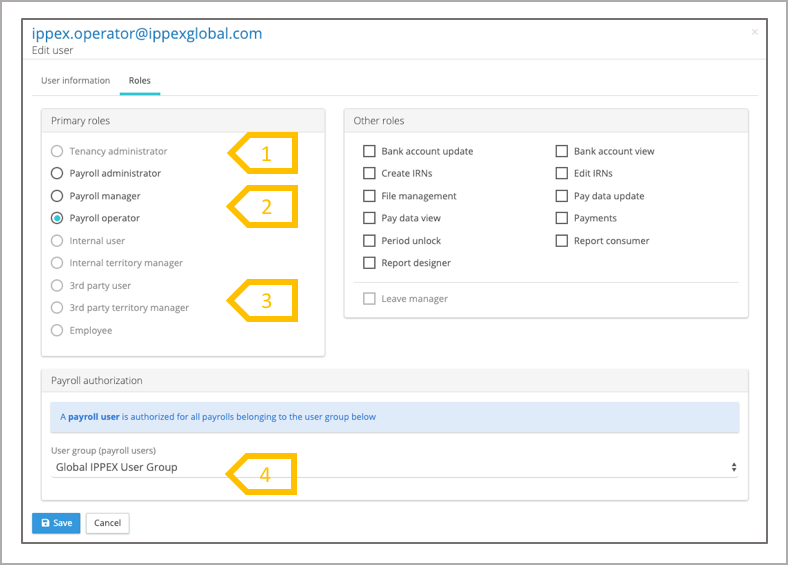
- Tenancy Administrator- typically this is restricted to a small number of technical staff supporting the payroll function. The tenancy administrator is responsible for configuring the system and managing the users, and as a consequence is a trusted person within the organisation.
- There are three levels of payroll users, the payroll administrator having more system privileges than a payroll managers and then payroll operators.
- Internal and 3rd party users have two roles (please refer to administration overview to understand the differences in these roles).
- User group assignment, payroll users can only be assigned to payroll user groups, similarly internal users and 3rd party user can only be assigned to their respective user groups. Tenancy administrators do not have a user group and a tenancy administrator cannot own a payroll, they should be independent to the payroll administrative function.
Creating a system user – Other roles
When a user is created, none, some or all other roles can be activated for a user. It is easy to add or remove these roles once a user has been created. Each other role gives access to a specific set of functions with the system.
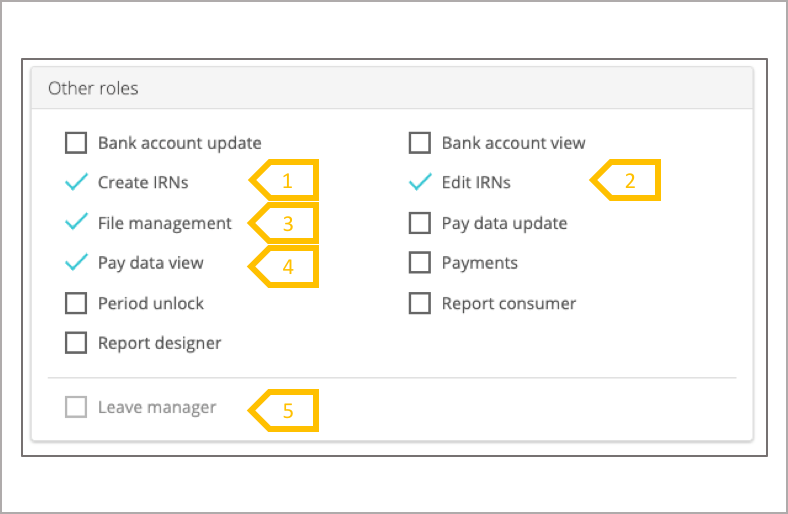
- All users can be assigned issues and reminders. When create IRNs is checked, a user can create IRNs, unchecked a user can still receive or be assigned to IRNs by another user.
- Edit IRNs, checked, enables a user to re-assign issues to new assignees.
- File Management – Access to file management system. Please note that transfer folders are assigned to payroll groups, review the user group and payroll group assignments to ensure the user has the appropriate access.
- Pay data view – The user can view the pay data but cannot change the pay data. They can also view the pay element groupings, fx rates and pay element GL code configurations.
- Leave Manager role is used in-conjunction with the leave management system.
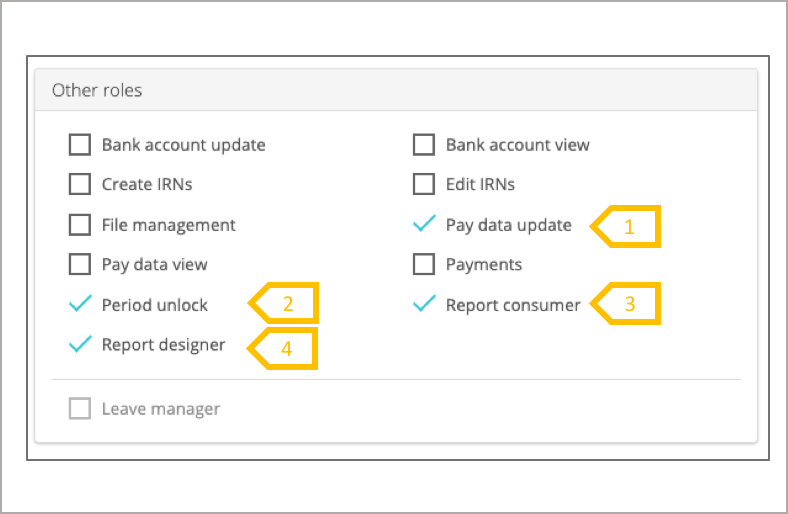
- Pay data update – This enables users to perform Employee upload, Pre and Post processing data uploads. This permission also allows the user to update pay element GL code configurations, pay element groupings and fx rates for the payrolls they have access to.
- Period Unlock – Any user with the pay data upload permission can lock a pay period, preventing any future uploads, they require the period unlock permission allows a period to be re-opened for upload.
- Report consumer – users with this permission can run reports but they cannot create new report templates. This role also allows the user to view the pay data for employees.
- Report designer allows the user to create new report configurations.
Creating a system user – Other roles – banking
Users who do not have either bank account view, update or payments will not see the bank menu items or being able to include bank details in an report. Bank account update and Payments enables a segregation of duties between two users.
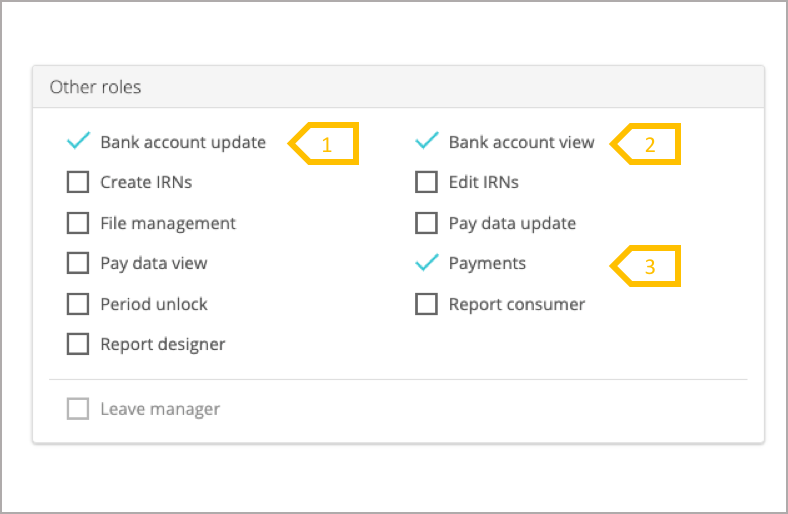
- Bank Account Update – This enables system users to create and edit employee bank accounts, create and edit debtor bank accounts. This permission also allows the upload of employee bank details. A user with this permission implicitly receives the bank account view.
- Bank Account View – Any user with this permission can view employee and debtor bank account details.
- Payments – Any user with this permission can create bank payment configurations and run bank payment file reports. (Generation of XML SEPA and Global Disbursement outputs)