Companies
All contacts in the system have to belong to a company. A company is the organisation to which a contact is a member of, that organisation can be a legal entity or a subsidiary of a business. When a new tenancy is created, the company connected to the tenancy administrator is also created. Go to Administration → Companies.
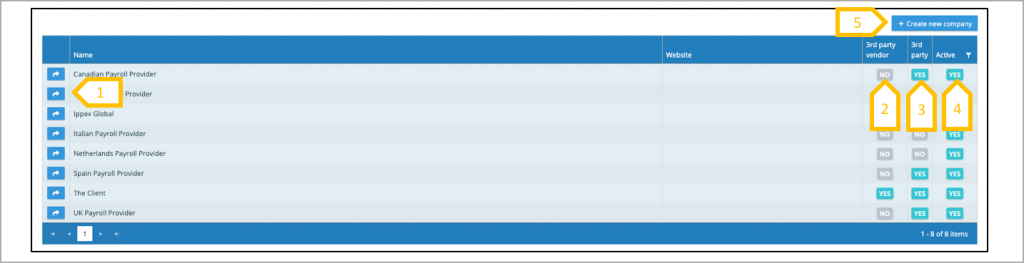
- Action button to view and edit the company
- A company can be set-up to be a 3rdparty vendor this function is currently not used by the system and will be repurposed for a future requirement.
- 3rdparty – This field is managed by the system it shows if a company has been selected as the 3rdparty to a payroll, this can be the client or a local service provider. See payroll creation to learn more about 3rdparty assignment.
- A company can be set to inactive, this means it cannot be selected for any future contacts, but does not affect the existing contacts or users assigned to the company.
- Click to create new company●
Companies – Create new company
To create a new company the minimum information needed is the company name. Complete the form and save.
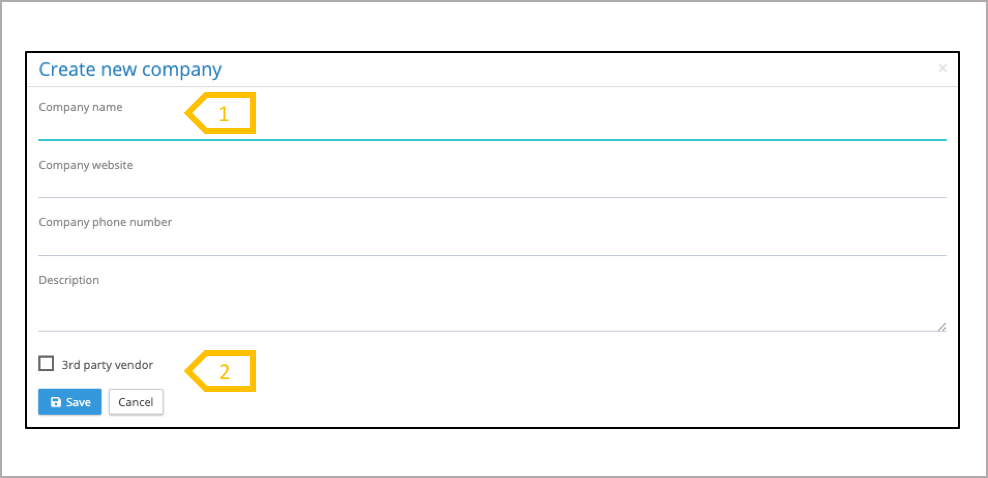
- Add company name (mandatory) and website, phone number and description (optional).
- Please do not user 3rdparty vendor
Companies – View and edit addresses
A company can have many addresses, such the headquarters and then all of the subsidiaries in each of the countries. If the system is being used to generate the global disbursements or local payment file, the valid local company name and address will be required. The payment configuration file will link the debtor and ultimate debtor organisation to a company address and will use the local name from that address.
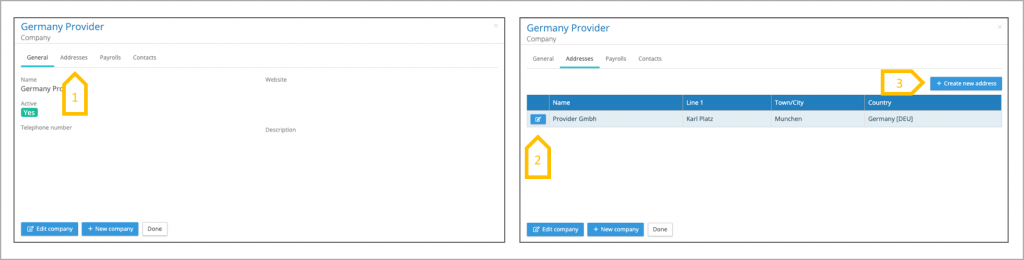
- Click on Addresses.
- View and exit existing company addresses.
- Create a new company address
Companies – Create new address
Any number of addresses can be added to a company. An address cannot be deleted from the system as it may be used in a payments file. The address can be edited, so if an organisation moves the address can be changed. There are four mandatory fields, local name, line 1, town/city and country.
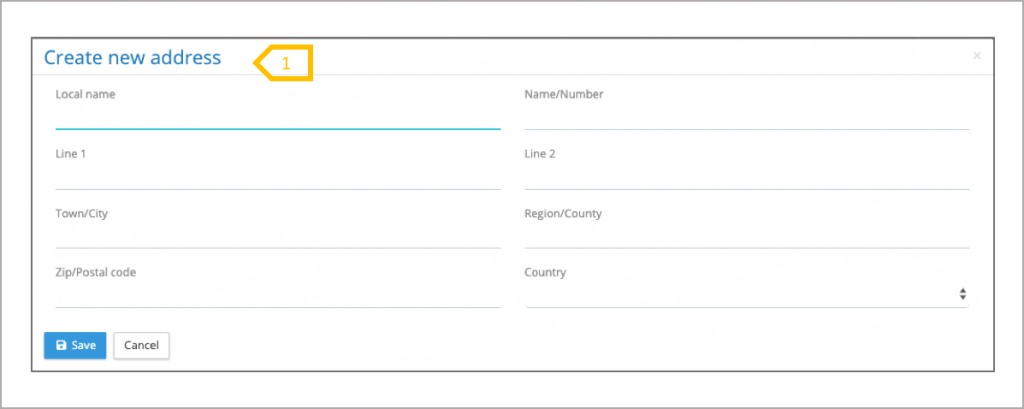
- Complete the address fields and save