Dashboard
The dashboard provides a summary of the payroll headline tasks by payroll and provides information on the number of open issues, reminders and notes for a payroll. The dashboard also contains a number of links to other functions in the system.
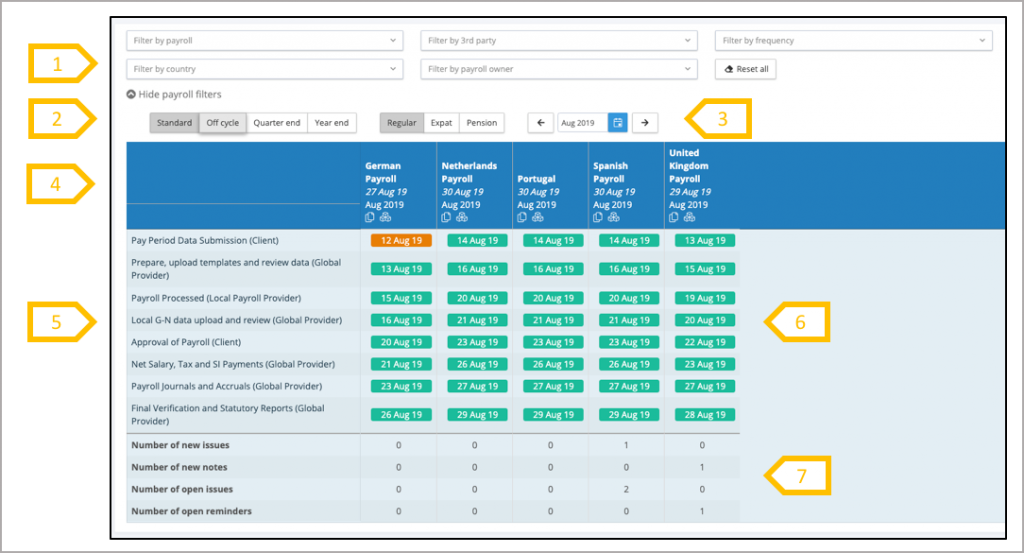
- Payroll filters to reduce the number of payrolls in the dashboard.
- Add Task types and select processing type.
- Page through the calendar months.
- Payroll name and pay date
- Headline tasks
- Headline due dates for each of the payrolls
- A count of the number of issues, reminders and notes for the payroll
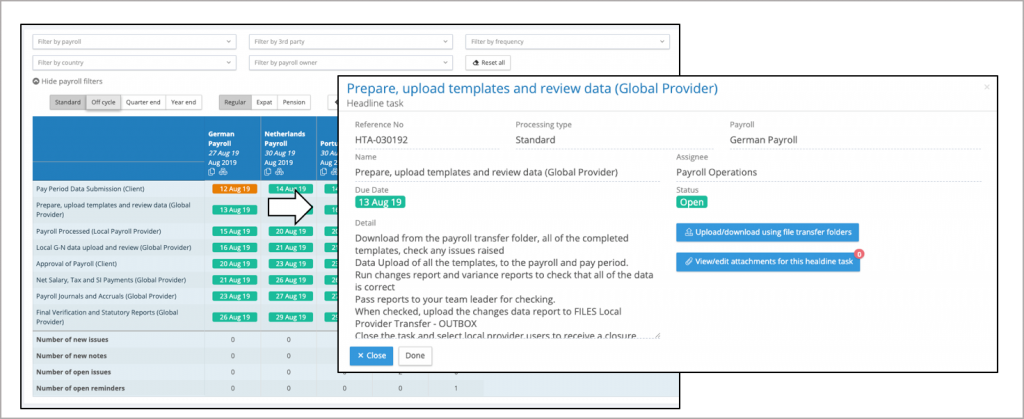
Dashboard – click through to the task detail
Click on any of the dates in the dashboard and it will open the task detail
Dashboard – pay period links and information
A quick way to focus in on a payroll to look at the tasks and files for a pay period is to use the links in the dashboard header, The header also shows if a payroll is locked for pre and post processing uploads.
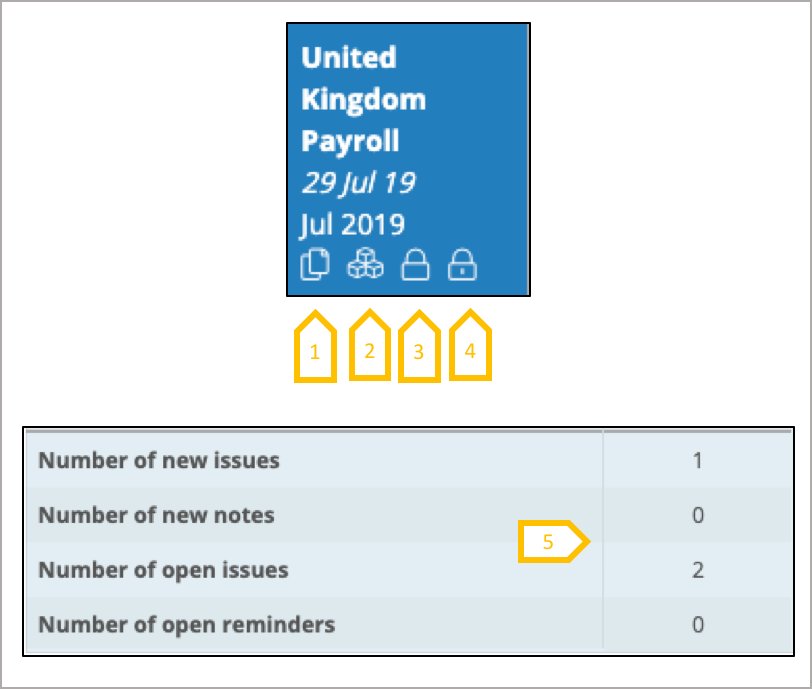
- This link opens the file management system in the folder hierarchy for the payroll and pay period
- This link opens the tasks list for the payroll and pay period
- This is the symbol to show the pre-processing data is locked for this payroll and pay period.
- This is the symbol to show the post-processing data is locked for this payroll and pay period
- Click on the number for the issue, reminder and notes category you wish to view, and the system will open the list for that category for the payroll and pay period.
Dashboard – User views
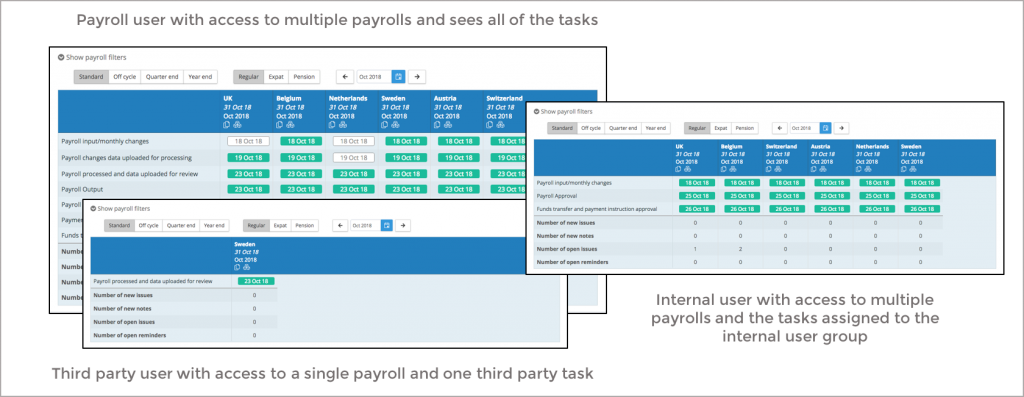
The number of headline tasks listed in the dashboard will vary based on the user type, a payroll user sees all of the tasks for a payroll, an internal user will see only those tasks associated with their internal user group or group(s) if you are a territory manager, a third party user will see only those tasks associated with their 3rdparty user group or group(s) if you are a territory manager.