Tasks
From the main menu select tasks, the screen will open the task list on My tasks and filtered on the open tasks for the next five days. The number of tasks visible to a user will depend on their user type, user group and payroll group. To see tasks assigned to other users click on All tasks.
The layout of the filters and columns in the task list will vary according to the size of the browser window. The IPPEX Cloud responds to the screen resolution, some data fields will be removed at a lower resolution.
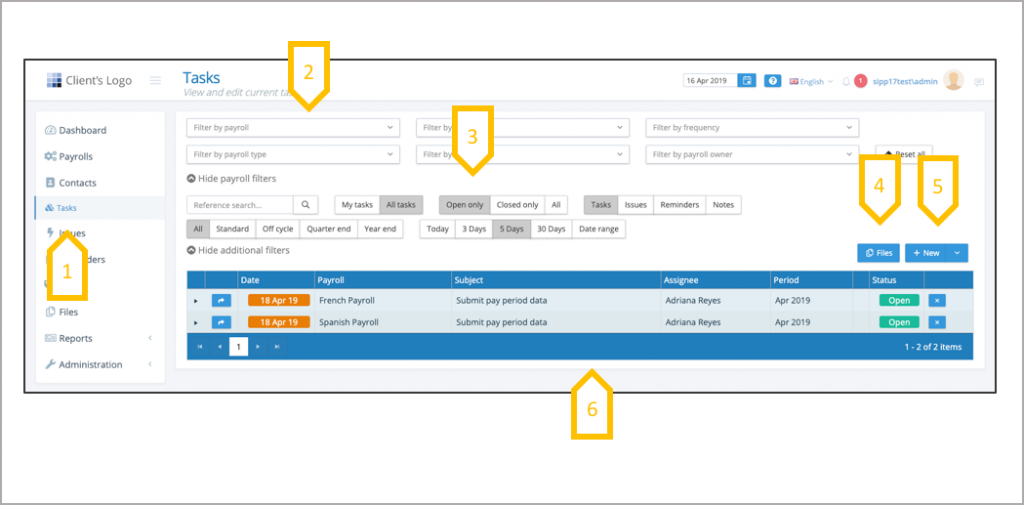
- Main menu – select tasks.
- Payroll Filters.
- Additional filters and links to other functions.
- Link to files.
- Creation of new issues, reminders and notes.
- Task list
Tasks – Payroll Filters
Payroll filters can be found on a number of the functional screens, it enables a user to reduce the information provided by each function based on the filter selection made.

- Show payroll filters expands the payroll filter box.
- Hide payroll filter closes the payroll filter box.
- Filter by payroll provides a list of payrolls, select a payroll.
- Filter by payroll type, standard, expat or pension payroll.
- Filter by third party assigned to a payroll.
- Filter by the country assigned to a payroll.
- Filter by payroll frequency, such as monthly, weekly etc.
- Filter by the payroll owners assigned to a payroll.
- Reset the filters to show all data
Tasks – Additional Filters (1)

- Reference Search – Every task, issue, reminder and note has a system reference. By entering a reference into the search field it will open the item relating to that reference.
- My Tasks / All Tasks – The number of tasks visible to a user will depend on their user type, user group and payroll group.The task list always opens on My Tasks. To view the tasks assigned to other users click on All Tasks. If you cannot see the tasks you expect to see, check the other filters and the time period you have selected.
- Open only, Closed only, All– An open task is one that has not been closed (completed). The task list presents the open tasks first, use the filter buttons to view the closed tasks or both open and closed tasks. When a task has been closed, you can view when the task was closed and who closed the task.
- Tasks, Issues, Reminder and Notes – This provides the facility to jump between tasks, issues, reminders and notes whilst retaining the current payroll filter and additional filter settings. A user reviewing a specific payroll for a given time period, can see all of the relevant tasks, issues, reminders and notes by jumping between each of these areas.

- All, Standard, Off cycle, Quarter end and Year end – The task list presents All tasks first, to narrow the focus on tasks relating to a specific processing types such as Off-cycle, select the filter required.
- Today, 3 Days, 5 Days, 30 Days, Date Range– If the task list is opened from the main menu it will present the tasks due over the next five days (and any overdue tasks). If the task list is opened from the fast path on the dashboard it will show the tasks due in the month that had been selected on the dashboard (and any overdue tasks). The date filter offers other fixed time periods and the date range filter allows for any time period between two dates (it also includes this week, next week, this month and next month).
- Files– opens the file management system.
- + New – Creation of a new issue, reminder or note.
- Hide additional filters – collapses the filter menu (to expand click on Show additional filters).
Tasks – Task List
The task list presents a list of tasks based on the users permissions and the filters that have been selected. The task list shows all of the headline tasks, headline tasks may have sub-tasks and the task list can be expanded to show the sub-task for one or a number of headline tasks. The task list display is responsive to the size of the browser widow, the smaller the display the fewer columns will be shown.

- Clicking the header of a column the task list can be re-ordered by date, payroll, subject, assignee and period by ascending or descending order.
- The system opens the task list displaying all headline tasks based on the filters that have been set.
- A headline task may have a number of sub-tasks, click on the arrow head next to the headline task to expand the task list to include the sub-tasks for that particular headline task.
- The system presents ten tasks per page, click here to page through the tasks, if there are too many apply some filters to your task list.
Tasks – Due date
The due date for each task is given a colour based on its status and the due date in relation to today’s date.

- Red background is a task that is overdue.
- Orange background and a red exclamation mark is a task that is due today.
- Orange background is a task that is due in the next 2 or 3 days.
- Green background is a task that is due in 4 days or longer.
- Some tasks are enabled to have an on-hold status, an on-hold task contains a ‘pause type’ icon.
- White background and grey writing is a task that has been closed and was closed on-time.
- White background and red writing is a task that has been closed and was closed late.
Tasks – Managing tasks from the task list
The task list is there to manage the status and delivery of a process.
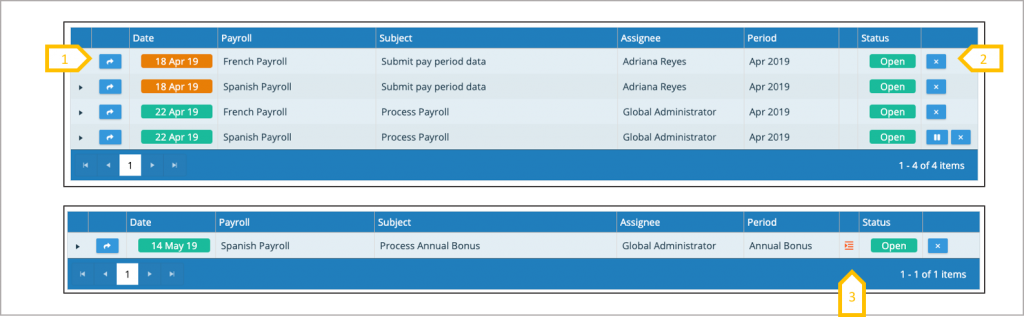
- To open the task detail click on this symbol.
- A task can be closed from the task list by clicking on close action button.
- Off cycle, quarter-end and year-end tasks have a symbol which appears in this column.
Task Detail
The task detail can be opened from the task list, the detail contains instructions on how to deliver the task and links to the file system. The task can be closed from the task detail or from the task list.
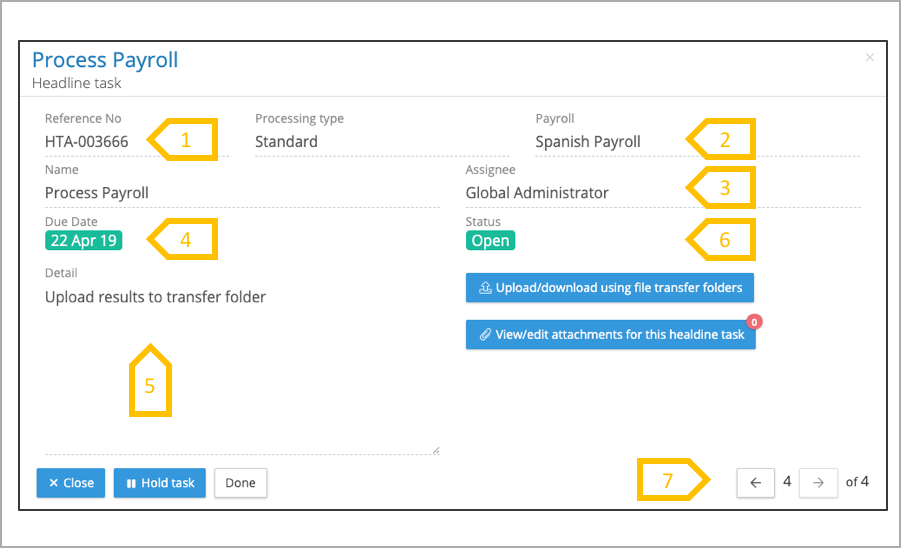
- Task system reference number.
- The payroll belonging to the task.
- Task owner.
- Task due date.
- Detail – The tasks may contain specific instructions on how to complete the task.
- Task status – Open, closed and On-hold (this option is only available if it has been enabled for this particular task).
- Page through the tasks in the task list
Task actions
The following actions can be performed from the task detail: file attachment, links to the file management system, closing a task and putting a task on-hold (this option is only available if the task has been enabled for On-hold).
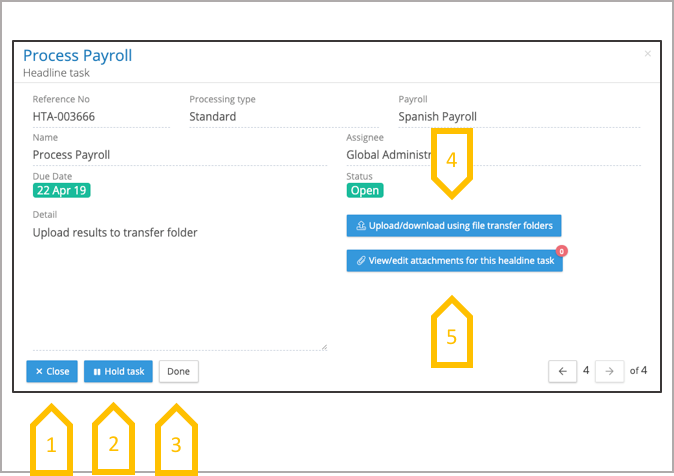
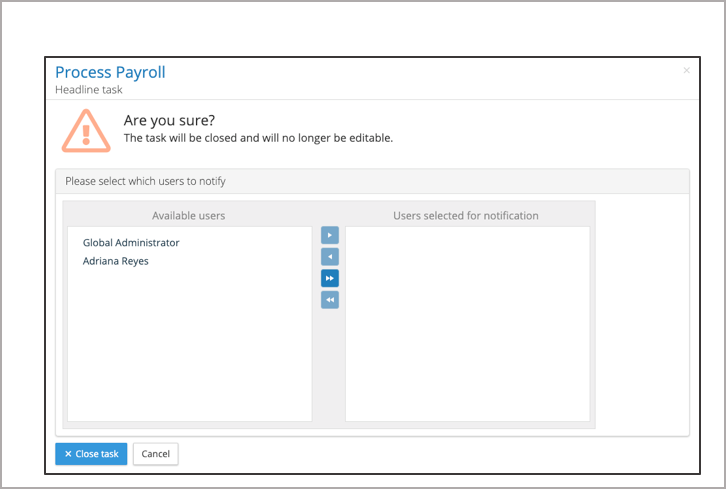
- Close task – When the actions for a specific task have been completed, the task can be closed. Click on close and it will open a further screen for notifying users.
- On-hold– Some tasks can be enabled to be put on-hold, typically this is for tasks where a task cannot be closed due to an issue or some other event that is impacting the task. Click on the on-hold action button to change the status of the task.
- Done– exits the task detail window returning to the task list.
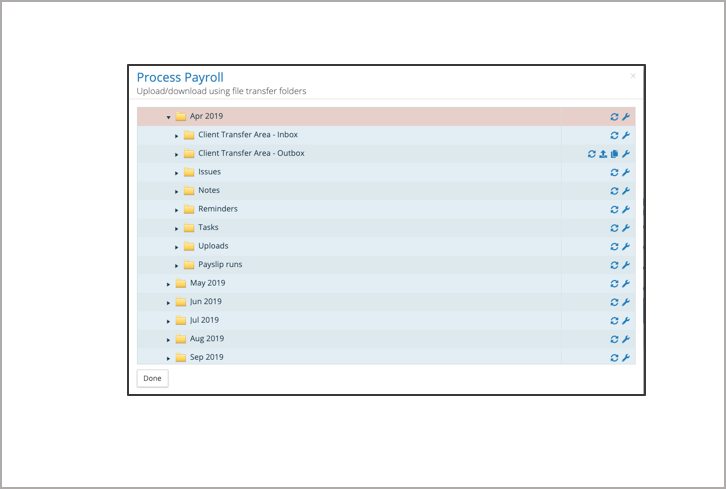
- Upload/download using file transfer folders – The task action may require placing or retrieving files from the file management system, this opens a new window to the file management system with the file hierarchy displaying the payroll and pay period associated with that task.
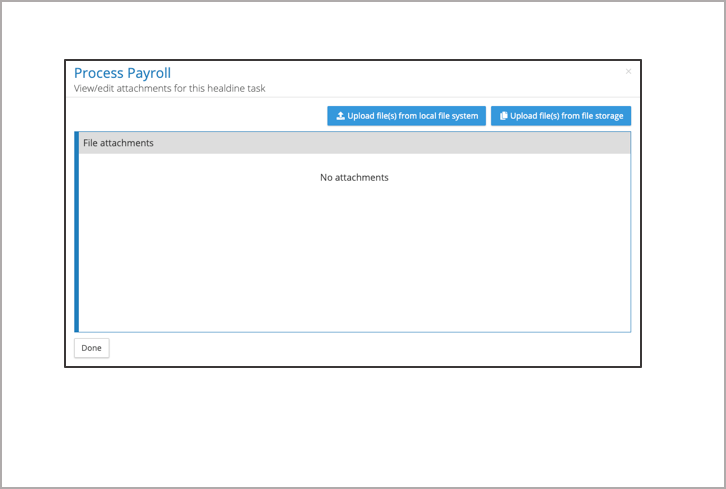
- View/edit attachments for this headline task – Documents can be attached to the task and then viewed/downloaded.●
Task close
When the close button has been clicked, a new dialogue appears asking you if you are sure. All the users with access rights to the task will be listed,
- Close task – When the actions for a specific task have been completed, the task can be closed. Click on close and it will open a further screen for notifying users.
- Some tasks can be enabled to be put on-hold, typically this is for tasks where a task cannot be closed due to an issue or some other event that is impacting the task. Click on the on-hold action button to change the status of the task.
- Done – exits the task detail window returning to the task list.
- Upload/download using file transfer folders – The task action may require placing or retrieving files from the file management system, this opens a new window to the file management system with the file hierarchy displaying the payroll and pay period associated with that task.
- View/edit attachments for this headline task – Documents can be attached to the task and then viewed/downloaded. ●
Task – Upload/Download using file transfer folders
The following actions can be performed from the task detail, file attachment, links to the file management system, closing a task and putting a task on-hold (this option is only available if the task has been enabled for On-hold).
- Close task – When the actions for a specific task have been completed, the task can be closed. Click on close and it will open a further screen for notifying users.
- Some tasks can be enabled to be put on-hold, typically this is for tasks where a task cannot be closed due to an issue or some other event that is impacting the task. Click on the on-hold action button to change the status of the task.
- Done – exits the task detail window returning to the task list.
- Upload/download using file transfer folders – The task action may require placing or retrieving files from the file management system, this opens a new window to the file management system with the file hierarchy displaying the payroll and pay period associated with that task.
- View/edit attachments for this headline task – Documents can be attached to the task and then viewed/downloaded. ●
View/edit attachments for this headline task
The following actions can be performed from the task detail, file attachment, links to the file management system, closing a task and putting a task on-hold (this option is only available if the task has been enabled for On-hold).
- Close task – When the actions for a specific task have been completed, the task can be closed. Click on close and it will open a further screen for notifying users.
- Some tasks can be enabled to be put on-hold, typically this is for tasks where a task cannot be closed due to an issue or some other event that is impacting the task. Click on the on-hold action button to change the status of the task.
- Done – exits the task detail window returning to the task list.
- Upload/download using file transfer folders – The task action may require placing or retrieving files from the file management system, this opens a new window to the file management system with the file hierarchy displaying the payroll and pay period associated with that task.
- View/edit attachments for this headline task – Documents can be attached to the task and then viewed/downloaded. ●
Tasks – Tasks enabled for On-hold
The task list is there to manage the status and delivery of a process.
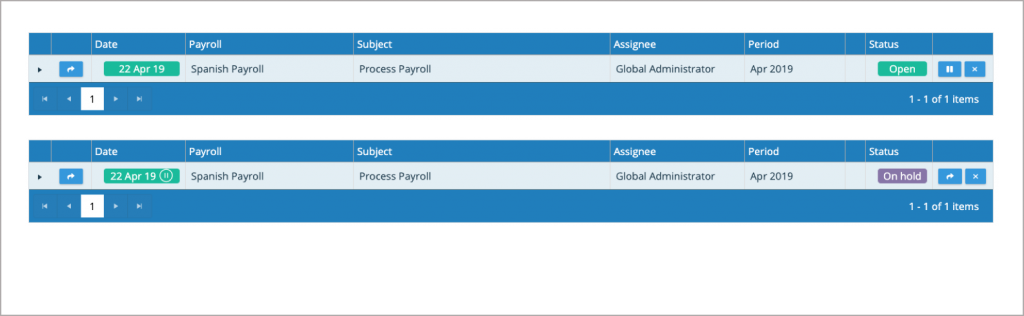
Some tasks can be enabled to be put on-hold, typically this is for tasks where a task cannot be closed due to an issue or some other event that is impacting the task. Click on the on-hold action button to change the status of the task.