Payroll Reporting – Changes Report
A changes report is used to export all of the employee data and payroll data changes applied to a payroll in a pay period. The changes report determines the changes made between the date and time of a period’s pre-processing lock and the previous periods date and time of a pre-processing lock. This could include multiple changes to an employees salary or address. The report configurator is used to select the data fields to be included in the report.
The changes report is a multi-tab report:
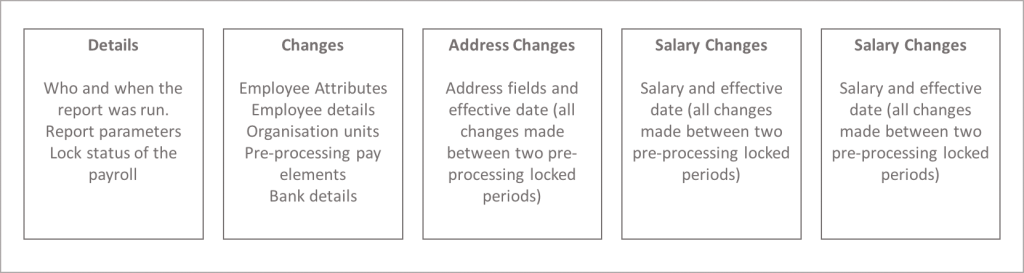
Running a Changes Report
A changes report enables a user with reporting permissions to generate a report that details the change to employee attributes, employee details, organisation units and pre-processing pay elements for a given pay period. A changes report utilises one or more changes report configurations. There are two steps to generating a report, select the report configuration, then select the reporting paraments, pay period and language. The completed report is stored in My Files.
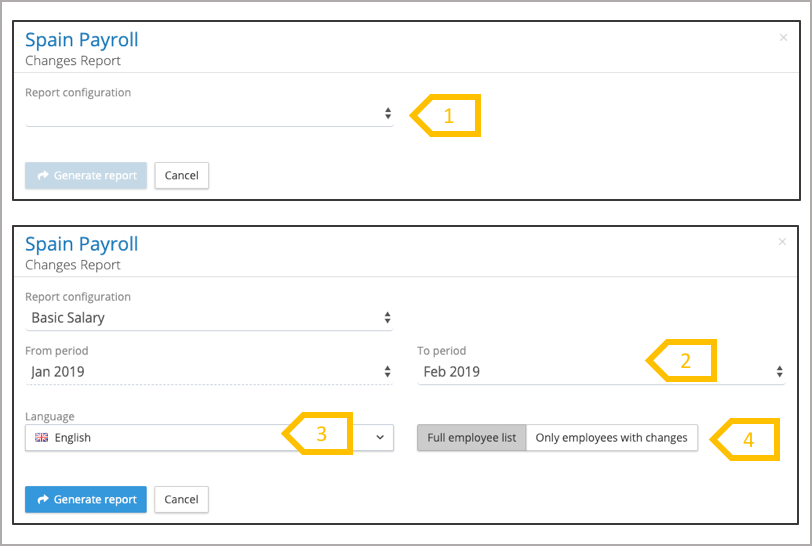
- Select a report configuration, if there no configurations in the drop down menu, go to changes report configurations to create one.
- Select the ‘To period’, the system will automatically populate the from period.
- Select the reporting language for the report headings (pay elements and employee details). If translations have not been added for the language chose, the headings will be in the default language.
- List employees all employees or only those with changes
Report completion notification
All of the payroll and pay period reports are generated in a background process, when the process is complete, the system sends an email to the user who requested the report. It will state if the report is successful or not, and will provide a link to the report and results, which can be also found in My Files.
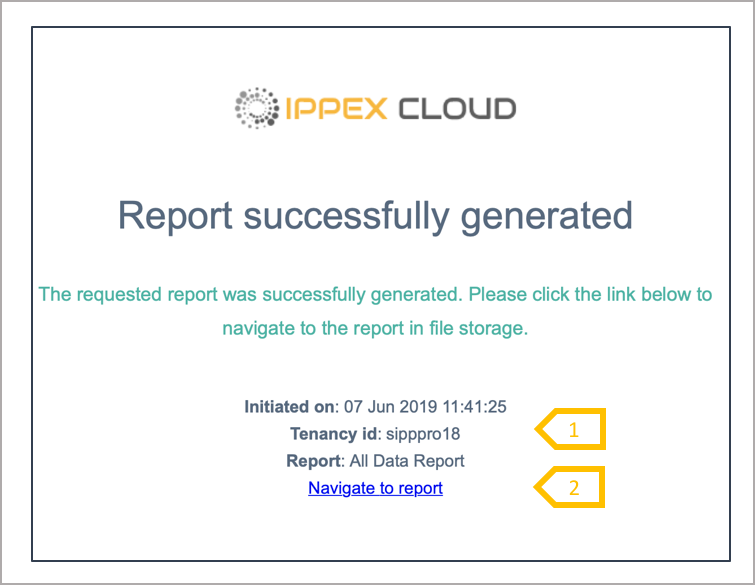
- Type of report requested and client tenancy.
- A link to retrieving the report from My Files.
View or downloading a report
To access a report generated by the system, open files and select My Files. The system has a folder hierarchy of report type, payroll and report configuration. In each reporting folder, the system stores a file called details which contains the report parameters selected, results which lists if the report is successful or what errors had been encountered and the report.
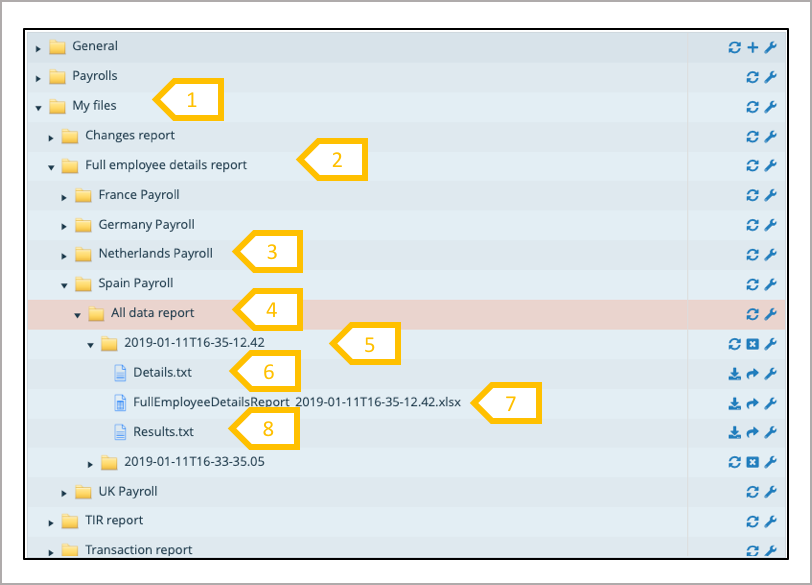
- Open my files folder.
- A folder per reporting type (All data, variance or changes).
- A folder per payroll.
- A folder for each reporting configuration.
- Folder for the generated report.
- Details – reporting parameters.
- The report – view, download, rename or transfer report.
- Results – outcome of the report process
Creating a new changes report configuration
A report configuration determines the which employee attributes, employee details and pay elements appear in a report and the ordering of those columns. A report configuration has two tabs, report details and report columns.
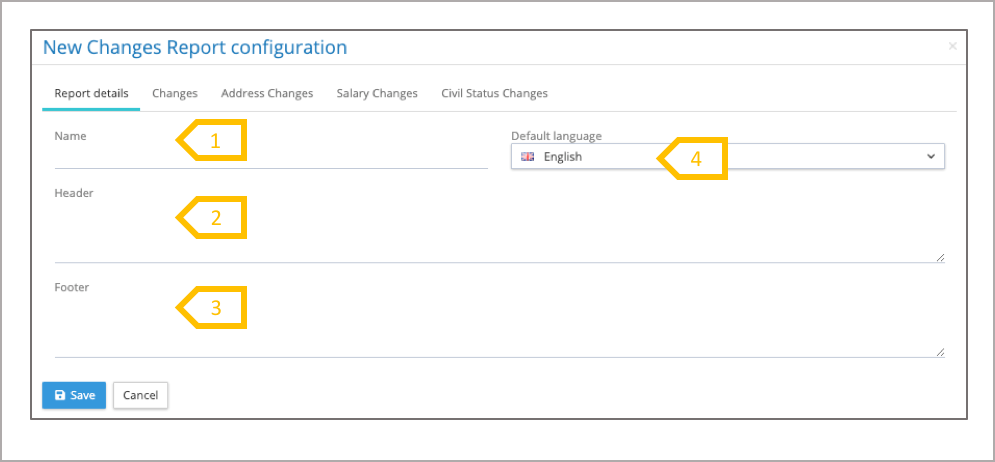
- Give the report a name.
- Add a header if needed, this will appear in the first cell of the report.
- Add a footer is needed, this will appear in the cell below the data.
- Select the default language, this is the language shown on the kick off page. The language can changed changed at the time of running the report.
A report configuration has two tabs, report details and report columns. In the report columns tab, drag a drop the elements into the report column pane, positioning them in the order that they will appear on the report.
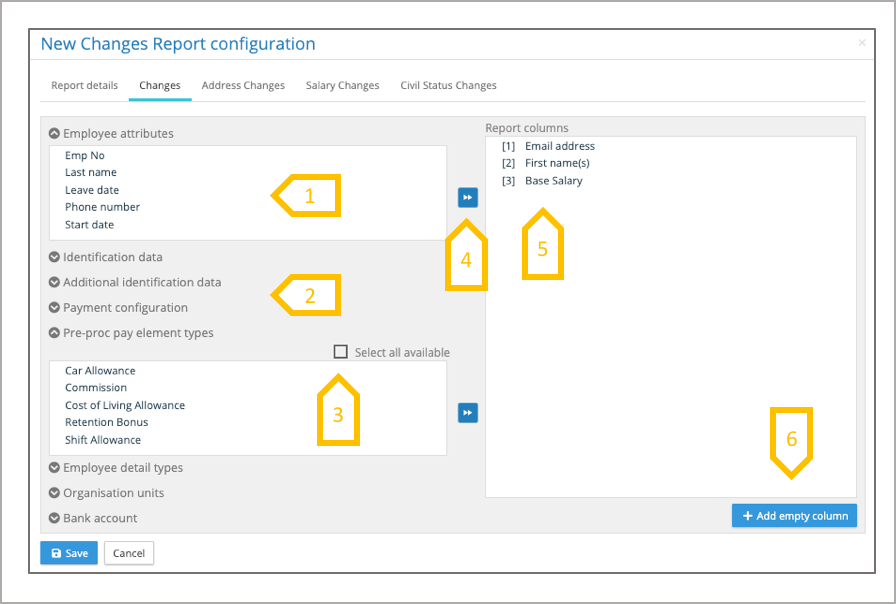
- Employee attributes.
- Expand other data types.
- Select all available, check this box to automatically add to the reporting columns any new elements for that category created on the system after the report configuration had been created.
- This will move all of the element into the reporting columns selection area.
- Position by dragging and dropping the reporting columns in the order needed for the report.
- Click on add an empty column to be included in the report
Creating a new changes report – other tabs
Click on the address, salary and civil status tabs to select the data fields required for the report.
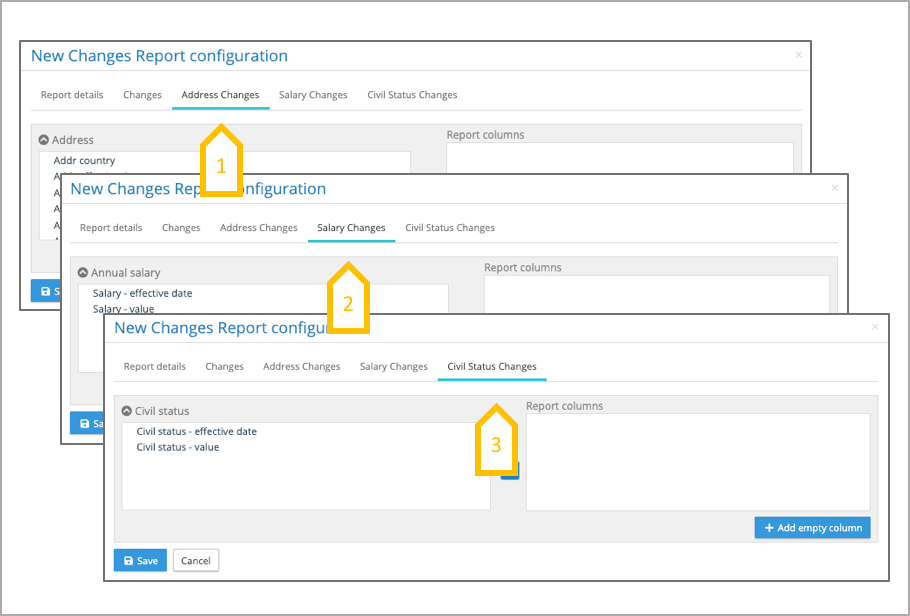
- Address changes.
- Salary changes.
- Civil status changes