Employees
Using the payroll action button select select pay data → employees. This provides the list of employees on the payroll, Employees are set-up and held against a payroll. An employee can be a member of multiple payrolls. The employee payroll instances are linked by the employee user account and their email address. Employees are added or updated either using employee upload or directly editing the employee record on the screen. The employee record is permanent, it cannot be deleted, the start date and leave date showing when they were employed.
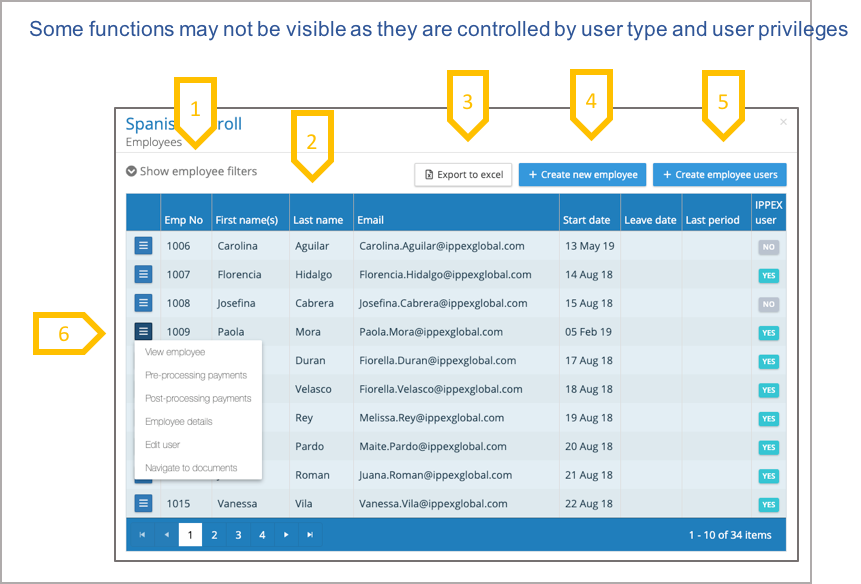
- Show employee filters, find employee by employee number or surname.
- Click on heading to sort the values by that heading.
- Export employee list for this payroll.
- Create new employees – enter employee record directly into the application (alternative to employee upload).
- Create employee users – this creates the user accounts (this is the step before employee activation)6.Action button for employee functions
Create new employee
To add a new employee to a payroll click on Create a new employee at the top of the employee screen. The other method to create a new employee is to user employee upload.
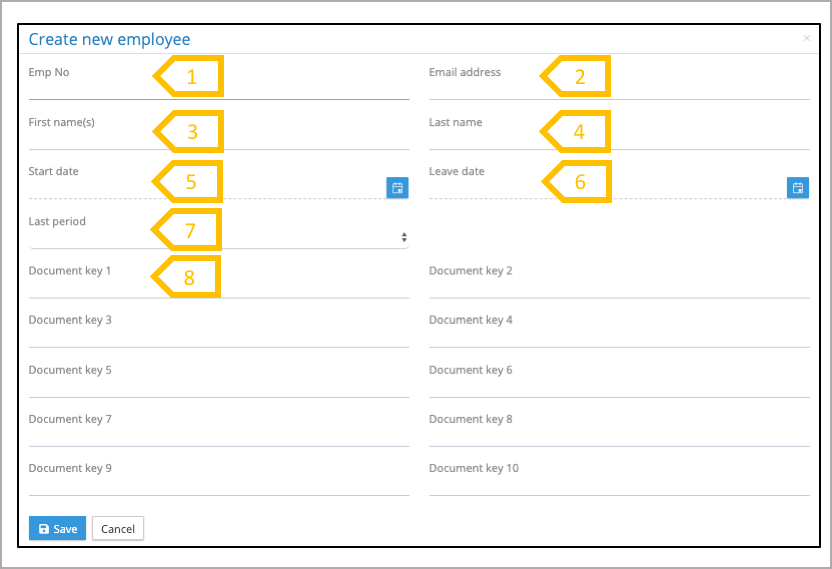
- Input first name (mandatory).
- Input last name (mandatory).
- Input employee number (mandatory), understand the implications of using employee numbers with leading zeros.
- Email address (mandatory).
- Start date – is their hire date (mandatory).
- Leave date – is the date an employee has left their employment.
- Last pay period – this is the last pay period in which an employee is processed and it cancels any persistent employee details or pay elements for that employee.
- Document keys (1 to 10) are used for the PDF document upload process, to match documents to employees. See user guidance for initiate PDF document run.
Create employee users
An employee has to be an employee user to have access to the employee portal. An employee users are different to a system users, as an employee can only access the employee portal.
There are two steps to enable an employee to gain access to the employee portal, creation of employee user and then activation of the employee user account (see user guidance for employee users). Click on + Create Employee Users.
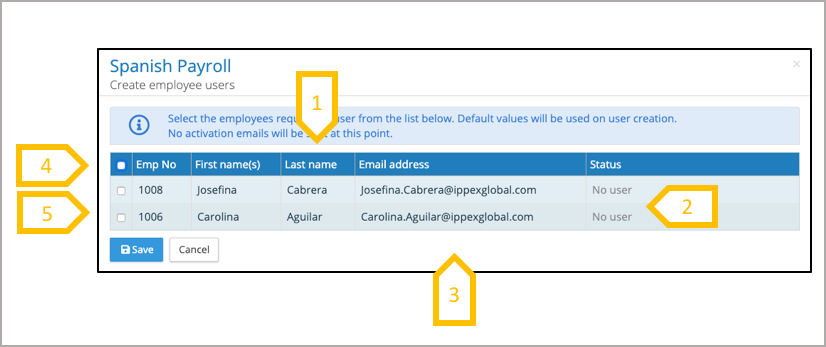
- Click on heading name to sort the list of employees by that heading.
- The list will contain all of the employees on that payroll that are not a system user.
- If the email address is identical to the email address contained in a user account on another payroll it will link the employee to the existing user account.
- Select all employees in the list to create user accounts.
- Select individual users in the list to create user accounts.
View employee
Using the employee action button select select view employee, this will show all of the employee record fields.
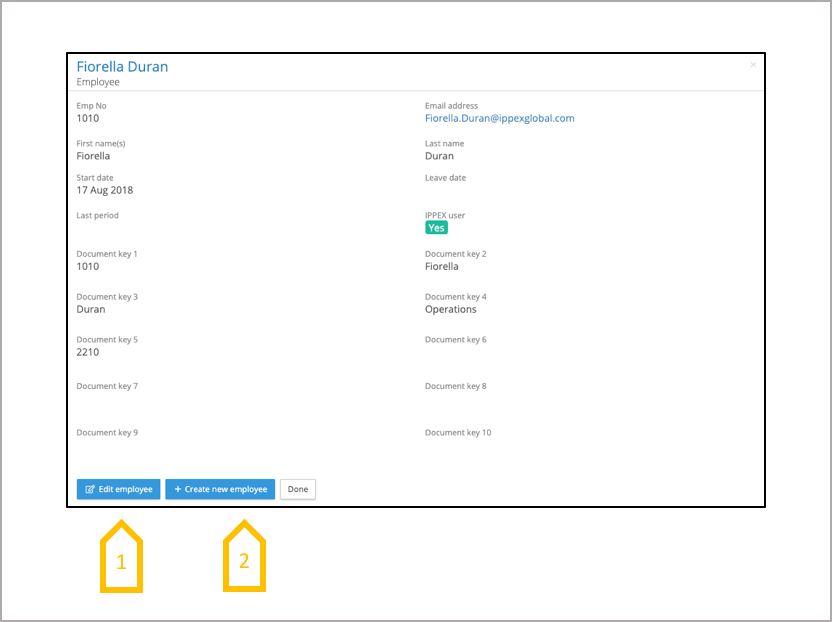
- Edit employee – The employee record can be edited directly in the system, the alternative is to use employee upload to change an employee record.
- Create new employee – to add a new employee record to this payroll.
Pre-processing payments
Using the employee action button select pre-processing payments, this will show all of the employee pre-processing payments by payroll year and by pay period. The pre-processing payments are uploaded to the IPPEX system by payroll and by pay-period. Pay elements can be set to be persistent, the value for a persistent pay element caries over from one pay period to the next, until changed or cleared. Typically, salary and allowances are created as persistent pre-processing pay elements and commission non-persistent.
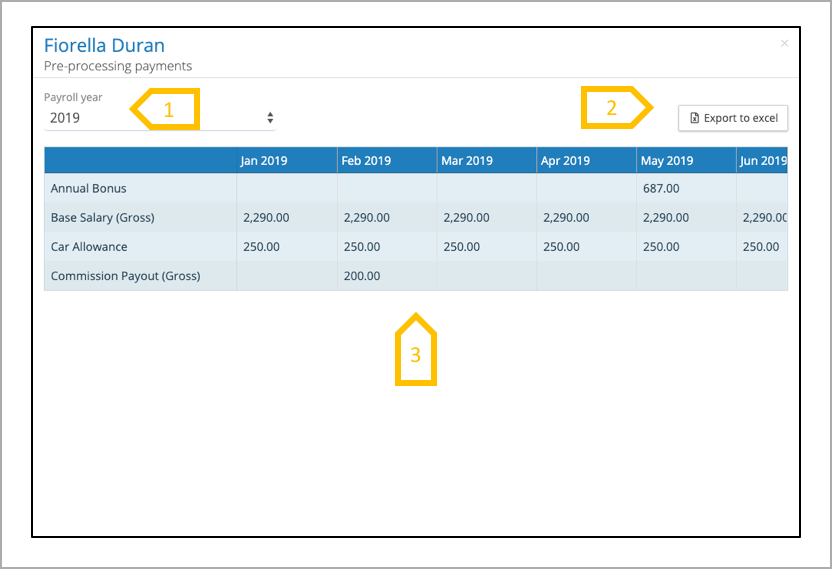
- Select the payroll year.
- Export the data to Excel, this will download all the values in the table for the payroll year selected.
- Use the cursor to scroll across the pay periods and down the pay elements if they extend beyond the viewing area of the screen.
Post-processing payments
Using the employee action button select post-processing payments, this will show all of the employee post-processing payments by payroll year and by pay period. The post-processing payments are uploaded to the IPPEX system by payroll and by pay-period. Post-processing payments are the stored values from the gross to net report for the payroll.
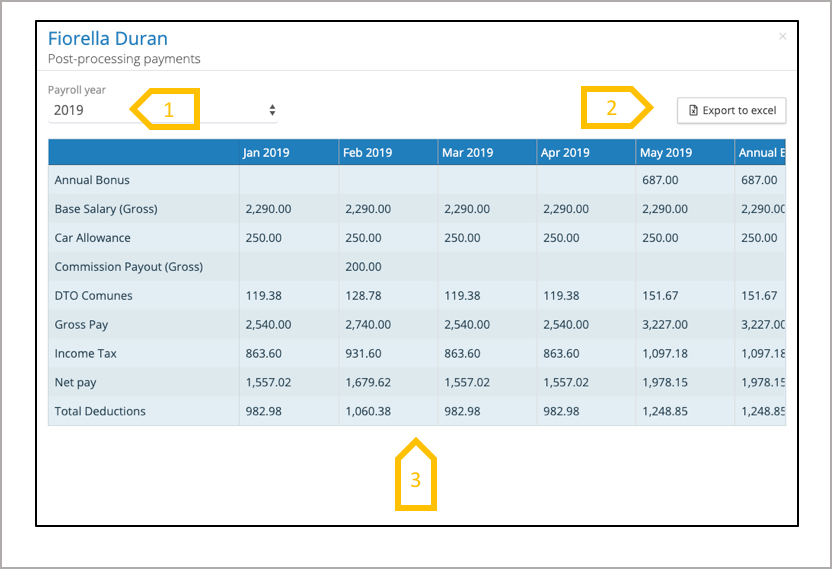
- Select the payroll year
- Export the data to Excel, this will download all the values in the table for the payroll year selected.
- Use the cursor to scroll across the pay periods and down the pay elements if they extend beyond the viewing area of the screen.
Employee Details
Using the employee action button select employee details, this will show all of the employee details by payroll year and by pay period. The employee details are uploaded to the IPPEX system by payroll and by pay-period. Employee details can be set to be persistent, the value for a persistent employee details caries forward from one pay period to the next, until changed or cleared. Employee details are used to capture non-pay data which is needed to drive the local payroll process, such as tax references, annual salary, spouse.

- Select the payroll year.
- Export the data to Excel, this will download all the values in the table for the payroll year selected.
- Use the cursor to scroll across the pay periods and down the employee details if they extend beyond the viewing area of the screen.
Organisation unit values
Using the employee action button select Organisation unit values, this will show all of the organisation units values by payroll year and by pay period. The organisation unit values are uploaded to the IPPEX system by payroll and by pay-period. All organisation unit values are persistent, the value caries forward from one pay period to the next, until changed or cleared. The permitted organisation unit values are set-up by the tenancy administrator.
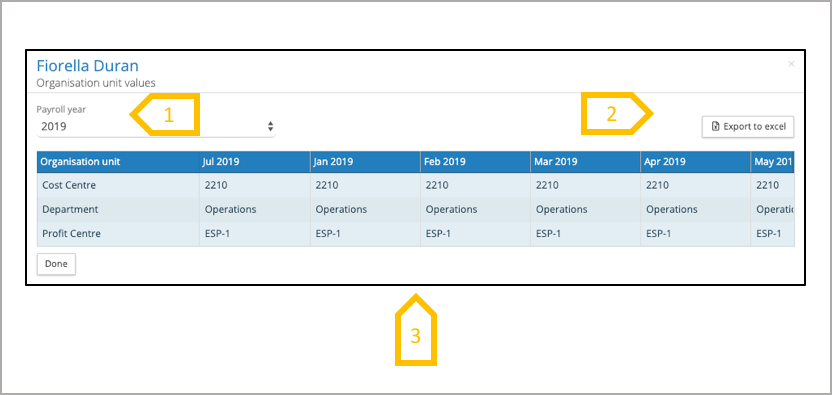
- Select the payroll year
- Export the data to Excel, this will download all the values in the table for the payroll year selected.
- Use the cursor to scroll across the pay periods
Edit User
Using the employee action button select edit user. When an employee user account has been created in the system, it creates an internal link to the employee’s record on a payroll. Editing and changing details in a user account does not change details of the employee record on the payroll. If the employee moves payroll, and their email address changes, it is important to change the employee user account’s email address first, before creating the new user on the new payroll.
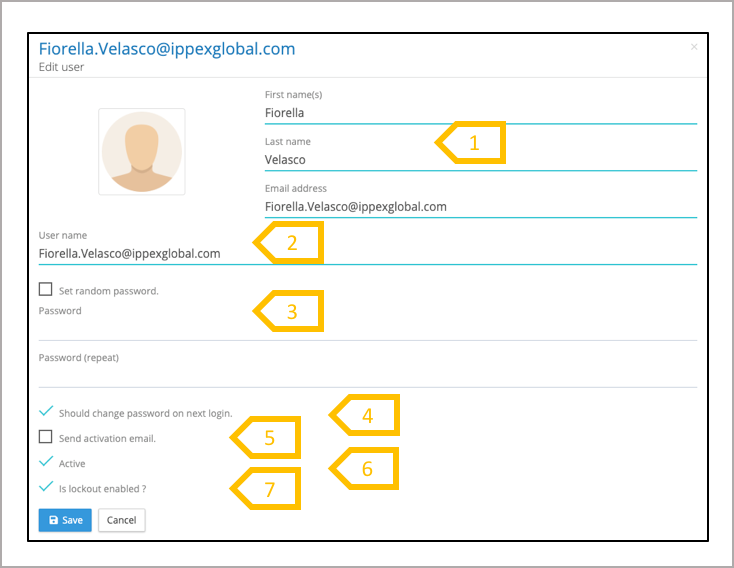
- First name(s), last name and email address can be changed.
- User account name can be changed, it cannot include any spaces.
- A specific password can be set for a user, or if re-activating the account let the system generate a random password.
- Our recommendation is to force the user to change password on first log-in.
- If you require a new activation email to be sent, check the send activation email.
- Uncheck Active to de-activate employee users account.
- We recommend keeping Lockout enabled.
Navigate to documents
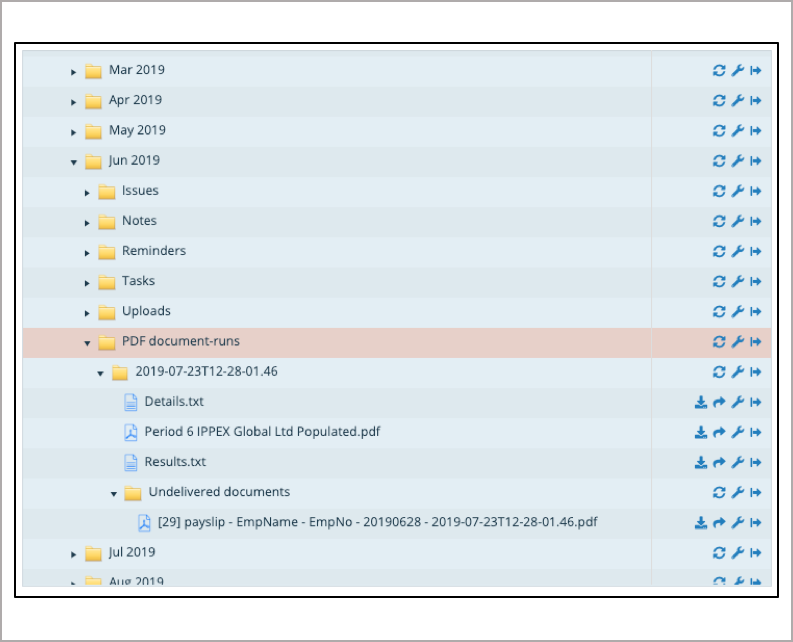
Using the action button against the employee select Navigate to documents. The user will be taken from the employee page to files.
This function closes the employee page and open files, expanding the file folder hierarchy to Employees → payrolls → Payroll Year → Employee → PDF Documents
This enables the system user to view or download the employees documents.