IPPEX Cloud V 3.01.0 Release Notes

Introduction
Version 3.1.0 introduces a time-based Multi-Factor Authentication (MFA) for manage Access Control in IPPEX Cloud in addition to the existing email based.
This update is designed to improve Access Control security in IPPEX Cloud.
Two Factor Authentication
Overview
Multi-Factor Authentication (MFA) adds an extra layer of security to user logins.
Users MFA can either be enabled by a Tenancy Administrator or enabled by the user allowing log in using one of the two supported MFA methods:
- Time based Authenticator App (supported authenticator apps are Google Authenticator, Microsoft Authenticator, Authy, BitWarden Authenticator and 1Password.
What’s New
Enabling Multi Factor Authentication (Admin or User)
MFA can be enabled for any System User in one of two ways:
- Method 1: An Administrator can enable MFA on a user’s behalf by ticking the checkbox in User settings: “Is Multi-Factor authentication enabled?”
- Method 2: A user can enable MFA for themselves by going to My Settings and clicking the Enable button
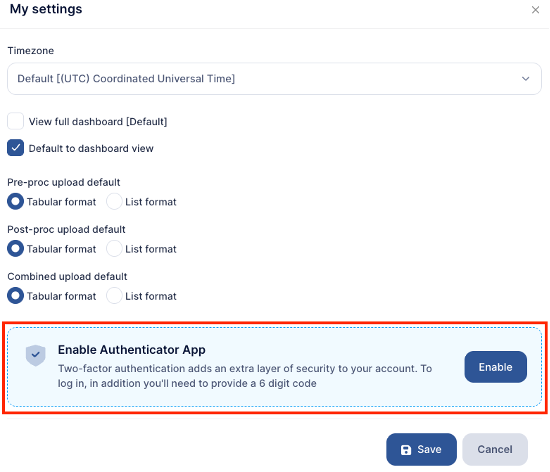
Once a user chooses to enable MFA:
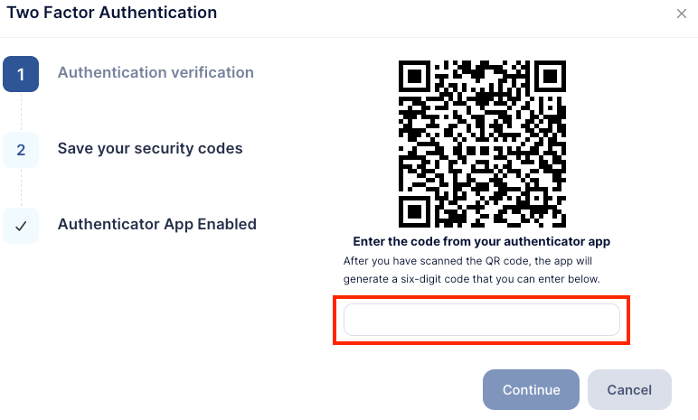
- To enable time based MFA, the user will be prompted to enter a 6-digit (OTP) code from an Authenticator App, to access this code;
- The user should download an Authenticator App (e.g. Google Authenticator, Microsoft Authenticator, Authy, BitWarden Authenticator and 1Password) and scan the QR code displayed on screen.
- After scanning, the app will generate a six-digit One-Time Password (OTP) – a temporary code that changes every 30 seconds.
- The user enters this OTP into the input box and clicks Continue.
- At this point, MFA via Authenticator App is fully enabled.
Recovery Codes
After setup, the user will receive 10 Recovery Codes.
- A single Recovery Code may be used once to access the account if the user has lost access to their Authenticator App.
- Using any one Recovery Code invalidates all remaining codes.
(The user will need to re-enable MFA to generate a new set.)
These codes must be stored securely and must not be shared.
Logging in with MFA
On the next login, after entering the tenancy ID, their username and password, the user will be prompted to choose a MFA method.
Available login options depend on how they were set up:
- If an Admin enabled MFA:
The user will initially only see the Email method until they complete the Authenticator App setup themselves. - If the user enabled MFA through My Settings:
Both MFA methods will be available.
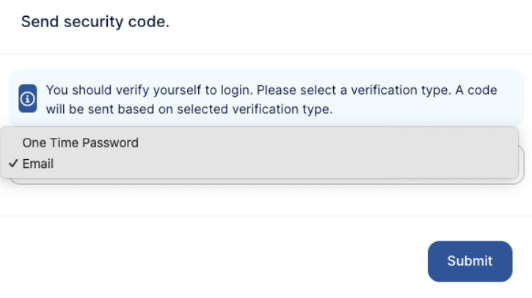
Login Methods
o Selecting Email sends the user an email containing a One-Time Password (OTP) they can use to finish logging in.
· Authenticator App
o Selecting One-Time Password allows the user to enter a valid OTP from their Authenticator App.
Lost Access to Authenticator App
If a user loses access to the device containing the Authenticator App, they can still log in by:
- Using the Email MFA method, or
- Using one of their Recovery Codes.
NOTE: Using a Recovery Code disables the Authenticator App method on the account.
The user will need to set up MFA with an Authenticator App again.
Disabling Authenticator App
A user can disable the Authenticator App method through My Settings, provided they confirm the action by entering a valid OTP.
Benefits
- Enhances account security by introducing an extra verification step in addition to the user’s password.
- Lowers the risk of unauthorised access caused by weak or compromised passwords.
- Offers users flexible authentication methods (Email or Authenticator App) to suit their work environment.