IPPEX Cloud V 3.02.0 Release Notes

Introduction
Version 3.2.0 consists of new enhancements to time/unit reporting, task template management, and configurable report setup in IPPEX Cloud.
This release includes:
- Time/Unit Reports – Configurable Date or Pay Period Logic
- Dynamic Task Ordering on the Dashboard
- Report Export/Import Functionality
These updates are designed to improve reporting flexibility, streamline dashboard management, and make it easier to scale report configurations across multiple payrolls and clients.
Time/Unit Reports – Configurable Date or Pay Period Logic
Overview
Time/Unit reports can now be configured to determine whether data is reported based on the dates the time/leave occurs or based on the pay period in which the data was uploaded.
This allows payroll teams to choose the reporting method that best aligns with their local requirements, particularly when managing leave across multiple periods or handling retroactive changes.
What’s New
Configurable Reporting Basis
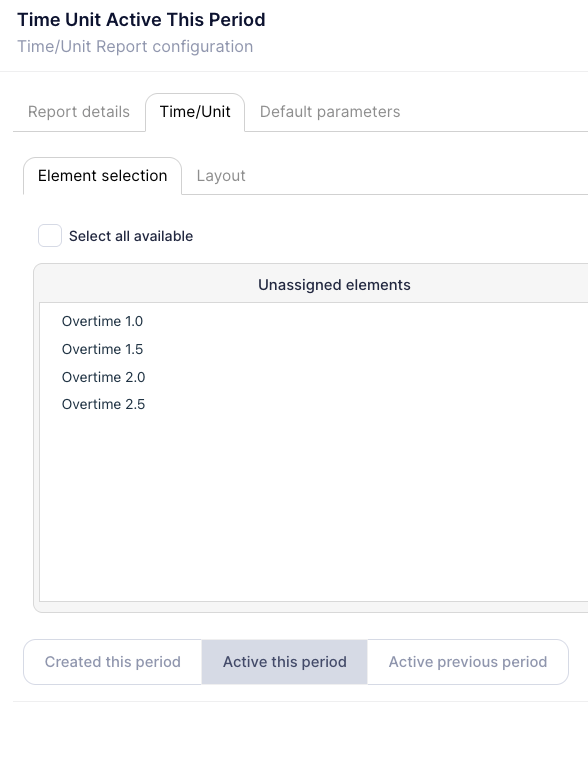
A new configuration option allows each Time/Unit report to be set up to use one of three reporting bases:
- Active This Period
- Includes time/unit data where the recorded dates fall within the pay period of the report being run.
- For example, when running the November payroll, the report can be configured to show only leave with dates in November.
- Created This Period (existing behaviour)
- Includes time/unit data that was uploaded in the current pay period, regardless of when the leave actually occurs.
- This remains available for clients who prefer to report on “what was entered this period”.
- Active Previous Period
- If a time/unit instruction is sent with a date range in a prior period but uploaded in a later pay period (for example, 15 June – 30 June uploaded in August), it will appear in the pay period in which it was uploaded. This ensures retroactive instructions are still visible in the current processing period.
Handling Non-dated and Cross-period Data
- Time/unit data without dates continues to behave as before and will only appear in the report for the pay period in which it was uploaded.
- Where a time/unit instruction spans multiple pay periods (for example, 15 October – 15 November), it will be reported in all applicable pay periods when using the date-driven option.
These Features are now available as configurable options within the time/unit report.
Benefits
- Provides flexible reporting options to support both date-based and upload-based approaches.
- Ensures retroactive and cross-period leave is handled consistently and transparently.
- Reduces manual intervention and offline tracking when leave spans multiple pay periods.
- Supports more accurate analysis and reconciliation of time/unit and leave data across payroll cycles.
Dynamic Task Ordering on the Dashboard
Overview
Dynamic Task Ordering introduces the ability to reorder tasks directly within Task Templates, with all task configuration settings carried through to each payroll that uses the template.
This is especially useful when clients add new payrolls or tasks and need the dashboard to reflect a logical sequence without having to rebuild templates or manually adjust each payroll.
What’s New
Reorder Tasks in Task Templates
- Tasks within a Task Template can now be moved up or down to change the order in which they appear on the dashboard.
- The dynamic ordering is tenancy-wide, meaning the ordering applied in the template will be reflected across all payrolls using that template.
Configuration Settings Preserved
When reordering tasks, all task configuration items remain fully linked to the task and are retained for each payroll, including:
- Whether the task is selected/on for the payroll
- Task Name
- Offset
- Assignee
- On Hold Enabled Instruction
- Mandatory Download Instruction
- Mandatory Closing Comment Instruction
- Sub Tasks
- Task Details
- Task File Options/Instructions
This ensures that reordering affects only the position of the task, not its underlying configuration or behaviour.
Technical Notes
- The dynamic task ordering user interface behaves in a similar way to the GL column ordering when configuring a GL report, using a familiar and intuitive mechanism for moving items up and down.
- Dynamic Task Ordering applies to all Task Template types in IPPEX Cloud, including Standard, Off-cycle, Quarter End, Year End, and Payment Task Templates.
Benefits
- Makes it simple to adjust task order for new or existing payrolls without recreating configurations.
- Ensures consistent task ordering across multiple payrolls using the same template.
- Reduces configuration effort and improves dashboard usability for both clients and internal teams.
Report Export/Import Functionality
Overview
A new Report Export/Import function allows users to export report configurations from one payroll and import them into another.
This makes it easier to scale reporting setups across clients and payrolls—particularly where the same report structures are used repeatedly (for example, a partner using a standard Flexible Changes report across multiple payrolls).
What’s New
Supported Report Types
The export/import capability is available for all configurable reports (apart from GL which already has an existing copy function).
Exporting Report Configurations
- A system user can export a report configuration file from a payroll.
- The exported file can be edited before import, for example to rename a report from “France Flexible Changes” to “Germany Flexible Changes” before using it in the Germany payroll.
Importing Report Configurations
- When importing into another payroll, all matching data types with the same type and name are copied across. For example, if a pre-processing pay element called Commission exists in both payrolls with the same name, it will be recognised and included.
- If a pay element has a different name (for example, Commissions instead of Commission), it will not be copied.
- This applies to:
- Pre-Processing Pay Elements
- Post-Processing Pay Elements
- Employee Details
- Organisation Units
“Select All Available” Behaviour
- Where a tab in the report has the “Select all available” option set, that directive is copied over rather than the individual item list.
- When imported, the tab will include all available entities in the destination payroll that match the tab scope, even if they were not listed individually in the export file.
- Where Payment Kind filtering is in place in the importing payroll, this filtering is respected. If a pay element is included in the export file but filtered out by Payment Kind in the destination payroll, it will not be added to the report.
Additional Technical Notes and Assumptions
- The Flexible Changes Report supports export/import of multiple tabs within the report.
- All configuration and default parameters are included in the export/import.
- PGP settings are not included in the export/import. These need to be managed separately.
Benefits
- Significantly reduces the time required to build reports across multiple payrolls for the same client.
- Ensures consistency and standardisation of reporting across a client’s payroll footprint.
- Allows small local adjustments (e.g. naming or minor config tweaks) without rebuilding entire reports from scratch.
- Provides a scalable approach for partners and larger clients managing many payrolls with similar report structures.