IPPEX Cloud V 2.12.0 Release Notes
Introduction
Version 2.12.0 consists of new enhancements to task closure notifications.
Save Default Notification Group for Payroll Task Closures
Overview
We’ve introduced a new enhancement to the task notifications within the IPPEX dashboard. Users can now save a default notification group when closing payroll tasks. This removes the need to manually select recipients each time, ensuring a more efficient and consistent process.
What’s New
- Save Default Notification Group
- When closing a payroll task, you can now select the option “Save default notification group for this headline task.”
- This will store the selected users as your default notification group for future payroll task closures.
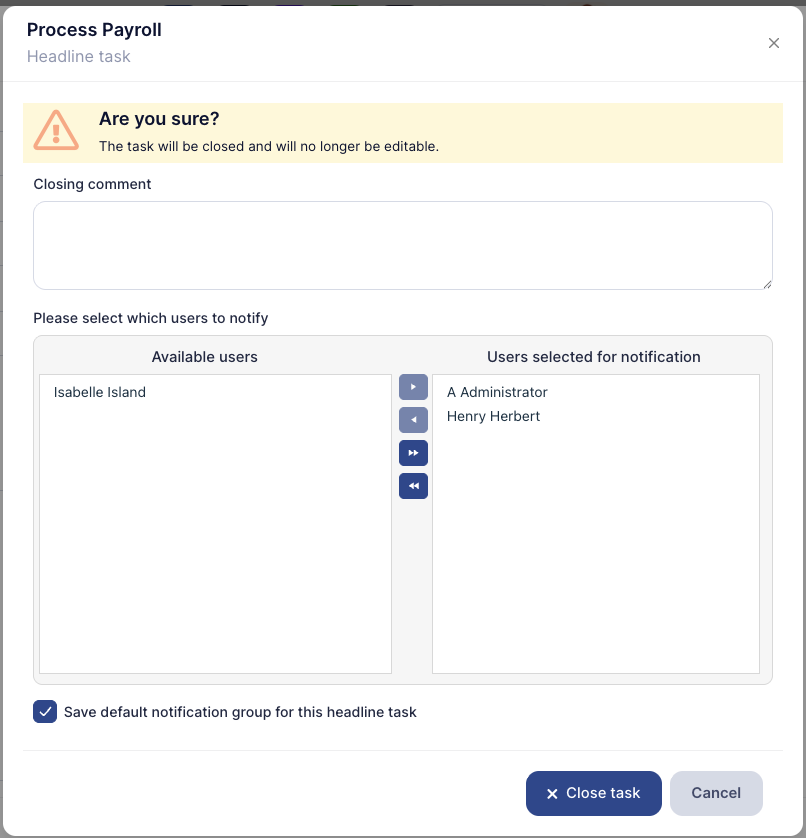
*Image 001 Save Default Group*
- Update Default Notification Group
- Once a default group has been saved, the option changes to “Update default notification group for this headline task.”
- This allows you to easily keep your notification group up to date whenever changes are needed.
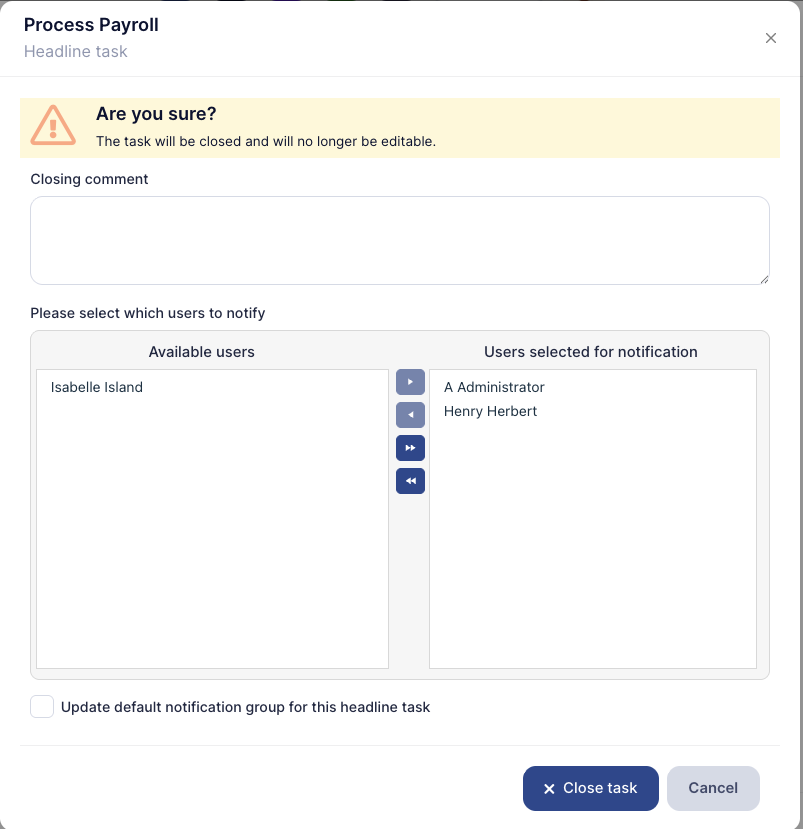
*Image 002 Update Default Group*
Benefits
- Saves time by eliminating repetitive manual user selection.
- Reduces errors by ensuring the right team members are consistently notified.
- Provides flexibility to update the notification group at any time.
Next Steps
- Admins may wish to communicate to payroll teams about updating their default groups as needed.
Variance Report: Updated “From value” and “To value” Labels
Overview
We have updated the Variance Report for monthly payrolls to make the report values clearer. Instead of generic labels (“From value” and “To value”), the report will now display the corresponding month and year.
What’s New
- The “From value” column now reflects the starting payroll month (e.g. Aug 2025 value).
- The “To value” column now reflects the comparison payroll month (e.g. Sep 2025 value).
This makes it easier for users to quickly identify which months are being compared in variance reports.
Important Note
There are some cases where the payroll pay date rolls into the previous month (e.g. when a scheduled pay date falls on a weekend).
- In this scenario, the “From value” and “To value” labels may appear identical, even though they represent different payroll periods.
- To avoid confusion, we recommend relying on the Period Names provided in the multi-column header above the values, as these will always reflect the correct payroll periods.
Issues: Associated Company Shown for Assignee & Owner
Overview
When raising or managing issues, it is now easier to identify which company an Assignee or Owner belongs to. The user’s company will display directly alongside their name in both the issue form and the issue dashboard.
What’s New
- When Raising an Issue
- In the issue creation form, the company of each Assignee and Owner is now visible next to their name in the dropdown list.
- This makes it simple to distinguish between users from different organizations (e.g. Payroll users, Internal users, 3rd party users).
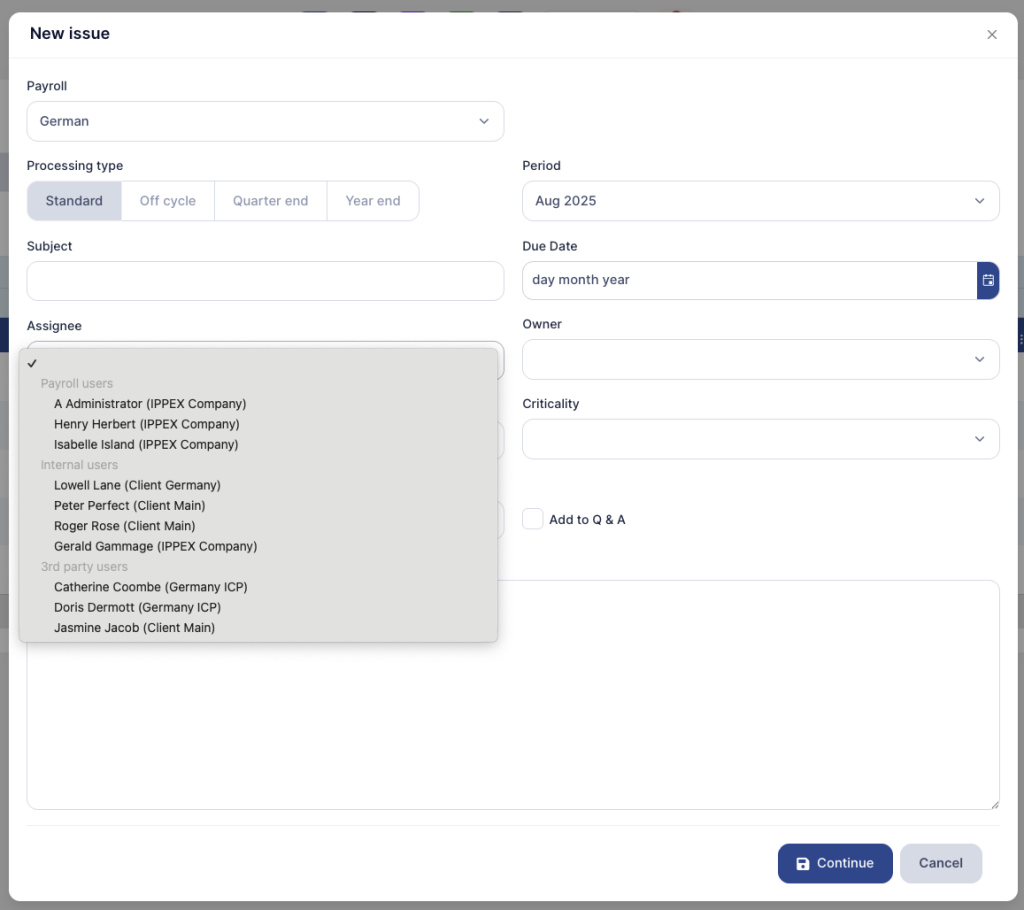
*Image 003 Issue List*
- In the Issue Dashboard
- Once an issue is raised, the Assignee and Owner names will continue to display with their associated company in the dashboard view.
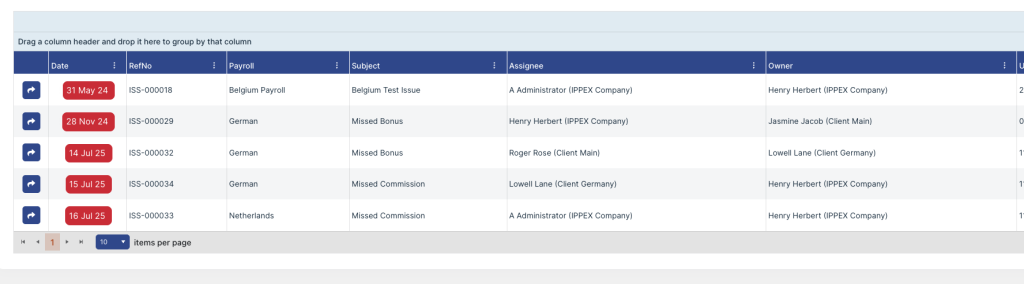
*Image 004 Issue Dashboard*
Benefits
- Provides clearer visibility of whether an issue is assigned internally, to a client, or to a third party.
- Reduces confusion when multiple users have similar names.
New Payment Task Template
Overview
We’ve introduced a new Payment Task Template type to make it easier to manage and monitor payment-related activities. This new template works alongside existing templates such as Standard, Off-cycle, Quarter End, and Year End, but is dedicated specifically to payment tasks.
What’s New
- New Template Option
- A Payment Tasks tab is now available within the Task Templates section under Administration.
- This provides a clear separation between regular payroll tasks and payment-specific tasks.
- Separate Payment Task Creation
- Within the Payment Tasks tab, you can create and manage tasks specifically for payment processing.
- These tasks mirror the functionality of existing templates but are grouped to focus on payments.
- Dashboard Integration
- Once created, Payment Tasks will automatically display on the Payroll Dashboard, alongside your regular tasks, providing a full view of both payroll and payment activities in one place.
Benefits
- Provides a dedicated space for managing payment-related tasks.
- Keeps regular payroll tasks and payment tasks clearly separated for better oversight.
- Ensures that payment tasks are still visible in the dashboard for full operational transparency.
Dashboard Audit Export to Excel
Overview
We’ve added a new Export to Excel feature on the IPPEX Dashboard. This allows users to download a full audit of payroll tasks for the selected pay period, directly into an Excel spreadsheet.
What’s New
- Export to Excel Button
- A new button is now available on the Payroll Dashboard.
- When selected, it generates an Excel file reflecting the current status of the dashboard for the chosen pay period.
- Exported Data Fields
The exported spreadsheet includes the following columns:- Payroll name
- Headline task
- Status
- Due Date
- Closed by
- Closed on
- Closing comment
- Notified users
- Blank Values Where Not Applicable
- If a task has not been closed, no closing comment is provided, or no users are notified, the respective columns will remain blank in the export.
Benefits
- Provides a full audit trail of payroll task activity for compliance and review.
- Makes it easy to share task status across teams.
- Simplifies reporting with a structured, ready-to-use Excel file.