Pre-processing combined upload
The combined upload is a single process for performing an employee upload and then a pre-processing upload with a single data upload file. The steps followed by the combined upload is a combination of the steps followed by each of the separate upload processes. The first step is to amend/create new employees on the system, and the second step is to add employee details and pre-processing pay element data.
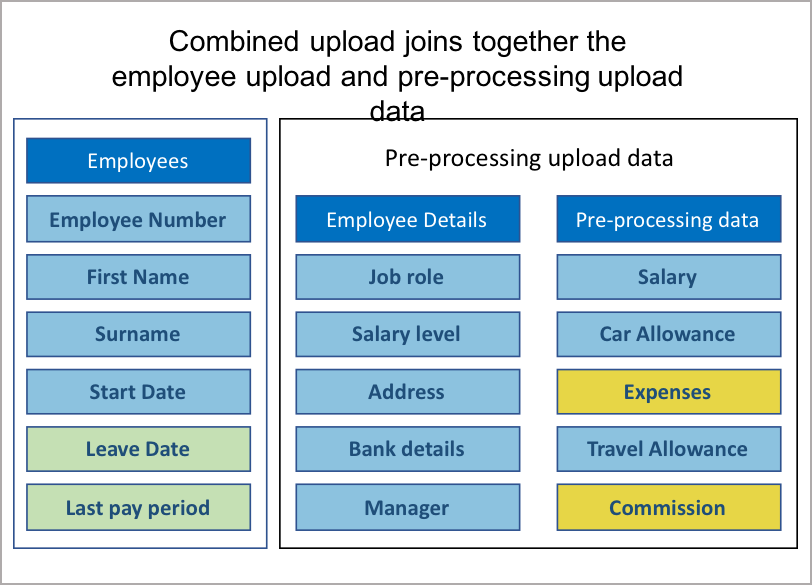
- Create a single upload file with the employee attribute data, employee details and pre-processing data. ●
From the payroll screen, click on the action button, go down to UPLOAD and select pre-processing → combined upload
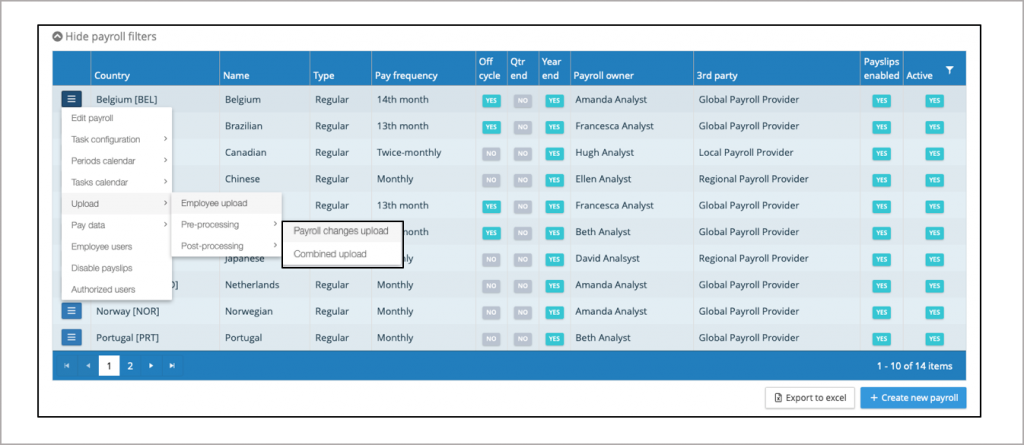
Initiating the pre-processing combined upload process
The initial combined upload screen follows the same process for a changes upload. The upload file will have employee changes as well as employee details and pre-processing pay element data.
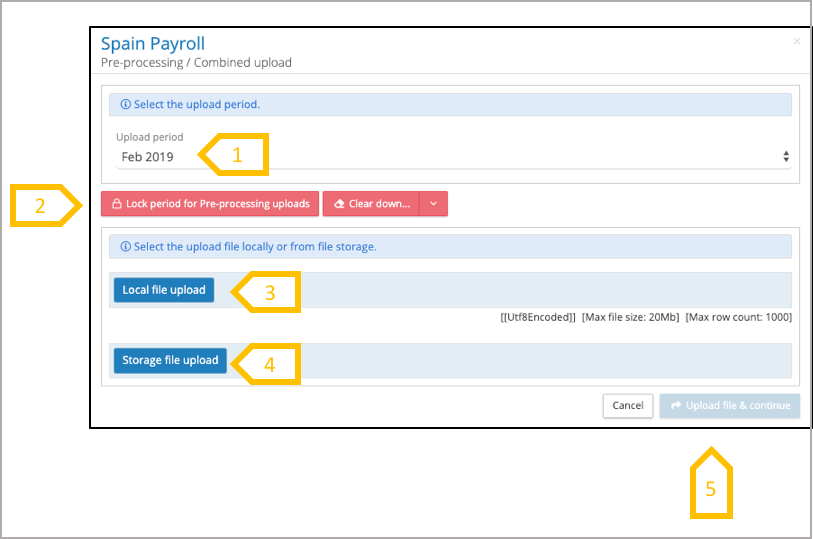
- Check that the upload is for the right pay period.
- If the gross to net upload for the previous period has not be locked, the system will display a message in red, ‘this pay period is locked for upload’.
- Select a file from a local or network file system
- Select a file from the IPPEX file system.
- When a file has been selected click on upload file and continue
Combined upload – Employee upload stage
The combined upload process starts with an employee upload, only map those pay elements required for the employee upload, ignoring all of the employee details and pre-processing pay elements. The next two steps in the process follows those described in the employee upload guidance. The system will apply the employee changes and then will present the upload process for the payroll changes. When mapping the payroll changes, ignore all of the employee upload fields with the exception of employee number.
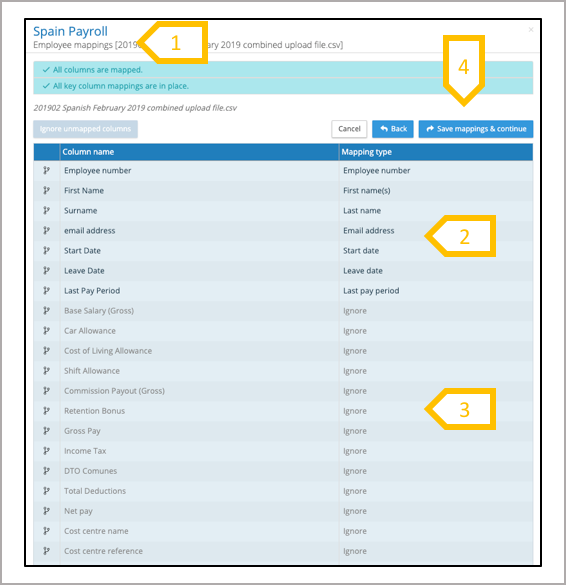
- Employee mappings2.Map the employee upload fields3.Ignore the employee details and pay element fields4.Save mappings and continue
Combined upload pre-processing payroll changes upload stage
The second stage of the combined upload process starts is the payroll changes upload, map those employee details and pay elements required for the payroll changes upload, ignoring all of the employee upload fields with the exception of the employee number. Follow the remainder of the payroll changes upload process.
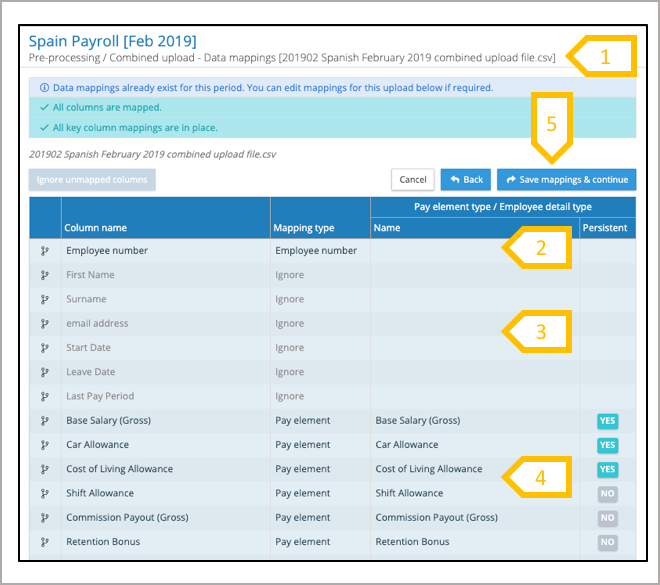
- Payroll changes mappings2.Map employee number3.Ignore the employee upload fields4.Map the employee details and pay element fields5.Save mappings and continue