IPPEX Cloud V 1.45 Release Notes
Introduction
Version 1.45 focuses on the use of Export/Upload Functionality for User Groups & Payroll Groups. It also focuses on enhancements to Variance Reports and Leave Accrual Reports. Finally, the release includes the introduction of the Tenancy Payroll Locking Status Screen.
Export/Upload Functionality of User Groups & Payroll Groups
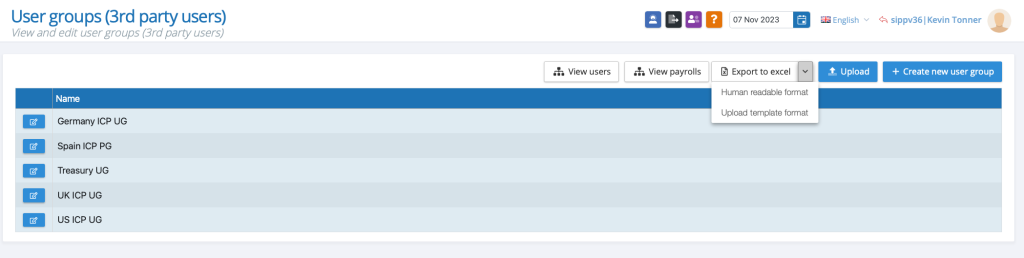
User Group & Payroll Group Lists can now be created/amended via the use of an ‘Upload Template Format’ that can be exported to excel for completion.
This can be accessed on the user group/payroll group pages:
The Upload Template Format For User Groups:
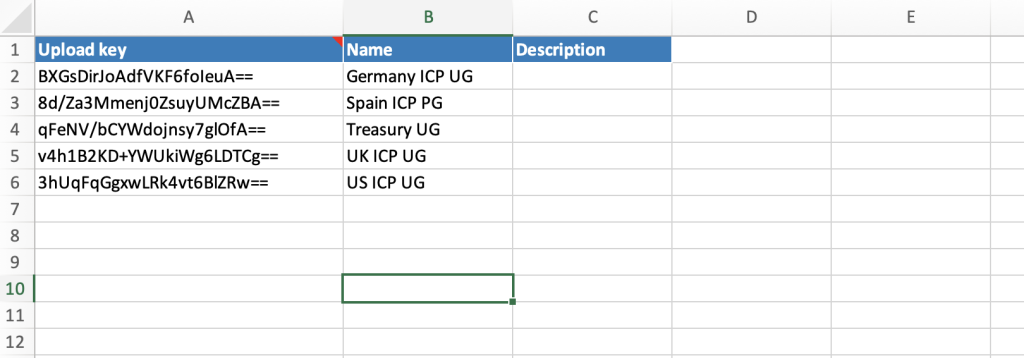
The User Group Template includes
- Upload Key: This is generated by the system and not to be amended
- Name: This is where you can add/amend the User Group Names
- Description: User Group Descriptions can be added to existing or new user groups
The saved document can then be uploaded to the system via the upload button:
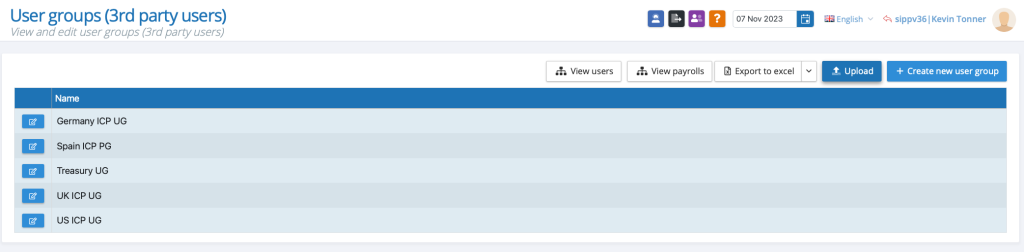
The process is the same for Payroll Groups. Also note, Payroll Users, 3rd Party Users, and Internal Users will all have their own upload templates and will need to be completed and uploaded separately.
Variance Report Enhancements
IPPEX Cloud has expanded reporting capabilities to allow for totals on variance reports.
To enable this feature, go to Reporting > Variance Reports
When running a report, check the box ‘report totals’ for the totals figures to be included on the reporting:
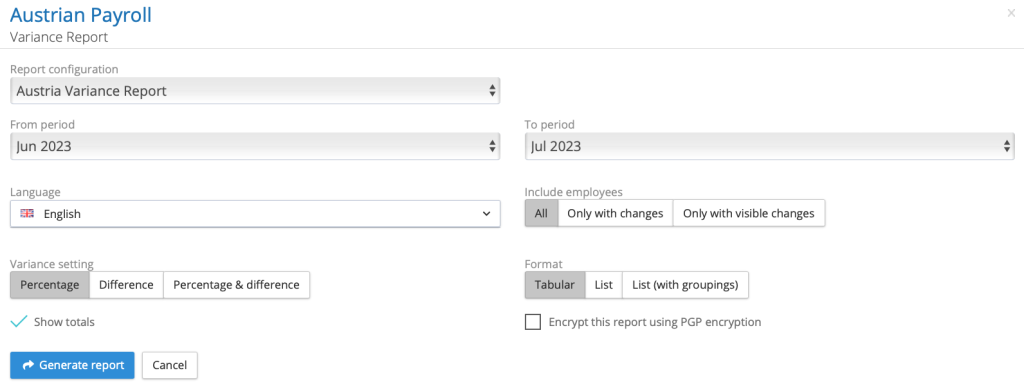
When the variance report is run, the totals columns will then appear:

Tenancy Payroll Locking Status Screen
The Dashboard screen has now been enhanced to include the Tenancy Payroll Locking Status Screen. This ‘Payroll Lock Status’ button allows for a tenancy level view of the payroll status of all payrolls the user has access to.
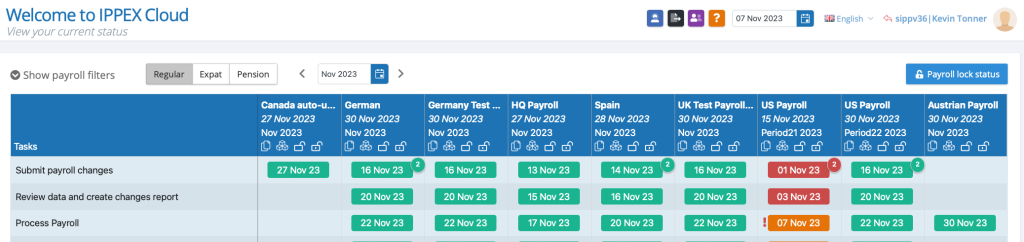
Users will need to have the ‘Pay Data Manager’ permission selected in order to see this button. If the permission is not granted, the button will not appear.
The Locking Status Screen looks as follows:
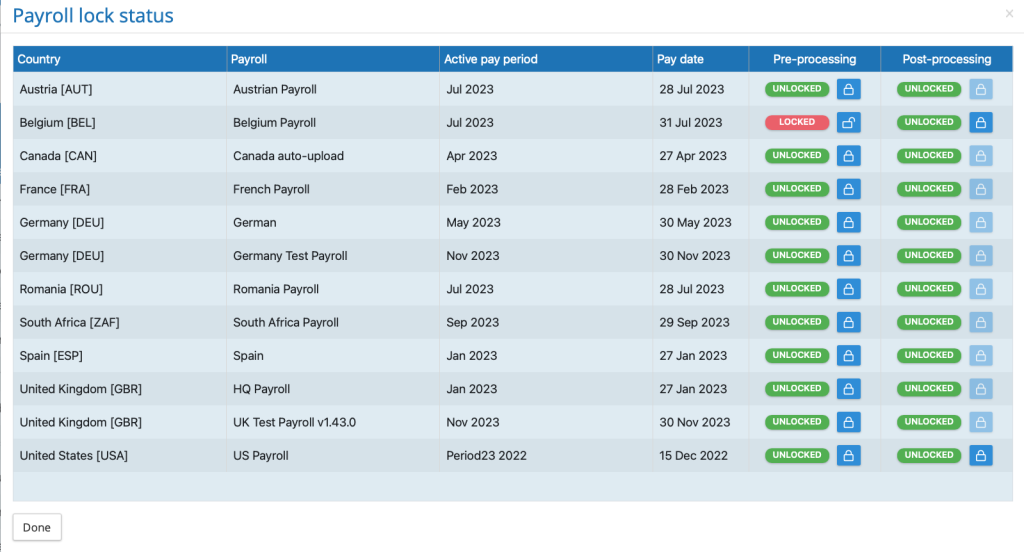
On this screen you are able to see:
- Payroll Country
- Payroll Name
- Active Pay Period
- Pay Date For Active Pay Period
- Pre-processing/Post-processing lock status (as would appear on the control panel)
Users that do not have the ‘Period Manager’ permission granted will not be able to unlock pre-processing periods that have already been locked.