IPPEX Cloud V 1.43 Release Notes

Introduction
Version 1.43 focuses on the use of non-GL Organisational Units and their application to payment solutions within IPPEX Cloud. It also focuses on the introduction of 3rd Party Payments and Tenancy Level Payments
Organisational Units
The Organisational Units Framework has been updated to allow for the use of Org Units for both GL and non-GL purposes.
Non-GL Org Units can still be added and stored the same as GL related Org Units (within the ‘Organisational Units’ tab under ‘Administration’.
The Org Units will be listed out in the existing format with the added filter to distinguish if an org unit category is GL or Non-GL Related.
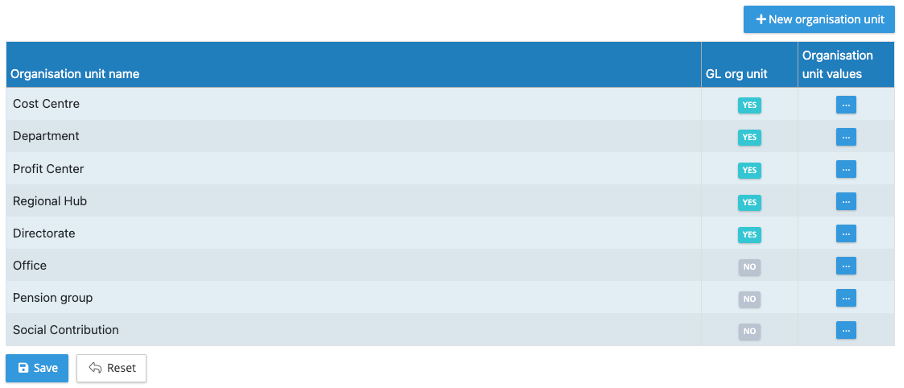
Auto Upload Functionalities and the ability to make Org Units Active/Inactive remain operational.
While the number of GL related Org Unit categories you can have is limited to 5, there is no limit to the number of non-GL Org Units you can hold.
3rd Party Payments
IPPEX Cloud can support the facilitation of 3rd Party Payments. This is enabled by holding payment details of both debtor and creditor bank accounts as well as the bank specifications to generate compatible bank file solutions.
3rd Party Payment Categories
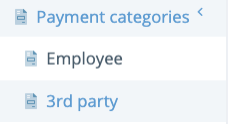
IPPEX Cloud has the ability to create 3rd Party Payment Categories. This is accessed under the ‘Administration’ tab, then by selecting ‘Payment categories’:
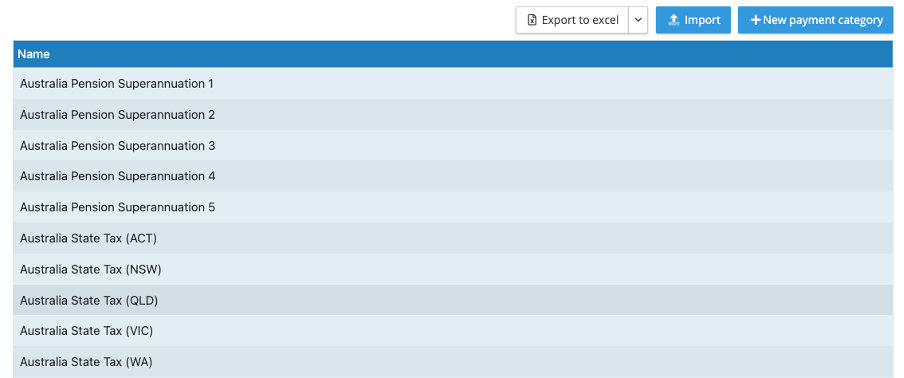
Payment Categories represent the different recipients of each payment to be made. For example, if you are paying into multiple pension funds for a payroll, each pension fund should be listed as a payment category. The same would be for different tax office recipients in a particular payroll.
3rd Party Payment Configurations
From within the ‘Payrolls’ tab, you have the ability to create payment file configurations for 3rd Party Payments.
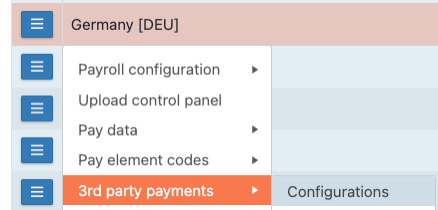
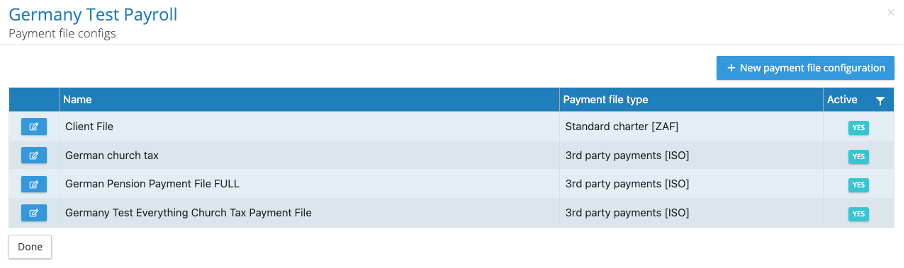
Here you can see the list of 3rd Party Payment configurations for a given payroll. You also have the ability to create a new configuration.
When creating a new 3rd Party Payment configuration, you will be prompted to provide the following information:
- The payment category: This will be selected from this payment category list created at the tenancy level
- Selecting either the pay date offset or month offset for the payment date: This is in relation to the payroll pay date. Once selected you will be prompted to provide the offsets for the 3rd party payment (to be represented numerically)
- Selecting whether the payment is to be calculated or not: Represented by ticking the box labelled ‘Calculated’.
- Calculated means the figures will be linked to one or more post processing pay elements which will automatically pull the figures when the post processing values are loaded against the payroll.
- Not Calculated will not link the payment amounts to any post-processing pay elements and will require a system user to manually enter the amount for a value to generate on a payment file.
- Payment Currency Override: You can select a payment currency override if required (this is optional).
- Rounding: This will assign a rounding rule when taking data from the post processing reports to the payment file
- Employee Filters: Payment Files can have an organisational unit filter assigned to the configuration that will instruct the system to only apply payment amounts to employees with the assigned org units. (these include the use of non-GL org units)
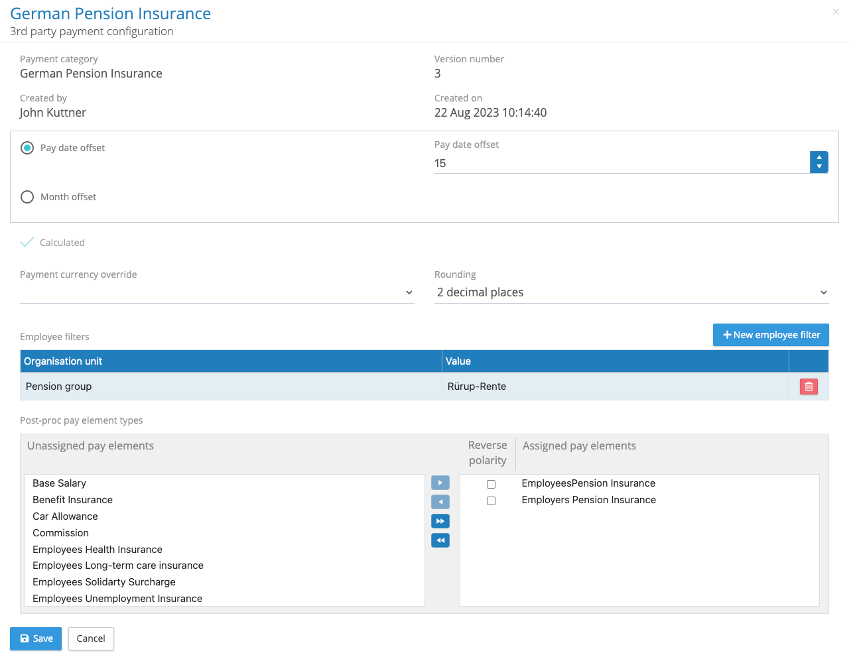
3rd Party Payment File Configurations
3rd Party Payment File Configurations are setup similar to Payment File Configurations created for employee payments (see Payments User Guidance from IPPEX Cloud Help Portal).
To set up a new payment file configuration, you will need to select the ‘New payment file configuration’ button and select the host file payment file configuration to be used for the payment file in question (this will have been set up at the host level prior to setting up the payment file within the payroll).
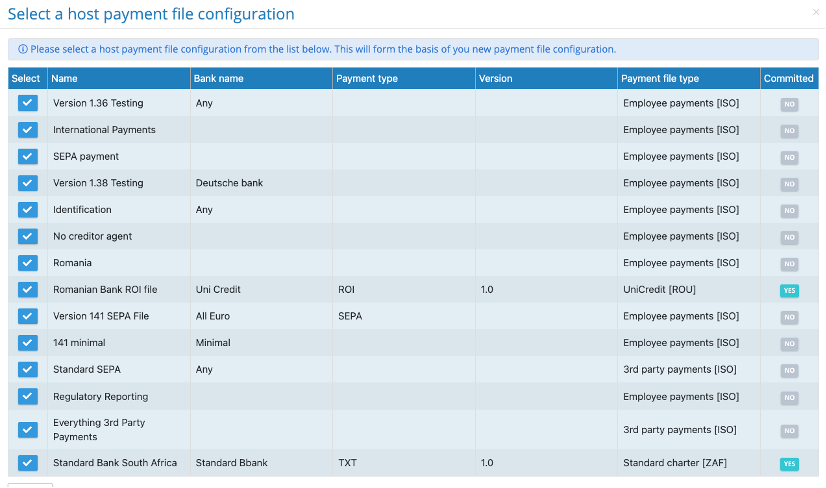
For 3rd Party Payments, ensure the Payment File Type column has ‘3rd Party Payments [ISO]’ assigned to the configuration you select.
3rd Party Payment File Configurations Tab Breakdown
The configuration is broken down into the following tabs:
- Details: This is where the configuration name and description are added (no change from employee payments file)
- Group Header: This is where the payment message identifier is added and the initiating party is selected. (For 3rd party payments, you will select the relevant company name for the initiating party)
- Payment Information: This is where the debtor company name and account details are selected. The company address and bank account provided in the ‘companies’ tab against the selected entity will be what is populated on the payment file (no change from employee payments file)
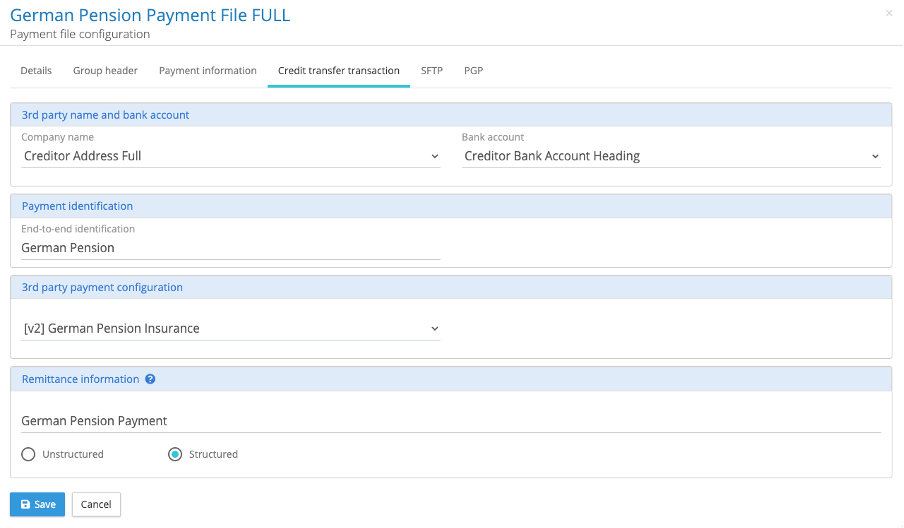
- Credit Transfer Transaction: In this tab the following information will need to be provided:
- Creditor address and bank account: The selected details will pull the address and bank account info populated against the creditor profile in the ‘companies’ tab
- End-to-end Identification: Payment Identification details will be provided here
- 3rd Party Payment Configuration: This is where the payment configuration is selected from the list of 3rd Party Payment Configurations created within the payroll
- Remittance Information: This is where the required Remittance information is populated (if required). You will also select if the remittance information is structured or unstructured. (this should be determined based on the recipient account’s requirements.
- SFTP: Select an SFTP folder if you would like the option to copy a payment file to this folder on generation. (no change from employee payments file)
- PGP: Enables ability to encrypt the report using PGP encryption. (no change from employee payments file)
3rd Party Payment File Confirmation Report
Once configured, 3rd Party Payment Files follow the same process as employee payment files when it comes to running the file out of IPPEX Cloud. You will receive notification when your file has successfully ran, where you can select ‘Navigate to Report’ to be taken to the payment file location. You will also receive the Details.txt, Results.txt and Payment Confirmation report in addition to the payment file itself.
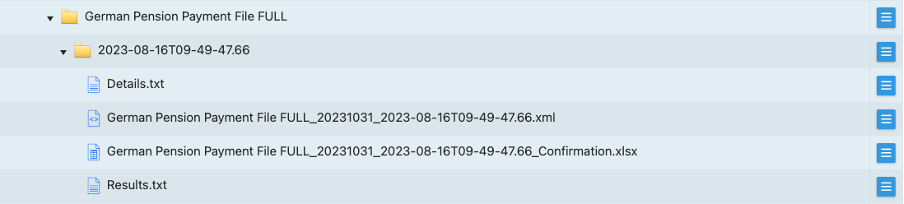
In the Payment File Confirmation Report, there will be two tabs providing further information:
- Creditor: This will confirm the creditor’s details including their bank details, the value date, payment current, and total value within the payment file to be received

- Calculation: This will provide the breakdown of the total payment within the file per employee. It will also provide the breakdown of each pay element if the payment file is composed of multiple pay elements.