IPPEX Cloud V 1.35 Release Notes

Introduction
Version 1.35 introduces public holidays to the IPPEX platform, which will be used by the task management system to adjust the due date of a task falling on a public holiday based on the task owner’s country location.
In addition, there are a number of enhancements to other functions in the system, such as attachments to employee queries, system users can view a list of their 10 most recent reports or report packages and number of active employees per payroll on the payroll page.
Public Holidays
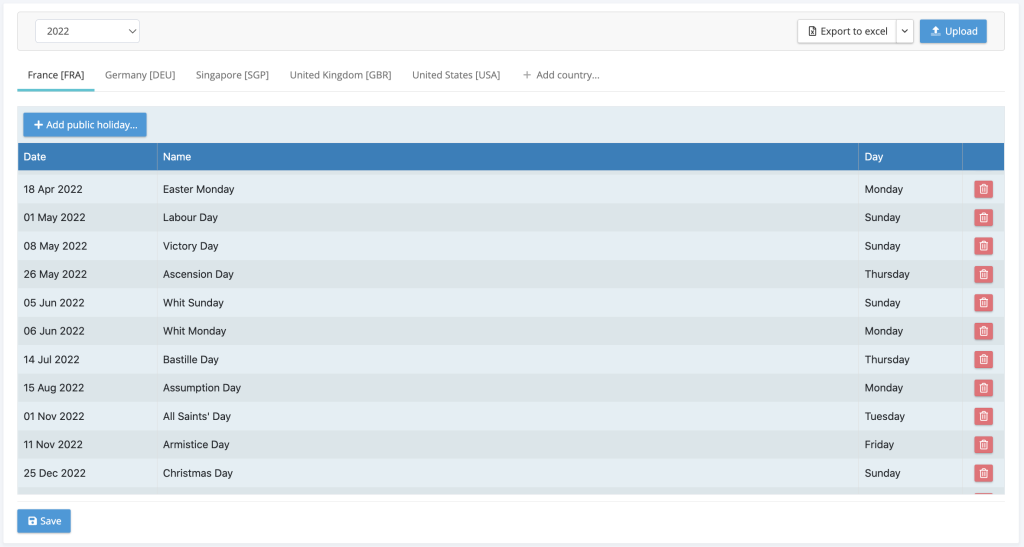
Public holidays are used by the task management system to adjust task due dates based on the country location of the system user which has been assigned to a given task.
To enable the task management system to take into consideration public holidays, two things are require, creation of public holiday calendars and the assignment of the country location to system users.
Uploading Public Holidays
Upload and maintaining public holidays is a tenancy administration function. Go to Administration > Lookups > Public Holidays. Public holidays can be uploaded to the system by calendar year and by country. The upload file must be for a single calendar year and can contain public holidays for multiple countries.
Using the Export to Excel select the upload template format, template has three columns:
- Country – Three letter ISO country code
- Date – Excel date format
- Name – Description/name of the public holiday
On the public holiday page, select the year and click on the Upload function, selecting your file for upload. Check all the dates or just those you need in the client tenancy.
- The upload function will present an error is a date is outside of the calendar year
- The upload function will update an existing date for a country and will be additive for any new date
Upload and save.
Entering Public Holidays
Upload and maintaining public holidays is a tenancy administration function. Go to Administration > Lookups > Public Holidays. Public holidays can be entered into the system by calendar year and by country. For a given calendar year select the country (if it is present) or click on + add country, for a given country the system will list the existing public holidays that entered or uploaded for that calendar year. Click on + Add public holiday to enter a new date and public holiday name.
To delete a public holiday from the list, click on the dustbin icon next to the public holiday item in the list for a given calendar year and country.
Assigning public holidays to system users

Each system user can be assigned a public holiday, this can be added manually or via the upload function. To add the country manually edit an existing user, on the user information there is a field called country, select the country from the drop-down menu. For upload, using the Export to Excel, select Upload template format. Enter the three digit ISO country code against the system users in the template and click on Upload to present the file to the system.
Period calendar and public holidays
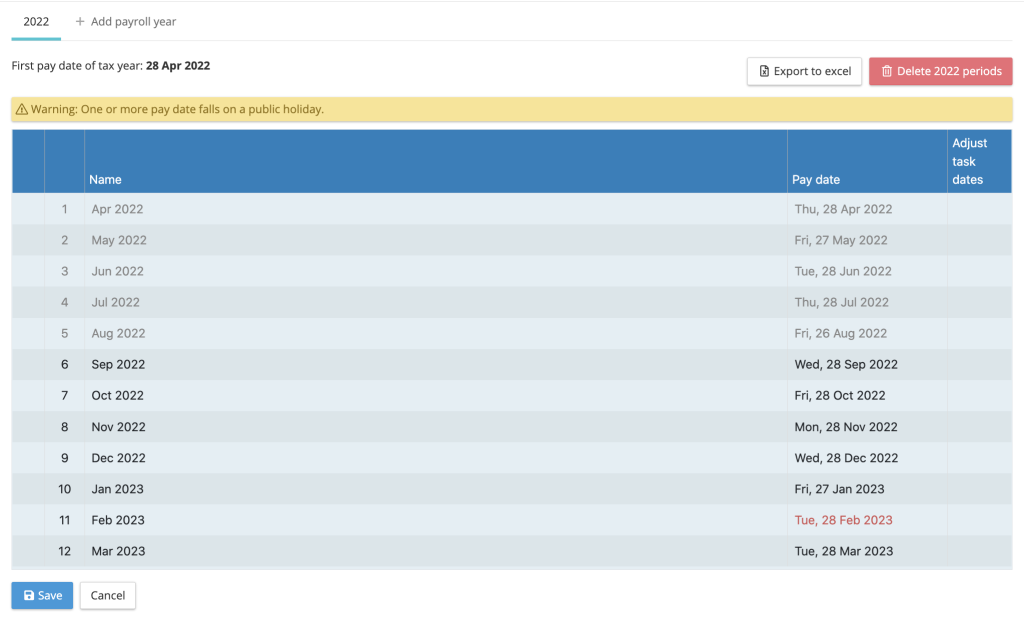
When setting the period calendar for a payroll the system will automatically adjust task due dates for a given user if their task falls on a public holiday based on their country location. This will only happen if the system user has been assigned a country and the country has been assigned public holiday dates. For those payrolls where a tax year spans two calendar years, public holidays must be loaded for both calendar years.
When selecting the first pay date of the tax year and click on generate, the system will create the list of pay dates for each of the tax year periods. Based on the payroll country it will highlight in red if the pay date falls on a public holiday, it will not adjust the pay date. On saving the pay dates for a payroll tax year the system will generate the payroll calendar based on the off-sets for each of the tasks. The first thing the system will do is to move a task due date from a weekend to the preceding Friday. If the task date falls on a public holiday for that system user, the system will adjust the due date to the preceding working day.
The adjustment of task due dates based on a system users public holidays also applied to supplementary periods such as off-cycle.
Adjusting task offsets and public holidays
When editing the task offsets using task configuration for a given payroll, the user can select which pay periods they wish to amend with the adjusted offset. The new due date will be adjusted if it falls on the assigned user’s public holidays.
Export and importing payroll calendars and public holidays
When a payroll calendar has been exported for a payroll and the dates have been amended, on upload the system will not adjust the dates based on a user’s public holidays.
Viewing the public holidays
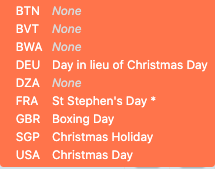
There a two area in which a user can view public holidays. Using the calendar function on the top bar of the application, open the calendar and hover over a particular date in a month, the system will return a list of countries stating if there is either none or the name of the public holiday.
The alternative is to click on administration > lookups > public holidays and the system will display a tab for each country and the public holidays for that calendar year.
Recent Reports
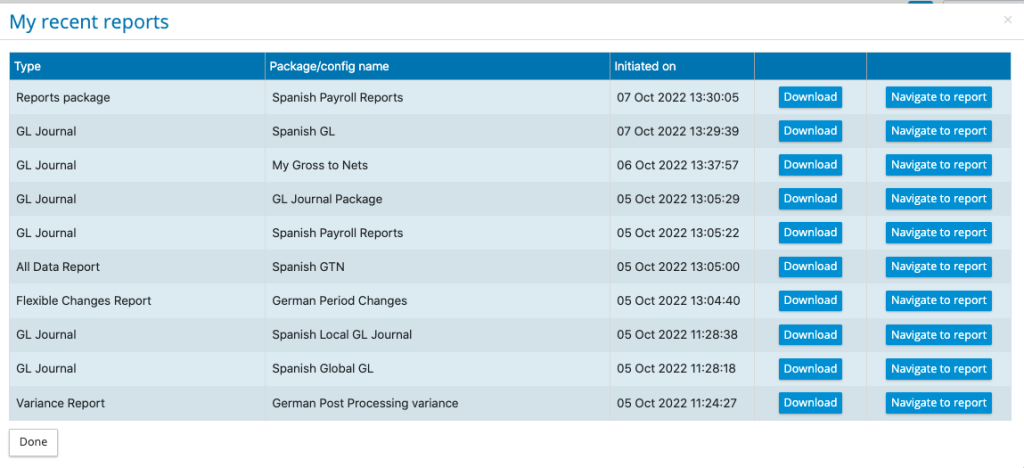
To speed up the retrieval of reports, there is a menu item under a user’s profile called My recent reports.
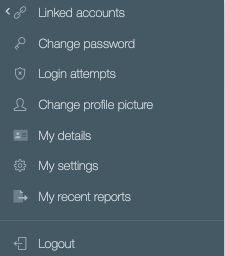
The system holds a list of the last ten reports or reports package run by a user. Enabling the downloading of the reports as well as the ability to navigate to the My files folder containing that report.
Employee Query Attachments
Employee queries have been enhanced to allow for attachments, when an employee user or system user creates an employee query, they can now save and exit or save and attach. When the user clicks on save and attach, the system will generate the query and will re-open the query to allow for the attachment of any documents.
GL Journal – Removing Zero Values
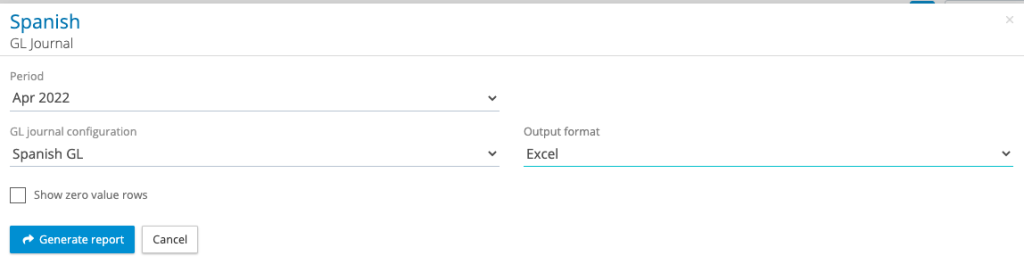
The GL Journal is based on the post processing data uploaded from the local payroll system, many of the outputs contain zero values for an employee and pay element instead of a NULL (empty value). As a result, GL Journals contain zero value line items, which are not required by the accounting system. The GL Journal report generation has been changed to ignore zero values as the default option and will only include zero values if the check box Show zero value rows is completed on the report kick-off screen (see below).
Headcount in payroll screen
The payroll screen now includes the number of active employee records, the system takes the total number of employees on the payroll, removing those employees with a payroll leave date that is before the current pay period.