Employee Upload
Employee upload is split into three components, employee upload, employee address upload and employee bank account upload. One or a multiple of data sources can be used to performed an employee upload.
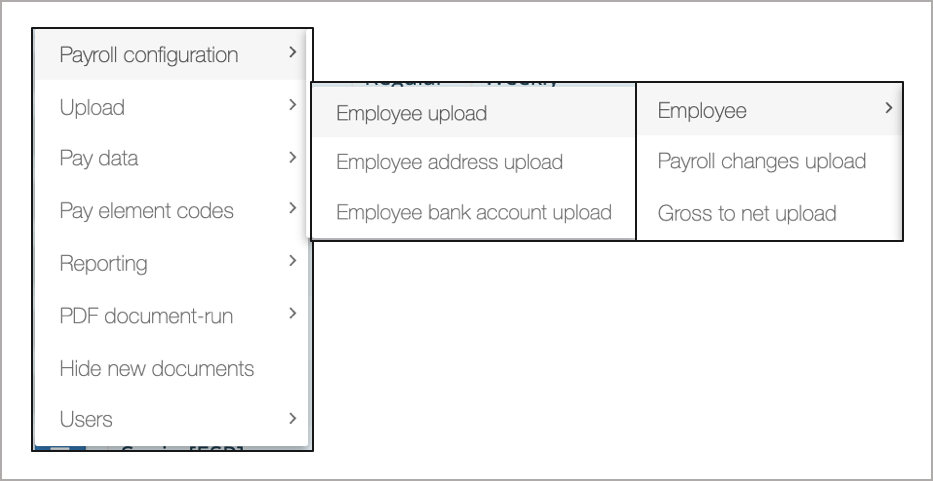
- Employee upload covers the following:
- Employee record
- Employee salary (with effective dates)
- Employee Civil Status (with effective dates)
- Employee attributes
- Employee other attributes
- Employee bank beneficiary ID
- Employee PDF keys
- Employee address upload (with effective dates)
- Employee bank account (with effective dates)
Reporting payroll changes
If the IPPEX system is used to prepare pre-processing changes data, it is important to understand the significance of pay period locking. All employee record changes are captured in the payroll changes report which compares the data recorded from a locked pre-processing period to the previous locked pre-processing period.
The IPPEX system manages pay period data through sequential locking of pre and post processing pay data within a pay period. The locking ensures that all changes applied to the system for a given pay period are reported.
Most payroll processes have a defined cut-off date where all of the pay period changes to have been applied to the system. To report those changes, the pre-processing period has to be locked, this is the system cut-off for changes in a given period. The payroll changes report will extract all of the changes performed from one pre-processing lock to the previous period’s pre-processing lock. The payroll changes report can be run against the current unlocked pre-processing period.
Example: If a payroll has a pay date is on 28th November and the pre-processing lock was performed on 15th November, all employee record changes performed after the pre-processing lock date and time will be reported in the December pay period.
For date effective information such as salary, civil status or address, multiple changes can be applied to an employee in a given pay period. The system will report all of the changes for made during that period.
Employee Upload
The employee record has a number of sections, covering the core employee attributes needed to drive the payroll process. The employee record has three mandatory fields, employee number (which is the key to all employee data uploads), first name and last name. Please note the employee email address is key to creating an employee user account. If additional employee attributes are required beyond those provided in the employee record,
Employee upload is one of two mechanisms to create and maintain employee records, a new employee can be created and managed directly from the employee screen (Payrolls → Pay Data → Employees).
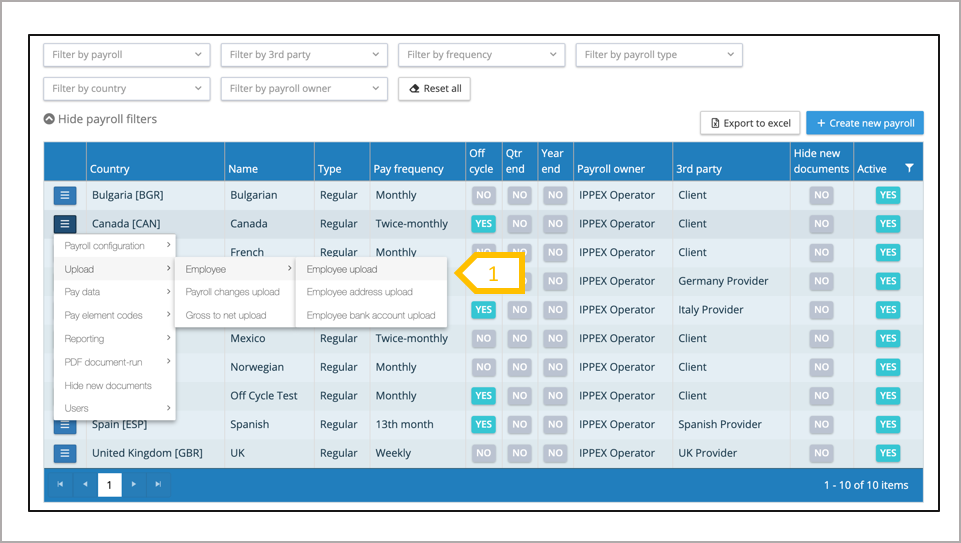
- Select from the payroll action menu upload → Employee Upload
Employee Upload – file format
There are a number of requirements regarding the format and structure of an employee upload file.

- The file must have a single header row, each heading relating to an employee field in the system. The columns names do not need to match the system employee record field names and can be in any language. The columns can be in any order. No duplicate headings are permitted
- The file can contain employee data column which in addition to the employee record fields, these columns will be selected to be ignored on upload.
- The file must have a single row of data per employee.
- Non-mandatory fields can have no value which is referred to as null value.
- The data file can be prepared in Excel but must be saved in CSV UTF-8 format for upload
There are a number of requirements regarding the format and structure of an employee upload file.

- The employee number has to be a unique identifier to that employee on a payroll. This is often the employee number held in the employer’s human resources system. It is advisable to avoid numbers with a leading zero, as Excel removes leading zeros unless stored as text or another custom format that retains the integrity of the number. The employee number cannot be changed once it has been entered into the system, as it is used as the key for many parts of the system.
- The employee number is a mandatory field, and is used for all other data uploads, employee details, pre and post-processing pay data. An employee can be members of multiple payrolls and can have different employee numbers on each payroll.

- First name(s) is a mandatory field. If this is used as one of the paysllpupload keys it should be the same spelling as the surname found in the local payroll processing system and payslips.
- Last name is a mandatory field. If this is used as one of the paysllpupload keys it should be the same spelling as the surname found in the local payroll processing system and payslips.
- Email address is a mandatory field, this is used for creating the employee account and sending the user account activation.
- Start date (hire date) is a mandatory field, and the date has to be in the ISO format.
- Document keys are used in the PDF document upload process, to match a document to an employee. The document keys are determined from analysing the PDF document or payslip, establishing the fields in the document which can be used to uniquely match a document to an employee. This enables the system to automatically copy a document to the employees folder. Document keys are typically last name, first name, employee number, tax ID.
There are a number of requirements regarding the format and structure of an employee upload file.

- Leave date – the date the employee has left the organisation relating to this payroll. The employee may have moved to another part of the business, this date supports the local processing team to calculate the pay and benefits to date.
- Last pay period – this is used to tell the system that the employee has left the payroll, it cancels any persistent pay elements (employee details and payroll changes data) and it also support the reporting process for the client and provider of a leaver for billing purposes. To indicate a last pay period, add the text TRUE to the field, on upload the system will ask which pay period does the last pay period apply to. In the event that a leaver has an after leaver payment in a future pay period, the employee record can be opened again for a specific pay period by adding TRUE in the last pay period column for the pay period required to process the after leaver payment. This process resets the last pay period to the one with the after leaver payment.
Employee Upload – Step one
From the payroll action menu select Upload → employee upload. There are four steps to the upload process, selecting and uploading the employee CSV file, mapping the column headings to the employee record fields and selecting new employees for upload and selecting the pay period for those leavers in their last pay period.
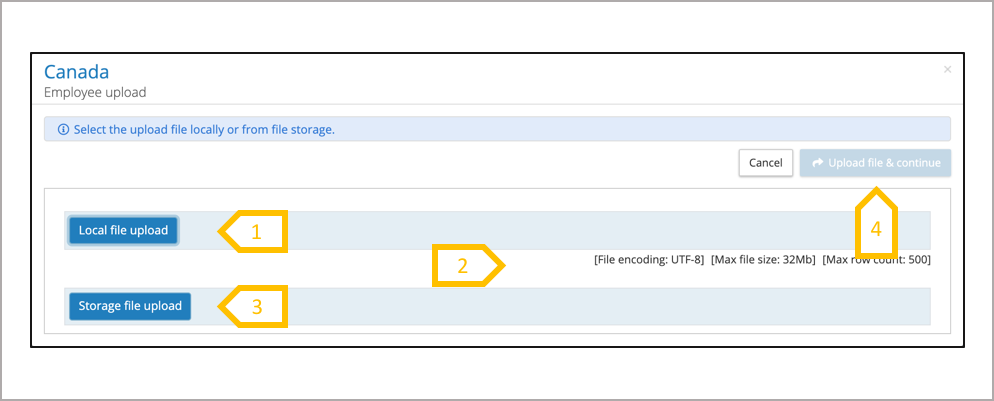
- Upload a file from a local file storage or network drive.
- Or upload file from the IPPEX file storage system.
- The maximum number of rows of data with the employee upload file is 1000 and the file can be no more than 20MB in size.
- When the file has been selected, click on upload file & continue.
Employee Upload – Mapping employee upload file column headings
If this is the first employee upload for this payroll all the columns will require mapping. The system will store your mappings for the future employee upload. The system will prompt the user If the column heading name has been changed in the next upload. The new column heading name has to be mapped to the employee record field in the system.
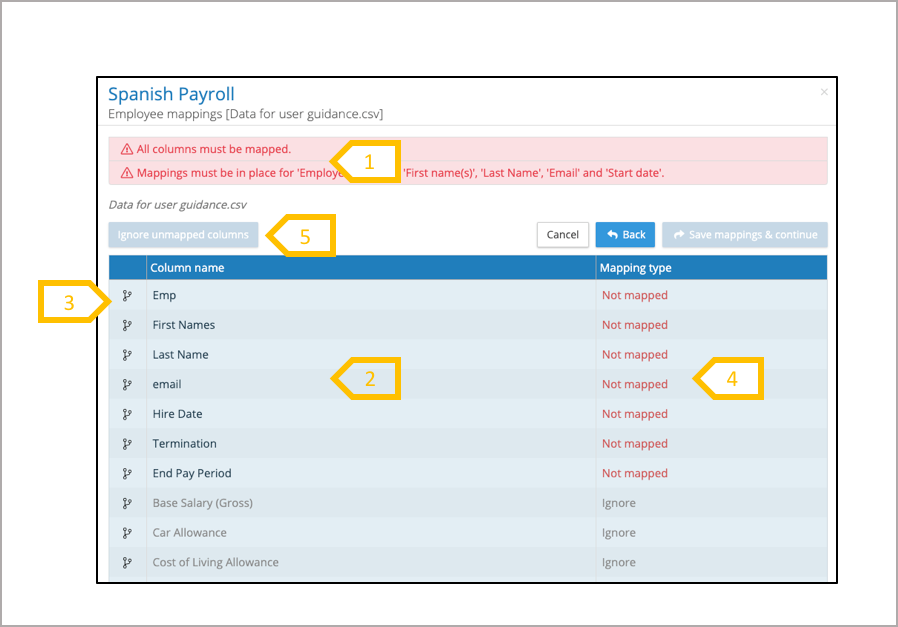
- The system will tell you if all of the columns have been mapped.
- Column names from your employee record upload file will appear on the left hand side.
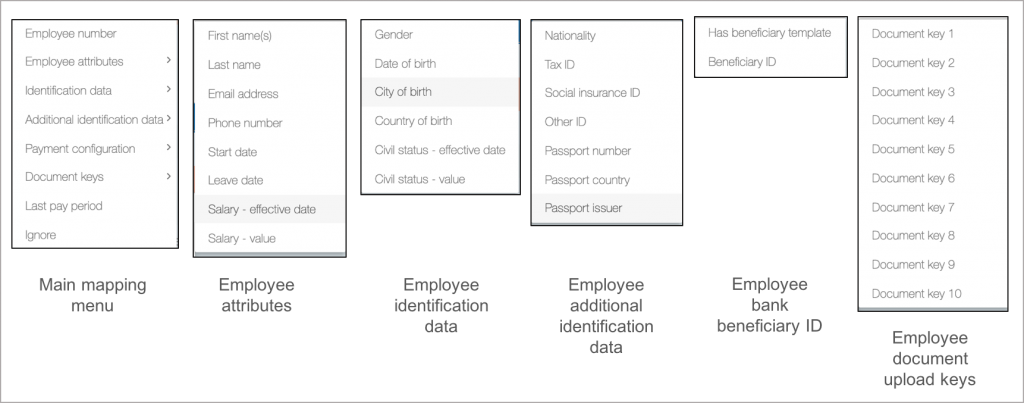
- Click on the mapping button select the employee record field to map your data column. Select ignore for non-employee record fields.
- All of the columns have to be mapped, to a system element or selected to be ignored.
- When all of the pay elements have been mapped, there is a button to set all of the remain column headings to ignore.
Employee Upload Mapping
Employee upload covers a range of data types map the data column to the appropriate system field. Salary and civil status data requires an effective date, the date must be in ISO format. Employee number, first name and last name must be within the upload file and must be mapped for the upload to process the data.
Employee Upload – Save Mappings and Continue
When all of the upload file column headings have either been mapped to the employee record field name or selected to be ignored, the message at the top of the screen will change to say that all columns have been mapped and key column mappings are in place (employee number, first name, last name). Click on Save mappings and continue.
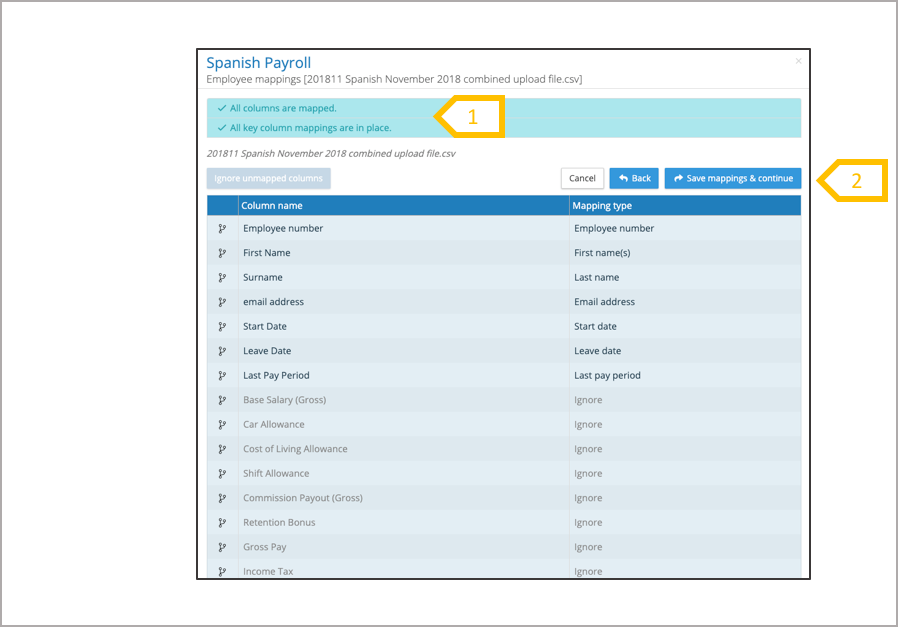
- Message has been updated to say all columns are mapped and all key column mappings are in place.
- Click on save mappings and continue.
Employee Upload – Messages
After clicking save mappings and continue the system will summarise the list of employees to be added and it will also provide error messages.
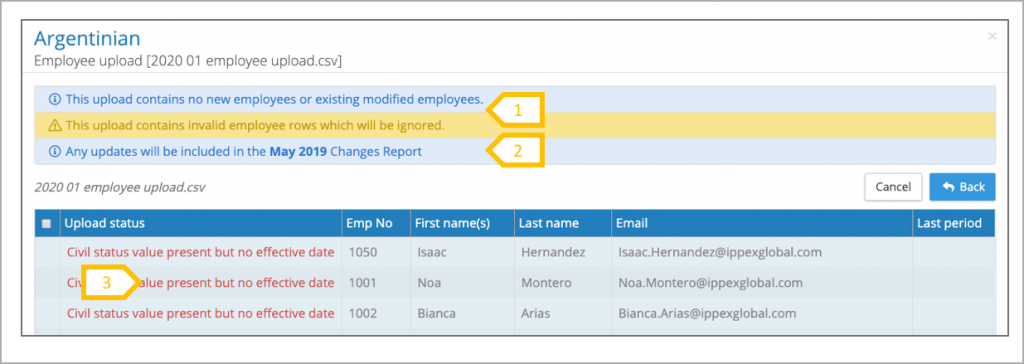
- Message to say if there are new employees and if data items will be ignored due to invalid data
- The system message tells you in which pay period the changes data will appear
- Guidance on the type of error or missing data
Employee Upload – Select New Employees
The system will present a list of new employees found in the upload file and list those employees with changes to their employee record. It will also inform you if there are no changes found. Select the new employees to be uploaded (all or those selected from the list) and click on save employees & continue
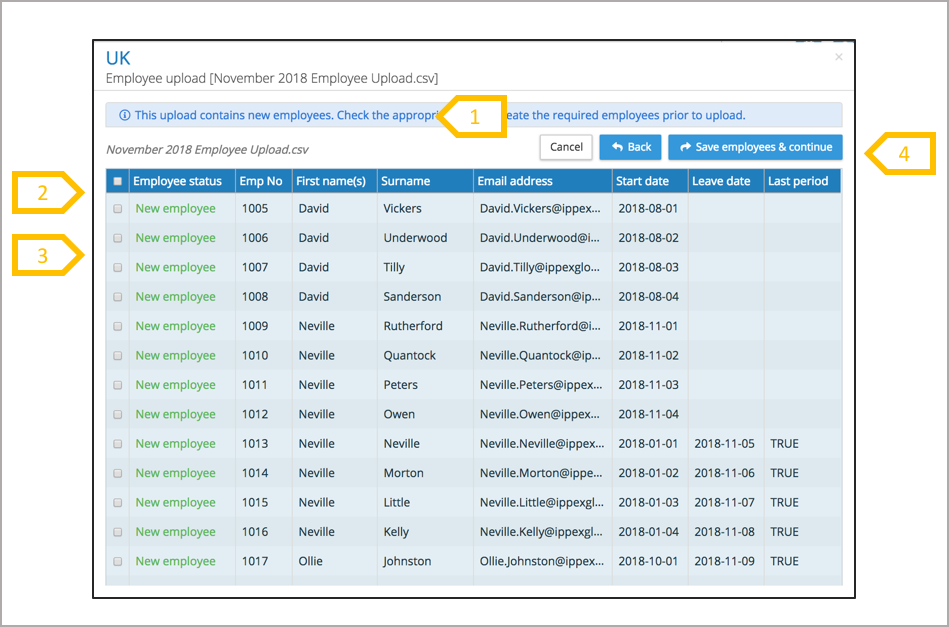
- System provides the user with guidance on the next steps.
- Select all employees to be uploaded to the payroll.
- OR select individual employees to be uploaded to the payroll.
- When the selections have been made, click on save employees & continue.
The final step in the process is to tell the system which pay period should be applied to those leavers who have the last pay period ‘flag’ set to TRUE. The system will always present the current pay period, select the one you require. When the last pay period has been selected, click save employees & continue. The system will process the employee upload live (this is an exception to other processes which are performed in the background). The next step is to review the upload results file to validate that the process has been successful.
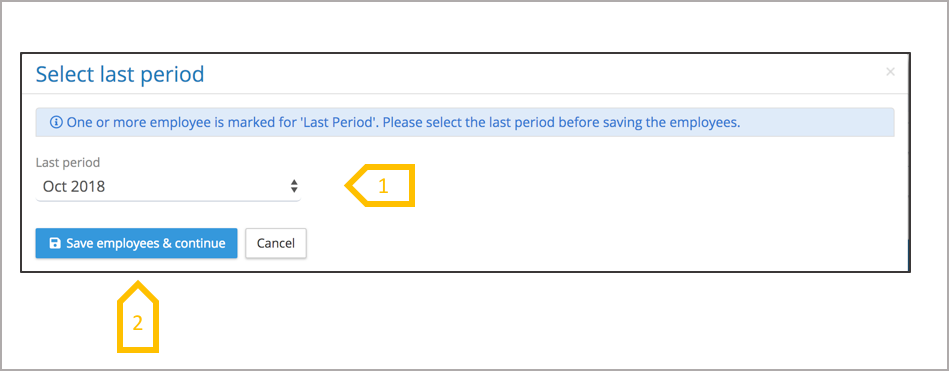
- Select the pay period for the leavers with the Last Pay Period Flag set to TRUE.
- Click on save employees & continue.
The system records a copy of the upload instructions, the uploaded file and creates an upload results file. These can be found in files under the payroll folder. Note there are a number of upload folders, employees are scoped to a payroll, so the upload folder is directly under the payroll folder. Download or view the results file to check there have not been any errors. The common errors comes is a result of the start date format (which has to be in an ISO format)
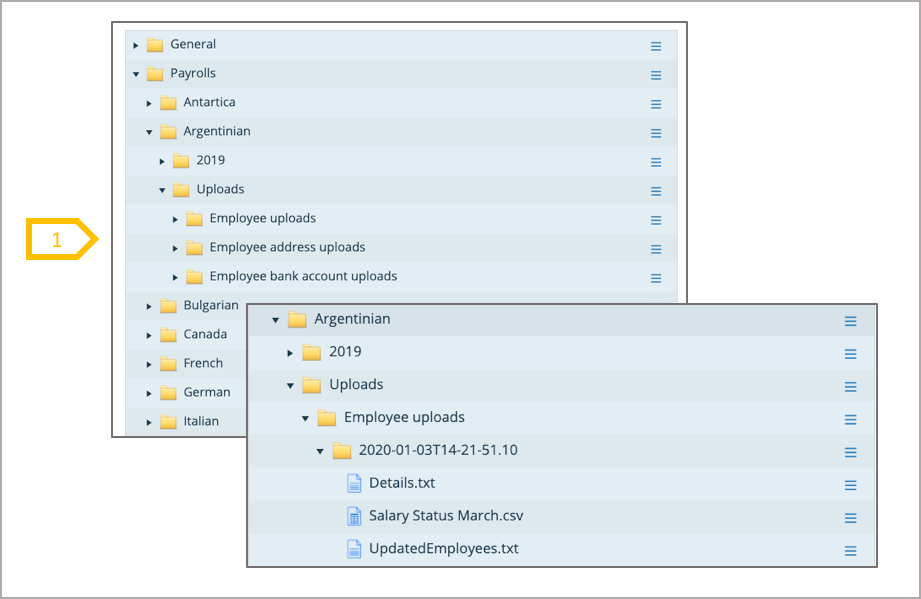
- Expand the Uploads folder and there are three sub-folders.
- Employee uploads
- Employee address uploads
- Employee bank account uploads
Employee Address Upload
The address upload is very similar to employee upload, upload files must be in CSV UTF-8 format and the employee number is used as the key. Addresses must have an effective date (this has to be in ISO format), and first line, town/city and country are mandatory fields.
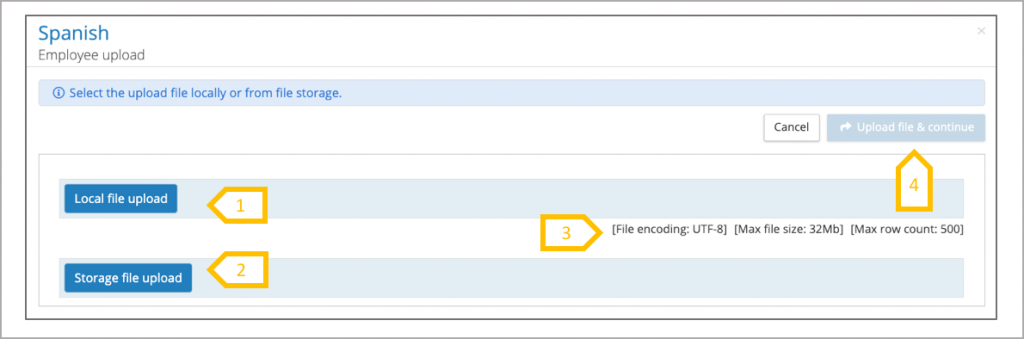
- Upload a file from a local file storage or network drive.
- Or upload file from the IPPEX file storage system
- The maximum number of rows of data with the employee upload file is 500 and the file can be no more than 32MB in size.
- When the file has been selected, click on upload file & continue
Employee Address Upload – file format
There are a number of requirements regarding the format and structure of an employee address upload file.

- The file must have a single header row, each heading relating to an employee address field in the system. The columns names do not need to match the system employee address field names and can be in any language. The columns can be in any order. No duplicate headings are permitted
- Employee number is used as the key to upload the address details to the employee
- The file can contain other employee data columns which in addition to the employee record fields, these columns will be selected to be ignored on upload.
- The file must have a single row of data per employee.
- The data file can be prepared in Excel but must be saved in CSV UTF-8 format for upload
- The address effective date has to be in ISO format
Employee Address Upload – Save Mappings and Continue
When all of the upload file column headings have either been mapped to the employee address field names or selected to be ignored, the message at the top of the screen will change to say that all columns have been mapped and key column mappings are in place (employee number, first line, town/city and country). Click on Save mappings and continue.
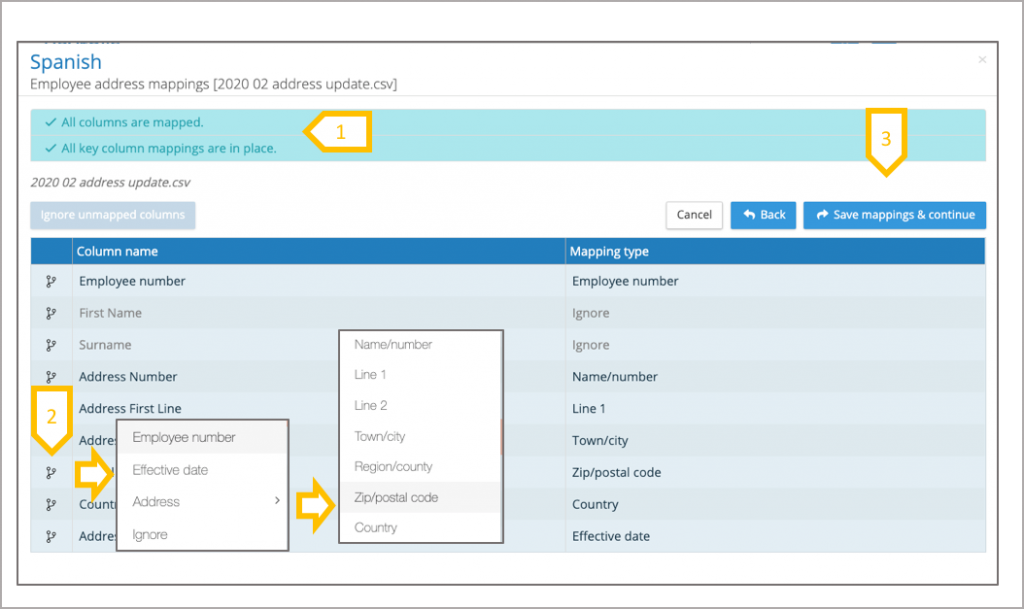
- Message has been updated to say all columns are mapped and all key column mappings are in place.
- Click on mapping function and select the data field.
- Click on save mappings and continue.
Employee Address Upload – check and commit
The system will present a list of employees with new address records found in the upload file and any errors found in the field or data. Click on upload to complete the process.
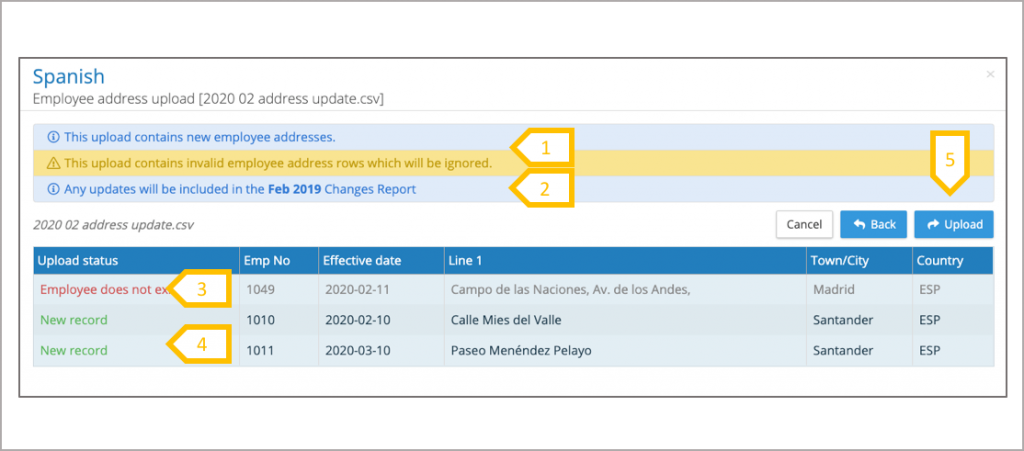
- System provides the user with guidance on the next steps
- Based on the current lock pre-processing data period, the system will tell you which changes report the data will be included in.
- Look for any errors
- System notifies which employees have a new record
- If the changes are correct, click on upload, and the system will update the employees addresses.
Employee Bank Account Upload
The employee bank account upload is very similar to employee upload, upload files must be in CSV UTF-8 format and the employee number is used as the key. Bank Accounts must have an effective date (this has to be in ISO format). Effective date, bank name, account name and account number are mandatory fields. If bank account addresses are being uploaded the first line, town/city and country are mandatory fields.
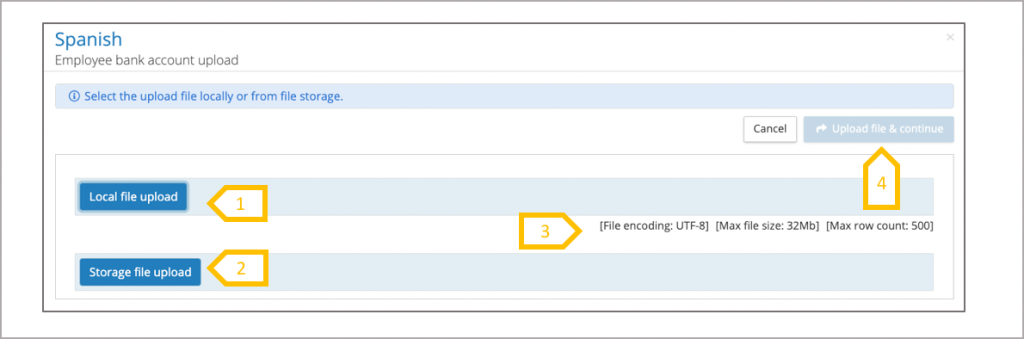
- Upload a file from a local file storage or network drive.
- Or upload file from the IPPEX file storage system
- The maximum number of rows of data with the employee upload file is 500 and the file can be no more than 32MB in size.
- When the file has been selected, click on upload file & continue
Employee Bank Account Upload – file format
There are a number of requirements regarding the format and structure of an employee bank account upload file.

- The file must have a single header row, each heading relating to an employee bank account fields in the system. The columns names do not need to match the system employee bank account field names and can be in any language. The columns can be in any order. No duplicate headings are permitted
- Employee number is used as the key to upload the bank account details to the employee
- The file can contain other employee data columns which in addition to the employee bank fields, these columns will be selected to be ignored on upload.
- The file must have a single row of data per employee.
- The data file can be prepared in Excel but must be saved in CSV UTF-8 format for upload 6.The bank account effective date has to be in ISO format
Employee Bank Account Upload – Save Mappings and Continue
When all of the upload file column headings have either been mapped to the employee address field names or selected to be ignored, the message at the top of the screen will change to say that all columns have been mapped and key column mappings are in place (employee number, effective date, bank name, account name, account number and for the address first line, city/town and country) Click on Save mappings and continue.
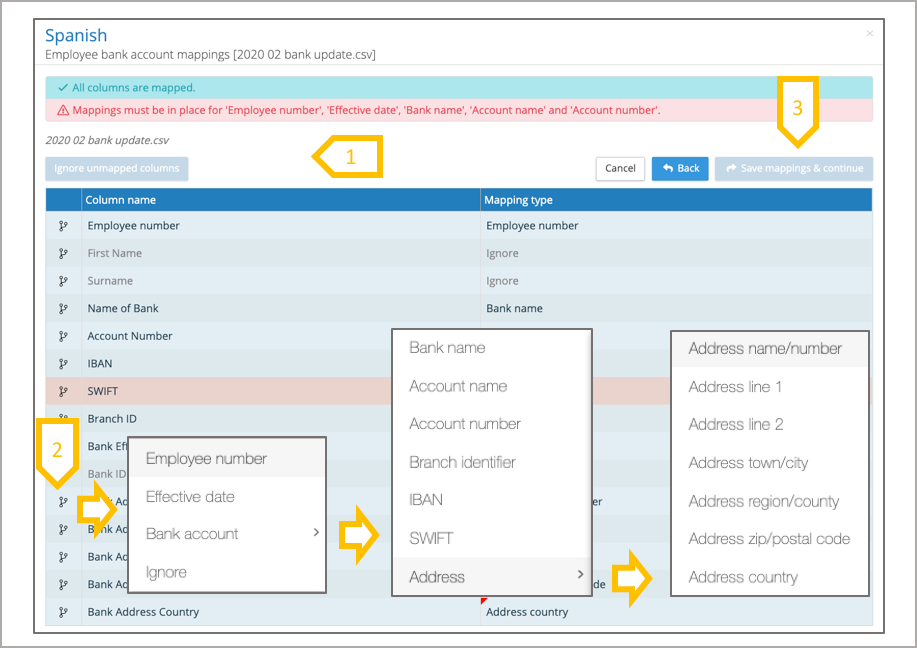
- Message has been updated to say all columns are mapped and all key column mappings are in place.
- Click on mapping function and select the data field
- Click on save mappings and continue.
Employee Bank Account Upload – check and commit
The system will present a list of employees with new bank account records found in the upload file and any errors found in the upload data. Click on upload to complete the process.
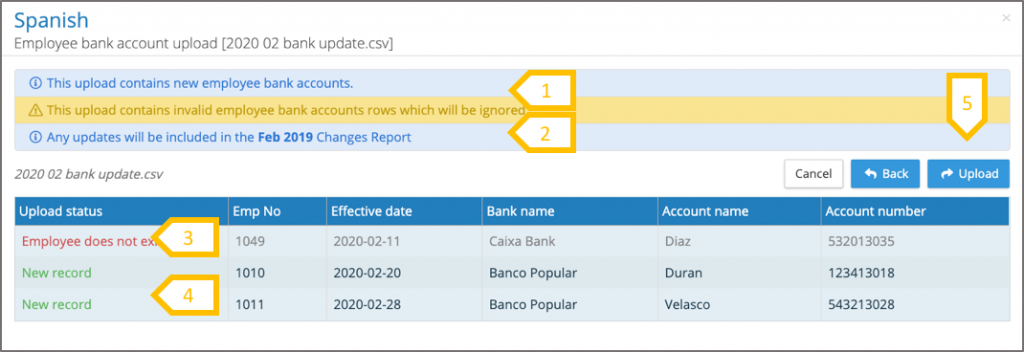
- System provides the user with guidance on the next steps
- Based on the current lock pre-processing data period, the system will tell you which changes report the data will be included in.
- Look for any errors
- System notifies which employees have a new record
- If the changes are correct, click on upload, and the system will update the employees bank accounts.